
SOLIDEE 68-Key Hot-Swappable Wired Mechanical Gaming Keyboard User Manual
Model: 68 Pink
1. 서론
This manual provides instructions for the SOLIDEE 68-Key Hot-Swappable Wired Mechanical Gaming Keyboard. This compact keyboard features a 65% layout, hot-swappable pink mechanical switches, customizable RGB backlighting, and a dedicated volume control knob. It is designed for both gaming and office environments, offering a responsive and quiet typing experience.
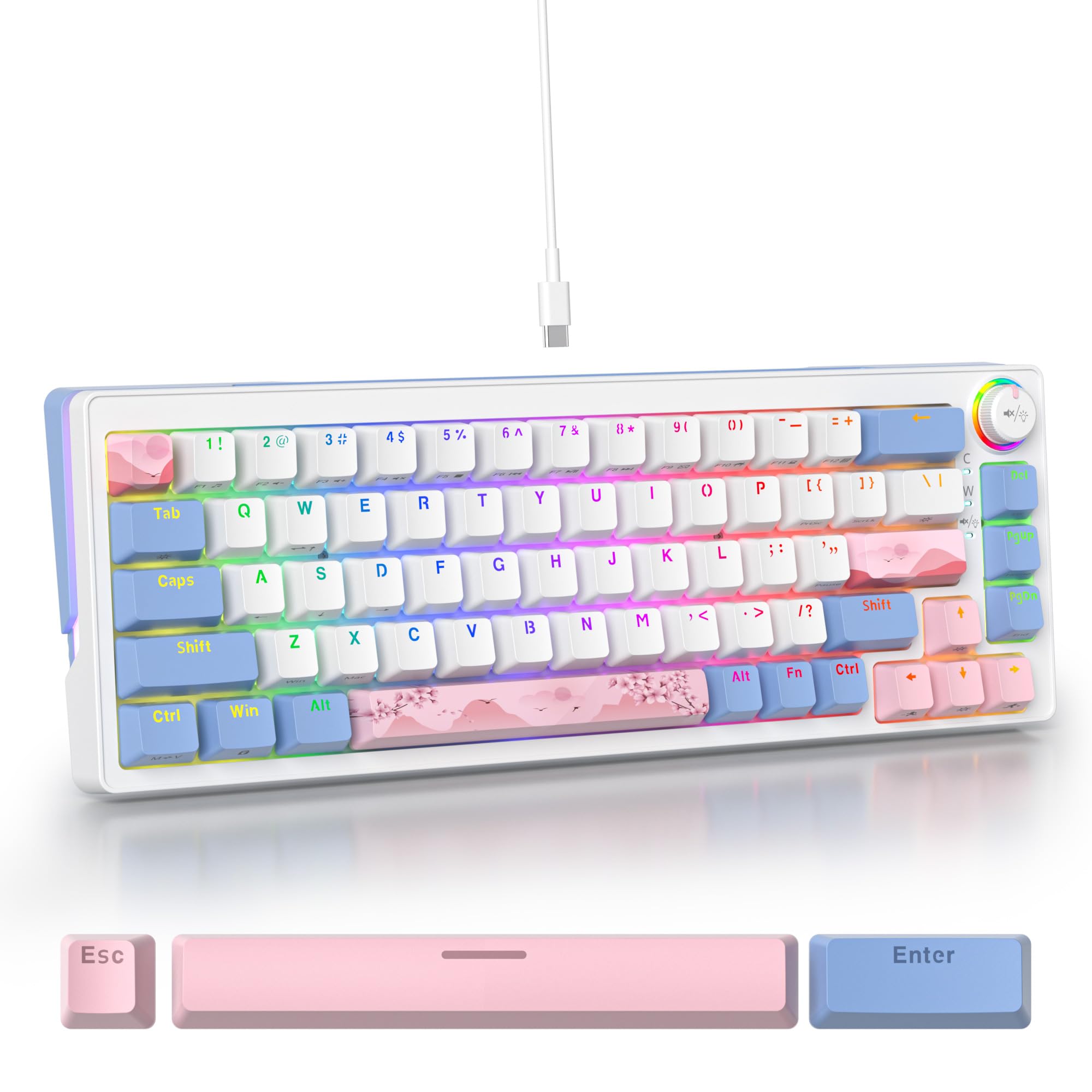
Figure 1: SOLIDEE 68-Key Mechanical Gaming Keyboard Overview
2. 제품 특징
- 핫스왑 가능 스위치: Equipped with advanced sockets supporting 3 or 5-pin mechanical switches, allowing for easy switch replacement without soldering.
- Pink Mechanical Switches: Linear switches with a soft tactile press, optimized for a quiet typing experience suitable for office or quiet environments.
- N-키 롤오버(NKRO): Ensures all key presses are registered accurately, even when multiple keys are pressed simultaneously, preventing ghosting.
- 사용자 정의 가능한 RGB 백라이트: Features 18 RGB backlight modes and 8 monochrome options, along with RGB light strips on the left and right sides for enhanced aesthetics.
- 내구성이 뛰어난 PBT 키캡: Double-shot PBT keycaps offer wear resistance and durability. Includes both front-engraved and side-engraved keycaps for unique aesthetics.
- 볼륨 조절 노브: A dedicated knob for convenient volume adjustment.
- Sound-Absorbing Design: Incorporates a PC material positioning plate and a bottom silent sponge to minimize typing noise.
- 인체공학적 디자인: Features a compact 65% layout (68 keys) and a double-section footrest for adjustable typing angles.
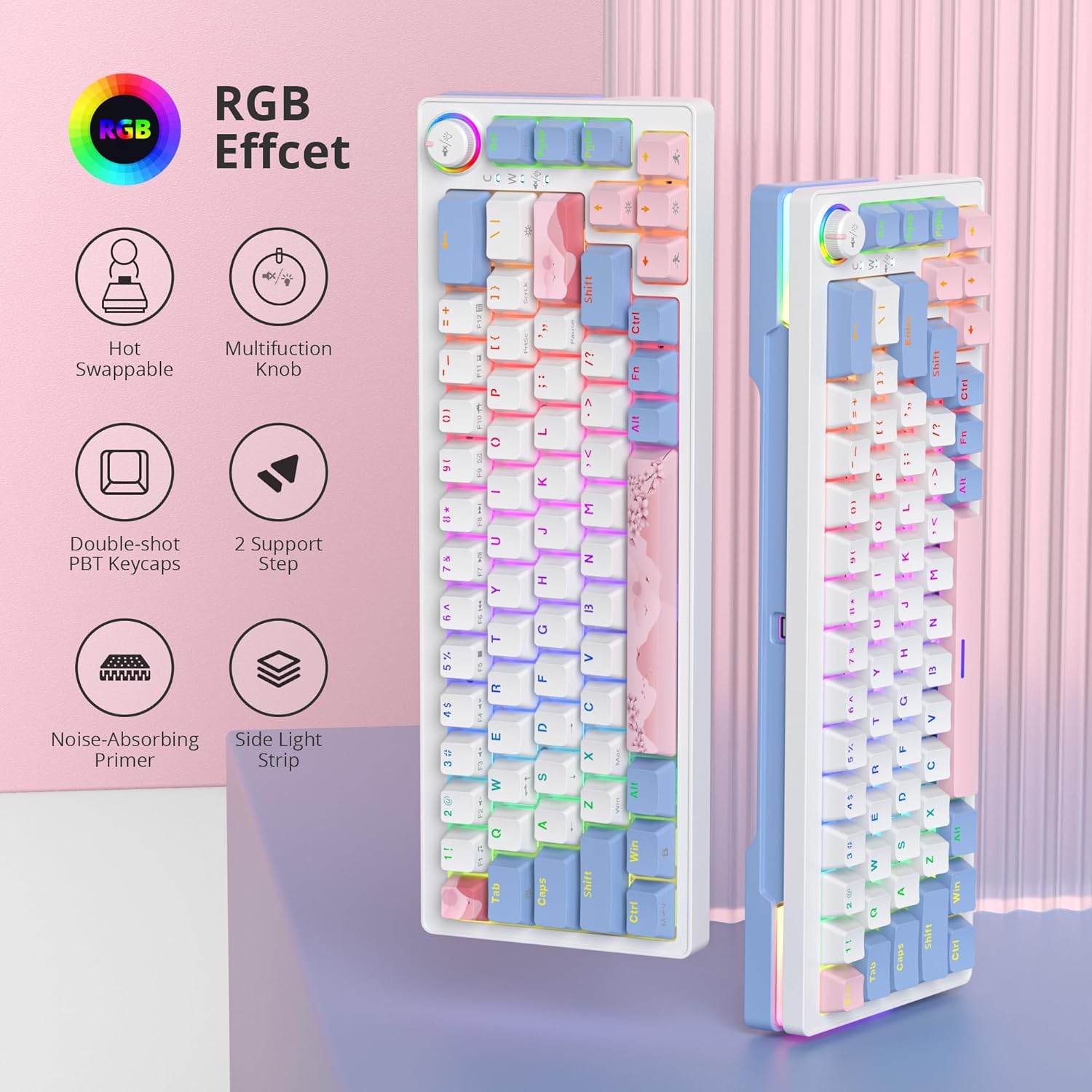
그림 2: 이상view 주요 특징
3. 패키지 내용
패키지에 모든 품목이 들어 있는지 확인하세요.
- SOLIDEE 68-Key Mechanical Gaming Keyboard
- USB-C 케이블
- 키캡 풀러(포함될 수 있음)
- 스위치 풀러(포함될 수 있음)
4. 설정 및 연결
4.1 키보드 연결
- 키보드 뒷면에서 USB-C 포트를 찾으세요.
- 제공된 USB-C 케이블의 한쪽 끝을 키보드의 USB-C 포트에 연결합니다.
- USB-C 케이블의 다른 쪽 끝을 컴퓨터의 사용 가능한 USB 포트에 연결합니다.
- The keyboard will be automatically recognized by your operating system (Windows 7/8/10 or higher, Mac).
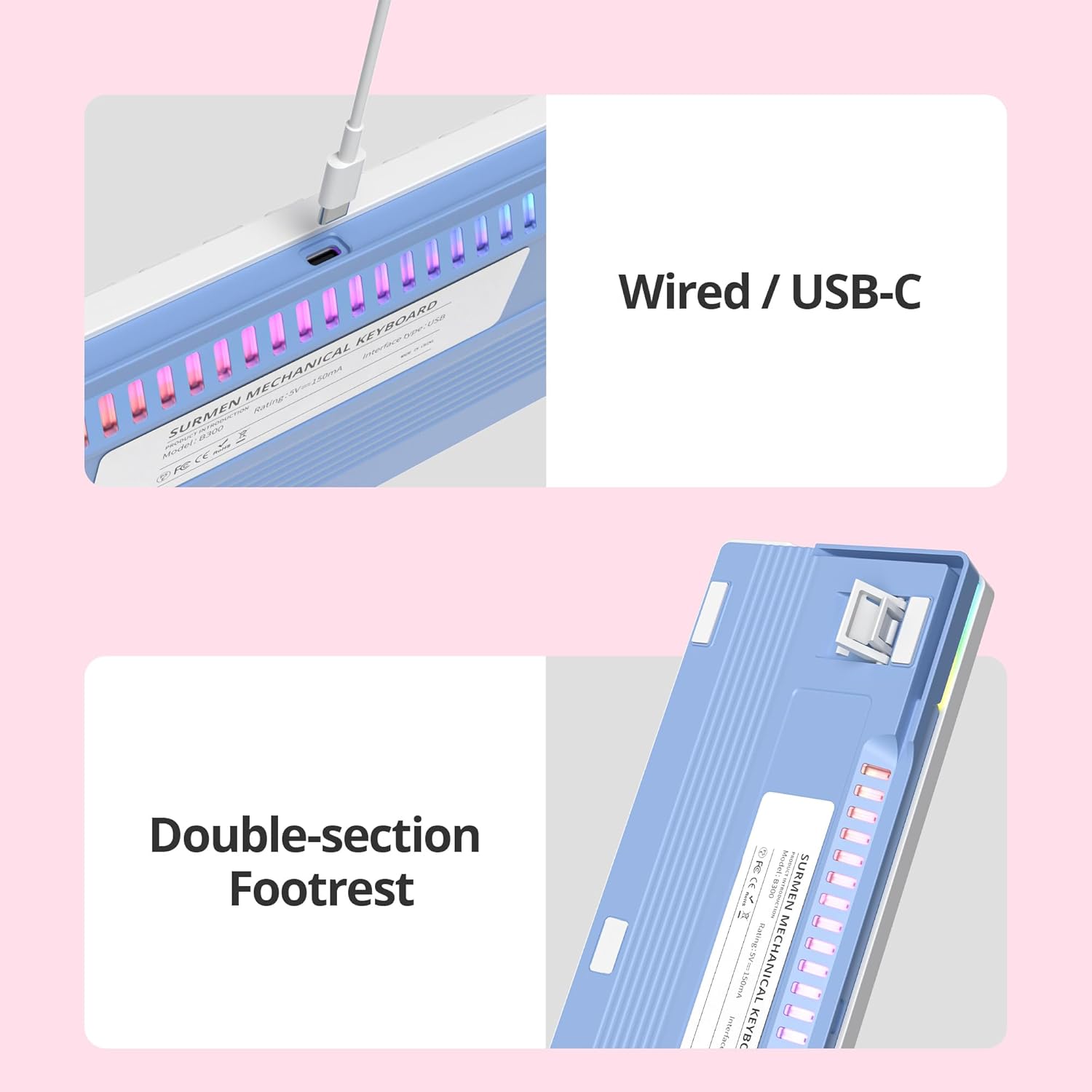
Figure 3: USB-C Connection and Adjustable Footrest
4.2 키보드 각도 조정
The keyboard features a double-section footrest on the underside. You can adjust these feet to achieve your preferred typing angle for improved ergonomics.
5. 주요 기능 및 제어
5.1 RGB 조명 제어
The keyboard offers multiple RGB backlight modes and side lighting effects. Specific key combinations (often involving the Fn key) are used to cycle through modes, adjust brightness, and change colors. Refer to the keycap legends for specific function key assignments related to lighting.
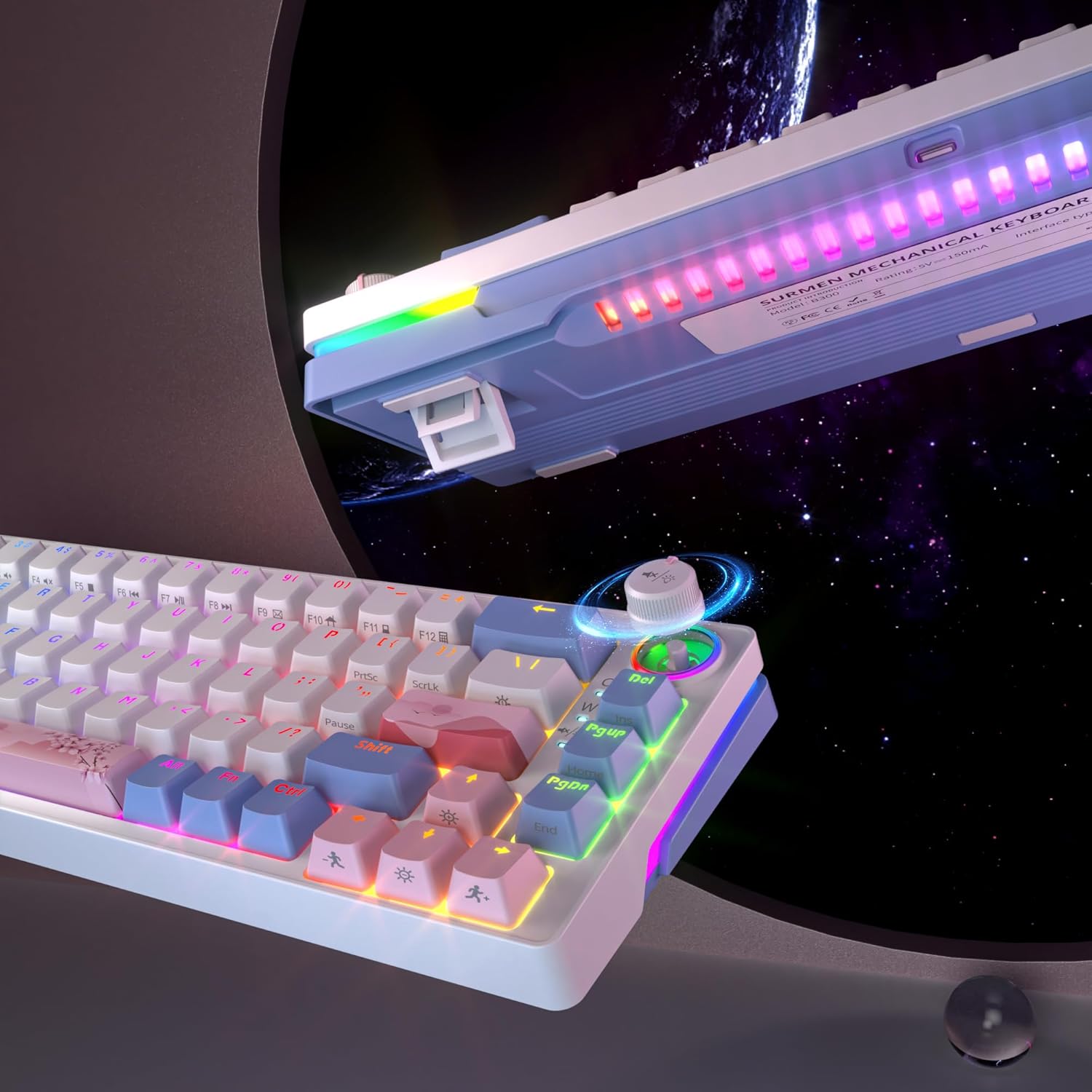
Figure 4: RGB Backlighting and Volume Control Knob
5.2 볼륨 조절 노브
Rotate the dedicated knob located on the top right of the keyboard to adjust the system volume. Pressing the knob typically mutes or unmutes the audio.

그림 5: 상세 View of Volume Knob and RGB Effects
5.3 N-키 롤오버(NKRO)
The keyboard supports N-Key Rollover, meaning every key press is registered independently. This feature is automatically active and ensures high accuracy during fast typing or complex gaming inputs.
5.4 핫스왑 가능 스위치
The keyboard's hot-swappable design allows you to change mechanical switches without soldering. This enables customization of typing feel and sound.
- 키캡 제거하기: 키캡 풀러를 사용하여 원하는 키캡을 조심스럽게 제거하세요.
- 스위치 제거: Use a switch puller to carefully grip the top and bottom clips of the switch. Pull the switch straight up to remove it from the PCB.
- 새 스위치 설치하기: Align the pins of the new 3-pin or 5-pin mechanical switch with the holes on the PCB. Gently press the switch down until it clicks into place. Ensure the pins are not bent.
- Replacing a Keycap: 새 스위치 스템에 키캡을 끼우고 단단히 눌러주세요.

그림 6: 핫스왑 가능 스위치 교체
6. 유지관리
6.1 키보드 청소
- 청소하기 전에 키보드를 컴퓨터에서 분리하세요.
- 부드러운 브러시나 압축 공기를 사용하여 키캡 사이의 먼지와 이물질을 제거하세요.
- For stubborn dirt, gently wipe the keycaps and keyboard surface with a slightly damp보푸라기가 없는 천으로 닦아주세요. 과도한 습기는 피해주세요.
- 독한 화학 물질이나 연마성 세제를 사용하지 마십시오.
6.2 키캡 및 스위치 관리
- When removing keycaps, use a keycap puller to prevent damage.
- When replacing switches, ensure the switch pins are straight before inserting them to avoid bending or damaging the hot-swap sockets.
7. 문제 해결
- 키보드가 응답하지 않습니다: USB-C 케이블이 키보드와 컴퓨터에 단단히 연결되어 있는지 확인하세요. 다른 USB 포트나 케이블을 사용해 보세요.
- Keys not registering or double-clicking: This may indicate a faulty switch. Utilize the hot-swappable feature to replace the affected switch. Ensure the new switch is properly seated.
- RGB 조명이 작동하지 않습니다: Check the lighting control key combinations (e.g., Fn + specific keys) to ensure it hasn't been turned off or set to a very dim mode.
- 호환성 문제: Ensure your operating system is Windows 7/8/10 or higher, or a compatible Mac OS.
8. 사양
| 특징 | 설명 |
|---|---|
| 상표 | 솔리디 |
| 모델 | 68 핑크 |
| 색상 | 68 Pink/Pink Switch |
| 연결성 | 유선, USB-C |
| 키보드 설명 | 기계적 |
| 특별 기능 | Backlit, Hot-Swappable, N-Key Rollover, Volume Knob |
| 백라이트 색상 관리 | RGB |
| 호환 장치 | 노트북, PC |
| 포함된 구성 요소 | RGB Hot-Swappable Mechanical Keyboard, Type-C Cable |
9. 보증 및 지원
For warranty information and technical support, please refer to the documentation provided with your purchase or contact SOLIDEE customer service through their official web제품을 구매한 사이트 또는 소매점에 문의하십시오. 보증 청구를 위해 구매 증빙을 보관하십시오.