
소개
This manual provides detailed instructions for setting up, operating, maintaining, and troubleshooting your Amazon Kindle Paperwhite Signature Edition 32GB. Please read this guide thoroughly to ensure optimal use of your device.
1. 설정
1.1 언박싱 및 초기 충전
Upon unboxing, locate the Kindle Paperwhite Signature Edition device and the included USB-C charging cable. It is recommended to fully charge your device before first use.
- 상자에 포함된 것: 킨들 페이퍼화이트 시그니처 에디션, USB-C 충전 케이블, 빠른 시작 가이드.
- 충전 중: Connect the USB-C cable to the Kindle and a compatible USB power adapter (9W adapter recommended, sold separately). A full charge takes less than 2.5 hours.
- 무선 충전: The Signature Edition supports wireless charging. Place the device on a compatible wireless charging dock (sold separately).

Image: Kindle Paperwhite Signature Edition charging wirelessly on a dock. The device can be charged via USB-C or wirelessly for extended battery life.
1.2 전원 켜기/끄기
- 전원을 켜려면: 기기 하단 가장자리에 있는 전원 버튼을 화면이 켜질 때까지 길게 누르세요.
- 전원을 끄려면: Press and hold the power button until a power dialog appears, then select 'Power Off'. A short press will put the device to sleep.
1.3 Wi-Fi 연결
To access the Kindle Store and download content, connect your device to a Wi-Fi network.
- 홈 화면에서 설정 icon (gear icon) or swipe down from the top of the screen and tap 모든 설정.
- 선택하다 Wi-Fi 및 블루투스, 그 다음에 Wi-Fi 네트워크.
- 목록에서 원하는 네트워크를 선택하고 메시지가 표시되면 비밀번호를 입력하세요.
이 장치는 WEP, WPA, WPA2, WPA3 및 OWE 보안을 지원하는 2.4GHz 및 5.0GHz 네트워크를 지원합니다.
1.4 계정 설정
Register your Kindle to your Amazon account to access your content library and the Kindle Store.
- After connecting to Wi-Fi, follow the on-screen prompts to sign in with your Amazon account credentials.
- If you do not have an Amazon account, you can create one during this process.
2. 킨들 사용법
2.1 Basic Navigation and Page Turns
The Kindle Paperwhite Signature Edition features a 7-inch glare-free display designed for comfortable reading.
- 페이지 넘김: Tap the right side of the screen to turn to the next page, or the left side to go back. Swiping left or right also turns pages.
- 홈 화면: Tap the top of the screen to reveal the navigation bar, then tap the 집 icon to return to your library.

Image: A hand holding the Kindle Paperwhite, displaying a book page. The 7-inch Paperwhite display offers fast page turns for an enhanced reading experience.
2.2 읽기 기능
Customize your reading experience with various display and font settings.
- Adjusting Front Light: The Signature Edition features an auto-adjusting front light. You can also manually adjust the brightness by tapping the top of the screen while reading and using the brightness slider.
- 따뜻한 빛: Adjust the warmth of the screen light for comfortable reading in different environments.
- 다크 모드: Invert screen colors for white text on a black background, ideal for low-light conditions. Access this from the quick settings menu.
- 글꼴 설정: While reading, tap the top of the screen, then select the Aa 글꼴 크기, 글꼴 종류, 줄 간격 및 여백을 조정하는 아이콘입니다.
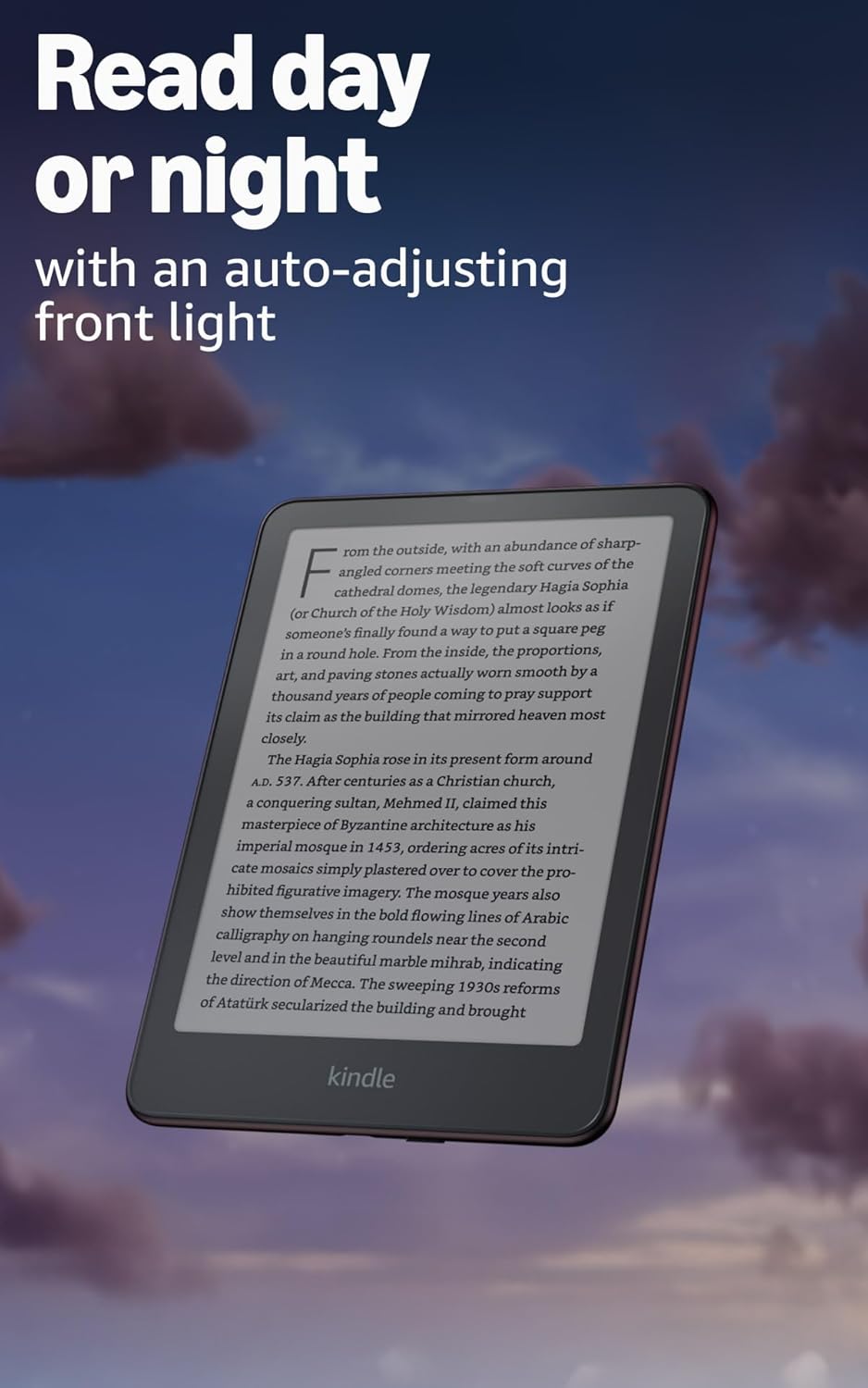
Image: Kindle Paperwhite screen illuminated in a dark room. The auto-adjusting front light allows for comfortable reading day or night.

Image: Close-up of the Kindle Paperwhite screen displaying text. Enjoy a glare-free display without distracting notifications.
2.3 콘텐츠 관리
Your Kindle provides access to a vast library of content.
- 킨들 스토어: 홈 화면에서 가게 icon to browse and purchase books.
- 도서관: All purchased content is stored in your library and can be downloaded to your device.
- 클라우드 스토리지: All Amazon content is stored for free in the cloud, allowing you to access it from any compatible device.
- 지원되는 형식: Kindle 형식 8(AZW3), Kindle(AZW), TXT, PDF, 보호되지 않은 MOBI, PRC 기본 형식; PDF, DOCX, DOC, HTML, EPUB, TXT, RTF, JPEG, GIF, PNG, BMP 변환; Audible 오디오 형식(AAX).

Image: A collage of various book covers. The Kindle Store offers access to over 15 million titles worldwide.
2.4 오디오북
Listen to Audible audiobooks on your Kindle Paperwhite Signature Edition.
- 블루투스: Connect Bluetooth headphones or speakers to your Kindle via the Wi-Fi 및 블루투스 설정.
- 오디오북 재생: Download Audible audiobooks from the Kindle Store and play them through your connected Bluetooth device.
2.5 방수
Your Kindle Paperwhite Signature Edition is waterproof (IPX8 rated).
- It is tested to withstand immersion in 2 meters of fresh water for 60 minutes.
- This makes it suitable for reading by the pool, in the bath, or at the beach.
- After exposure to water, ensure the USB-C port is dry before charging.
3. 유지관리
3.1 장치 청소
- Use a soft, lint-free cloth to clean the screen and body of your Kindle.
- Avoid abrasive cleaners, solvents, or aerosol sprays.
- If the device has been exposed to water, gently wipe it dry.
3.2 배터리 관리
- To maximize battery life, avoid exposing your Kindle to extreme temperatures.
- A single charge can last up to twelve weeks, based on half an hour of reading per day with wireless off and the light setting at 13. Heavy use, especially with wireless features or audiobook streaming, will reduce battery life.
- 기기를 정기적으로 충전하되, 완전히 방전시킨 후 재충전할 필요는 없습니다.
3.3 소프트웨어 업데이트
Your Kindle will periodically receive software updates to improve performance and add new features.
- Ensure your Kindle is connected to Wi-Fi to receive automatic updates.
- You can manually check for updates by going to 설정 > 장치 옵션 > 업데이트 확인.
4. 문제 해결
4.1 장치가 응답하지 않음
- 킨들이 멈추거나 반응이 없을 경우, 기기가 다시 시작될 때까지 전원 버튼을 40초 동안 길게 누르세요.
4.2 Wi-Fi 연결 문제
- Ensure your Wi-Fi router is on and within range.
- 킨들과 Wi-Fi 공유기를 재시작해 보세요.
- 올바른 Wi-Fi 비밀번호를 입력했는지 확인하세요.
4.3 배터리가 충전되지 않음
- Check that the USB-C cable is securely connected to both the Kindle and the power adapter.
- 다른 USB-C 케이블이나 전원 어댑터를 사용해 보세요.
- Ensure the USB-C port on the Kindle is clean and free of debris.
4.4 Content Not Downloading
- Verify your Wi-Fi connection is active and stable.
- Check your Amazon account for any payment issues or content restrictions.
- Ensure your device has sufficient storage space.
5. 사양
| 특징 | 설명 |
|---|---|
| 표시하다 | 7” Paperwhite display technology with built-in front light, 300 ppi, optimized font technology, 16-level gray scale. |
| 크기 | 5” x 7” x 0.3” (127.6 x 176.7 x 7.8mm) |
| 무게 | 7.5 온스 (214g) |
| 기기 내 저장소 | 32GB; 수천 권의 책을 저장할 수 있습니다. |
| 클라우드 스토리지 | 모든 Amazon 콘텐츠를 위한 무료 클라우드 스토리지. |
| 배터리 수명 | Up to twelve (12) weeks (based on 30 mins reading/day, wireless off, light setting 13). |
| 충전 시간 | 9W USB 전원 어댑터를 사용하면 2시간 30분 미만입니다. |
| Wi-Fi 연결 | Supports 2.4 GHz and 5.0 GHz networks with WEP, WPA, WPA2, WPA3, and OWE security. |
| 접근성 기능 | 목소리View screen reader (Bluetooth audio, English only), dark mode, adjustable font size, font face, line spacing, and margins. |
| 지원되는 콘텐츠 형식 | Kindle 형식 8(AZW3), Kindle(AZW), TXT, PDF, 보호되지 않은 MOBI, PRC 기본 형식; PDF, DOCX, DOC, HTML, EPUB, TXT, RTF, JPEG, GIF, PNG, BMP 변환; Audible 오디오 형식(AAX). |
| 방수 | IPX8 등급(2미터 깊이의 담수에 60분간 담가도 견딜 수 있음). |
| 세대 | 12세대 (2024년 출시). |
6. 보증 및 지원
6.1 보증 정보
Your Kindle Paperwhite Signature Edition comes with a 1-year limited warranty and service. Extended warranty options may be available for purchase separately in some regions.
6.2 추가 지원
추가 지원 및 자세한 정보는 다음 리소스를 참조하세요.
- 빠른 시작 가이드: Included in your product packaging.
- Kindle User Guide: Accessible on your device or via the Amazon web대지.
- Accessibility for Kindle: Learn more about accessibility features on the Amazon web대지.
- Manage Your Content and Devices: Visit your Amazon account online to manage your Kindle content and device settings.