
1. 서론
This manual provides essential instructions for setting up, operating, maintaining, and troubleshooting your VIBOX VI-63 PC Gamer. Please read this guide thoroughly before using your new computer to ensure optimal performance and longevity.
2. 안전 정보
- PC를 통풍이 잘 되는 안정적이고 평평한 표면에 놓으십시오.
- PC 케이스의 통풍구를 막지 마십시오.
- PC를 직사광선, 열원 및 액체로부터 멀리하십시오.
- Use only the power adapter supplied with your PC.
- Disconnect the power cable before cleaning or performing any maintenance.
- Avoid opening the PC case unless instructed by VIBOX support, as this may void your warranty.
3. 패키지 내용
아래 나열된 모든 품목이 패키지에 포함되어 있는지 확인하세요.
- VIBOX VI-63 PC Gamer Tower
- 22인치 모니터
- RGB 게이밍 키보드
- RGB 게이밍 마우스
- Black Mouse Pad
- 마이크가 있는 게임용 헤드셋
- Wireless WiFi Network Adapter (600 Mbps)
- 전원 케이블
- Display Cable (HDMI or VGA, depending on monitor)
- 문서(이 매뉴얼)
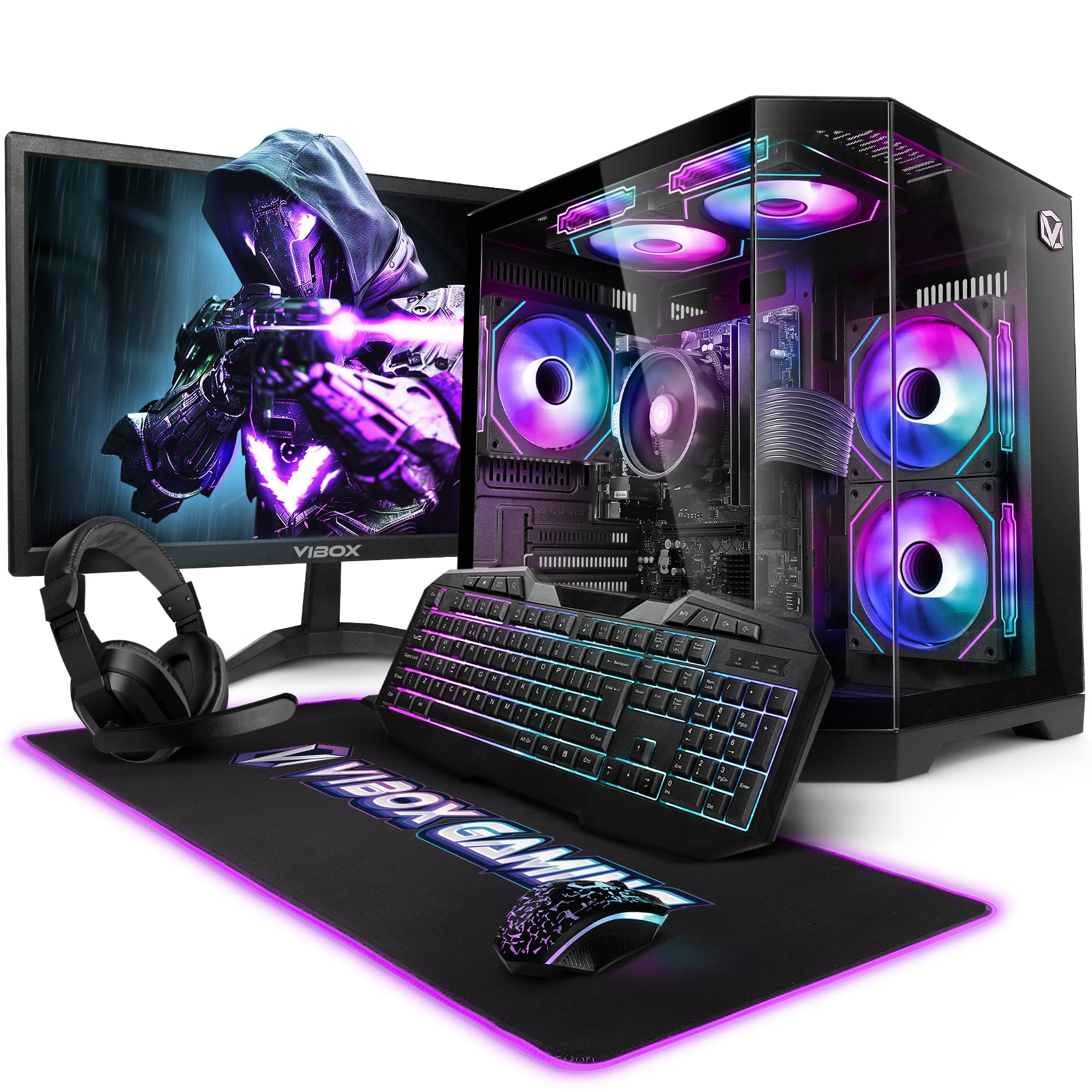
Image 3.1: VIBOX VI-63 PC Gamer Tower with internal RGB lighting.
4. 설정 지침
4.1. 풀기 및 배치
- 모든 구성품을 포장에서 조심스럽게 꺼내세요.
- Place the PC tower on a flat, stable surface. Ensure there is sufficient space around the tower for proper airflow.
- Place the monitor on a stable surface at a comfortable view잉 높이.
4.2. 주변기기 연결하기
- 감시 장치: Connect one end of the display cable (HDMI or VGA) to the corresponding port on the back of the PC and the other end to the monitor.
- 키보드 및 마우스: Connect the USB cables of the keyboard and mouse to any available USB ports on the PC.
- 헤드셋 : Connect the headset to the audio jacks (headphone and microphone) on the front or rear of the PC.
- WiFi 어댑터: Insert the wireless WiFi network adapter into an available USB port.
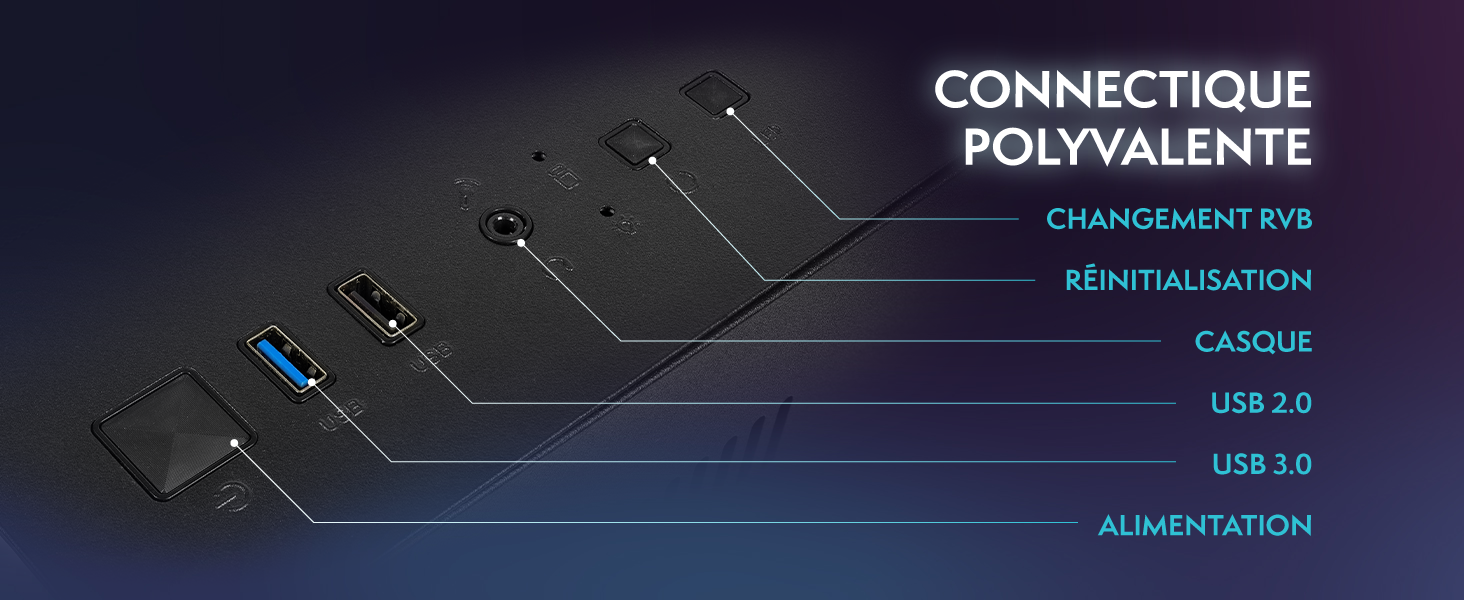
Image 4.1: Front panel connections including USB 2.0, USB 3.0, headset jack, reset button, and RGB change button.
4.3. 전원 연결
- Connect the power cable to the power supply unit (PSU) at the back of the PC.
- Connect the other end of the power cable to a wall outlet.
- Connect the monitor's power cable to a wall outlet.
4.4. Initial Boot and Windows 11 Setup
- Press the power button on the front of the PC tower.
- 모니터를 켭니다.
- Follow the on-screen instructions to complete the Windows 11 Home setup. This typically involves selecting your region, language, creating a user account, and connecting to a Wi-Fi network.
5. 사용 설명서
5.1. 기본 동작
- 전원 켜기/끄기: PC를 켜려면 전원 버튼을 누르세요. PC를 종료하려면 Windows 시작 버튼을 클릭한 다음 전원 > 종료를 클릭하세요.
- 다시 시작: 시작 메뉴에서 전원 > 다시 시작을 선택하세요.
- 수면 모드 : 시작 메뉴에서 전원 > 절전을 선택하세요.
5.2. Windows 11 Features
Your VIBOX VI-63 PC Gamer comes with Windows 11 Home pre-installed, offering features designed to enhance your computing and gaming experience:
- DirectStorage: Enables faster loading times for compatible games.
- AutoHDR: Automatically enhances visuals for a wider range of games.
- Xbox Game Pass Integration: Seamless access to a library of games (subscription may be required).
- Optimized CPU Performance: Windows 11 is designed to optimize CPU usage for gaming and multitasking.
5.3. 게임 성능
The VIBOX VI-63 is equipped with an AMD Ryzen 3 3200GE processor and integrated Radeon Vega 8 graphics, providing solid performance for everyday computing and gaming at 720p to 1080p resolutions.

이미지 5.1: 이상view of internal components including CPU, GPU, RAM, and storage.
5.4. RGB 조명 제어
Your PC features RGB lighting. Use the dedicated RGB change button on the front panel (refer to Image 4.1) to cycle through different lighting modes and colors.
6. 유지관리
6.1. Cleaning the PC
- 외부: 부드러운 d를 사용하세요amp cloth to wipe down the exterior of the PC case and monitor. Avoid abrasive cleaners.
- 먼지: Periodically use compressed air to clear dust from the ventilation openings and fan grilles. Ensure the PC is powered off and unplugged before doing so.
- 주변 장치: Clean your keyboard and mouse regularly to prevent dust and debris buildup.
6.2. 소프트웨어 업데이트
- 시스템 안정성과 보안을 유지하려면 정기적으로 Windows 업데이트를 확인하고 설치하세요. 설정 > Windows 업데이트로 이동하세요.
- Keep your graphics drivers updated for optimal gaming performance. You can usually download the latest drivers from the AMD web대지.
6.3. 시스템 관리
- Avoid installing unnecessary software to keep your system lean and fast.
- Run regular antivirus scans to protect against malware. Windows Defender is pre-installed.
- Ensure proper airflow around the PC to prevent overheating. The inverted airflow design helps with cooling.
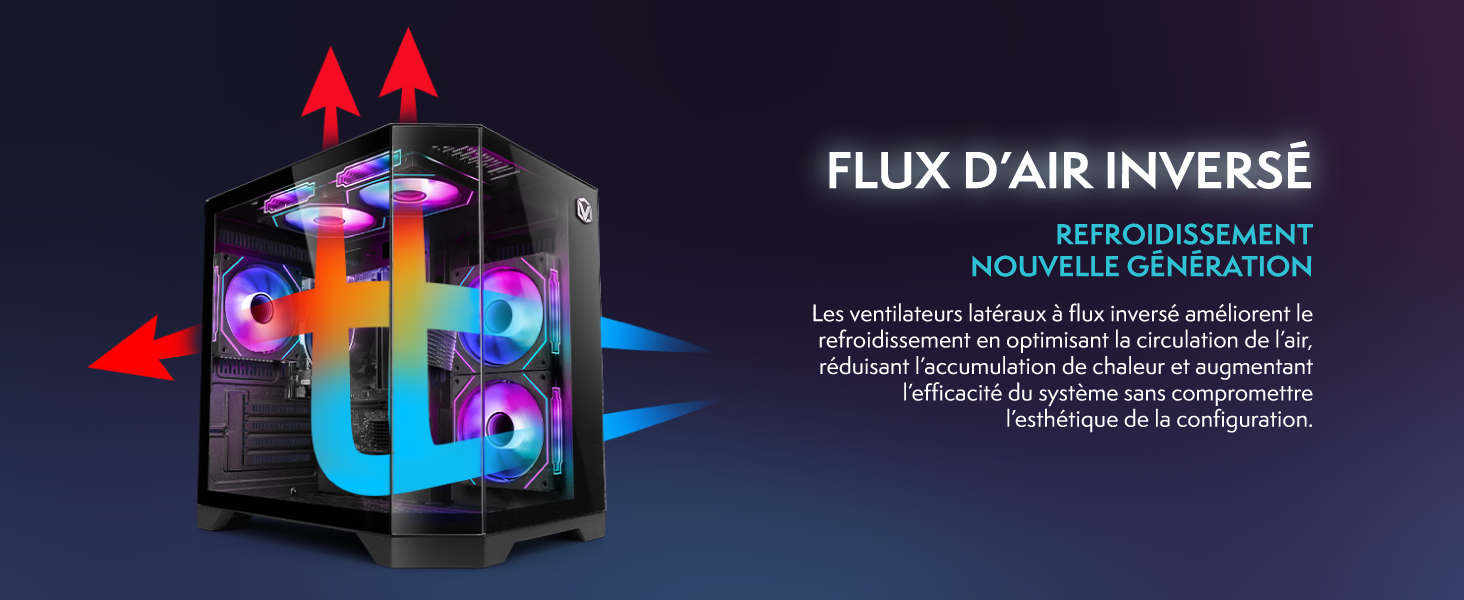
Image 6.1: Inverted airflow design for efficient cooling.
7. 문제 해결
- 전원 없음: Check all power cable connections. Ensure the wall outlet is functional.
- 디스플레이 없음: Ensure the monitor is powered on and the display cable is securely connected to both the PC and the monitor. Try a different display cable or port if available.
- 인터넷에 연결되지 않음: Verify the WiFi adapter is properly installed. Check your router and internet service. In Windows, go to Settings > Network & internet to troubleshoot.
- PC Freezes/Crashes: Restart the PC. Ensure all drivers are updated. Check for overheating (ensure good airflow).
- 주변기기가 작동하지 않습니다: Try connecting the keyboard, mouse, or headset to different USB/audio ports. Ensure drivers are installed if required.
8. 사양
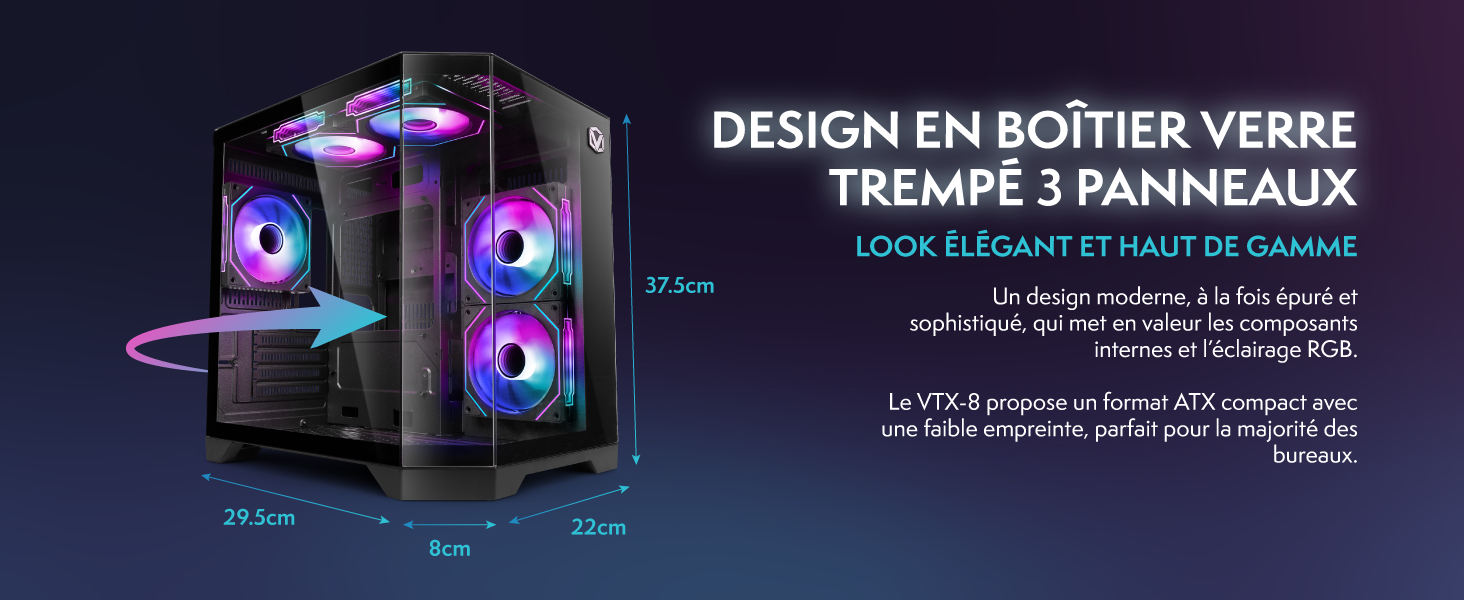
Image 8.1: VIBOX VI-63 PC Gamer case dimensions.
| 특징 | 사양 |
|---|---|
| 상표 | VIBOX |
| 모델명 | Vibox VI-63 Gaming PC |
| 운영 체제 | 윈도우 11 홈 |
| CPU 모델 | AMD 라이젠 3 3200G |
| CPU 속도 | 3.6GHz(4GHz 터보) |
| CPU 코어 | 4 |
| 그래픽 코프로세서 | Radeon Vega 8 (Integrated) |
| 그래픽 RAM | 2GB (공유) |
| RAM Installed | 16GB DDR4 |
| RAM Speed | 2666MHz |
| 저장 용량 | 1TB SSD |
| 하드 드라이브 기술 | SSD |
| 모니터 크기 | 22 인치 |
| 최대 디스플레이 해상도 | 1920x1080 픽셀 |
| 비디오 출력 인터페이스 | HDMI, VGA |
| 연결 기술 | AMD Radeon Vega 8, Ethernet, HDMI, USB, Wi-Fi |
| 치수(길이 x 너비 x 높이) | 32.6 x 19.5 x 42cm |
| 색상 | VTX-1 Black |
9. 보증 및 지원
9.1. 보증 정보
Your VIBOX VI-63 PC Gamer comes with a 2년 보증 on spare parts. This warranty covers manufacturing defects and component failures under normal use. Please retain your proof of purchase for warranty claims.
9.2. 고객 지원
For technical assistance, troubleshooting, or warranty inquiries, please contact VIBOX customer support. Refer to the contact information provided with your purchase documentation or visit the official VIBOX web지원 세부 정보 사이트.
온라인 리소스: For additional support and FAQs, please visit the VIBOX official web대지.


