
삼성 LS34C650VANXGO
삼성 ViewFinity S65VC 시리즈 34인치 울트라 WQHD 곡면 모니터 사용 설명서
1. 서론
이 설명서는 삼성 제품을 안전하고 효율적으로 사용하는 데 필요한 필수 정보를 제공합니다. ViewFinity S65VC Series 34-Inch Ultra-WQHD Curved Monitor. Please read these instructions thoroughly before operating the device and retain them for future reference.
삼성 ViewFinity S65VC monitor features a 34-inch 1000R curved display with a 21:9 aspect ratio, designed to enhance productivity and viewing comfort. It supports Ultra-WQHD resolution, a 100Hz refresh rate, AMD FreeSync, and HDR10 for vibrant, true-to-life colors. Integrated features include a USB-C port, built-in speakers, a pop-up camera, and a KVM switch for streamlined connectivity and workspace management.

앞쪽 view 삼성의 ViewFinity S65VC 34-inch curved monitor, showcasing its ultra-wide display, 100Hz refresh rate, AMD FreeSync, and HDR10 capabilities.
2. 설정
2.1 포장 풀기 및 조립
Carefully remove all components from the packaging. Ensure all items listed in the 'What's in the Box' section are present. Assemble the stand according to the included quick setup guide, then securely attach the monitor panel to the stand.
2.2 상자 내용물
- 삼성 View피니티 S65VC 모니터
- 전원 케이블
- HDMI 케이블
- USB Type-C 케이블
- USB 3.0 케이블
- 스탠드 베이스 및 넥
2.3 물리적 치수

Diagram illustrating the physical dimensions of the SAMSUNG ViewFinity S65VC monitor, including screen width, height with and without stand, and depth with and without stand.
2.4 모니터 연결
The monitor offers various connectivity options. Identify the appropriate ports on the rear of the monitor and your computer.
Detailed diagram of the rear panel of the monitor, labeling all input and output ports including HDMI, DisplayPort, USB-C, PC IN, LAN IN, USB/SERVICE, USB 3.0, and Headphone IN.
- USB-C 연결: Use the provided USB Type-C cable to connect your computer. This single cable can transmit video, data, and power (up to 90W) simultaneously.
- HDMI/DisplayPort: Connect an HDMI or DisplayPort cable from your computer to the corresponding port on the monitor for video input.
- LAN 포트: For laptops without an Ethernet port, connect an Ethernet cable to the monitor's LAN port to provide network access.
- USB 3.0 포트: Connect peripherals such as a keyboard, mouse, or external storage devices to the USB 3.0 ports.
- 헤드폰 잭: 오디오 출력을 위해 헤드폰이나 외부 스피커를 연결하세요.
After connecting, plug the power cable into the monitor and a wall outlet. Press the power button to turn on the monitor.
3. 사용 설명서
3.1 디스플레이 기능
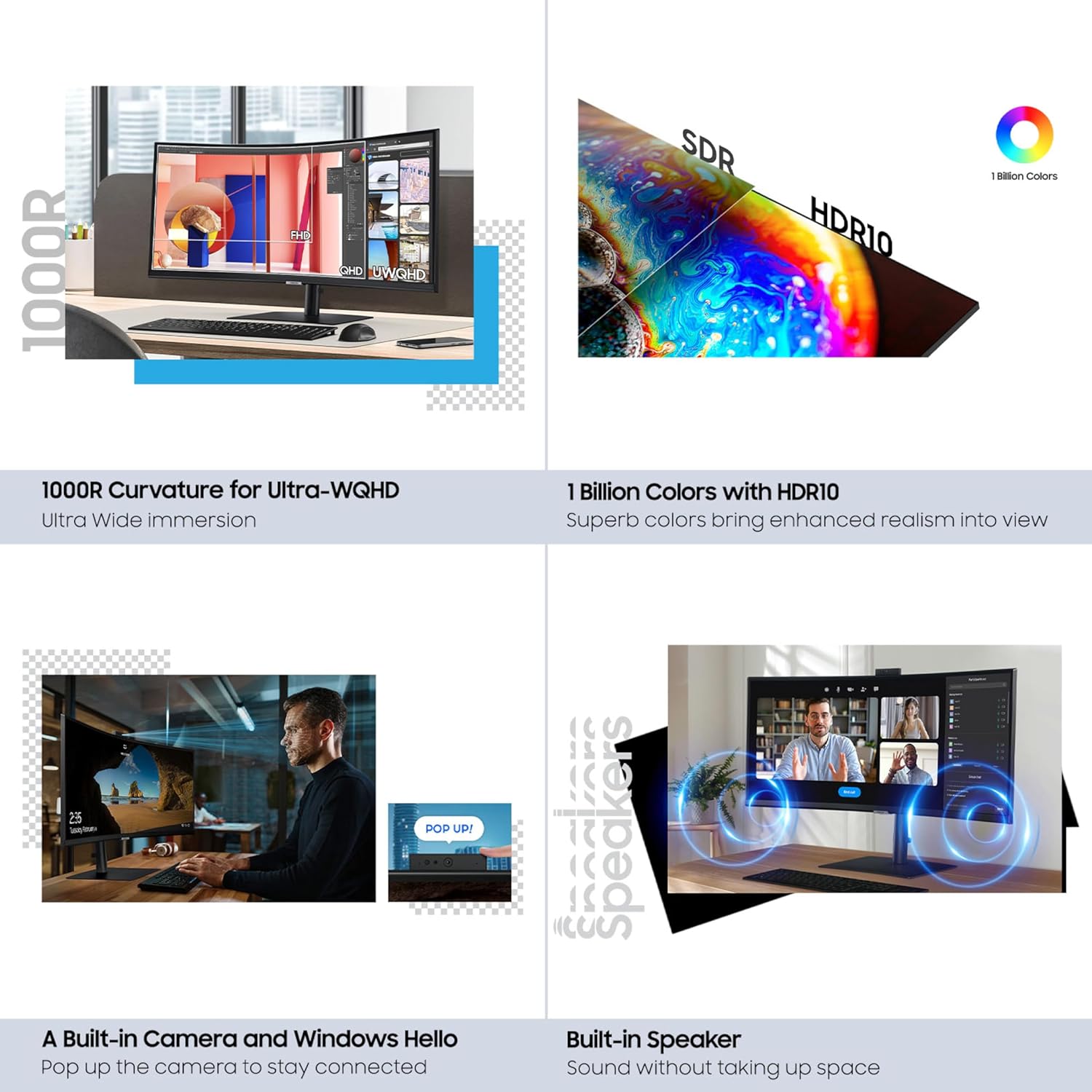
The 34-inch 1000R curved display provides an immersive viewing experience, ideal for multitasking and creative work. The 21:9 aspect ratio allows for amp르 스크린 부동산.

An image demonstrating the ultra-wide immersion provided by the 34-inch 1000R curved display, showing multiple applications open side-by-side for enhanced productivity.
3.2 HDR10 및 색상 정확도
Experience enhanced realism with HDR10 support, offering 1 billion colors, deeper blacks, and brighter whites. This ensures content is displayed as intended by its creators.

Visual comparison of SDR (Standard Dynamic Range) and HDR10 (High Dynamic Range) on the monitor, highlighting the richer colors and contrast with 1 billion colors.
3.3 Built-in Camera and Windows Hello
The integrated camera slides down into the monitor when not in use, maintaining a sleek profile. It supports Windows Hello for secure, password-free sign-in using biometric recognition.

클로즈업 view of the monitor's built-in camera, shown in its extended position, ready for use in video calls or Windows Hello authentication.
3.4 내장 스피커
The monitor includes built-in speakers, eliminating the need for external audio devices and reducing desk clutter. Audio output can be managed through your connected device's sound settings.

The monitor displaying a video conference, with visual cues indicating sound emanating from the built-in speakers, illustrating a clutter-free audio solution.
3.5 KVM 스위치 기능
The built-in KVM switch allows you to connect and control two different source devices with a single keyboard and mouse. This feature supports split-screen, Picture-in-Picture (PIP), or Picture-by-Picture (PBP) modes for efficient multitasking.
3.6 Ergonomic Design and Eye Care
The monitor features a height-adjustable stand that allows for tilt and swivel adjustments, promoting comfortable viewing angles. TUV-certified intelligent eye care automatically optimizes brightness and color temperature based on your environment, reducing screen flickering and blue light emissions to minimize eye strain.

An image depicting a user working at the monitor, with a light bar above the screen, symbolizing the intelligent eye care features that optimize brightness and color temperature.
3.7 Smooth Performance
With a 100Hz refresh rate and AMD FreeSync technology, the monitor delivers smooth visuals, reducing screen stuttering and image tearing during fast-paced content or gaming.
4. 유지관리
4.1 모니터 청소
- 화면: 부드럽고 보풀이 없는 천으로 화면을 부드럽게 닦으세요. 잘 지워지지 않는 얼룩은 가볍게 닦아주세요.amp물이나 모니터 전용 화면 세척액을 천에 적셔 사용하십시오. 화면에 직접 액체를 분사하지 마십시오.
- 몸: 모니터의 c를 닦으세요asin부드럽고 마른 천으로 닦아주세요. 연마성 세제나 용제는 사용하지 마세요.
4.2 환경 고려 사항
The monitor's rear cover is made with 5% recycled ocean-bound plastic (OBP), contributing to a more sustainable product. The eco-friendly packaging is designed to reduce waste and can be repurposed or recycled.
5. 문제 해결
모니터에 문제가 발생하면 다음의 일반적인 해결책을 참조하세요.
- 전원 없음: 전원 케이블이 모니터와 작동하는 전원 콘센트에 제대로 연결되어 있는지 확인하십시오. 전원 표시등이 켜져 있는지 확인하십시오.
- 신호 없음/빈 화면: Verify that all video cables (USB-C, HDMI, DisplayPort) are correctly connected to both the monitor and your computer. Ensure the correct input source is selected on the monitor's OSD (On-Screen Display) menu. Try restarting your computer.
- 해상도/화면 표시 문제: Update your graphics card drivers to the latest version. Ensure your computer's display settings are configured to the monitor's native resolution (3440 x 1440 pixels) and desired refresh rate (100Hz). If using USB-C, ensure the cable supports video output.
- 내장 스피커에서 소리가 나지 않음: Check your computer's sound settings to ensure the monitor is selected as the default audio output device. Adjust the volume on both your computer and the monitor.
- 카메라가 작동하지 않습니다: Ensure the camera is extended from the monitor. Check privacy settings in your operating system and application settings to ensure camera access is granted.
- KVM 스위치 문제: Verify that both source devices are properly connected to the monitor's input ports. Ensure your keyboard and mouse are connected to the monitor's USB ports.
If the problem persists after attempting these solutions, please contact Samsung customer support for further assistance.
6. 사양
| 특징 | 사양 |
|---|---|
| 상표 | 삼성 |
| 시리즈 | S65VC |
| 모델 번호 | LS34C650VANXGO |
| 화면 크기 | 34 인치 |
| 화면 해상도 | 3440 x 1440 픽셀 (울트라 WQHD) |
| 종횡비 | 21시 9분 |
| 곡률 | 1000R |
| 새로 고침 빈도 | 100Hz |
| 적응형 동기화 기술 | AMD 프리싱크 |
| HDR 지원 | HDR10 |
| 색상 지원 | 1억 XNUMX천만 가지 색상 |
| 연결성 | 1x HDMI, 1x DisplayPort, 1x USB-C (with 90W PD), 1x LAN, 1x USB 3.0 Upstream, 3x USB 3.0 Downstream, 1x Headphone In |
| 내장된 기능 | Camera (Windows Hello compatible), Speakers, KVM Switch, Eye Care |
| 인간 공학 | Height Adjustable, Tilt, Swivel |
| 품목 무게 | 17.9파운드 |
| 제품 크기(LxWxH) | 9.5 x 31.76 x 22.1 인치 |
| 색상 | 검은색 |
7. 보증 및 지원
For warranty information, technical support, or service inquiries regarding your SAMSUNG ViewFinity S65VC Series monitor, please visit the official Samsung support website or contact their customer service directly. Details regarding warranty coverage and terms are typically provided with your product documentation or available online.
Ensure you have your model number (LS34C650VANXGO) and serial number ready when contacting support.