
소개
This manual provides detailed instructions for the safe and efficient operation of your CAIWEI X99+ 4K Smart Projector. Please read this manual thoroughly before using the projector and retain it for future reference.
안전 정보
안전한 작동을 보장하고 손상을 방지하려면 다음 예방 조치를 준수하세요.
- Do not place the projector in boxes or cabinets with poor ventilation properties. Ensure adequate airflow around the device to prevent overheating.
- Avoid direct exposure of the projector lens to sunlight.
- 통풍구를 막지 마십시오.
- 프로젝터와 함께 제공된 전원 어댑터만 사용하세요.
- 프로젝터를 물이나 다른 액체로부터 멀리하세요.
- 프로젝터를 직접 분해하거나 수리하려고 하지 마십시오. 자격을 갖춘 서비스 담당자에게 문의하십시오.
패키지 내용
패키지에 모든 품목이 들어 있는지 확인하세요.
- CAIWEI X99+ Smart Projector
- 원격 제어
- HDMI 케이블
- Power Cable (UK-plug)
- AV 케이블
- 프로젝터 가방
- 사용 설명서 (본 문서)
제품 끝view
The CAIWEI X99+ is a smart projector designed for versatile entertainment and presentation needs. It features a native 1080P resolution with 4K support, 800 ANSI lumens brightness, and an integrated Android 9.0 operating system.

Figure 1: CAIWEI X99+ Smart Projector front view, 보여 주다asin컴팩트한 디자인과 주요 기능을 갖추고 있습니다.
주요 특징:
- 디스플레이 기술: Native 1920x1080P resolution, 4K support, 800 ANSI lumens, 15500:1 contrast ratio.
- 스마트 OS: Android 9.0 with access to over 6000 authorized apps (Netflix, YouTube, Prime Video, etc.).
- 메모리: 2GB RAM + 16GB ROM.
- 무선 연결 : Dual 2.4G/5G WiFi, Airplay/DLNA/Miracast support, Bluetooth 5.0.
- 오디오: Integrated 10W high-power stereo speakers, Dolby Audio support, 3.5mm audio output.
- 이미지 향상: HDR10 processing, MEMC technology for smoother motion.
- 조정 사항: 4D and ±50° vertical/horizontal electronic keystone correction, 40% digital image zoom.
- 내구성: Fully sealed optical engine for dust protection and extended lifespan.

Figure 2: Visual representation of the projector's color accuracy, brightness, and image quality in various lighting conditions.
설정
1. 배치
Position the projector on a stable, flat surface or mount it to the ceiling using the four screw holes. Ensure the projector is placed at an appropriate distance from the projection surface to achieve the desired screen size. Maintain adequate ventilation around the unit.
2. 전원 연결
- 프로젝터의 전원 입력 포트에 전원 케이블을 연결하십시오.
- 전원 케이블의 다른 쪽 끝을 적절한 콘센트에 꽂으십시오.
- 프로젝터나 리모컨의 전원 버튼을 눌러 장치를 켜세요.
3. Initial Focus and Keystone Adjustment
Upon initial power-on, the projected image may appear blurry or distorted. Adjust these settings for optimal clarity:
- 집중하다: 프로젝터 렌즈의 초점 링을 돌려 이미지가 선명하고 깨끗해질 때까지 돌립니다.
- 키스톤 보정: Use the remote control to access the keystone correction settings. The projector supports 4D keystone correction and ±50° vertical/horizontal electronic correction to square the image if the projector is not perfectly perpendicular to the screen.
- 디지털 줌: Adjust the image size without moving the projector using the digital zoom function (40% zoom out/in).
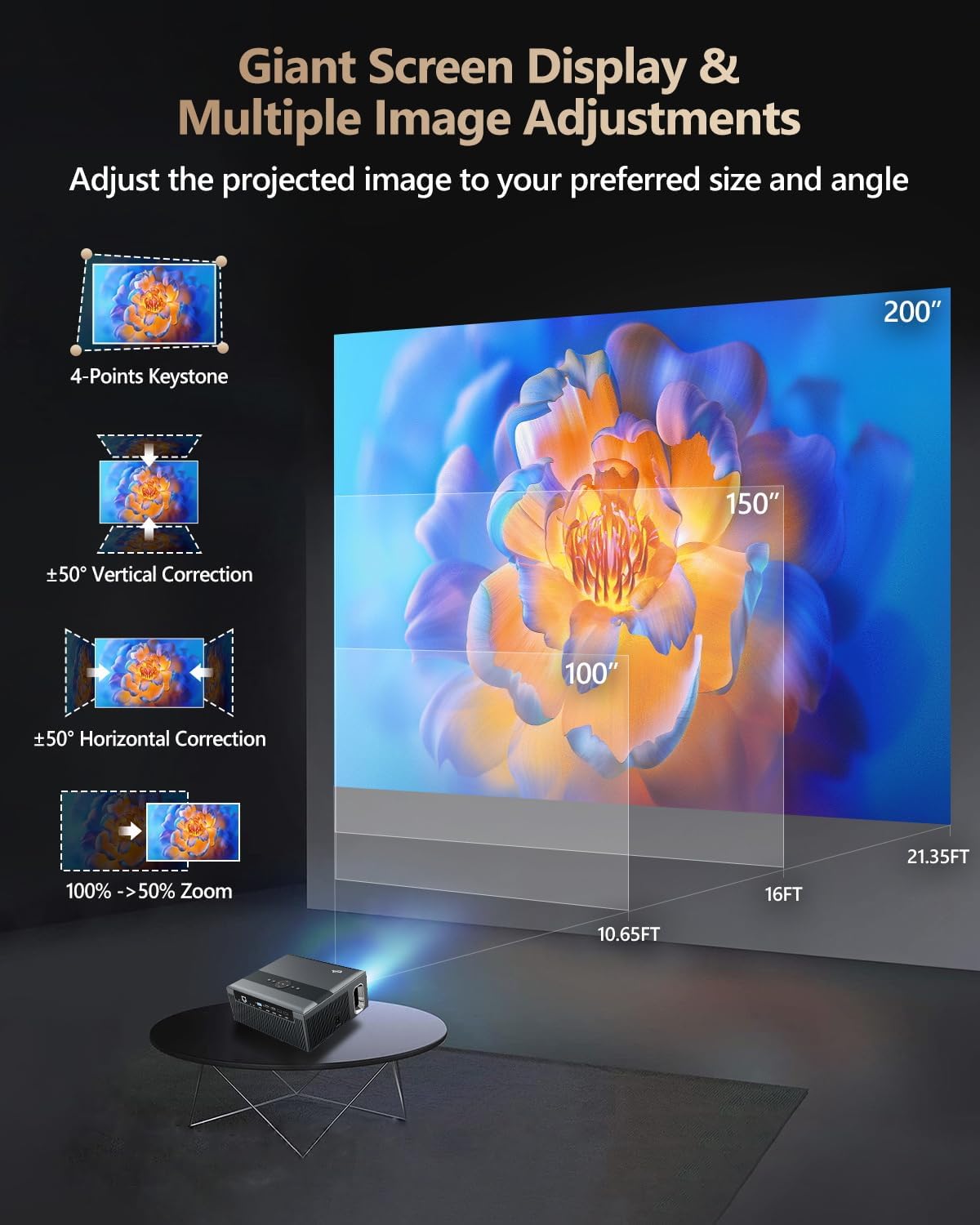
Figure 3: Image adjustment options including keystone correction and digital zoom.
4. 네트워크 연결
Connect the projector to the internet for access to streaming apps and online content.
- 와이파이: Navigate to the network settings in the Android OS. Select your desired 2.4G or 5G Wi-Fi network and enter the password.
- LAN(이더넷): Connect an Ethernet cable from your router to the RJ45 port on the projector for a wired internet connection.
5. 블루투스 페어링
Pair Bluetooth devices such as external speakers, headphones, mice, keyboards, or gamepads.
- Bluetooth 장치가 페어링 모드인지 확인하세요.
- On the projector, go to Bluetooth settings within the Android OS.
- Select the desired device from the list and confirm pairing.

Figure 4: Wireless connectivity for streaming and audio.
작동 지침
1. Android TV OS Navigation
Use the remote control to navigate the Android 9.0 interface. The home screen provides access to installed applications, settings, and input sources.

Figure 5: Android TV 9.0 interface with pre-installed and accessible applications.
2. 앱 설치 및 사용
The projector comes with pre-installed apps like Netflix, YouTube, and Prime Video. You can download additional authorized applications from the app store within the Android OS.
- Select an app icon from the home screen to launch it.
- Follow on-screen prompts for login or content selection.
3. Screen Mirroring (Airplay/DLNA/Miracast)
Synchronize your smartphone, tablet, or laptop screen wirelessly to the projector.
- 기기와 프로젝터가 동일한 Wi-Fi 네트워크에 연결되어 있는지 확인하십시오.
- Select the appropriate mirroring function (Airplay for iOS, Miracast for Android/Windows, DLNA for compatible devices) on the projector's interface.
- Initiate screen mirroring from your source device.
4. 외부기기 연결하기
The projector offers multiple ports for connecting various external devices.

Figure 6: Available input and output ports for external devices.
- HDMI : Connect Blu-ray/DVD players, TV sticks, game consoles (PS5), PCs, or laptops using an HDMI cable. Select the corresponding HDMI input from the projector's source menu.
- USB: Insert USB flash drives or hard drives into the USB ports to play media file직접적으로.
- VGA : VGA 케이블을 사용하여 구형 PC 또는 노트북을 연결하세요.
- 유명인 : Use the AV cable to connect devices with composite video and stereo audio outputs.
5. 오디오 출력
The projector features built-in 10W stereo speakers. For alternative audio experiences:
- 블루투스: Pair with external Bluetooth speakers or headphones as described in the Setup section.
- 3.5mm 오디오 출력: 3.5mm 오디오 케이블을 사용하여 유선 헤드폰이나 외부 스피커를 연결하세요.

Figure 7: Projector's integrated audio system.
유지
1. 청소
- 렌즈: 부드럽고 보풀이 없는 광학 렌즈용 천을 사용하세요. 연마성 세척제는 사용하지 마세요.
- 외부: 프로젝터 외부를 부드럽고 마른 천으로 닦으십시오. 잘 지워지지 않는 얼룩은 약간 두드려 닦아내십시오.amp천에 물을 적셔요.
- 환기구: Periodically check and gently clean the ventilation openings to ensure unobstructed airflow.
2. 먼지 보호
The CAIWEI X99+ features a fully sealed optical engine and an air purifier filter, which significantly reduces dust accumulation and light decay, contributing to a longer service life.

Figure 8: Dust-proof design of the CAIWEI X99+ projector.
3. 보관
When not in use for extended periods, store the projector in a cool, dry place, preferably in its original packaging or the provided projector bag, to protect it from dust and physical damage.
문제 해결
프로젝터에 문제가 발생하면 다음의 일반적인 문제와 해결 방법을 참조하세요.
| 문제 | 가능한 원인 | 해결책 |
|---|---|---|
| 화면이 표시되지 않거나 "신호 없음" 메시지가 나타납니다. | 잘못된 입력 소스가 선택되었습니다. 케이블 연결이 느슨합니다. 기기의 전원이 켜져 있지 않습니다. |
|
| 흐릿한 이미지 | 초점이 조정되지 않았습니다. 키스톤 보정이 필요합니다. |
|
| 소리가 나지 않습니다 | Volume too low; incorrect audio output selected; external device audio issue. |
|
| Wi-Fi 연결 문제 | 잘못된 비밀번호; 범위를 벗어남; 라우터 문제. |
|
| 리모컨이 작동하지 않습니다 | 배터리 방전; 장애물; 페어링 문제. |
|
명세서
| 상표 | 카이웨이 |
| 모델 | X99+ |
| 디스플레이 해상도 | Native 1920 x 1080 (Supports 4K) |
| 명도 | 800 ANSI Lumens (12000 LED Lumens) |
| 대비율 | 15500시 1분 |
| 운영 체제 | 안드로이드 9.0 |
| 메모리 | 2GB 램 + 16GB 롬 |
| 연결 기술 | Bluetooth 5.0, Dual-band Wi-Fi (2.4G/5G), USB, HDMI, VGA, AV, LAN (RJ45) |
| 특별 기능 | Built-In Wi-Fi, Portable, Wireless, HDR10, MEMC, Dolby Audio, Sealed Optical Engine, 4D Keystone Correction, Digital Zoom |
| 오디오 | 10W High Power Stereo Speakers, 3.5mm Audio Output |
| 제품 치수 | 10.55 x 9.25 x 4.92 인치 |
| 품목 무게 | 7.48파운드 |
보증 및 지원
For warranty information and technical support, please refer to the warranty card included with your product or visit the official CAIWEI web이 설명서에 나와 있지 않은 문제에 대해서는 고객 서비스 센터에 문의하십시오.
제조업체: 카이웨이