
소개
This manual provides detailed instructions for the setup, operation, and maintenance of your ADAM elements USB-C Hub Stand Pro. This device combines an ergonomic laptop stand with a 6-in-1 multiport USB-C hub, designed to enhance connectivity and comfort for M2/M1 Mac, iPad, and other USB-C compatible laptops.
제품 끝view
The ADAM elements USB-C Hub Stand Pro is a versatile accessory that integrates a laptop stand with a powerful USB-C hub. It features a detachable design, allowing the hub to be used independently. The stand offers adjustable height and a 360-degree rotatable base for optimal view각도를 나타냅니다.
주요 특징:
- 6-in-1 Multiport Hub: Includes USB-C Host, 2x USB-A, USB-C PD, HDMI, and RJ45 Ethernet.
- Ergonomic Laptop Stand: Adjustable elevation up to 29 cm and 180-degree angle.
- 360도 회전: Swivel base for flexible view주고받음.
- 4K@60Hz HDMI 출력: Supports high-resolution video with HDCP 2.2.
- 100W 전력 공급: USB-C PD port for fast charging.
- Detachable Hub: Use the hub integrated with the stand or as a portable device.
- Durable All-Aluminum Design: Robust construction with anti-slip silicone pads.
- Right-Angle USB-C Cable: Reduces strain and ensures a secure connection.
포트 구성:
| 포트 타입 | 수량 | 기능성 |
|---|---|---|
| USB-C 호스트 | 1 | Connects to laptop/device (USB-C 3.1 Gen 2) |
| USB-A | 2 | 최대 5Gbps의 데이터 전송 |
| USB-C 포트 | 1 | Power Delivery Pass-Through charging up to 100W |
| HDMI | 1 | Video output up to 4K@60Hz |
| RJ45 이더넷 | 1 | Network connection (1000 Mbps Max) |

Image: The ADAM elements USB-C Hub Stand Pro, showcasin인체공학적 디자인과 통합 허브가 특징입니다.

이미지: 상세 view of the 6 multi-function ports for charging, video, and data transmission.
설치 지침
- 장치 포장 풀기: Carefully remove the USB-C Hub Stand Pro from its packaging.
- 스탠드 위치: 스탠드를 안정적이고 평평한 표면에 놓으십시오.
- 스탠드 조정:
- Gently adjust the stand's arms to your desired height and angle. The stand supports an elevation angle of up to 180 degrees and a height of up to 29 cm.
- The base can be rotated 360 degrees horizontally for optimal view주고받음.
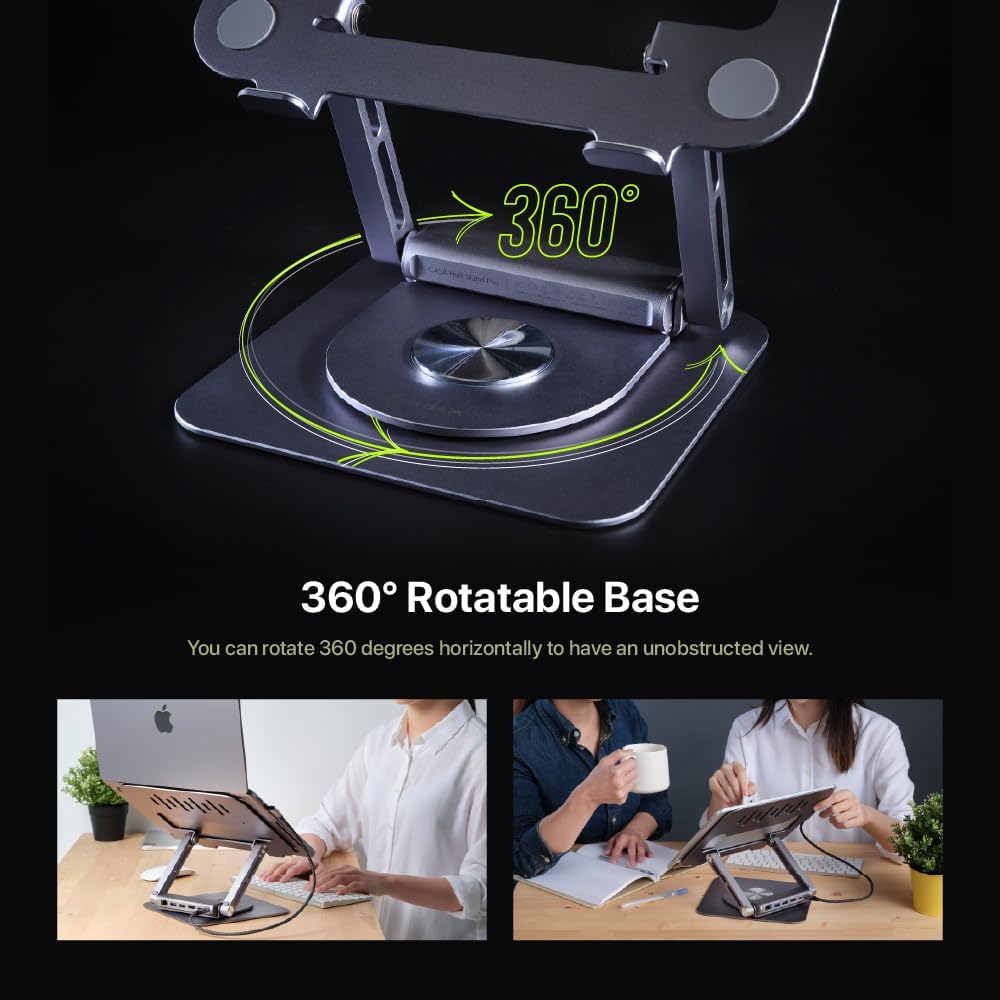
Image: Demonstrating the 360-degree rotatable base for flexible positioning.
- Attach/Detach the Hub:
- The hub is designed to be detachable. To attach, align the hub with the designated slot on the stand and slide it into place until it clicks securely.
- To detach, gently pull the hub away from the stand. This allows for independent use or portability.

Image: The detachable design of the hub, allowing it to be used separately.
- 장치에 연결: Use the integrated right-angle USB-C cable to connect the hub to your laptop or iPad's USB-C port. Ensure the connection is firm.
- 주변기기 연결: Plug your desired peripherals (e.g., external monitor, USB drives, Ethernet cable, power adapter) into the corresponding ports on the hub.
작동 지침
USB-C 허브 사용하기:
- 전력 공급(PD): Connect your laptop's USB-C power adapter to the USB-C PD port on the hub to charge your device while using the hub's other functions. The hub supports up to 100W pass-through charging.
- USB-A 포트: Use the two USB-A ports for connecting USB devices such as keyboards, mice, external hard drives, or flash drives. These ports support data transfer speeds up to 5Gbps.
- HDMI 출력: Connect an external monitor or projector to the HDMI port. The hub supports 4K resolution at 60Hz.
- To enjoy 4K@60Hz resolution, ensure your device supports DisplayPort (DP) 1.4 or higher.
- You can configure your display settings for Mirror Mode (duplicate your primary screen) or Extend Mode (expand your desktop across multiple screens) through your operating system's display settings.

Image: High-resolution 4K@60Hz video output capabilities.

Image: External display options: Mirror Mode and Extended Mode.
- RJ45 이더넷 포트: Connect an Ethernet cable to this port for a stable wired network connection, supporting speeds up to 1000 Mbps.
Using the Laptop Stand:
- 인체공학적 조정: Adjust the height and angle of the stand to achieve an ergonomic viewing position, reducing strain on your neck and back.
- 360도 회전: Rotate the base of the stand to easily share your screen with others or change your view전체 장치를 이동하지 않고 각도를 조절할 수 있습니다.
- 호환성: The stand is designed to securely hold M2/M1 MacBook series, iPad, and other USB-C laptops. The anti-slip silicone pads ensure stability.

Image: The stand is suitable for MacBook and iPad series.
유지
- 청소: Use a soft, dry cloth to wipe down the stand and hub. Avoid abrasive cleaners or solvents that may damage the finish.
- 저장: When not in use, store the device in a cool, dry place. The detachable hub can be stored separately for travel.
- 케이블 관리: Ensure the right-angle USB-C cable is not excessively bent or strained to prevent damage.
- 과부하를 피하세요: Do not connect devices that exceed the hub's power capabilities.
문제 해결
| 문제 | 가능한 원인 | 해결책 |
|---|---|---|
| 외부 모니터에 디스플레이가 표시되지 않습니다. | Incorrect cable connection, incompatible resolution, device not supporting DP 1.4. |
|
| USB 장치가 인식되지 않습니다. | Loose connection, insufficient power, driver issues. |
|
| PD 포트로 노트북을 충전할 수 없습니다. | Power adapter not connected, adapter not powerful enough, faulty cable. |
|
| 이더넷 연결이 불안정하거나 작동하지 않습니다. | Loose cable, network issues, driver issues. |
|
명세서
| 특징 | 세부 사항 |
|---|---|
| 모델 번호 | AAPADHUBSTDPGY |
| 제품 치수 | 1.8 x 10.2 x 8.8인치(4.57 x 25.91 x 22.35cm) |
| 품목 무게 | 2.3파운드(1.04kg) |
| 포트 | 1x USB-C Host (USB-C 3.1 Gen 2), 2x USB-A (5Gbps), 1x USB-C PD (up to 100W), 1x HDMI (4K@60Hz), 1x RJ45 Ethernet (1000 Mbps) |
| HDMI 해상도 | Up to 4K@60Hz, HDCP 2.2 compatible |
| 전력 공급 | 최대 100W 패스스루 |
| Data Transfer Speed (USB-A) | 최대 5Gbps |
| 이더넷 속도 | 10/100/1000Mbps |
| 재료 | 전체 알루미늄 |
| 호환 장치 | M2/M1 MacBook Series, iPad, USB-C Laptops |
보증 및 지원
ADAM ELEMENTS products are designed for reliability and performance. For warranty information and technical support, please refer to the official ADAM ELEMENTS web사이트를 방문하거나 고객 서비스에 직접 문의하세요.
For additional support or to inquire about replacement parts, please visit: www.adamelements.com