
소개
This manual provides essential information for setting up, operating, maintaining, and troubleshooting your ASUS Zenbook 14" OLED Touchscreen Laptop (Model: UM3402YA-WS51T). Please read this manual thoroughly to ensure proper use and to maximize the lifespan of your device.
The ASUS Zenbook 14" OLED Touchscreen Laptop is designed for productivity and entertainment, featuring a stunning 14-inch OLED touchscreen display, a powerful AMD Ryzen 5 7530U processor, 8GB of RAM, and a fast 256GB SSD. It comes pre-installed with Windows 11 Home and offers advanced connectivity options.
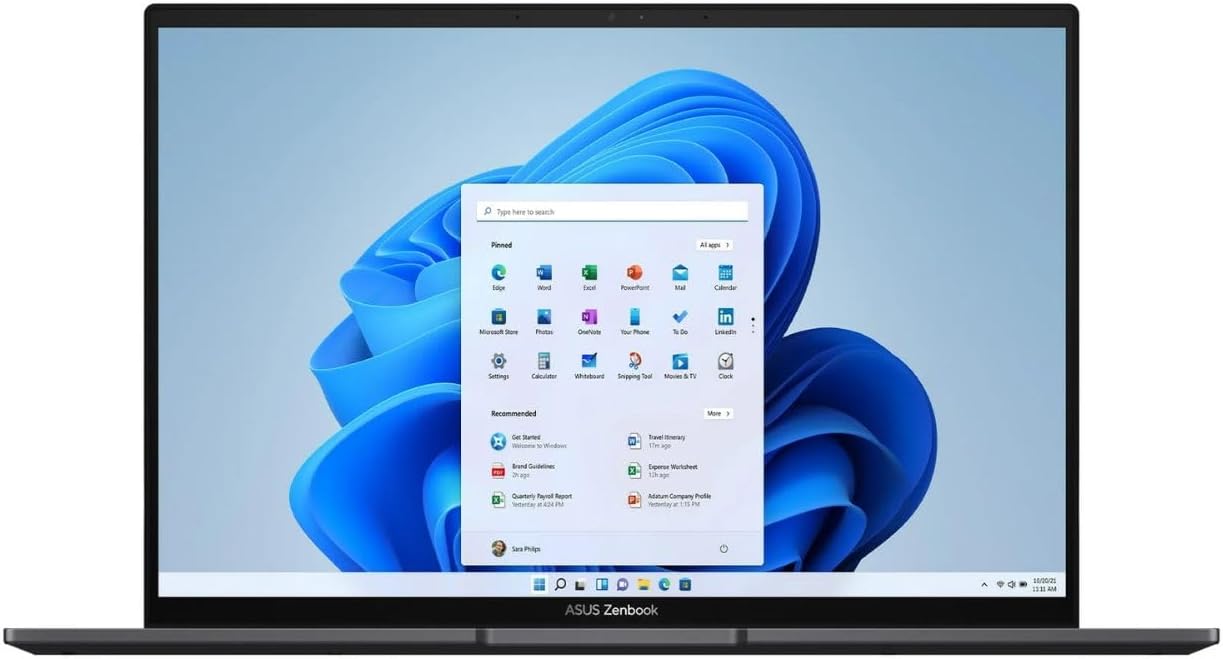
Figure 1: ASUS Zenbook 14" OLED Laptop with Windows 11 Interface.
This image shows the laptop open, displaying the Windows 11 operating system desktop, highlighting the vibrant OLED screen.
설정
- 언박싱: 노트북과 모든 액세서리를 포장에서 조심스럽게 꺼내세요. 노트북, 전원 어댑터, 설명서 등 모든 구성품이 있는지 확인하세요.
- 전원 연결:
- 전원 어댑터를 노트북의 전원 입력 포트에 연결합니다.
- 전원 코드를 접지된 콘센트에 꽂으세요.
- 처음 사용하기 전에 최소 30분 동안 배터리를 충전하거나 배터리 표시등이 충분히 충전되었음을 나타낼 때까지 기다리세요.
- 첫 번째 부팅:
- Open the laptop lid. The laptop may power on automatically. If not, press the power button located on the keyboard.
- 화면의 지시에 따라 언어 선택, 네트워크 연결 및 사용자 계정 생성 등 Windows 11 Home 설치 과정을 완료하십시오.
작동 지침
키보드 및 터치패드
The ASUS Zenbook features an ASUS ErgoSense keyboard and a large touchpad for comfortable and precise input. The touchpad also integrates a virtual numeric keypad for convenient data entry.

그림 2: 키보드 및 터치패드 배치.
이 이미지는 위에서 아래로의 이미지를 제공합니다. view of the laptop's keyboard, highlighting the backlit keys and the large touchpad with its integrated virtual numeric keypad.
디스플레이 기능
Your Zenbook is equipped with a 14-inch 2.8K (2880 x 1800) OLED NanoEdge touchscreen display. This display offers vibrant colors, deep blacks, and excellent contrast, making it ideal for various tasks. The touchscreen allows for intuitive interaction with Windows 11.

Figure 3: OLED Display Certifications.
This image showcases the laptop's OLED display and various certifications, including TÜV Rheinland for low blue light and VESA DisplayHDR True Black 500, indicating high visual quality and eye comfort.
연결성
The Zenbook 14 OLED provides a comprehensive set of I/O ports for versatile connectivity:
- USB 3.2 2세대 타입 A: 표준 USB 장치를 연결하는 데 사용됩니다.
- USB-C 3.2 2세대: Versatile ports supporting data transfer, power delivery, and display output.
- HDMI 2.1 : For connecting external displays or projectors.
- 오디오 콤보 잭: 헤드폰이나 헤드셋용입니다.
- MicroSD 카드 리더기: 저장공간 확장이나 전송을 위해 file메모리 카드에서.
Wireless connectivity includes Wi-Fi 6E for fast and reliable internet access and Bluetooth 5 for connecting wireless peripherals.

Figure 4: Connectivity Ports.
이 이미지는 측면 프로를 표시합니다.files of the laptop, clearly labeling the USB 3.2 Gen 2 Type-A port on one side and the MicroSD card reader, USB-C 3.2 Gen 2 ports, audio combo jack, and HDMI 2.1 port on the other side.
유지
- 청소:
- 부드럽고 털이 없는 천을 살짝 사용하세요.amp화면을 청소할 때는 물이나 화면 세정제를 사용하십시오. 강한 화학 약품은 사용하지 마십시오.
- 키보드와 본체는 부드럽고 마른 천으로 닦으십시오. 키 사이의 먼지는 압축 공기 캔을 사용하여 제거할 수 있습니다.
- 배터리 관리 :
- 배터리를 자주 완전히 방전시키지 마세요.
- 장시간 노트북을 보관할 경우, 전원을 끄기 전에 배터리를 약 50~60%까지 충전하세요.
- 반드시 정품 ASUS 전원 어댑터만 사용하십시오.
- 소프트웨어 업데이트: Regularly check for and install updates for Windows 11 and ASUS drivers/utilities to ensure optimal performance and security.
- 스토리지 관리: 주기적으로 불필요한 것들을 정리하세요 files and applications to maintain sufficient free space on the 256GB SSD for optimal system performance.
문제 해결
| 문제 | 가능한 원인 | 해결책 |
|---|---|---|
| 노트북의 전원이 켜지지 않습니다. | 배터리 또는 전원 어댑터 문제. | Ensure power adapter is securely connected to both laptop and outlet. Allow battery to charge for a few minutes before attempting to power on again. |
| 디스플레이가 비어 있거나 깜빡입니다. | Display driver issue, external display conflict, or power saving mode. | 누르다 FN + F7 (or the display toggle key) to cycle display modes. Update graphics drivers. Restart the laptop. |
| Wi-Fi 연결 문제. | Wi-Fi adapter off, incorrect password, or router issue. | Ensure Wi-Fi is enabled in Windows settings. Re-enter Wi-Fi password. Restart your router and laptop. |
| 성능이 느립니다. | 실행 중인 애플리케이션이 너무 많거나, 저장 공간이 부족하거나, 드라이버가 오래되었을 수 있습니다. | 불필요한 애플리케이션을 종료하세요. 디스크 공간을 확보하세요. Windows와 드라이버를 업데이트하세요. |
If you encounter issues not covered here or if solutions do not resolve the problem, please refer to the ASUS support web사이트를 방문하거나 고객 서비스에 문의하세요.
명세서
| 특징 | 세부 사항 |
|---|---|
| 상표 | 아수스 |
| 모델명 | UM3402YA-WS51T |
| 화면 크기 | 14 인치 |
| 화면 해상도 | 2880 x 1800 픽셀 |
| 프로세서 | AMD Ryzen 5 7530U (2 GHz base speed) |
| 설치된 RAM 메모리 크기 | 8GB DDR4 |
| 하드 디스크 크기 | 256GB SSD |
| 운영 체제 | 윈도우 11 홈 |
| 그래픽 카드 설명 | 통합 |
| 무선형 | 802.11ax(와이파이 6E) |
| 색상 | 검은색 |
| 품목 무게 | 5.85파운드 |
| 제품 크기(LxWxH) | 12.34 x 8.69 x 0.67 인치 |
보증 및 지원
Your ASUS Zenbook 14" OLED Touchscreen Laptop comes with a standard manufacturer's warranty. Please refer to the warranty card included in your product packaging for specific terms and conditions, including warranty duration and coverage details.
기술 지원, 드라이버 다운로드, FAQ 및 서비스 문의는 ASUS 공식 지원 페이지를 방문하십시오. web대지:
When contacting support, please have your product model number (UM3402YA-WS51T) and serial number ready.