
1. 서론
This manual provides essential information for the installation, operation, and maintenance of your KiriNavi Qualcomm Car Radio. This advanced head unit features an Android 13 operating system, an 8-core CPU, 4GB RAM, and 64GB ROM, offering enhanced performance and a 12.1-inch 2K IPS touch screen. It integrates seamlessly with your vehicle's existing systems, providing modern connectivity and entertainment options.
Please read this manual thoroughly before installation and use to ensure proper functionality and to maximize your experience with the product.
2. 차량 호환성
This KiriNavi car radio is specifically designed for the following Ford truck models:
- 포드 F250 (2009-2012)
- 포드 F350 (2009-2012)
- 포드 F450 (2009-2016)
- 포드 F650 (2009-2016)
중요 참고 사항:
This unit is compatible ONLY with vehicles that DO NOT have the SYNC 2 System. Please verify your vehicle's current AC control panel configuration to ensure compatibility. Refer to the image below for visual guidance.

Image: Visual guide for compatible (top) and incompatible (bottom) AC control panels. Units with the specified AC control (red X) are not compatible.
3. 패키지 내용
포장을 개봉하신 후 다음 구성품이 모두 있는지 확인하십시오.
- 1x KiriNavi Android Head Unit
- 1x GPS 안테나
- 1x Power Cable and other necessary cables and plugs
- 외부 마이크 1개
- 후방 카메라 1대

이미지: 이상view of the head unit's rear connections and all included wiring harnesses and accessories.
4. 설정 및 설치
The KiriNavi car radio is designed for a standard fit, eliminating the need for additional accessories. Installation typically involves removing the existing stereo and connecting the new unit using the provided wiring harnesses.
4.1 설치 전 확인
- Confirm your vehicle's compatibility as detailed in Section 2.
- Ensure the vehicle's battery is disconnected before beginning installation to prevent electrical damage.
- Familiarize yourself with the included cables and their corresponding ports on the head unit and your vehicle.
4.2 설치 단계(일반 가이드)
- Carefully remove the existing factory radio and trim panels from your dashboard.
- Connect the main power harness from the KiriNavi unit to your vehicle's wiring. The connectors are designed to be plug-and-play, with different sizes preventing incorrect connections.
- Connect the GPS antenna, external microphone, and backup camera cables to their respective ports on the head unit.
- Route all cables neatly to avoid interference and ensure a clean installation.
- Mount the KiriNavi head unit into the dashboard opening.
- Reconnect the vehicle's battery and test the unit's functionality before fully reassembling the dashboard trim.

Image: A visual comparison showing the factory radio setup (bottom) and the KiriNavi unit installed (top) in a Ford F-Series truck dashboard.
For detailed, vehicle-specific installation instructions, it is recommended to consult a professional installer or refer to your vehicle's service manual.
5. 사용 설명서
The KiriNavi car radio offers a wide range of features powered by Android 13. Below are instructions for key functionalities.
5.1 전원 켜기/끄기 및 기본 탐색
- 전원 켜기: 차량의 시동을 걸면 장치가 자동으로 켜집니다.
- 전원 끄기 : 차량의 시동을 끄면 장치의 전원도 자동으로 꺼집니다.
- 터치 스크린: Navigate through menus and applications using the responsive 12.1-inch touch screen.
5.2 Apple CarPlay 및 Android Auto
The unit supports both wireless and wired Apple CarPlay and Android Auto. This allows for seamless integration with your smartphone, providing access to navigation, phone contacts, messages, music, and more.
- 연결: Connect your smartphone via USB for wired connection or wirelessly via Bluetooth and Wi-Fi.
- 음성 제어: Utilize Siri or Google Assistant for hands-free operation, allowing you to stay focused on the road.
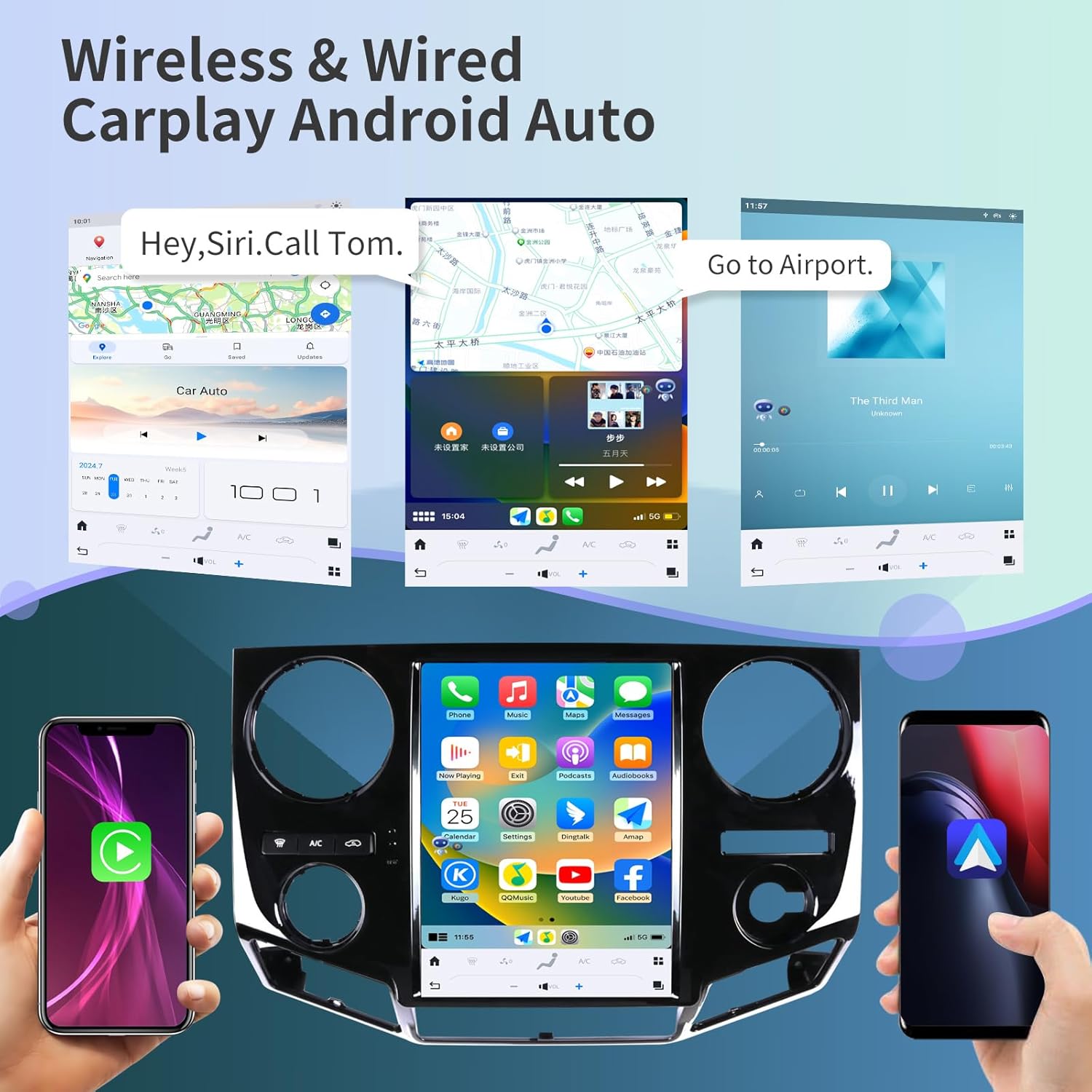
이미지: 전amples of Apple CarPlay and Android Auto interfaces displayed on the head unit, showing navigation and music playback.
5.3 GPS 내비게이션
The unit features a built-in GPS module with support for both online and offline maps, utilizing GPS + GLONASS for high-precision navigation.
- 지도 활용: Compatible with popular navigation apps such as Apple Maps, Google Maps, and Waze.
- Online/Offline: Download offline maps for navigation without an internet connection, or use online maps for real-time traffic updates.

Image: The head unit displaying various navigation application icons and indicating Wi-Fi and 4G network capabilities.
5.4 Wi-Fi & 4G Network Connectivity
Access the internet via Wi-Fi or a 4G network (SIM card required for 4G, not included) to enhance your in-car experience.
- 온라인 콘텐츠: Stream online videos, browse the web, and download applications from the app store (e.g., YouTube, Netflix, Facebook).
- 핫스팟 : Connect to your smartphone's hotspot for internet access.
5.5 블루투스 5.0
The integrated Bluetooth 5.0 module enables wireless audio streaming and hands-free calling.
- 핸즈프리 통화: Make and receive calls safely using the external microphone and the unit's display.
- 오디오 스트리밍 : Play music from your Bluetooth-enabled devices.
- Contact Sync: Sync your phone contacts for easy access.
5.6 스티어링 휠 컨트롤
이 장치는 차량의 순정 스티어링 휠 컨트롤을 지원하므로 핸들에서 손을 떼지 않고도 오디오, 통화 및 기타 기능을 관리할 수 있습니다.
- 구성: The unit can be configured to learn and map your vehicle's steering wheel buttons. Refer to the unit's settings menu for steering wheel control setup.

Image: The head unit displaying the interface for configuring steering wheel controls, alongside a view of the backup camera in action.
5.7 후방 카메라 기능
The included HD backup camera provides a 170° wide viewing angle and night vision capabilities, enhancing safety during reversing maneuvers.
- 자동 표시: The camera feed automatically appears on the unit's screen when the vehicle is shifted into reverse.
- 야간 투시경: 어두운 환경에서의 시야 확보가 향상되었습니다.
5.8 디지털 사운드 프로세서(DSP)
Customize your audio experience with the built-in 16-band equalizer and DSP settings.
- 이퀄라이저 : Adjust frequency bands to match your audio preferences.
- 사운드 모드: Select from various preset sound modes or create custom profiles.
5.9 분할 화면 표시
Enhance multitasking by displaying two applications simultaneously on the screen.
- 용법: 예를 들어ample, use navigation on one side and music playback on the other.
6. 유지관리
Proper maintenance ensures the longevity and optimal performance of your KiriNavi car radio.
- 화면 청소: 부드럽고 보풀이 없는 천을 사용하여 터치스크린을 부드럽게 닦으세요. 잘 지워지지 않는 얼룩은 가볍게 닦아주세요.amp천에 물이나 화면에 안전한 세척제를 묻혀 닦아주세요. 강한 화학 물질이나 연마재는 사용하지 마세요.
- 소프트웨어 업데이트: Periodically check for software updates through the unit's settings menu to ensure you have the latest features and performance improvements.
- 연결 확인: Occasionally inspect all visible cable connections to ensure they are secure and free from damage.
- 환경 관리: 본 제품을 극한의 온도, 장시간 직사광선 또는 과도한 습기에 노출시키지 마십시오.
7. 문제 해결
This section addresses common issues you might encounter with your KiriNavi car radio.
| 문제 | 가능한 원인 | 해결책 |
|---|---|---|
| 장치의 전원이 켜지지 않습니다. | Loose power connection, blown fuse, vehicle ignition issue. | Check power cable connections. Inspect vehicle's fuse box for blown fuses. Ensure vehicle ignition is on. |
| 소리가 나지 않거나 오디오가 왜곡됩니다. | Incorrect wiring, volume set to zero, DSP settings. | Verify speaker wiring. Adjust volume. Check DSP equalizer settings. Perform a soft reset. |
| GPS 신호가 끊어졌거나 부정확합니다. | GPS 안테나 장애물 또는 연결 불량. | GPS 안테나가 방해받지 않는 깨끗한 위치에 장착되었는지 확인하십시오. view 하늘의. 안테나가 본체에 제대로 연결되어 있는지 확인하십시오. |
| Wi-Fi/4G connectivity issues. | Weak signal, incorrect network settings, SIM card issue (for 4G). | Move to an area with better signal. Verify Wi-Fi password or 4G SIM card installation and activation. Restart the unit. |
| CarPlay/Android Auto가 연결되지 않습니다. | 휴대전화 설정 오류, USB 케이블 불량, 소프트웨어 오류. | Ensure CarPlay/Android Auto is enabled on your phone. Try a different USB cable. Restart both phone and head unit. |
| Unit is slow or unresponsive. | Too many applications running, low memory, software issue. | Close unused applications. Restart the unit. If issues persist, consider a factory reset (see warning below). |
| 후방 카메라 영상이 표시되지 않습니다. | Loose camera connection, incorrect wiring, camera fault. | Check camera cable connections. Ensure the camera is receiving power. Verify settings in the unit. |
Warning regarding Factory Reset:
Performing a factory reset will erase all user data and settings. If you decide to perform a factory reset, ensure you have noted any critical information or settings. Some users have reported losing backup camera functionality after a factory reset without proper re-configuration. Refer to the product's included booklet or contact support for specific instructions if a factory reset is necessary.
8. 사양
| 특징 | 세부 사항 |
|---|---|
| 모델 | B0C7BP28RS |
| 운영 체제 | 안드로이드 13 |
| 프로세서 | 8 Core CPU (Qualcomm 665) |
| 숫양 | 4GB |
| 집시 남자 | 64GB |
| 디스플레이 크기 | 12.1 인치 |
| 해결 | 1920 x 1080 (2K IPS Touchscreen) |
| 연결성 | Bluetooth 5.0, Ethernet, USB, Wi-Fi, 4G Network Support |
| 특별 기능 | Android Auto, Apple CarPlay, Built-In Bluetooth, DSP, GPS Navigation, Steering Wheel Control Support, Backup Camera Input |
| 지도 유형 | Satellite (Online/Offline) |
| 음성 명령 | 버튼, 마이크, 터치스크린 |
| 오디오 출력 모드 | 스테레오 재생 |
| 장착 유형 | 대시 보드 마운트 |
| 품목 무게 | 10.43파운드 |
| 패키지 크기 | 22 x 16.12 x 8 인치 |
9. 보증 및 지원
KiriNavi is committed to providing excellent customer service and technical support for your product.
9.1 기술 지원
If you encounter any issues during installation or operation, or if you have questions about your KiriNavi car radio, please contact our technical support team. We offer one-on-one service to assist you.
고객 지원팀에 문의하려면 다음 단계를 따르세요.
- Visit the KiriNavi store page on Amazon.
- Locate the 'Ask a question' button to send a message to the seller.

Image: A visual guide demonstrating how to navigate to the KiriNavi seller page on Amazon and use the 'Ask a question' feature for support.
9.2 보증 정보
Specific warranty details are typically provided with your purchase documentation. Please retain your proof of purchase for warranty claims. Protection plans may also be available for extended coverage.