
소개
The Maxfree F2 Triple Screen Laptop Extender is designed to transform your laptop into a powerful, portable workstation. Featuring dual 14-inch 1080P IPS displays, it significantly enhances your productivity by providing multiple screens for multitasking. Its innovative design allows for 360-degree rotation, offering flexible viewing angles for various work scenarios. The intelligent base not only supports your laptop but also aids in heat dissipation, ensuring comfortable extended use. This manual provides comprehensive instructions for setup, operation, maintenance, and troubleshooting to help you maximize your device's potential.

The F2 extender is compatible with 12-17'' laptops running Windows, Mac, Surface, Dex, or Switch operating systems. Please note that it does not support MacBook Air models with M1/M2 chips. Its plug-and-play functionality ensures seamless connectivity, allowing you to extend, mirror, or use portrait/landscape modes without additional drivers.
상자 안에 무엇이 들어있나요?

Your Maxfree F2 package includes the following items:
- 2 x Portable Monitors (14-inch)
- 1 x Laptop Screen Extender Stand
- 1 x 사용자 설명서
- 1 x 여행 가방
- USB-C-USB-C 케이블 2개
- HDMI-미니 HDMI 케이블 2개
- USB-A-USB-C 케이블 2개
설치 가이드
1. 언박싱 및 초기 검사
Carefully open the packaging and remove all components. The F2 comes securely packed within a durable carrying case, which also serves as a protective cover for transport. Verify that all items listed in the 'What's in the Box' section are present and undamaged.
2. Preparing the Stand

Unfold the main stand unit. The side arms can be rotated 360 degrees to achieve your preferred viewing angle. The stand is adjustable to accommodate laptops ranging from 12 to 17 inches. Extend the base as needed to fit your laptop size, ensuring the support tabs are properly extended for stability.
3. Installing the Monitors

Gently slide each 14-inch monitor into the designated slots on the stand's arms. Ensure they click securely into place. The monitors are designed for easy insertion and removal.
4. 노트북 연결하기

The F2 monitor supports various connection methods for seamless plug-and-play functionality without requiring additional drivers:
- Full-Featured Type-C: If your laptop has a full-featured Type-C port (with Thunderbolt interface), you can connect each monitor using a single USB-C to USB-C cable for both video and power.
- HDMI + USB-A: If your laptop's Type-C port does not support video output, or if you prefer, use the Mini HDMI cable for video and a USB-A to USB-C cable for power.

The Maxfree F2 is compatible with a wide range of systems, including Windows, Mac, Surface, Dex, and Switch. Please note that MacBook Air models with M1/M2 chips are not supported for dual-screen setups.
작동 모드
The F2 supports multiple display modes to suit your needs:
- 확장 모드: Extend your desktop across all three screens for maximum workspace.
- 미러링 모드: Duplicate your laptop's display on the external monitors, ideal for presentations or sharing content.
- 세로 모드 : Rotate the external monitors vertically for optimized viewing of documents, code, or long web 페이지.
- 가로 모드: Standard horizontal orientation for general use.
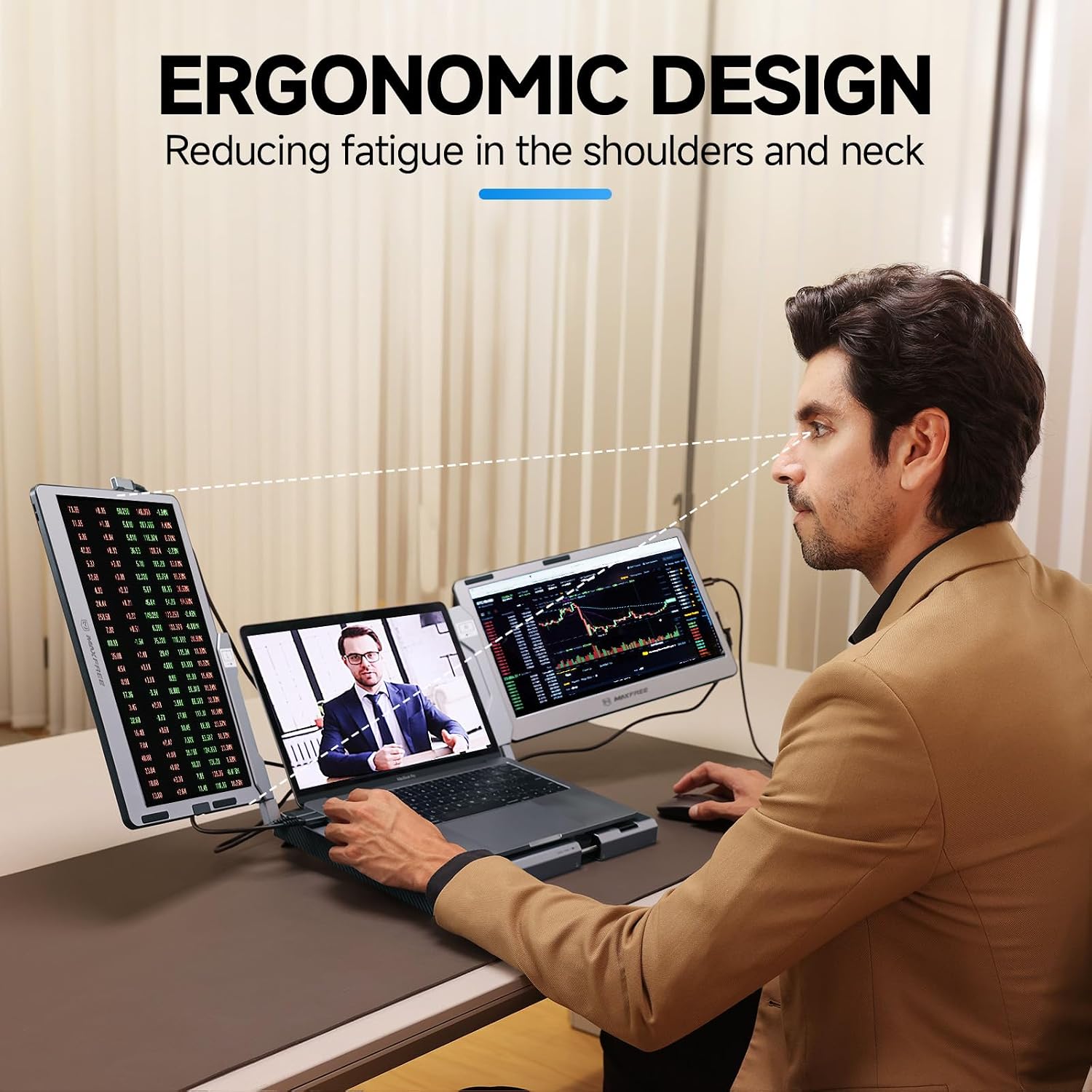
You can freely switch between vertical and horizontal orientations by rotating the monitors on the stand.
디스플레이 설정 조정

Each monitor features control buttons on the side for adjusting various display settings. Press the menu button to access options for brightness, contrast, backlight, sharpness, ECO mode, and DCR. Navigate through the options using the up/down buttons and confirm your selections.
오디오 기능
The Maxfree F2 monitors are equipped with built-in speakers, providing audio output directly from the displays. You can control the volume through your connected laptop's audio settings or directly on the monitor if a volume control button is present.
문제 해결

Q1: 내 노트북의 Type-C 포트가 전체 기능 포트인지 어떻게 확인하나요?
A1: If your laptop has a USB-C port with one of the following symbols (or the Thunderbolt 3, Thunderbolt 4, DP 1.2), then it is a Full-function Type-C port. You can use the Type-C to C cable to connect each screen. (You can't check the manual or go online to check the computer port parameters.)
Q2: Why does one monitor show "No Signal"?
A2:
- If the cable you are using is Type-C, it means that your computer's Type-C port only supports power and has no video output; you also need to connect an HDMI cable to the screen to provide video signal output.
- If you are using HDMI as video output, and connect a Type-C cable, it means that your laptop can't provide 5V/2A power through the Type-C port; you also need to connect an external 5V/2A power adapter to power the screen.
Q3: The screen does not light up after connected?
A3:
- Check if your laptop's Type-C port supports display and power delivery. If the port does not support, please use the included HDMI cable and Type-C to Type-A cable (or Type-C cable) to connect the screen.
- Please use the included Type-C cable to connect an external power supply that provides 5V/2A to power the screen.
Q4: Why is one of my displays not showing a signal on my MacBook Air with the M2 chip?
A4: The MacBook Air with an M2 chip does not support dual-screen setups. This includes the M1 chip as well, which means you cannot connect to the dual-screen monitor F2.
명세서
| 특징 | 사양 |
|---|---|
| 상표 | Maxfree |
| 모델 | F2 |
| 화면 크기 | 14 인치 |
| 최대 화면 해상도 | 1920 x 1080 픽셀(FHD 1080p) |
| 품목 무게 | 5.76파운드 |
| 제품 치수 | 15.17 x 9.79 x 0.81 인치 |
| 색상 | 은 |
| 종횡비 | 16시 9분 |
| 화면 표면 설명 | 광택있는 |
유지
To ensure the longevity and optimal performance of your Maxfree F2 monitor, follow these maintenance guidelines:
- 청소: 부드럽고 보풀 없는 천으로 화면과 외부 표면을 살살 닦아주세요. 잘 지워지지 않는 얼룩은 살짝 두드려 닦아주세요.amp천에 물이나 비연마성 화면 세척제를 묻혀 닦아주세요. 강한 화학 물질이나 연마재는 사용하지 마세요.
- 저장: When not in use, store the monitor in its provided travel bag to protect it from dust, scratches, and impacts. Ensure the monitors are properly folded and secured within the stand before placing them in the bag.
- 손질: 기기를 조심스럽게 다루십시오. 떨어뜨리거나 과도한 힘을 가하지 마십시오. 화면이나 내부 부품이 손상될 수 있습니다.
- 온도: Operate and store the monitor within recommended temperature ranges to prevent damage. Avoid extreme heat or cold.
보증 및 지원
For detailed warranty information, technical support, or service inquiries, please refer to the official user manual provided with your product. You can also download the PDF version of the user manual 여기.
For further assistance, please contact Maxfree customer support through their official web사이트 또는 사용자 설명서에 제공된 연락처 정보를 참조하세요.