
소개
This manual provides detailed instructions for the setup, operation, maintenance, and troubleshooting of your SOLIDEE 65% Mechanical Gaming Keyboard. Please read this manual thoroughly before using the product to ensure proper function and longevity.
상자 안에 무엇이 들어있나요?
- SOLIDEE 65% Mechanical Gaming Keyboard
- Removable Type-C USB Cable
- 키캡 풀러
설치 지침
Follow these steps to connect and begin using your keyboard:
- USB-C 케이블을 연결합니다. Insert the Type-C end of the provided cable into the port on the keyboard.
- 장치에 연결: Plug the standard USB-A end of the cable into an available USB port on your computer or gaming console (PS5/PS4/Xbox).
- 플러그 앤 플레이: The keyboard is designed for plug-and-play functionality. No additional software installation is required for basic operation.

Image: USB-C port for cable connection.
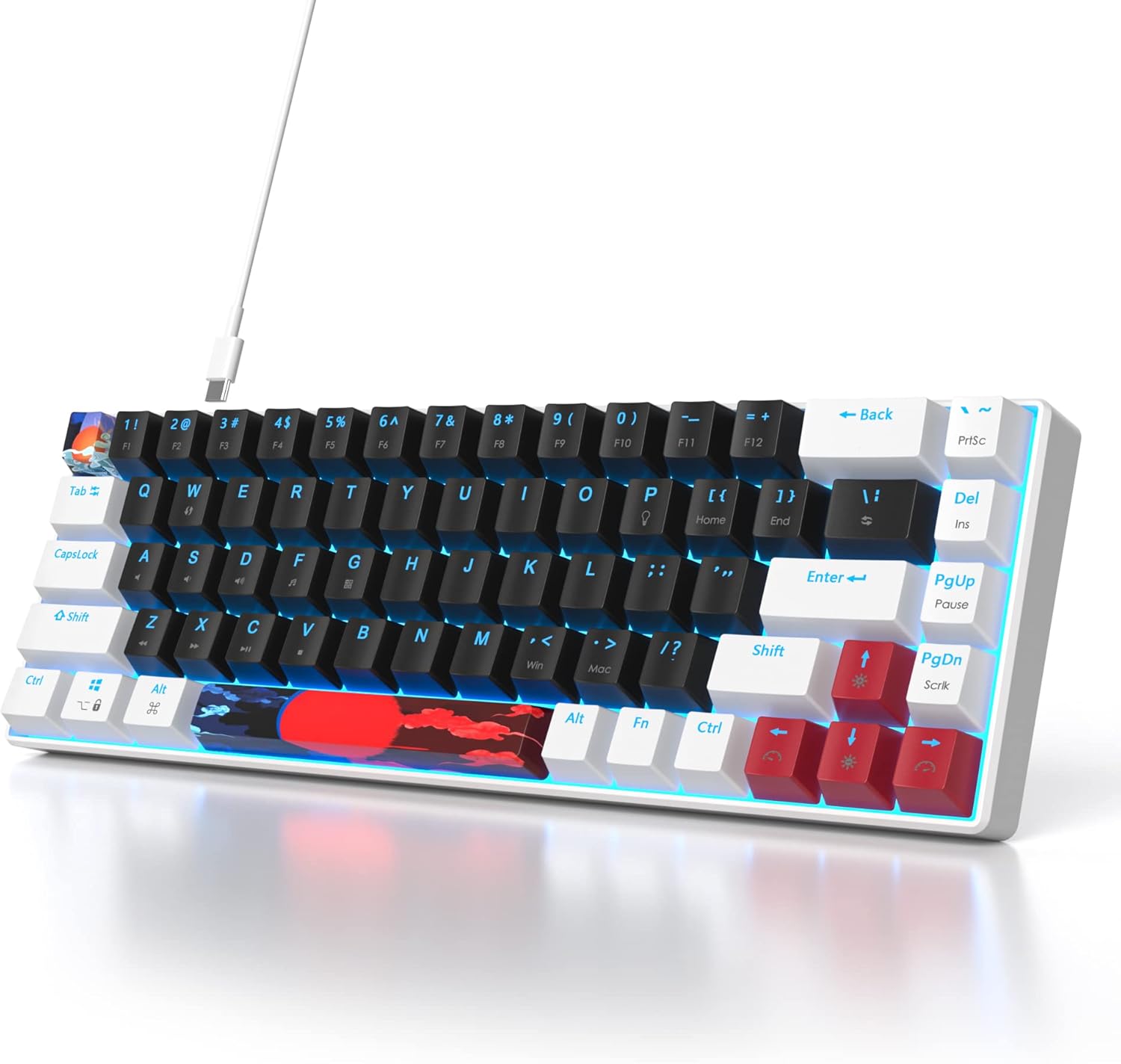
Image: Keyboard connected with its Type-C cable.
호환성: This keyboard is compatible with Windows 98/2000/7/8/10/XP/Vista/MAC operating systems, as well as PS5, PS4, and Xbox consoles.
작동 지침
Your SOLIDEE 65% Mechanical Gaming Keyboard features a compact 68-key layout with linear red mechanical switches and LED backlighting.
주요 특징:
- 68키 레이아웃: An ultra-compact design that saves desk space while retaining essential keys.
- 빨간색 기계식 스위치: These linear switches provide a quiet click sound and fast action with minimal resistance, ideal for both typing and gaming.
- 인체공학적 디자인: The keyboard's design promotes a natural hand position to reduce fatigue during extended use.
- 투명 키캡: The keycaps are designed to allow the LED backlight to shine through, enhancing visibility and aesthetics.

Image: Detail of the red mechanical switches.

Image: Keycap demonstrating shine-through backlight.
백라이트 제어:
The keyboard features a classic blue LED backlight with approximately 18 different lighting modes.
- 백라이트 켜기/끄기: 누르다 Fn + P 동시에.
- 백라이트 모드 전환: 누르다 FN + \ | simultaneously to cycle through the available lighting effects.
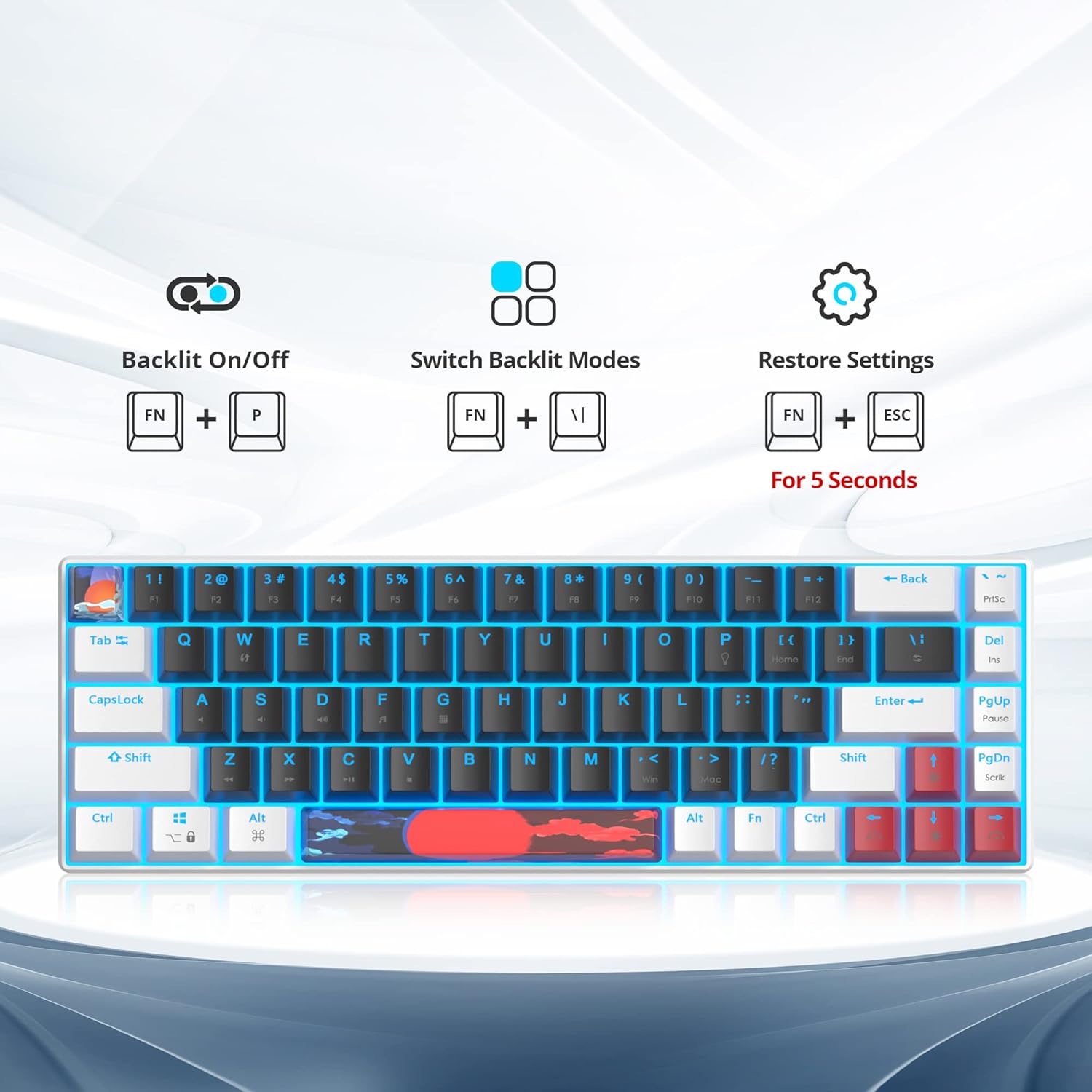
Image: Key combinations for backlight control and factory reset.
유지
적절한 유지관리는 키보드의 수명과 성능을 보장합니다.
- 청소: Use a soft, dry cloth to wipe the keyboard surface. For deeper cleaning, you may use a can of compressed air to remove dust and debris from between the keycaps.
- 키캡 제거: Use the provided keycap puller to carefully remove keycaps for cleaning or replacement. Gently pull the keycap straight up to avoid damaging the switch.
- 케이블 관리: Avoid bending or twisting the USB-C cable excessively to prevent internal damage.

이미지: 이상view of the keyboard, showing keycap layout.
문제 해결
키보드에 문제가 발생하면 다음의 일반적인 해결 방법을 참조하십시오.
- 키보드가 응답하지 않음: Ensure the USB-C cable is securely connected to both the keyboard and your device. Try plugging the cable into a different USB port.
- 백라이트가 작동하지 않음: 누르다 Fn + P to ensure the backlight is turned on. If still not working, try resetting the keyboard settings.
- 설정 재설정: 키보드를 공장 초기 설정으로 복원하려면 길게 누르세요. Fn + ESC 5초 동안.
- 키가 등록되지 않음: If specific keys are not working, try removing and re-seating the keycap using the keycap puller. Ensure no debris is obstructing the switch.
명세서
| 특징 | 세부 사항 |
|---|---|
| 상표 | 솔리디 |
| 모델 | 68 White_Black/Red Switch |
| 색상 | 68 White_Black/Red Switch |
| 키 레이아웃 | 65%(68키) |
| 스위치 유형 | Red Mechanical Switches (Linear) |
| 백라이트 | Classic Blue LED (approx. 18 modes) |
| 연결성 | Wired (Removable Type-C USB Cable) |
| 운영 체제 호환성 | Windows 98/2000/7/8/10/XP/Vista/MAC |
| 콘솔 호환성 | PS5, PS4, Xbox |
| 품목 무게 | 840그램 |
| 패키지 크기 | 35.79 x 15.8 x 4.7cm |

Image: Keyboard dimensions (12.2 inches length, 4.2 inches width).
보증 및 지원
For warranty information or technical support, please refer to the product packaging or contact SOLIDEE customer service through the retailer where the product was purchased. Keep your proof of purchase for warranty claims.