
1. 서론
The ABLEWE USB 3.0 KVM Switch allows two computers to share up to four USB 3.0 peripheral devices. This device eliminates the need to constantly swap cables between computers, enhancing work efficiency. It is ideal for sharing devices such as printers, scanners, mice, keyboards, webcams, and USB flash drives between two systems.
This USB 3.0 switch offers broad compatibility, operating driver-free with Windows 10/8/8.1/7/Vista/XP, Mac OS, Linux, and Chrome OS. Simply plug and play for immediate functionality.

Figure 1.1: ABLEWE USB 3.0 KVM Switch connection diagram.
2. 패키지 내용
모든 품목이 들어 있는지 확인하려면 패키지 내용물을 확인하세요.
- 1 x ABLEWE USB 3.0 KVM Switch
- 2 x USB 3.0 A-to-A Cables
- 1 x 마이크로 USB 전원 케이블
- 1 x 사용자 설명서

Figure 2.1: Package contents of the ABLEWE USB 3.0 KVM Switch.
3. 제품 특징 및 도표
The ABLEWE USB 3.0 KVM Switch is designed for ease of use and efficient device sharing.
주요 특징:
- 4-Port USB 3.0 Sharing: 최대 3.0개의 USB XNUMX 장치를 연결합니다.
- 2-Computer Connectivity: Seamlessly switch between two host computers.
- 버튼 스위치: Easy one-button toggle between connected computers.
- LED 표시등: Clearly shows which computer is currently active (Green or Blue). The indicator light is designed to be non-dazzling.
- USB 3.0 속도: Supports data transfer speeds up to 5Gbps, backward compatible with USB 2.0.
- 마이크로 USB 전원 포트: Provides stable power for high-power consumption devices (e.g., HDDs, SSDs, digital video cameras).
- Driver-Free: No software installation required for most operating systems.
제품 다이어그램:

그림 3.1: 전면 view of the ABLEWE USB 3.0 KVM Switch.

Figure 3.2: Key features of the ABLEWE USB 3.0 KVM Switch.
4. 설정 지침
Follow these steps to set up your ABLEWE USB 3.0 KVM Switch:
- 컴퓨터 연결: Use the two provided USB 3.0 A-to-A cables to connect your two computers to the input ports labeled 'PC 1' and 'PC 2' on the KVM switch.
- USB 장치 연결: Plug your USB peripheral devices (e.g., keyboard, mouse, printer, USB drive) into the four USB 3.0 output ports on the KVM switch.
- 전원 연결(선택 사항이지만 권장): If you are using high-power USB devices such as external hard drives (HDDs), solid-state drives (SSDs), or digital video cameras, connect the included Micro USB power cable to the 'DC 5V' port on the switch and to a 5V 2A USB power adapter (not included). This ensures stable performance for all connected devices.
- 전원 켜기: Ensure both connected computers are powered on. The KVM switch is driver-free and should be recognized automatically by your operating system.
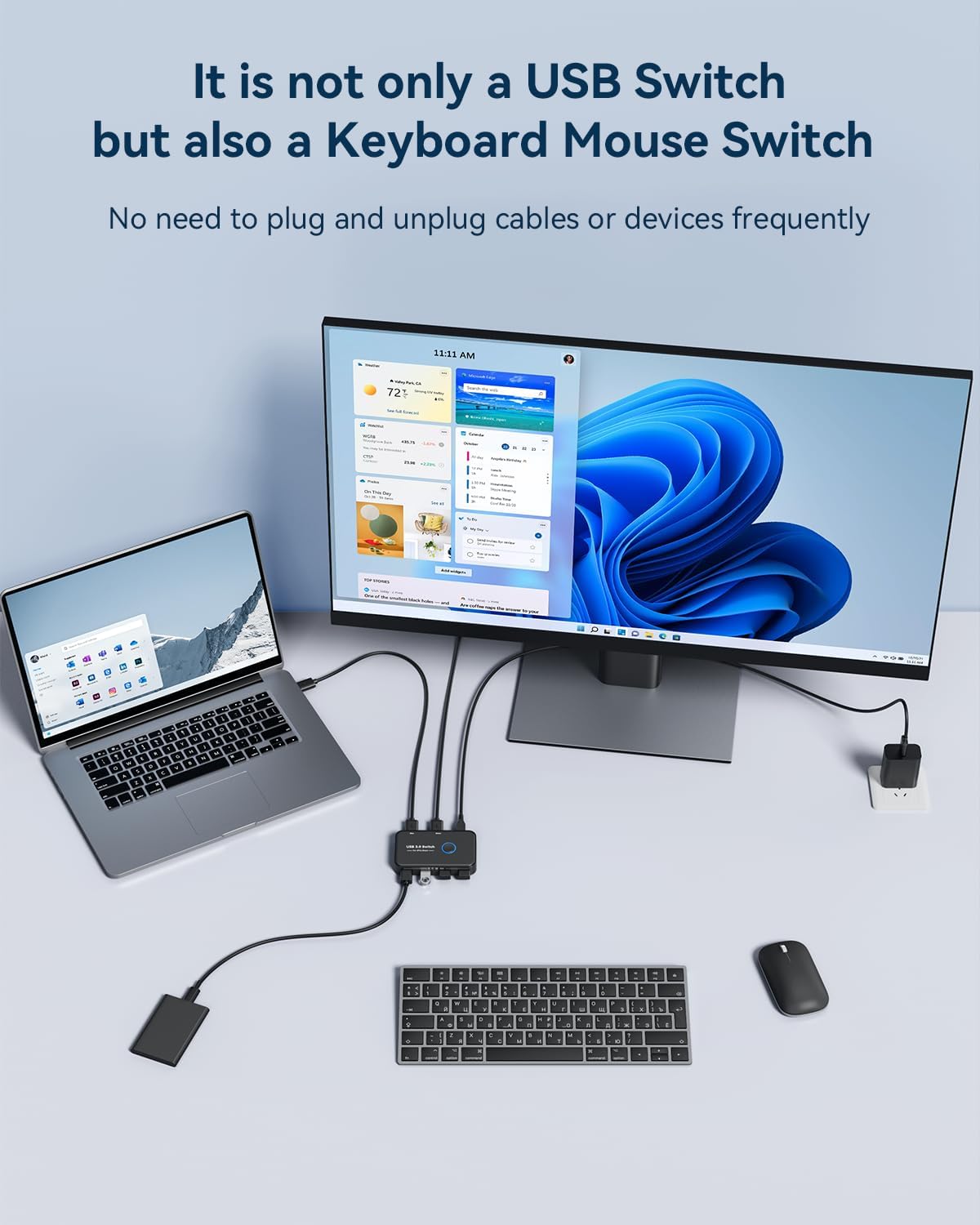
그림 4.1: 예ample setup with a laptop and desktop sharing peripherals.

Figure 4.2: Connecting the Micro USB power cable for stable performance.
Connecting to a USB-C Laptop:
If your laptop only has USB-C ports, you will need an OTG USB-C to USB-A adapter to connect the provided USB-A to USB-A cable from the KVM switch to your laptop.

Figure 4.3: Connecting to a USB-C laptop.
5. 사용 설명서
Operating the ABLEWE USB 3.0 KVM Switch is straightforward:
- 컴퓨터 전환: To switch control of the shared USB devices between your two computers, simply press the large circular button on the top of the KVM switch.
- LED 표시등: The LED indicator light around the button will change color (Green or Blue) to show which computer is currently active and has control of the connected USB devices.

Figure 5.1: One-button switching operation.
6. 유지관리
To ensure the longevity and optimal performance of your ABLEWE USB 3.0 KVM Switch, follow these maintenance guidelines:
- 기기를 깨끗하고 건조한 환경에 보관하고 먼지와 습기를 피하십시오.
- 스위치를 극한의 온도나 직사광선에 노출시키지 마세요.
- 장치를 열거나 개조하려고 하지 마십시오. 그럴 경우 보증이 무효화됩니다.
- 외부를 부드럽고 마른 천으로 닦으십시오. 액체 세제나 용제를 사용하지 마십시오.
- Ensure cables are not bent sharply or under excessive tension to prevent damage.
7. 문제 해결
If you encounter issues with your ABLEWE USB 3.0 KVM Switch, please refer to the following troubleshooting tips:
- Devices Not Recognized or Unstable:
- Ensure the Micro USB power cable is connected to the switch and a 5V 2A power adapter, especially when using high-power devices like external hard drives or SSDs. Insufficient power can lead to device instability or non-recognition.
- Try connecting the problematic USB device directly to the computer to verify its functionality.
- Check all cable connections. Ensure they are securely plugged into both the switch and the computers/devices.
- Try using different USB cables if available, as faulty cables can cause connection issues.
- Switching Issues (e.g., device not switching properly, unrecognized USB device error):
- Press the switch button again to toggle to the other computer, wait a few seconds, and then switch back to the desired computer. This can often resolve temporary recognition issues.
- Ensure both computers are fully powered on and their operating systems are running correctly.
- If a specific device consistently fails to switch, try connecting it to a different USB port on the KVM switch.
- 데이터 전송 속도가 느림:
- Ensure you are using USB 3.0 compatible devices and cables. While the switch is backward compatible, USB 2.0 devices will operate at USB 2.0 speeds.
- Verify that the USB 3.0 ports on your computers are functioning correctly.
- No LED Indicator Light:
- Ensure the KVM switch is properly connected to at least one active computer via a USB 3.0 A-to-A cable. The switch draws power from the connected computers.
8. 사양
| 특징 | 설명 |
|---|---|
| 상표 | 어블위 |
| 모델 | B0C2PNDDFS |
| 품목 무게 | 5.9온스(0.17킬로그램) |
| 패키지 크기 | 6.26 x 5.24 x 0.63 인치 |
| 색상 | 검은색 |
| 특별 기능 | Button Switch, LED Indication |
| 호환 장치 | Desktop, Keyboard, Mouse, Printer, Scanners |
| 커넥터 유형 | USB |
| 데이터 전송 속도 | 최대 5Gbps(USB 3.0) |
| 전원 입력 | Micro USB 5V 2A (for stable performance with high-power devices) |
| 운영 체제 | Windows 10/8/8.1/7/Vista/XP, Mac OS, Linux, Chrome OS |
9. 보증 및 지원
ABLEWE provides a 12개월 보증 for this USB switch, covering manufacturing defects and ensuring product reliability.
Additionally, ABLEWE offers 평생 기술 지원 to assist you with any questions or issues you may encounter during the use of your product.
For warranty claims or technical assistance, please contact ABLEWE support through the retailer's platform or visit the official ABLEWE web연락처 정보 사이트.