
1. 서론
Thank you for choosing the EBTOOLS 2.4G Wireless Keyboard and Mouse combo. This product is designed for comfortable and efficient use with its low-noise operation, adjustable DPI settings, and reliable 2.4G wireless connectivity. This manual provides detailed instructions for setup, operation, and maintenance to ensure optimal performance.
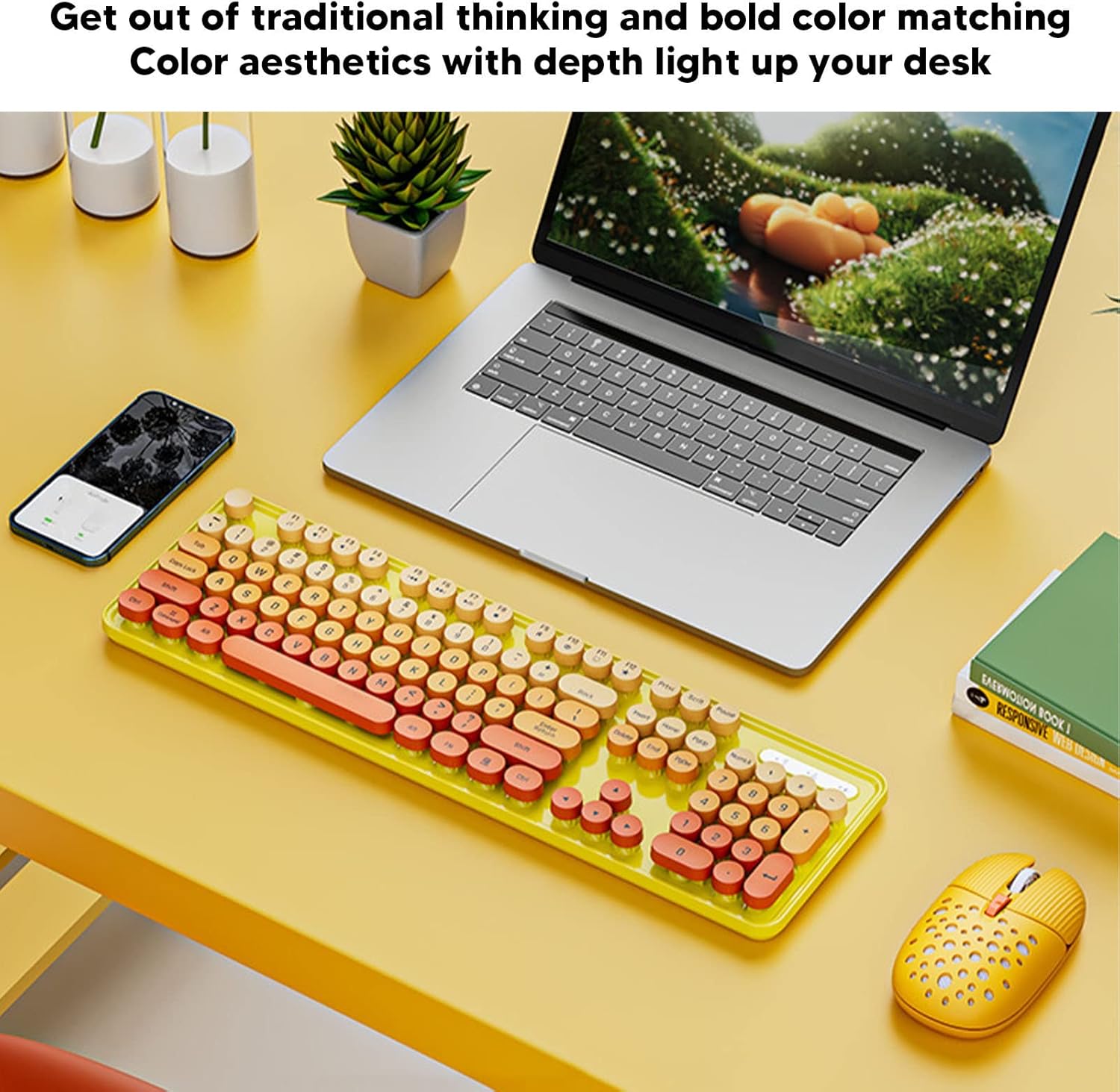
Image: The EBTOOLS 2.4G Wireless Keyboard and Mouse in mixed color yellow, displayed on a desk alongside a laptop and smartphone, showcasin디자인과 컴팩트한 폼 팩터가 특징입니다.
2. 패키지 내용
- 1 x EBTOOLS 2.4G Wireless Keyboard
- 1 x EBTOOLS 2.4G Wireless Mouse
- 1 x USB Receiver (typically stored in the mouse battery compartment)
- 사용 설명서 (본 문서)
3. 설정 지침
3.1. 배터리 설치
The keyboard and mouse require batteries for operation. Please ensure you have 1 AA battery for the keyboard and 1 AA battery for the mouse (batteries are not included).
- 키보드 아랫부분에서 배터리 칸을 찾으세요.
- 배터리 덮개를 엽니다.
- Insert the AA battery according to the polarity indicators (+/-) inside the compartment.
- 배터리 덮개를 단단히 닫으세요.

Image: The underside of the EBTOOLS keyboard with the battery compartment open, showing where to insert the AA battery.
3.2. USB 수신기 연결
The keyboard and mouse share a single 2.4G USB receiver for wireless connection.
- Locate the USB receiver. It is typically stored in the battery compartment of the mouse for safekeeping.
- USB 수신기를 보관 슬롯에서 꺼내십시오.
- Plug the USB receiver into an available USB port on your computer (desktop PC, laptop, etc.).
- The system should automatically detect and install the necessary drivers. This is a plug-and-play device.

Image: A diagram illustrating the compatibility of the keyboard and mouse with various systems, including desktop PCs, laptops, and other computers, highlighting its plug-and-play functionality.

Image: An illustration demonstrating the 2.4G wireless connection mode for the keyboard and mouse, emphasizing the ability to connect two devices wirelessly with a single receiver.
4. 사용 설명서
4.1. Adjusting Mouse DPI
The mouse features three adjustable DPI (Dots Per Inch) settings to suit your preference and task requirements. You can cycle through these settings by pressing the DPI button, usually located near the scroll wheel on the mouse.
- 800DPI: 정밀한 작업이나 느린 커서 움직임에 적합합니다.
- 1600DPI: 일반적인 사용을 위한 기본 설정입니다.
- 2400DPI: 게임이나 큰 화면 탐색과 같이 빠른 커서 이동이 필요한 경우에 이상적입니다.
4.2. 멀티미디어 키 사용
The keyboard is equipped with 18 multimedia keys for quick access to various functions. These keys are typically activated by pressing the Fn key in combination with the corresponding function key (F1-F12) or dedicated multimedia keys.

이미지: 자세한 view of the EBTOOLS keyboard layout, highlighting the standard keys and the 18 multimedia keys, along with their respective functions such as volume control, media playback, and quick access to applications.
Common multimedia functions include:
- Volume Down / Up / Mute
- Play / Pause / Previous Track / Next Track
- Home / My Computer / Mail / Favorites
- Other system-specific functions
5. 유지관리
5.1. 청소
키보드와 마우스의 수명과 외관을 유지하려면 다음과 같이 하세요.
- 부드럽고 마른 천으로 표면을 닦으세요.
- 완고한 먼지에는 약간 damp천에 물이나 순한 세척액을 묻혀 닦으세요. 강한 화학 물질은 피하세요.
- 압축 공기를 사용하여 키보드 키 사이의 먼지와 이물질을 제거하십시오.
5.2. 배터리 교체
When the keyboard or mouse becomes unresponsive or exhibits intermittent connectivity, it may be time to replace the batteries. Follow the battery installation steps in Section 3.1.

Image: An illustration depicting the energy-saving features of the keyboard and mouse, emphasizing lower power consumption and extended battery life for continuous use.
6. 문제 해결
| 문제 | 해결책 |
|---|---|
| 키보드/마우스가 응답하지 않습니다 |
|
| 간헐적 연결 |
|
| 마우스 커서가 불규칙하거나 부드럽게 움직이지 않습니다. |
|
7. 사양
| 특징 | 세부 사항 |
|---|---|
| 상표 | 이비툴즈 |
| 색상 | Mixed Color Yellow |
| 연결 기술 | 2.4G Radio Frequency Wireless |
| 특징 | 저소음 작동 |
| 호환 장치 | Personal Computer (Desktop PC, Laptop) |
| 운영 체제 | Major PC Operating Systems |
| 손 방향(마우스) | 양손잡이 |
| 필요한 배터리 | Yes (1 AA for keyboard, 1 AA for mouse) |
| 키 개수 (키보드) | 104 |
| 전원 | 배터리 구동 |
| 키보드 레이아웃 | 쿼티 |
| 마우스 DPI 설정 | 800, 1600, 2400 (조절 가능) |
| 재료 | ABS |
8. 공식 제품 영상
8.1. Keyboard and Mouse Overview
비디오: 오버view of the EBTOOLS Keyboard and Mouse, demonstrating its features and design. This video is provided by the seller, Zhiyavex-US.
8.2. Yunseity Wireless Keyboard and Mouse Demonstration
Video: A demonstration of the Yunseity Wireless Keyboard and Mouse, showcasing its functionality and user experience. This video is provided by the seller, Zhiyavex-US.
9. 보증 및 지원
EBTOOLS products are designed for reliability and performance. For any questions, technical support, or warranty inquiries, please refer to the contact information provided with your purchase or visit the official EBTOOLS web사이트. 보증 청구를 위해 구매 증빙 자료를 보관하세요.
The product comes with a standard return policy of 30 days from the date of purchase for refund or replacement, as per seller terms.