
BPXX XP-D463B
BPXX Bluetooth Thermal Label Printer User Manual
Model: XP-D463B
1. 서론
This manual provides comprehensive instructions for the setup, operation, and maintenance of your BPXX Bluetooth Thermal Label Printer (Model XP-D463B). This printer is designed for efficient and high-quality printing of various labels, including shipping labels, for both personal and business use. It supports both Bluetooth and USB connectivity, offering flexibility across multiple operating systems and devices.
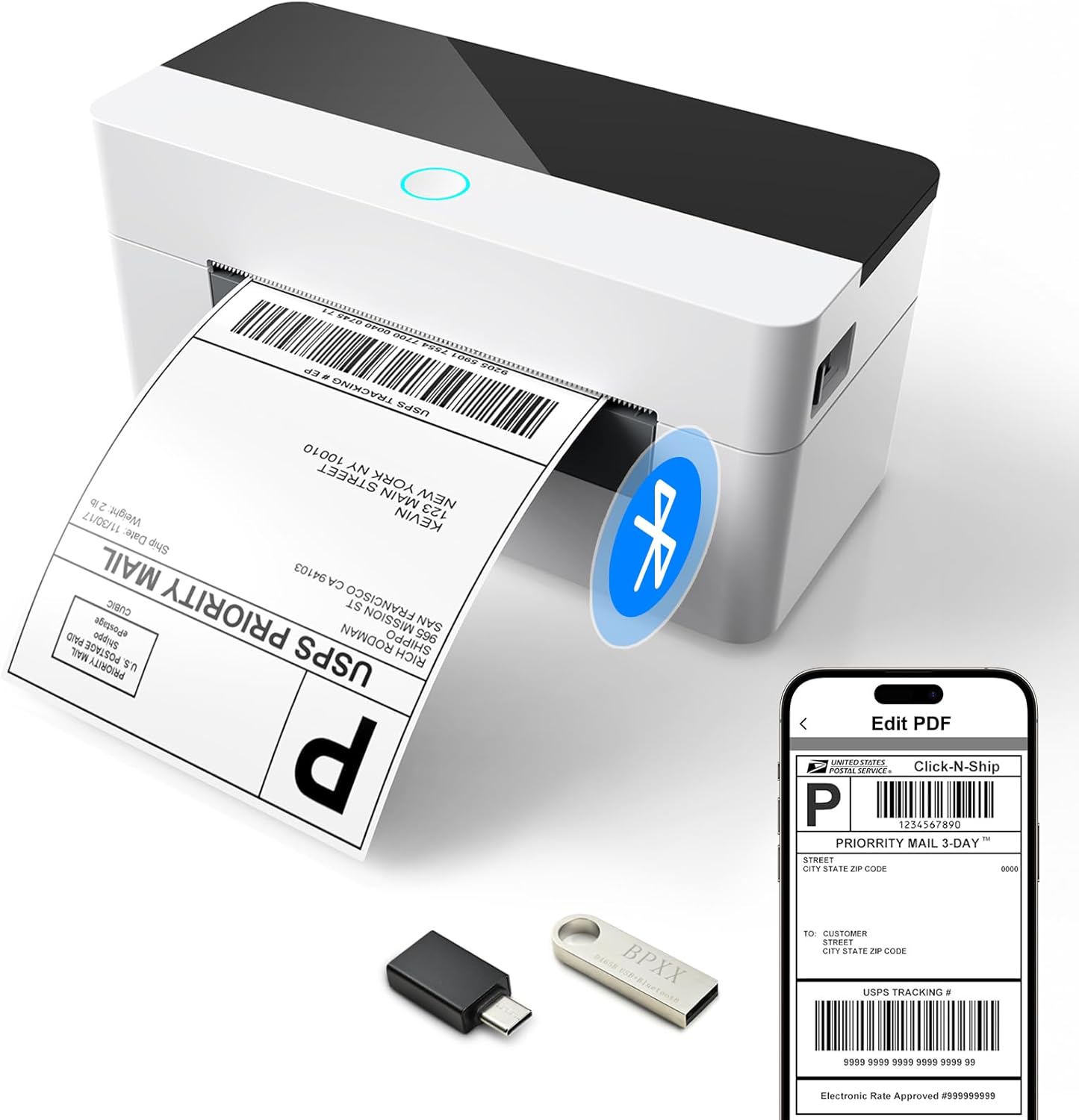
Image 1.1: The BPXX Bluetooth Thermal Label Printer, showcasing its compact design and wireless printing capability with a smartphone.
2. 상자 안에 무엇이 들어있나요?
패키지에 다음 구성품이 모두 포함되어 있는지 확인하세요.
- BPXX Bluetooth and USB Thermal Printer
- 빠른 설치 가이드
- OTG 어댑터
- U Disk (USB flash drive containing drivers and detailed manual)
- USB 케이블
- 전원 코드
- 전원 어댑터

Image 2.1: Contents of the BPXX Thermal Label Printer package.
3. 설정
3.1. 전원 연결
- 전원 어댑터를 프린터의 전원 입력 포트에 연결하십시오.
- 전원 코드를 적합한 콘센트에 꽂으세요.
- Press the power button on the printer to turn it on. The indicator light should illuminate.
3.2. 로딩 레이블
The printer supports labels up to 4.1 inches in width and features auto label size detection.
- 프린터 덮개를 엽니다.
- 라벨 너비에 맞춰 라벨 가이드를 조정하세요.
- Insert the labels into the printer, ensuring the print side is facing up. The printer will automatically feed a few labels to detect the size and calibrate.
- 프린터 덮개를 단단히 닫으십시오.
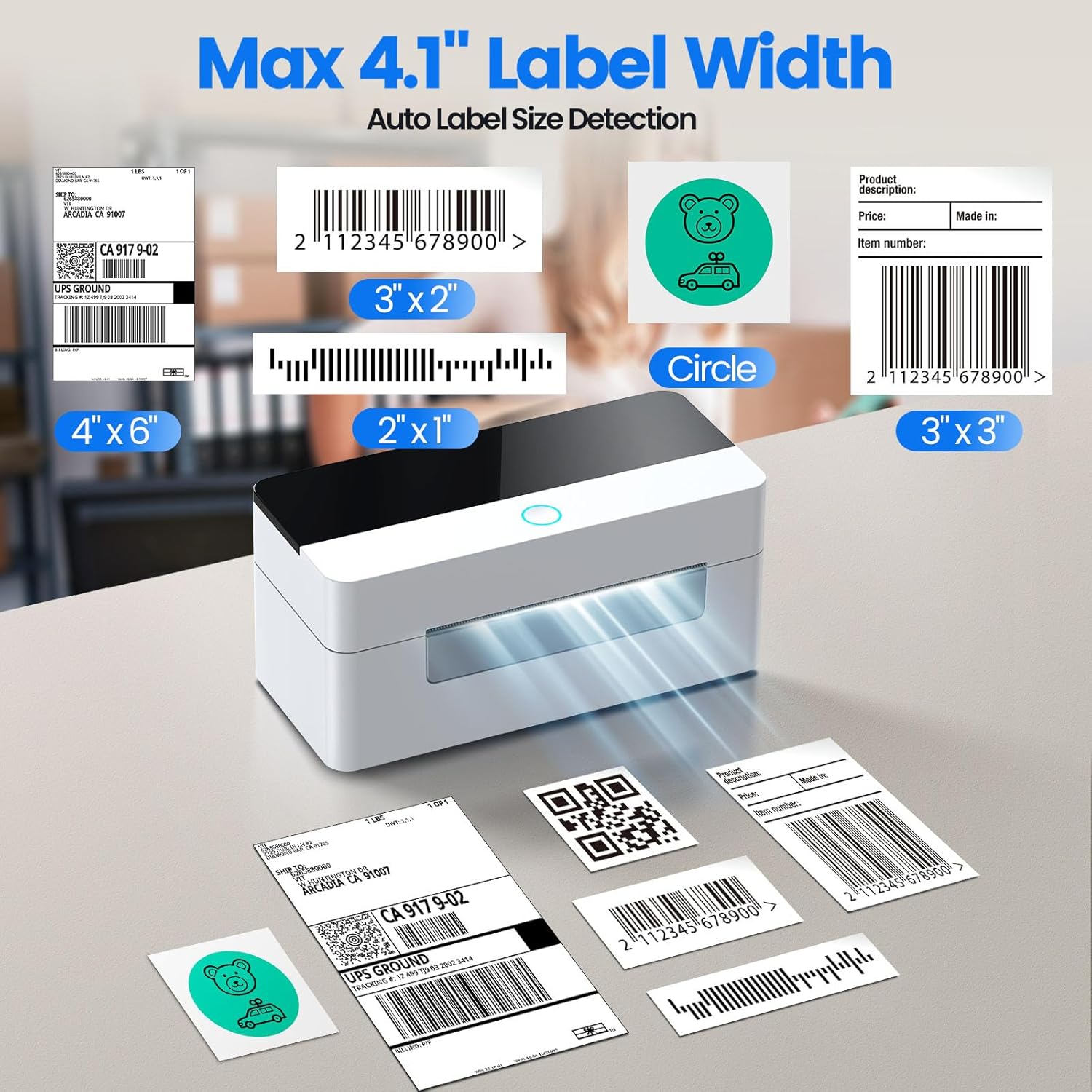
Image 3.1: The printer supports a maximum label width of 4.1 inches and various label types.
3.3. Driver Installation & Connectivity
The included U Disk contains the necessary drivers and a detailed installation guide video. It is highly recommended to use this U Disk for initial setup.
- Insert the provided U Disk into your computer's USB port.
- Follow the instructions in the installation guide video or PDF on the U Disk to install the printer drivers for your operating system (Windows, Mac OS, Linux, ChromeOS).
3.3.1. Bluetooth Connection (for iOS, Android, Windows)
For wireless printing, connect via Bluetooth:
- Download the "4Barcode" app from your device's app store (iOS/Android) or ensure Bluetooth is enabled on your Windows PC.
- Open the "4Barcode" app or go to your device's Bluetooth settings.
- 검색 and select the BPXX printer (Model XP-D463B) to pair.
- Once paired, you can print directly from the app or your device's print function.
3.3.2. USB Connection (for Windows, Mac OS, Linux, ChromeOS)
For wired printing, use the USB cable:
- Connect one end of the provided USB cable to the printer's USB port.
- USB 케이블의 다른 쪽 끝을 컴퓨터의 USB 포트에 연결하세요.
- Ensure the printer drivers are installed as per section 3.3.
- Your computer should recognize the printer, and you can select it from your printing options.

Image 3.2: Connectivity options: Bluetooth for phones/tablets and USB for various computer operating systems.
4. 사용 설명서
The BPXX Thermal Label Printer offers fast and clear printing for various applications.
4.1. 라벨 인쇄
- Ensure the printer is powered on and labels are properly loaded.
- Prepare your label design or shipping information using your preferred software or the "4Barcode" app.
- Select the BPXX printer from your device's print dialogue.
- Adjust print settings (e.g., label size, orientation) as needed to match your label stock.
- Initiate the print command. The printer will quickly produce your label at a speed of up to 152mm/s (72 sheets of 4x6 labels per minute).

Image 4.1: High-speed and high-definition printing capabilities.
4.2. Print Quality
The D463B thermal label printer provides a high-definition printing resolution of 203dpi, ensuring clear and sharp images, texts, and barcodes without ink stains. The intelligent temperature adjustment feature helps maintain stable operation and prolongs the print head's lifespan.
5. 유지관리
5.1. Cleaning the Print Head and Rubber Roller
Regular cleaning ensures optimal print quality and extends the life of your printer.
- 프린터를 끄고 전원 코드를 뽑습니다.
- 프린터 덮개를 엽니다.
- Use a cotton swab dipped in 100% alcohol to gently clean the print head (the heated element that creates the image) and the rubber roller (the roller that feeds the labels).
- Allow the components to dry completely before closing the cover and turning the printer back on.
5.2. Replacing the Label Roll and Printer Head
The BPXX printer features an easy-load and replaceable design for both the label roll and the printer head, simplifying maintenance and extending product longevity.

Image 5.1: Easy-Load and Replaceable Design for label roll and printer head.
Refer to the detailed manual on the included U Disk for specific instructions on replacing these components.
6. 문제 해결
If you encounter issues with your BPXX Thermal Label Printer, try the following solutions:
| 문제 | 가능한 원인 / 해결책 |
|---|---|
| Printer not turning on or responding. |
|
| Labels not printing or feeding correctly. |
|
| Printed labels are blank, faded, or have lines. |
|
| Bluetooth connection issues or prints are cut off/scaled incorrectly. |
|
7. 사양
| 특징 | 세부 사항 |
|---|---|
| 제품 치수 | 3.35인치 깊이 x 7.28인치 너비 x 3.35인치 높이 |
| 품목 무게 | 1.59파운드(722그램) |
| 연결 기술 | 블루투스, USB |
| 인쇄 기술 | 열의 |
| 최대 흑백 인쇄 해상도 | 203 Dots Per Inch (203 x 203 DPI) |
| 최대 인쇄 속도(흑백) | 152mm/s (72 sheets 4x6 labels/min) |
| 호환 장치 | Android smartphones, iOS smartphones, Tablets, Windows computers, Mac OS computers, Chrome OS computers, Linux computers |
| 시트 크기 | Up to 4x6 Inches |
| 제어 방법 | App (4Barcode), USB |
| 특징 | Portable, Aluminum Alloy Printer Head, Intelligent Temperature Control |

Image 7.1: Compact dimensions of the BPXX Thermal Label Printer.
8. 보증 및 지원
For warranty information, technical support, or further assistance, please refer to the detailed User Manual provided on the included U Disk. You may also visit the official BPXX store on Amazon for additional resources and contact information.
Official BPXX Store: https://www.amazon.com/stores/BPXX/page/54DF0CCA-C712-41CE-9AE4-3355AD4A1C5D
Ask a question about this manual
Ask about setup, troubleshooting, compatibility, parts, safety, or missing instructions. Manuals+ will review the question and use this page’s manual context to help answer it.