
1. 서론
The Intelbras GX 3000 is a multifunction wireless mesh router designed to provide high-speed internet connectivity via 5G/4G networks and Wi-Fi 6. This device integrates advanced Qualcomm technology for both its 5G modem and Wi-Fi 6 solution, ensuring high performance and reliability. It supports up to 128 devices simultaneously on the Wi-Fi network and offers wired connectivity options. The GX 3000 is suitable for various environments, from home to office, providing robust network performance.
This manual provides instructions for setting up, operating, and maintaining your Intelbras GX 3000 router. Please read it carefully before use.
2. Package Contents & Device Overview
2.1. 패키지 내용
- Intelbras GX 3000 Wireless Mesh Router
- 전원 어댑터
- 네트워크 케이블
- 빠른 시작 가이드(이 설명서에는 포함되지 않음)
2.2. 디바이스 오버view
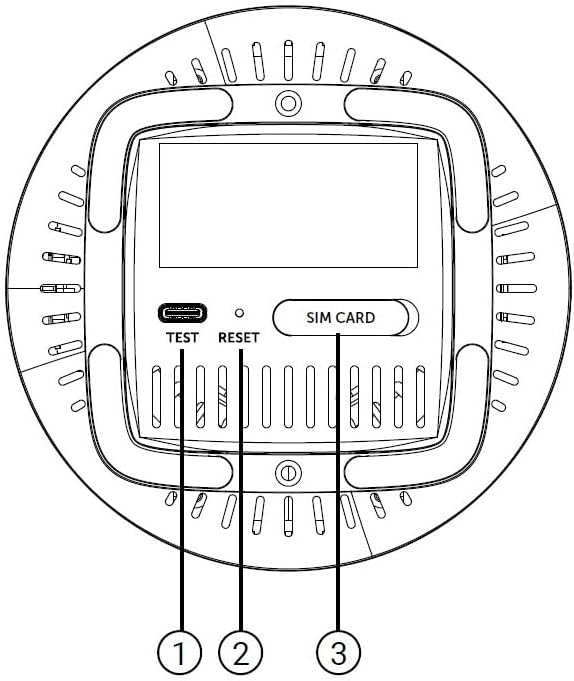
그림 1: 전면 View of the GX 3000 Router
This image displays the front of the Intelbras GX 3000 router, showing its sleek white design and LED indicators for 5G, 4G, call status, Wi-Fi, and WPS button.

Figure 2: GX 3000 Router with Highlighted Indicators and Ports
This image provides a closer look at the router, emphasizing the LED indicators on the front (5G, 4G, Call, Wi-Fi, WPS) and the various ports located on the rear panel, including LAN, WAN, and TEL ports.
2.2.1. 후면 패널 포트

Figure 3: Rear Panel of the GX 3000 Router
This image shows the rear panel of the router, clearly displaying the LAN, WAN, and TEL ports for wired connections.
- LAN 포트 : For connecting wired devices such as computers, smart TVs, or gaming consoles.
- WAN 포트: For connecting to an external modem or internet source (if not using 5G/4G).
- 전화 포트: For voice services (if supported by your service provider).
- 전원 입력: 포함된 전원 어댑터에 연결합니다.
2.2.2. Bottom Panel Features

Figure 4: Bottom Panel Features of the GX 3000 Router
This diagram illustrates the bottom panel of the router, highlighting the TEST port, RESET button, and SIM CARD slot.
- TEST Port: 진단 목적으로.
- 리셋 버튼: 공장 초기 설정으로 복원하는 데 사용됩니다. 기기가 켜진 상태에서 10초 동안 길게 누르십시오.
- SIM CARD Slot: Insert your 5G/4G SIM card here for mobile broadband connectivity.
3. 설정
3.1. 초기 배치
Place the router in a central location within your desired coverage area, away from obstructions, metal objects, and other electronic devices that may cause interference. Ensure good ventilation around the device.
3.2. SIM 카드 삽입
- 라우터의 전원이 꺼져 있는지 확인하십시오.
- Locate the SIM CARD slot on the bottom panel of the router (refer to Figure 4).
- Insert your activated 5G/4G SIM card into the slot with the gold contacts facing down and the notched corner oriented correctly. Push until it clicks into place.
- To remove, gently push the SIM card in again until it springs out.
3.3. 전원 연결하기
- Connect one end of the power adapter to the Power Input port on the rear of the router.
- 전원 어댑터의 다른 쪽 끝을 표준 전기 콘센트에 꽂습니다.
- The router will power on automatically. Wait for the LED indicators to stabilize.
3.4. 유선 연결 (선택 사항)
If you wish to connect devices via Ethernet:
- Connect one end of the provided network cable to a LAN port on the rear of the router.
- Connect the other end of the network cable to the Ethernet port of your computer, smart TV, or other wired device.
3.5. 초기 Wi-Fi 연결
The default Wi-Fi network name (SSID) and password are usually printed on a label on the bottom of the router. Follow these steps to connect:
- On your wireless device (smartphone, laptop, tablet), open the Wi-Fi settings.
- Scan for available networks and select the SSID corresponding to your GX 3000 router.
- Enter the default Wi-Fi password when prompted.
- 연결되면 라우터에 접속할 수 있습니다. web 설정을 사용자 지정할 수 있는 인터페이스입니다.
4. 사용 설명서
4.1. LED 표시기
전면 패널의 LED는 상태 정보를 제공합니다.
- 5G LED: 5G 네트워크 상태를 나타냅니다.
- 4G LED: 4G 네트워크 상태를 나타냅니다.
- Call LED: 음성 서비스 상태를 나타냅니다.
- 와이파이 LED: Wi-Fi 네트워크 활동을 나타냅니다.
- WPS LED: WPS 기능 상태를 나타냅니다.
Refer to the full user manual (if provided separately) for detailed LED behavior (e.g., solid, blinking, color) and their meanings.
4.2. 액세스 Web 관리 인터페이스
To configure advanced settings, manage your network, or change Wi-Fi credentials, access the router's web 인터페이스:
- Ensure your device is connected to the GX 3000's Wi-Fi network or via an Ethernet cable.
- 열기 web 브라우저(예: Chrome, Firefox, Edge).
- 주소 표시줄에 라우터의 기본 IP 주소(일반적으로)를 입력합니다.
192.168.1.1or192.168.0.1) and press Enter. This information is usually on the label on the bottom of the router. - Enter the default username and password (also found on the router label).
- You will now be in the router's management interface, where you can customize settings such as Wi-Fi name, password, security protocols, and more.
4.3. Wi-Fi Protected Setup (WPS)
WPS allows you to connect Wi-Fi devices without entering the password manually:
- Press the WPS button on the front of the GX 3000 router (refer to Figure 1). The WPS LED will start blinking.
- Within two minutes, press the WPS button on your client device (e.g., Wi-Fi adapter, printer).
- 장치가 자동으로 연결됩니다.
Note: WPS is a convenient feature but may be less secure than manual password entry.
4.4. Mesh Network Expansion
The GX 3000 supports mesh networking to expand Wi-Fi coverage. You can add other compatible Intelbras Qi5 line products to create a seamless mesh network. Each additional Wi-Fi 6 router can extend coverage by up to 300 m². It is recommended to use up to 6 routers in the same mesh network for optimal performance.
Refer to the specific instructions provided with additional mesh units for pairing and configuration.
5. 유지관리
5.1. 장치 청소
- Ensure the router is powered off and unplugged before cleaning.
- 부드럽고 마른 천으로 기기 외부를 닦으세요.
- Do not use liquid cleaners, aerosols, or solvents, as they may damage the casing 또는 내부 구성 요소.
- 환기구에 먼지나 이물질이 없도록 깨끗하게 유지하세요.
5.2. 펌웨어 업데이트
Periodically check the Intelbras official web펌웨어 업데이트 사이트입니다. 펌웨어 업데이트를 통해 성능을 향상시키고, 새로운 기능을 추가하며, 보안을 강화할 수 있습니다. 펌웨어 업데이트 패키지에 포함된 지침을 주의 깊게 따르십시오.
5.3. 공장 초기 설정으로 복원
If you encounter persistent issues or forget your login credentials, you can reset the router to its factory default settings:
- With the router powered on, locate the RESET button on the bottom panel (refer to Figure 4).
- 클립이나 이와 유사한 뾰족한 물체를 사용하여 재설정 버튼을 약 10초 동안 길게 누르십시오.
- Release the button. The router will restart with all settings restored to their original factory defaults.
- You will need to reconfigure your Wi-Fi settings and any other custom configurations after a factory reset.
6. 문제 해결
| 문제 | 가능한 원인 | 해결책 |
|---|---|---|
| No power / Router not turning on | 전원 어댑터가 연결되어 있지 않거나 고장났습니다. 전원 콘센트가 작동하지 않습니다. |
|
| No internet connection (5G/4G) | SIM card not inserted correctly; SIM card not activated; No 5G/4G signal; Service provider issue. |
|
| Wi-Fi에 연결할 수 없습니다 | Incorrect Wi-Fi password; Wi-Fi disabled; Device too far from router. |
|
| 인터넷 속도가 느림 | Network congestion; Poor signal strength; Interference; Outdated firmware. |
|
| 잊어버렸다 web 인터페이스 비밀번호 | Password forgotten or changed. |
|
7. 사양
| 특징 | 세부 사항 |
|---|---|
| 상표 | 인텔브라스 |
| 모델 | 지엑스3000 |
| 연결 기술 | 5G, 4G, Wi-Fi 6 (802.11a/b/g/n/ac/ax) |
| 주파수 대역 클래스 | 듀얼 밴드 |
| 무선 통신 표준 | 802.11a |
| 데이터 전송 속도 | 초당 최대 900메가비트 |
| LAN 포트 대역폭 | 1000Mbps (기가비트 이더넷) |
| 안테나 유형 | 내부 |
| 호환 장치 | Computer, Notebook, Tablet, Smart TV |
| 특별 기능 | Remote Access, Mesh Wi-Fi capability |
| 색상 | 하얀색 |
| 품목 무게 | 1000그램 |
| 포함된 구성 요소 | Power supply, Network cable |
| Anatel Homologation Number | 13571-22-00180 |
8. 보증 및 지원
8.1. 보증 정보
Intelbras products are covered by a limited warranty. For specific warranty terms and conditions, please refer to the warranty card included with your product or visit the official Intelbras web사이트. 보증 청구를 위해 구매 증빙 자료를 보관하세요.
8.2. 기술 지원
If you require technical assistance or have questions not covered in this manual, please contact Intelbras customer support. You can find contact information (phone numbers, email, support portal) on the official Intelbras web대지:
인텔브라스 공식 Web대지: www.intelbras.com.br
When contacting support, please have your product model (GX 3000) and serial number ready.