
lifoarey Q20
Lifoarey Q20 Indoor Security Camera User Manual
Model: Q20 | Brand: lifoarey
1. 서론
This user manual provides comprehensive instructions for the setup, operation, and maintenance of your lifoarey Q20 Indoor Security Camera. Please read this manual carefully before using the device to ensure proper functionality and safety.
2. 상자 안에 무엇이 들어있나요?
상자를 뜯을 때 아래 나열된 모든 구성품이 들어 있는지 확인하세요.
- 와이파이 카메라
- USB 전원 케이블
- 장착 나사 및 앵커
- 사용 설명서(본 문서)

그림 2.1: Included components of the Lifoarey Q20 Indoor Security Camera. The image displays the white dome camera, a white USB power cable, a small bag with mounting screws and wall anchors, and a printed instruction manual.
3. 제품 오버view
The Lifoarey Q20 Indoor Security Camera is designed to provide comprehensive home monitoring with its advanced features:
- 1080P Full HD 해상도: Provides sharp and clear video for detailed monitoring.
- 양방향 오디오: Enables instant communication, allowing you to speak and listen through the camera.
- 360° 커버리지 View (Pan/Tilt): 다양한 제공 viewing angle with horizontal 355° and vertical 75° rotation, controllable via the app.
- 동작 감지 및 추적: Sends instant alerts to your smartphone upon motion detection and automatically tracks the activity.
- 야간 투시경: 어두운 환경에서도 선명한 모니터링을 보장합니다.
- 클라우드 및 로컬 저장소: Supports continuous recording with an inserted Micro SD card (up to 128GB, sold separately) or optional cloud service.
- 스마트 공유: Allows sharing camera access with multiple family members.

그림 3.1: Visual representation of the Lifoarey Q20 camera with callouts for its main features: 1080P Resolution, Motion Detection, Motion Tracking, and 2 Way Audio.

그림 3.2: The camera's ability to provide clear images in both daytime and nighttime conditions, indicated by sun and moon icons.

그림 3.3: Illustration of the dual storage options: Cloud storage and Micro SD Card storage (up to 128GB).
4. 설정 가이드
Follow these steps to set up your Lifoarey Q20 camera:
- 앱 다운로드: Scan the QR code provided in the physical instruction manual or search for "Clink-Smart Home" in your device's app store (App Store for iOS, Google Play for Android). Look for the app with a 'C' icon.
- 등록 및 로그인: Open the "Clink-Smart Home" app. Register a new account using your email address and create a password. Verify your email if prompted, then log in.
- 연결을 위한 준비: 스마트폰이 2.4GHz Wi-Fi 네트워크에 연결되어 있는지 확인하십시오. 카메라는 2.4GHz Wi-Fi만 지원합니다.
- 카메라 전원 켜기: Plug the camera into a power outlet using the provided USB power cable. The camera will go through an initial self-check, which may involve rotating and making sounds.
- Reset the Camera (if necessary): If the camera does not respond or you are setting it up for the first time, locate the reset tab. This tab is typically found under the round camera part, near the SD card slot. Press and hold this tab for 5 seconds until you hear a confirmation sound or voice prompt.
- 앱을 통해 연결:
- In the "Clink-Smart Home" app, follow the on-screen prompts to add a new device.
- The camera will indicate when it is ready to connect (e.g., a voice prompt saying "Waiting for Wi-Fi configuration").
- The app will generate a QR code on your phone screen. Hold your phone's screen approximately 6-8 inches (15-20 cm) in front of the camera lens. Ensure the QR code is clearly visible to the camera.
- Once the camera successfully scans the QR code, it will beep or provide a voice confirmation that it is connecting to Wi-Fi.
- Wait for the camera to confirm successful connection. The app will then display the live camera feed.
- 놓기: The camera can be placed on a desk or mounted on the ceiling. Choose a location that provides the desired view지역입니다.
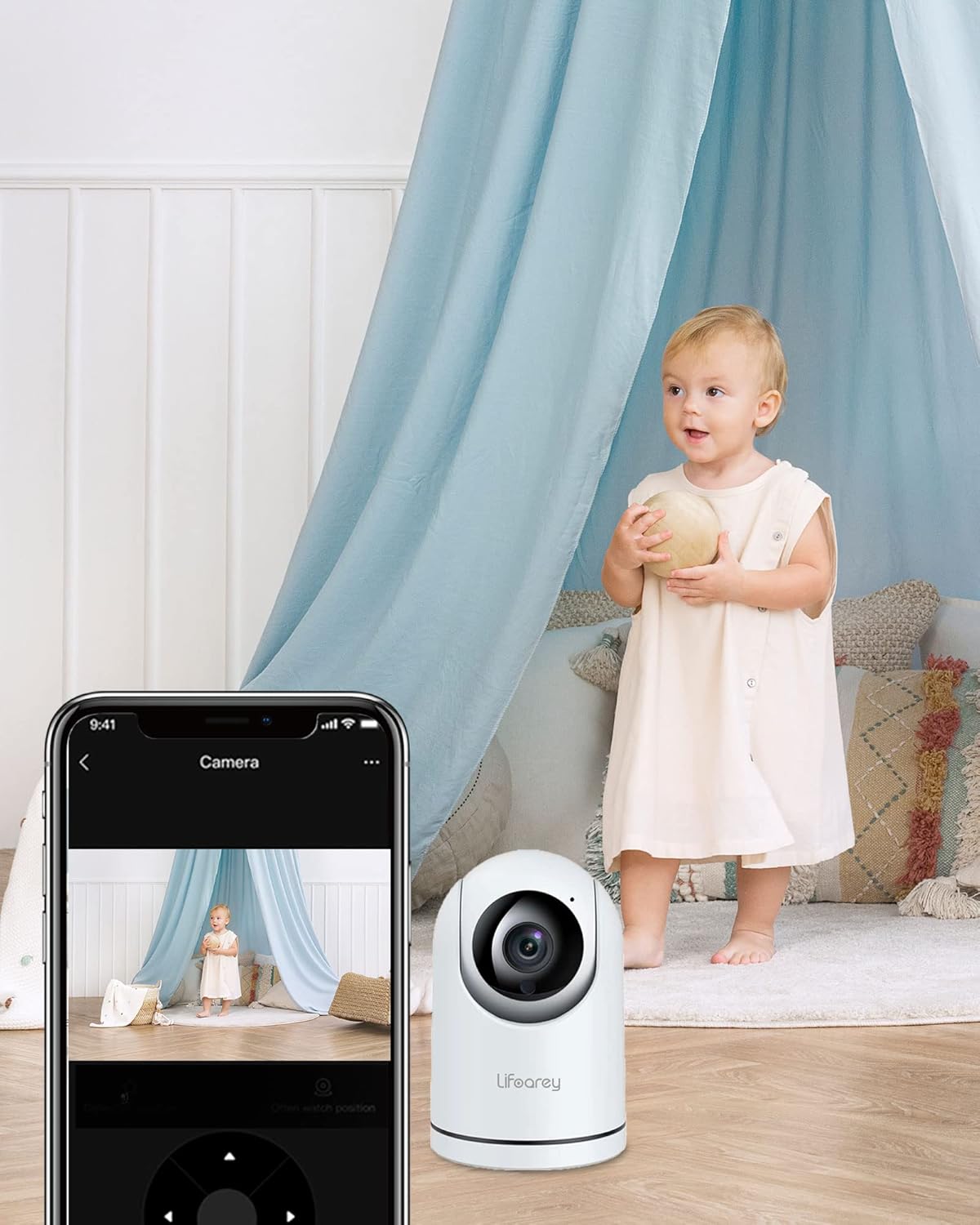
그림 4.1: The Lifoarey Q20 camera monitoring a room, with the live feed displayed on a smartphone, demonstrating remote view능력을 갖추고 있습니다.

그림 4.2: The Lifoarey Q20 camera can be placed on a desk or mounted on the ceiling, offering flexible installation options.
5. 사용 설명서
5.1 라이브 View 및 팬/틸트 제어
Once connected, open the "Clink-Smart Home" app to view the live feed. Use the directional controls within the app to pan (horizontal rotation up to 355°) and tilt (vertical rotation up to 75°) the camera lens to adjust your view잉 각도.
5.2 양방향 오디오
양방향 오디오 기능을 사용하려면 라이브 방송에서 마이크 아이콘을 탭하세요. view interface of the app. You can then speak into your phone, and your voice will be transmitted through the camera's speaker. Similarly, you can hear audio from the camera's environment through your phone.

그림 5.1: The 2-Way Audio feature allows for instant communication, enabling users to comfort children or pets remotely.
5.3 동작 감지 및 추적
The camera is equipped with motion detection. When motion is detected, you will receive instant alerts on your smartphone. The camera can also automatically track the detected activity within its field of view.

그림 5.2: The camera's motion detection feature sends instant notifications to your phone when activity is detected.

그림 5.3: The camera's motion tracking feature allows it to follow detected movement within its range.
5.4 저장 옵션
The Lifoarey Q20 supports two storage methods for recorded footage:
- 마이크로 SD 카드 : Insert a Micro SD card (up to 128GB, purchased separately) into the designated slot on the camera. The camera will continuously record to the card.
- 클라우드 서비스 : An optional cloud storage service is available for continuous recording and remote access to your footage. Refer to the app for subscription details.

그림 5.4: The camera offers flexible storage options, allowing users to save recordings to a Micro SD card or utilize cloud storage.
5.5 Smart Sharing
You can share access to your camera's live feed with family members or trusted individuals through the "Clink-Smart Home" app. This feature supports up to 4 users viewing simultaneously on phone and tablet.

그림 5.5: The smart sharing feature allows multiple users to view the camera feed simultaneously, facilitating shared monitoring.
6. 유지관리
- 청소: 부드럽고 마른 천을 사용하여 카메라 렌즈와 본체를 닦으세요. 강한 화학 물질이나 연마성 세척제는 사용하지 마세요.
- 펌웨어 업데이트: Regularly check the "Clink-Smart Home" app for available firmware updates to ensure optimal performance and security.
- 놓기: Ensure the camera is placed in a stable, dry indoor environment. Avoid direct sunlight or extreme temperatures.
7. 문제 해결
| 문제 | 가능한 원인 | 해결책 |
|---|---|---|
| 카메라가 Wi-Fi에 연결되지 않습니다. | Incorrect Wi-Fi password; camera too far from router; 5GHz Wi-Fi network used; QR code not scanned properly. | Double-check Wi-Fi password. Move camera closer to router. Ensure your router is broadcasting a 2.4GHz network and your phone is connected to it. Re-scan the QR code, ensuring proper distance and lighting. Try resetting the camera (see Setup Guide). |
| Camera makes repetitive beeping sounds. | Indicates a connection issue or setup mode. | This sound often occurs when the camera is waiting for Wi-Fi configuration. Follow the app's instructions to complete the setup process, especially the QR code scanning step. If it persists after setup, check your Wi-Fi connection. |
| Motion tracking does not work. | Feature might be disabled in settings; environmental factors (e.g., too much light, reflections). | Check the camera settings in the "Clink-Smart Home" app to ensure motion tracking is enabled. Adjust camera placement to minimize environmental interference. |
| App is difficult to find or QR code doesn't work. | Outdated QR code; app name variations. | Search directly for "Clink-Smart Home" in your app store. Ensure you are looking for the correct icon (a 'C' symbol). If the QR code in the manual doesn't work, manually search for the app. |
8. 사양
| 특징 | 세부 사항 |
|---|---|
| 모델명 | Q20 |
| 실내/실외 사용 | 실내 |
| 전원 | DC |
| 연결 프로토콜 | Wi-Fi(2.4GHz만 해당) |
| 컨트롤러 유형 | iOS, Android (via App) |
| 장착 유형 | Mount on ceiling or put on desk |
| 비디오 캡처 해상도 | 1080p |
| 색상 | 하얀색 |
| 포함된 구성 요소 | 와이파이 카메라 |
| 무선 통신 기술 | 와이파이 |
| 폼 팩터 | 둥근 천장 |
| View잉 각도 | 355도(좌우 회전), 75도(좌우 기울기) |
| 나이트 비전 범위 | 25 피트 |
| 프레임 속도 | 15fps |
| 재료 | 금속, 플라스틱 |
| 품목 치수 L x W x H | 5.8 x 3.2 x 3.2 인치 |
| 방수 레벨 | 방수가 되지 않음 |
| 초점 유형 | 자동 초점 |
| 경고 유형 | 모션 전용 |
| 광원 유형 | 적외선 |
| 플래시 메모리 지원 크기 최대 | 128GB(마이크로SD) |
| 품목 무게 | 11.2 온스 |
9. 보증 및 지원
For any product inquiries, technical support, or warranty claims, please contact Lifoarey customer support:
- 이메일: support@lifoarey.com
보증 목적으로 구매 증빙서류로 구매 영수증을 보관하세요.
Ask a question about this manual
Ask about setup, troubleshooting, compatibility, parts, safety, or missing instructions. Manuals+ will review the question and use this page’s manual context to help answer it.