
1. 서론
Welcome to the user manual for your Havit Gaming Mouse MS1032. This document provides essential information for setting up, operating, maintaining, and troubleshooting your device. Please read it carefully to ensure optimal performance and longevity of your mouse.
The Havit MS1032 is a gaming mouse featuring six adjustable DPI settings, a comfortable ergonomic design, and a non-slip surface. It is engineered for smooth and quiet operation, aiming to reduce fatigue during extended use.
2. 설정
2.1 패키지 내용
- Havit Gaming Mouse MS1032
- 사용자 설명서
2.2 시스템 요구 사항
- Operating System: Windows XP, Windows 7, Linux
- 사용 가능한 USB 포트
2.3 마우스 연결
- Unpack the Havit Gaming Mouse MS1032 from its packaging.
- 컴퓨터에서 사용 가능한 USB 포트를 찾습니다.
- 마우스의 USB 커넥터를 USB 포트에 삽입합니다.
- 운영 체제가 필요한 드라이버를 자동으로 감지하고 설치합니다. 이 과정은 다소 시간이 걸릴 수 있습니다.
- 설치가 완료되면 마우스를 바로 사용할 수 있습니다.
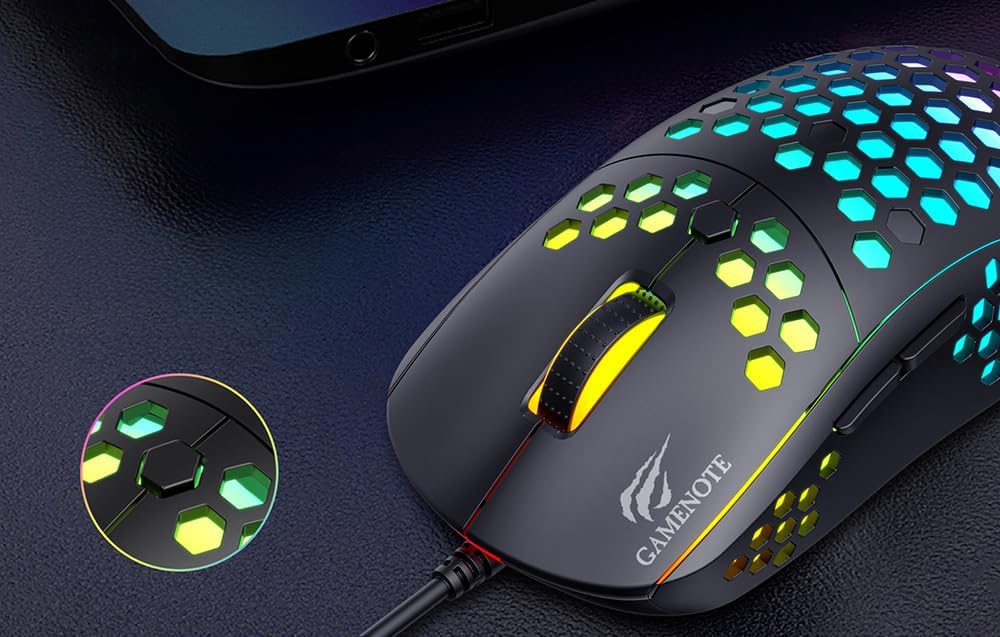
Figure 1: Havit MS1032 Gaming Mouse connected via USB.
3. 사용 설명서
3.1 기본 기능
- 좌 클릭: 주요 동작, 선택, 활성화.
- 마우스 오른쪽 버튼으로 클릭: Opens context menus, performs secondary actions.
- 스크롤 휠: Scrolls up/down documents or web 페이지를 표시합니다. 마우스 가운데 버튼을 눌러 클릭 기능을 사용할 수도 있습니다.
- 측면 버튼: 일반적으로 순방향/역방향 탐색에 사용됩니다. web 브라우저 또는 게임 내 사용자 지정 기능.
3.2 DPI 조정
The Havit MS1032 features six adjustable DPI (Dots Per Inch) settings, allowing you to change the mouse sensitivity on the fly. This is useful for adapting to different tasks, such as precise aiming in games or fast navigation across multiple monitors.
To adjust the DPI, locate the DPI button, typically positioned behind the scroll wheel. Press this button to cycle through the available DPI settings. The LED lighting on the mouse may change to indicate the current DPI level, providing visual feedback for your selection.
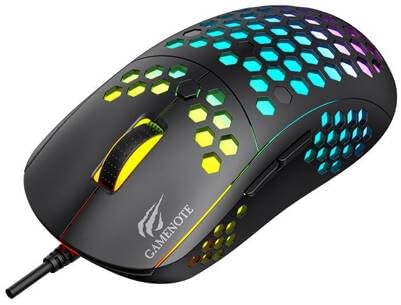
Figure 2: Location of the DPI button (behind the scroll wheel).
4. 유지관리
4.1 청소
최적의 성능과 외관을 유지하려면 마우스를 정기적으로 청소하세요.
- 청소하기 전에 마우스를 컴퓨터에서 분리하세요.
- 부드럽고 털이 없는 천을 살짝 사용하세요.amp물이나 부드럽고 연마성이 없는 세척 용액으로 세척하세요.
- 마우스 표면을 살살 닦아주세요.
- For crevices and the optical sensor, use a cotton swab or compressed air to remove dust and debris.
- Avoid using harsh chemicals, abrasive cleaners, or excessive moisture, as these can damage the mouse's finish or internal components.
4.2 보관
When not in use, store the mouse in a clean, dry environment away from direct sunlight and extreme temperatures to prevent damage.
4.3 일반 관리
- 마우스를 떨어뜨리거나 강한 충격을 주지 마세요.
- Do not attempt to disassemble the mouse, as this will void the warranty and may cause irreparable damage.
- Keep the mouse away from liquids to prevent electrical damage.
5. 문제 해결
If you encounter issues with your Havit Gaming Mouse MS1032, please refer to the following common solutions:
5.1 마우스가 응답하지 않음
- USB 연결 확인: USB 케이블이 컴퓨터의 정상 작동하는 USB 포트에 제대로 꽂혀 있는지 확인하세요. 다른 USB 포트에 연결해 보세요.
- 컴퓨터를 다시 시작합니다. 때로는 컴퓨터를 재시작하는 것만으로 연결 문제가 해결될 수 있습니다.
- 다른 컴퓨터에서 테스트: 가능하다면 다른 컴퓨터에서 마우스를 테스트하여 문제가 마우스 자체에 있는지 아니면 컴퓨터 설정에 있는지 확인하십시오.
5.2 커서 움직임이 불규칙적이거나 툭툭 끊기는 현상
- 센서 청소: 마우스 하단에 있는 광학 센서가 깨끗하고 먼지나 이물질이 없는지 확인하십시오.
- 표면 확인: 마우스는 깨끗하고 반사되지 않는 평평한 표면(예: 마우스 패드)에서 사용하십시오. 유리나 반사율이 높은 표면은 피하십시오.
- DPI 조정: If the cursor is too fast or too slow, adjust the DPI setting using the DPI button.
5.3 버튼이 작동하지 않음
- 장애물 확인: 버튼 아래에 이물질이 끼지 않았는지 확인하세요.
- 소프트웨어 충돌: 사용자 지정 마우스 소프트웨어가 설치되어 있는 경우, 일시적으로 제거하여 문제가 해결되는지 확인하세요.
5.4 LED 조명이 작동하지 않음
- 연결 확인: 마우스가 컴퓨터에 제대로 연결되어 있는지 확인하십시오.
- 전원 주기: Disconnect and reconnect the mouse to reset its power.
6. 사양

Figure 3: Havit MS1032 Gaming Mouse design overview.
| 특징 | 세부 사항 |
|---|---|
| 모델 | MS1032 |
| 상표 | 하빗 |
| 치수 | 15 x 8 x 5.2cm |
| 무게 | 200g |
| DPI 설정 | 6 단계 조절 가능 |
| 운영 체제 | 리눅스, 윈도우 7, 윈도우 XP |
| 연결성 | 유선 USB |
| 필요한 배터리 | 아니요 |
7. 보증 및 지원
For detailed warranty information and technical support, please refer to the official Havit website or contact your local retailer where the product was purchased. It is recommended to keep your purchase receipt as proof of purchase for any warranty claims.
제조업체: 하빗
모델 번호: MS1032