
ASUS PRIME H510M-K R2.0
ASUS Prime H510M-K R2.0 메인보드 사용자 설명서
Model: PRIME H510M-K R2.0
1. 서론
This user manual provides comprehensive instructions for the installation, operation, and maintenance of your ASUS Prime H510M-K R2.0 motherboard. Designed for Intel LGA 1200 socket processors (10th and 11th Gen Intel Core), this Micro ATX motherboard offers essential features for building a reliable personal computer system, including PCIe 4.0 support, an M.2 slot, and robust connectivity options.
Please read this manual thoroughly before installing or using the motherboard to ensure proper setup and to avoid any potential damage.

Image: The ASUS Prime H510M-K R2.0 motherboard displayed alongside its retail box, showcasin제품의 디자인과 브랜딩.
2. 안전 정보
Adhering to safety precautions is crucial when handling computer components to prevent personal injury and damage to the hardware. Always follow these guidelines:
- 전원 차단: Before performing any installation or maintenance, ensure your computer is completely powered off and unplugged from the wall outlet.
- 정전기 방전(ESD) 방지: ESD can damage sensitive electronic components. Always use an anti-static wrist strap or frequently touch a grounded metal object (like an unpainted part of your computer case) before handling the motherboard or other components.
- 적절한 취급: Hold the motherboard by its edges and avoid touching integrated circuits, pins, or connectors directly.
- 통풍: PC 케이스 내부의 공기 흐름이 원활하도록 하여 부품 과열을 방지하십시오.
- 환경 조건: Do not expose the motherboard to moisture, dust, or extreme temperatures. Operate it within recommended environmental specifications.
- 구성 요소 호환성: Always verify the compatibility of all components (CPU, RAM, GPU, PSU) with your motherboard before installation.
3. 패키지 내용
Upon opening your ASUS Prime H510M-K R2.0 motherboard package, please verify that all the following items are included. If any item is missing or damaged, contact your point of purchase immediately.
- ASUS Prime H510M-K R2.0 Motherboard
- 사용자 가이드/사용 설명서
- I/O Shield (Rear Input/Output Panel Shield)
- SATA 6Gb/s Data Cables (typically two cables)
- M.2 Anchor/Screw Package (for securing M.2 SSDs)

Image: The ASUS Prime H510M-K R2.0 motherboard displayed with its retail box, user guide, two SATA cables, and an M.2 anchor. This image provides a visual representation of the typical contents found within the product packaging.
4. 설정 및 설치
4.1 마더보드 레이아웃 및 구성 요소
Familiarize yourself with the various components and connectors on your motherboard before beginning installation.
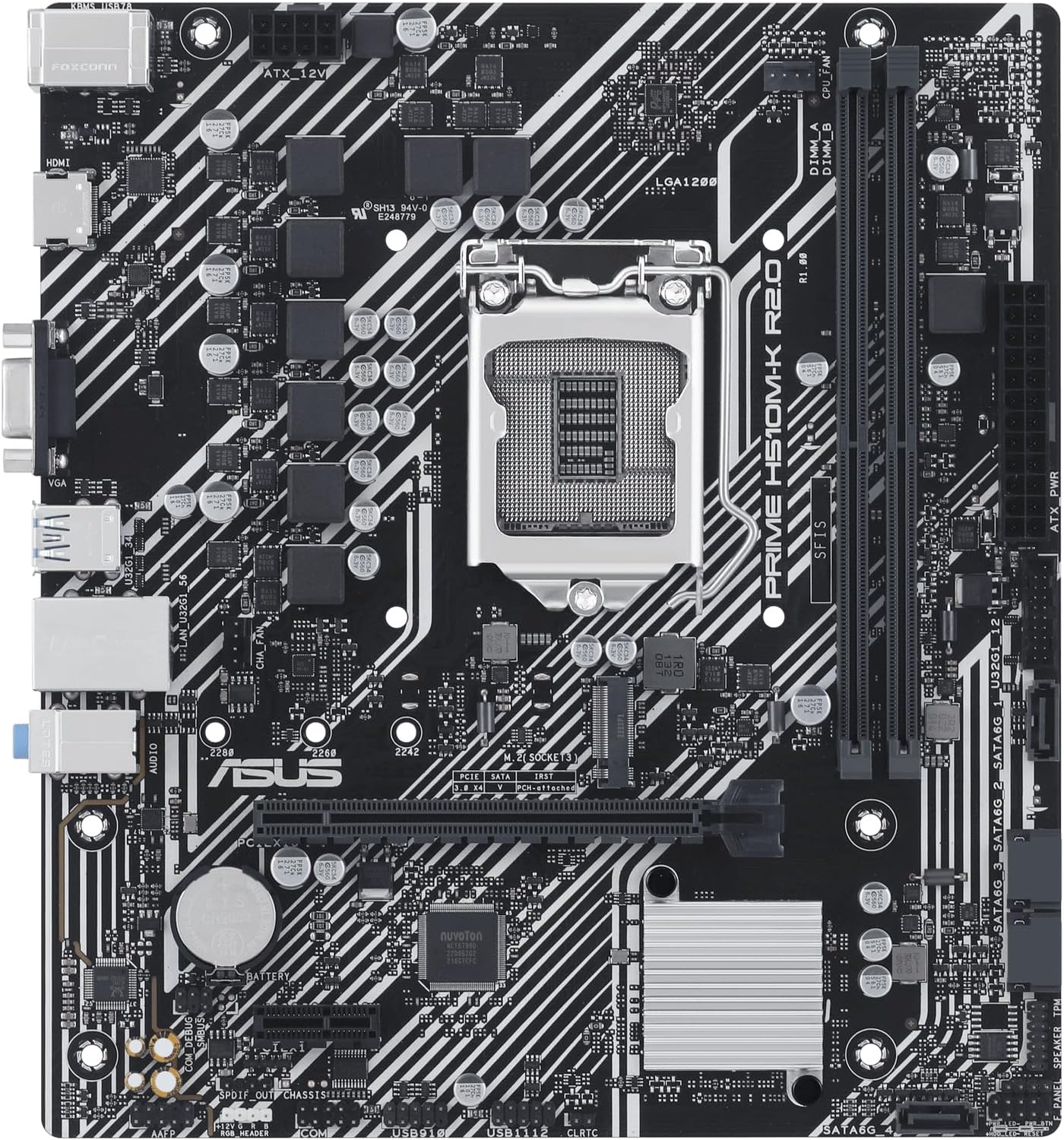
이미지: 위에서 내려다본 상세한 모습 view of the ASUS Prime H510M-K R2.0 motherboard, highlighting key components such as the LGA 1200 CPU socket, two DDR4 memory slots, the PCIe x16 slot, and various onboard headers and chips.
4.2 Installing the CPU (Processor)
The ASUS Prime H510M-K R2.0 supports Intel LGA 1200 socket processors (10th and 11th Generation Intel Core, Pentium Gold, and Celeron processors).
- 마더보드에서 LGA 1200 CPU 소켓을 찾으세요.
- Gently push down the load lever located next to the socket and pull it outwards to release the socket's metal load plate.
- Carefully remove the plastic protective cover from the socket.
- Align the triangular mark (or arrow) on your CPU with the corresponding mark on the CPU socket. Ensure the two notches on the sides of the CPU align with the keys on the socket.
- Gently place the CPU into the socket. Do not force it; the CPU should sit flat without resistance.
- Close the metal load plate over the CPU and push the load lever back into its original position until it clicks securely.
- Apply a thin, even layer of thermal paste to the top of the CPU (if not pre-applied to your cooler) and install your CPU cooler according to its manufacturer's instructions.
4.3 Installing System Memory (RAM Modules)
This motherboard supports DDR4 memory modules. For optimal performance, refer to the motherboard's Qualified Vendor List (QVL) for compatible memory kits on the ASUS support web대지.
- Open the clips at both ends of the DIMM slot(s) you intend to use.
- 메모리 모듈의 홈을 DIMM 슬롯의 키에 맞춥니다.
- Insert the memory module firmly into the slot with even pressure on both ends until the clips snap into place, securing the module.
4.4 Installing M.2 Storage Device
The motherboard features one M.2 slot that supports PCIe 3.0 x4 and SATA M.2 SSDs.
- Locate the M.2 slot. If a pre-installed M.2 screw or standoff is present, remove it.
- Insert the M.2 SSD into the slot at approximately a 30-degree angle, ensuring the gold contacts are fully seated.
- Gently push down the M.2 SSD until it lies flat, and secure it with the M.2 screw/anchor provided in your package.
4.5 Connecting Peripherals and Power Supply
Connect your power supply unit (PSU), storage drives, and front panel connectors to the motherboard.
- ATX 전원 커넥터: Connect the 24-pin ATX main power cable and the 8-pin ATX 12V CPU power cable from your PSU to the corresponding connectors on the motherboard. Ensure they are fully seated.
- SATA 장치: Connect SATA data cables from your storage drives (HDDs/SSDs) to the SATA 6Gb/s ports on the motherboard. Connect power cables from your PSU to the drives.
- 전면 패널 커넥터: Connect the power switch, reset switch, HDD LED, and power LED cables from your PC case to the front panel header (F_PANEL). Refer to the detailed pin assignments in the full user manual for correct orientation.
- USB 헤더: Connect front panel USB 2.0 and USB 3.2 Gen 1 cables from your case to the respective USB headers on the motherboard.
- 오디오 헤더: Connect the front panel audio cable from your case to the AAFP (Front Panel Audio) header.
- 후면 I/O 패널: Install the I/O shield into your PC case's rear opening before installing the motherboard. Connect your monitor, keyboard, mouse, and other peripherals to the appropriate ports on the rear I/O panel.
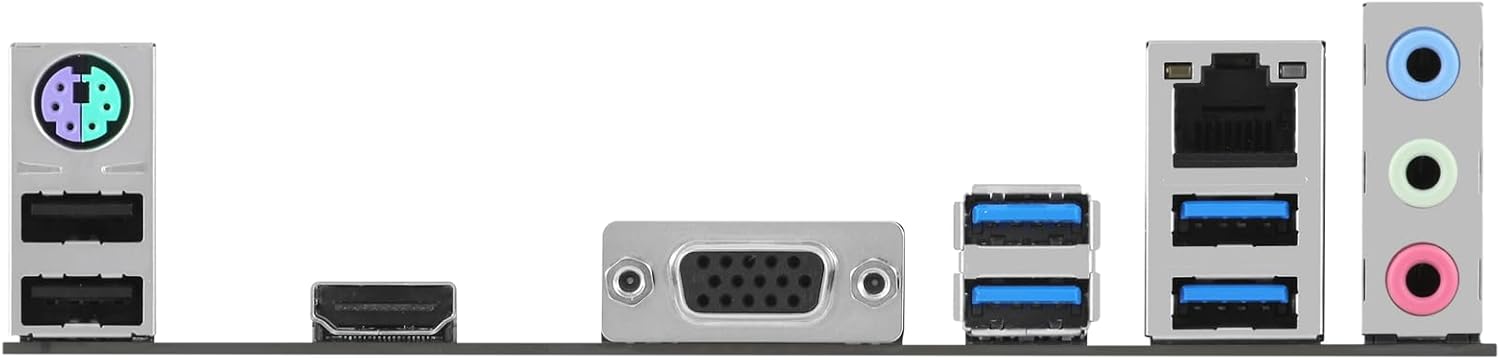
Image: The rear input/output (I/O) panel of the ASUS Prime H510M-K R2.0 motherboard, displaying various connectivity ports including PS/2 ports for keyboard/mouse, multiple USB ports, VGA, HDMI, an Ethernet port, and audio jacks.
5. 사용 설명서
5.1 Initial Boot-up and BIOS/UEFI Setup
- After completing all hardware installations, connect your monitor, keyboard, and mouse to the appropriate ports.
- Connect the power cord to your PSU and turn on the power switch on the PSU.
- PC 케이스의 전원 버튼을 누르세요.
- During the Power-On Self-Test (POST) process, repeatedly press the 델 키 또는 F2 key on your keyboard to enter the BIOS/UEFI setup utility.
- In the BIOS/UEFI, you can configure various system settings such as boot order, system time, enable/disable integrated peripherals, and monitor system status (temperatures, voltag에).
- After making any desired changes, save your settings and exit the BIOS/UEFI to continue booting.
5.2 운영 체제 설치
Once the BIOS/UEFI is configured, you can proceed with installing your preferred operating system (e.g., Windows 10, Windows 11) from a bootable USB drive or DVD. Ensure your boot device is set as the primary boot option in the BIOS/UEFI.
5.3 드라이버 설치
After the operating system is installed, it is crucial to install the necessary drivers for your motherboard's components. These include chipset drivers, audio drivers, LAN (Ethernet) drivers, and any integrated graphics drivers (if applicable). Drivers ensure optimal performance, stability, and functionality of your hardware.
You can obtain the latest drivers and utilities from the official ASUS support website for the PRIME H510M-K R2.0 model. It is recommended to download drivers directly from the manufacturer's website for the most up-to-date and compatible versions.
Official ASUS Support Page: https://www.asus.com/support/download/1/45/PRIME_H510M-K_R2.0/
6. 유지관리
정기적인 유지보수는 마더보드와 시스템 전체의 수명 연장 및 안정적인 작동을 보장하는 데 도움이 됩니다.
- 먼지 청소: Periodically clean dust from inside your PC case, especially from fans, heatsinks, and motherboard surfaces. Use compressed air or a soft brush. Always power off and unplug your system before cleaning.
- BIOS 업데이트: ASUS 지원을 확인하세요 website for BIOS (Basic Input/Output System) or UEFI (Unified Extensible Firmware Interface) updates. BIOS updates can improve system stability, compatibility with new hardware, and performance. Follow ASUS's instructions carefully when performing a BIOS update to avoid potential issues.
- 드라이버 업데이트 : Keep your operating system and hardware drivers updated. Outdated drivers can lead to performance issues or instability.
- 케이블 관리 : 내부 케이블은 공기 흐름을 개선하고 부품의 작동을 방해하지 않도록 깔끔하게 정리해야 합니다.
7. 문제 해결
This section provides solutions to common issues you might encounter. For more complex problems, refer to the comprehensive user manual on the ASUS support web사이트 또는 기술 지원팀에 문의하세요.
- 전원이 켜지지 않음 / 시스템이 켜지지 않음:
- Verify that the 24-pin ATX and 8-pin CPU power cables are securely connected to the motherboard and the power supply unit.
- 전원 공급 장치의 메인 스위치가 "켜짐" 위치에 있는지 확인하십시오.
- Check the front panel power button connection to the motherboard's F_PANEL header.
- Test the power supply with another system or a PSU tester if available.
- 디스플레이 출력 없음:
- Ensure your monitor is connected to the correct video output port (either on the motherboard for integrated graphics or on your discrete graphics card).
- Reseat the RAM modules firmly in their slots. Try booting with only one RAM stick.
- If using a discrete graphics card, ensure it is properly seated in the PCIe slot and any required PCIe power cables are connected from the PSU.
- Clear the CMOS (Complementary Metal-Oxide-Semiconductor) by removing the motherboard battery for a few minutes or using the CLRTC jumper (refer to full manual).
- 시스템 불안정/랜덤 충돌:
- Check CPU and GPU temperatures using monitoring software. Ensure cooling solutions are properly installed and fans are spinning.
- Run memory diagnostic tools (e.g., Windows Memory Diagnostic) to check for faulty RAM modules.
- Ensure all drivers and the BIOS are updated to the latest stable versions.
- Verify that your power supply unit provides sufficient wattag모든 구성 요소에 대해 e를 사용하세요.
- Device Not Detected (e.g., SSD, HDD, USB device):
- Ensure the device is properly connected (data and power cables for SATA, fully seated for M.2).
- Check BIOS settings to ensure the relevant SATA ports or M.2 slot are enabled.
- Install or update the necessary drivers for the device.
8. 사양
Below are the key technical specifications for the ASUS Prime H510M-K R2.0 motherboard:
| 특징 | 사양 |
|---|---|
| 상표 | 아수스 |
| 모델명 | 프라임 H510M-K R2.0 |
| CPU 소켓 | LGA 1200 |
| 호환 프로세서 | 10th and 11th Gen Intel Core, Pentium Gold, Celeron Processors |
| 칩셋 유형 | 인텔 H510 |
| RAM 메모리 기술 | DDR4 |
| 메모리 슬롯 | 2 x DIMM, Max. 64GB, DDR4 3200(OC)/2933/2800/2666/2400/2133 MHz Non-ECC, Un-buffered Memory |
| 확장 슬롯 | 1 x PCIe 4.0/3.0 x16 (11th Gen Intel CPUs support PCIe 4.0 x16, 10th Gen support PCIe 3.0 x16), 2 x PCIe 3.0 x1 |
| 저장 | 1 x M.2 slot (Key M, type 2242/2260/2280, supports PCIe 3.0 x4 & SATA modes), 4 x SATA 6Gb/s ports |
| 비디오 출력 | 1 x D-Sub (VGA), 1 x HDMI 1.4/2.1 |
| USB 포트(후면) | 2 x USB 3.2 Gen 1 ports, 4 x USB 2.0 ports |
| USB 포트(내부) | 1 x USB 3.2 Gen 1 header (supports 2 additional USB 3.2 Gen 1 ports), 2 x USB 2.0 headers (supports 4 additional USB 2.0 ports) |
| 이더넷 | 1 x Realtek 1Gb 이더넷 |
| 오디오 | Realtek ALC887/897 7.1-Channel High Definition Audio CODEC |
| 폼 팩터 | Micro ATX (8.9 inch x 8.0 inch / 22.6 cm x 20.3 cm) |
| 플랫폼 | 윈도우 10 64비트, 윈도우 11 64비트 |
Note: Specifications are subject to change without notice. For the most accurate and up-to-date information, please refer to the official ASUS product page.
9. 보증 및 지원
ASUS provides a limited warranty for its products. The specific terms, conditions, and duration of the warranty period may vary based on your region and local regulations. It is highly recommended to review the warranty card included with your product or visit the official ASUS web구매하신 제품에 적용되는 자세한 보증 정보는 해당 사이트를 참조하십시오.
For technical assistance, driver downloads, frequently asked questions (FAQs), and other support resources, please visit the comprehensive ASUS support web대지:
When contacting ASUS customer service or technical support, please have your product's full model name (ASUS Prime H510M-K R2.0) and serial number readily available to expedite the support process.
관련 문서 - 프라임 H510M-K R2.0
 |
ASUS PRIME H510M-A R2.0 메인보드: 빠른 시작 가이드 ASUS PRIME H510M-A R2.0 마더보드로 빠르게 시작하세요. 이 가이드에서는 CPU, 메모리, 확장 카드 및 시스템 연결을 포함한 필수 설치 단계를 안내합니다. |
 |
ASUS PRIME H510M-R R2.0 마더보드 사용 설명서 ASUS PRIME H510M-R R2.0 마더보드에 대한 종합적인 사용자 설명서로, 사양, 설치, BIOS 설정, 안전 지침 및 규정 준수에 대한 자세한 정보를 제공합니다. |
 |
ASUS PRIME H410M-K R2.0 마더보드 사용 설명서 Comprehensive user manual for the ASUS PRIME H410M-K R2.0 motherboard, covering installation, BIOS setup, RAID configuration, and safety guidelines. |
 |
ASUS TUF GAMING H470-PRO Motherboard User Manual Comprehensive user manual for the ASUS TUF GAMING H470-PRO motherboard, covering installation, specifications, BIOS, safety, and package contents. Visit ASUS support for updates. |
 |
ASUS PRIME H410M-K R2.0 메인보드 빠른 시작 가이드 Concise guide for installing and setting up the ASUS PRIME H410M-K R2.0 motherboard, covering CPU, RAM, storage, expansion cards, and initial system setup. |
 |
ASUS PRIME H310M-C R2.0 마더보드 사용 설명서 ASUS PRIME H310M-C R2.0 마더보드에 대한 종합적인 사용자 가이드입니다. 설치, BIOS 설정, 사양 및 안전 정보를 자세히 설명합니다. 최적의 성능을 위한 구성 요소, 커넥터 및 시스템 구성에 대해 알아보세요. |
Ask a question about this manual
Ask about setup, troubleshooting, compatibility, parts, safety, or missing instructions. Manuals+ will review the question and use this page’s manual context to help answer it.