
1. 서론
Thank you for choosing the VENTION Mac mini M4 Dock. This 10-in-1 aluminum stand is designed to expand the connectivity and storage capabilities of your Mac mini M4 or M4 Pro. It features an M.2 NVMe SSD enclosure, a DisplayPort for 4K video output, multiple USB 3.2 ports for high-speed data transfer, and an SD/TF card reader. This manual provides detailed instructions for setup, operation, and maintenance to ensure optimal performance of your device.
2. 제품 오버view
The VENTION Mac mini M4 Dock integrates seamlessly with your Mac mini, offering a compact and efficient solution for expanding your workspace.
2.1 패키지 내용
- VENTION Mac mini M4 Dock
- 사용자 설명서
- 드라이버
- Thermal Silicone Pads (x2)
2.2 장치 레이아웃 및 포트
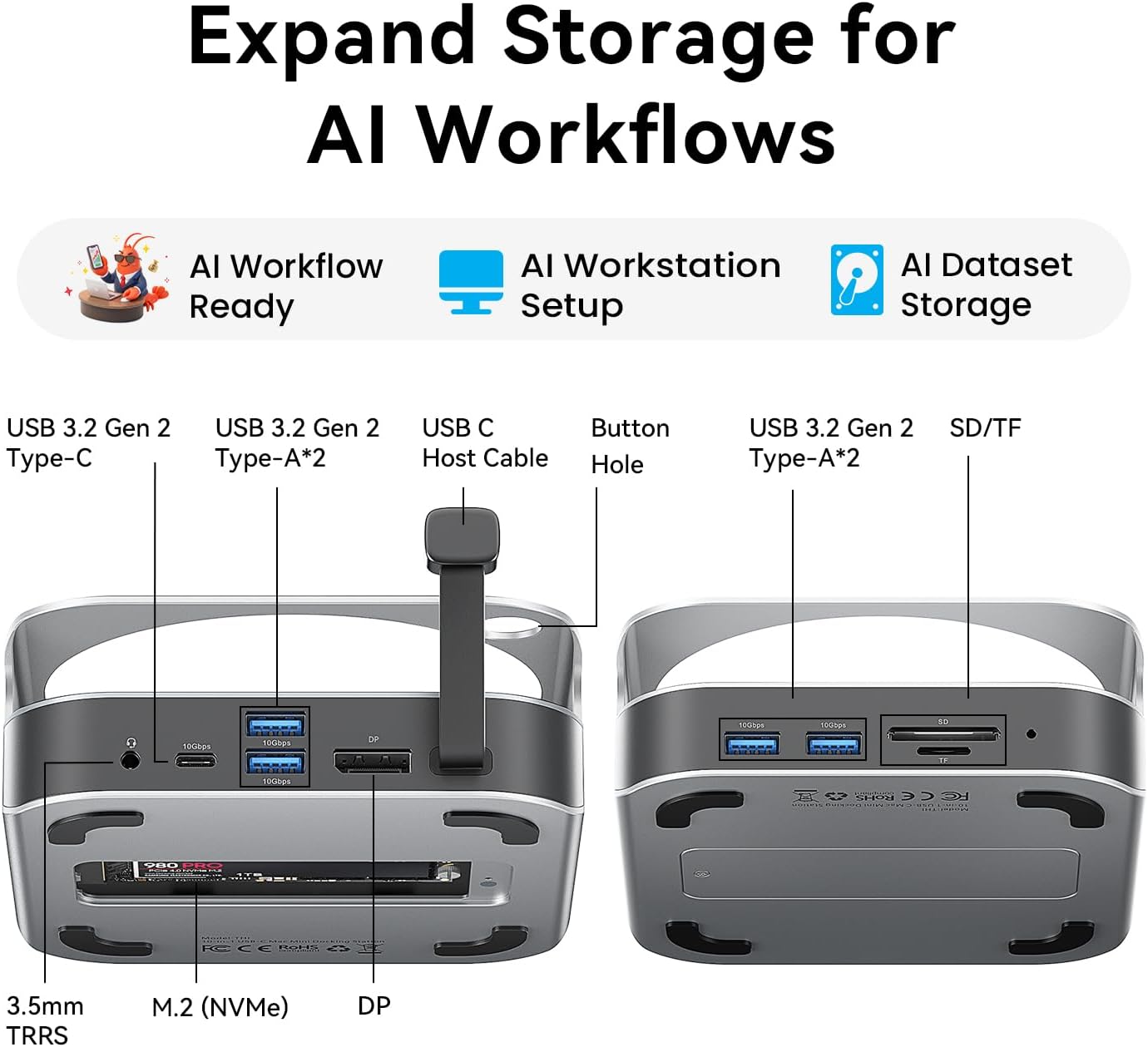
이미지: 앞면과 뒷면 view of the VENTION Mac mini M4 Dock, highlighting all available ports and connections.
The dock features a comprehensive array of ports for enhanced connectivity:
- 전면 포트:
- 2x USB 3.2 Gen 2 Type-A(10Gbps)
- SD 카드 리더
- TF Card Reader (supports simultaneous read with SD)
- 후면 포트:
- USB 3.2 Gen 1 Type-C (10Gbps) 포트 2개
- 2x USB 3.2 Gen 2 Type-A(10Gbps)
- 디스플레이포트(DP)
- 3.5mm Audio Jack (TRRS)
- M.2 NVMe SSD Enclosure (supports 2230/2242/2260/2280 sizes)

Image: The VENTION Mac mini M4 Dock with a Mac mini placed on top, illustrating the floating design that promotes airflow for efficient cooling.
The dock's design includes a floating stand that elevates your Mac mini, creating 360° airflow channels for optimal heat dissipation during intensive workloads. It also features a dedicated power button hole for easy access to your Mac mini's power button.

이미지: 클로즈업 view of the VENTION Mac mini M4 Dock, highlighting the cutout for easy access to the Mac mini's power button.
3. 설정 지침
3.1 M.2 NVMe SSD 설치
The dock supports M.2 NVMe SSDs (M Key) of sizes 2230, 2242, 2260, and 2280, allowing for storage expansion up to 8TB. Follow these steps to install your SSD:
- Turn the dock upside down. Use the included screwdriver to remove the screws securing the M.2 NVMe SSD enclosure cover.
- Carefully lift off the cover.
- If your SSD requires it, place one of the provided thermal silicone pads on top of your M.2 NVMe SSD.
- Loosen the fixing screw inside the enclosure by hand or with a flat-head screwdriver.
- Align the notch on your M.2 NVMe SSD with the latch in the enclosure, insert it firmly, and press down.
- Tighten the fixing screw to secure the SSD. Ensure the thermal pad makes contact with the enclosure cover for optimal heat dissipation.
- Replace the enclosure cover and tighten the screws.

Image: Illustration of the M.2 NVMe SSD enclosure, showing compatibility with various SSD lengths (2230, 2242, 2260, 2280).
Video: A step-by-step guide demonstrating the installation process of an M.2 NVMe SSD into the VENTION Mac mini M4 Dock's enclosure.
3.2 맥 미니에 연결하기
- Place your Mac mini M4 or M4 Pro securely on top of the VENTION Dock. Ensure the power button hole aligns correctly.
- Connect the integrated USB-C host cable from the dock to an available USB-C/Thunderbolt port on your Mac mini.
- Connect any necessary peripherals (monitor, keyboard, mouse, etc.) to the corresponding ports on the dock.

Image: The VENTION Mac mini M4 Dock with a Mac mini positioned on top, showcasing the integrated setup.
4. 사용 설명서
4.1 Display Output (DisplayPort)
The DisplayPort on the dock supports high-resolution video output:
- Mac mini M4 Pro: 최대 4K 해상도, 240Hz 주사율.
- Mac mini M4: 최대 4K 해상도, 144Hz 주사율.
중요한: Ensure you use a DisplayPort-to-DisplayPort cable for optimal performance and to achieve the advertised refresh rates.
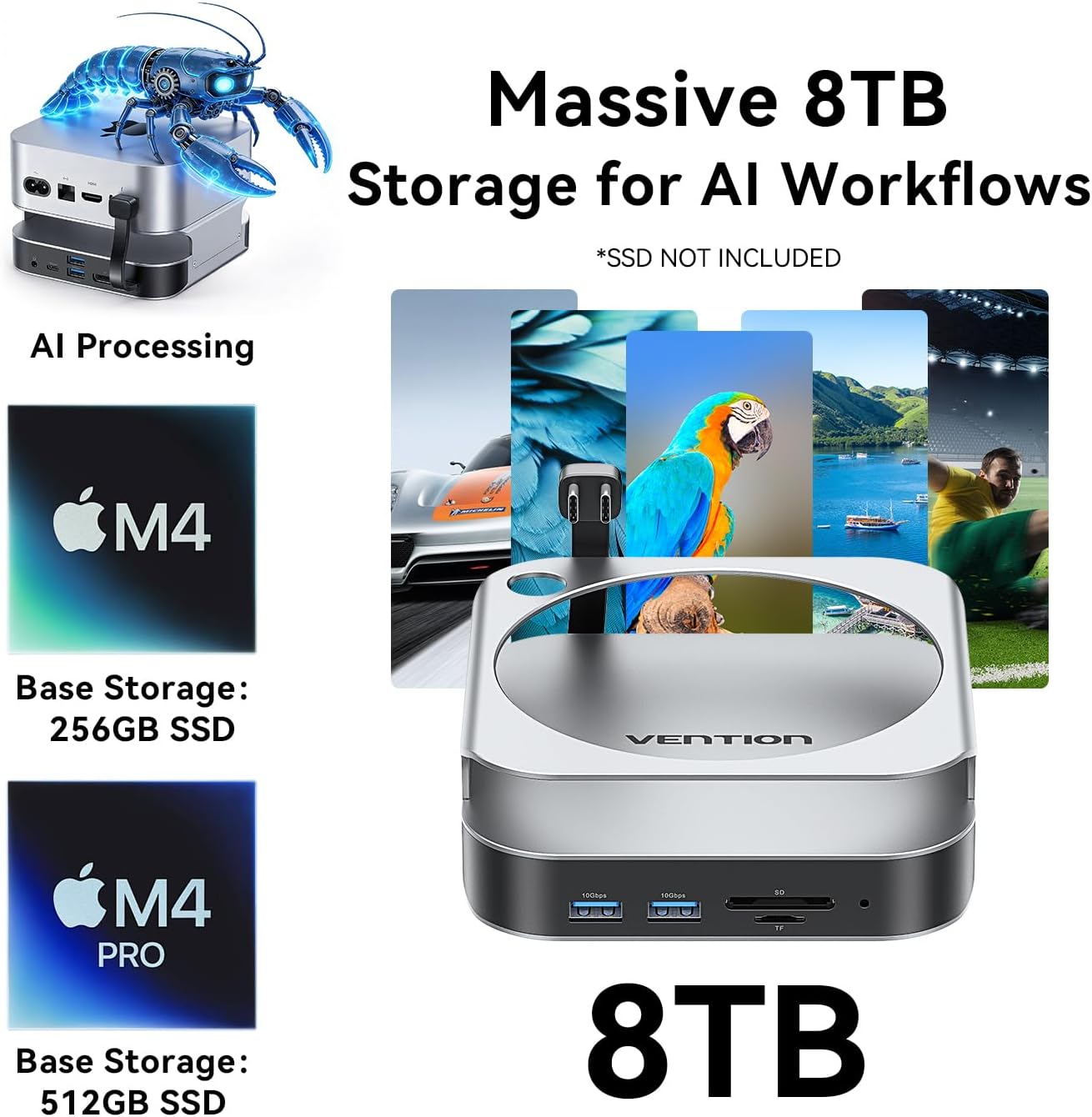
Image: A Mac mini connected to an external monitor through the VENTION Dock, demonstrating 4K display output.
4.2 High-Speed Data Transfer (USB Ports)
The dock provides 5 USB 3.2 Gen 2 ports (4x USB-A, 1x USB-C) with a data transfer speed of up to 10Gbps. This allows for rapid transfer of large file예를 들어 약 1초 만에 1GB를 처리하는 것과 같습니다.
비디오: 오버view of the VENTION Mac mini M4 Dock's features, including high-speed data transfer and display capabilities.
4.3 SD/TF 카드 리더
The integrated SD and TF card readers support simultaneous reading and writing, making it convenient for photographers and content creators to access media file직접적으로.
5. 유지관리
To ensure the longevity and optimal performance of your VENTION Mac mini M4 Dock, follow these maintenance guidelines:
- 청소: Use a soft, dry, lint-free cloth to wipe the exterior of the dock. Avoid using harsh chemicals or abrasive materials.
- 통풍: Ensure the ventilation channels around the dock and your Mac mini are clear of obstructions to maintain proper airflow and heat dissipation.
- 저장: 장기간 사용하지 않을 경우, 직사광선과 극한의 온도를 피해 시원하고 건조한 곳에 보관하세요.
- SSD Handling: Do not plug or unplug SSDs while the device is powered on to prevent data corruption or damage.
6. 문제 해결
If you encounter issues with your VENTION Mac mini M4 Dock, refer to the following common solutions:
6.1 디스플레이 출력 문제
- 디스플레이 없음/깜박임: Ensure you are using a high-quality DisplayPort-to-DisplayPort cable. Check that the cable is securely connected to both the dock and your monitor. Verify your monitor's input settings.
- 잘못된 해상도/새로 고침 빈도: Confirm your monitor supports the desired resolution and refresh rate. Adjust display settings in macOS System Settings.
6.2 SSD가 인식되지 않음
- 설치 확인: Re-open the SSD enclosure and ensure the M.2 NVMe SSD is correctly seated and the fixing screw is tightened.
- Format SSD: For new SSDs, you may need to format them using Disk Utility in macOS before they appear in Finder.
- 전원 주기: Disconnect and reconnect the dock from your Mac mini.
6.3 느린 데이터 전송 속도
- Verify USB 3.2 Compatibility: Ensure the connected device (e.g., USB drive) and cable support USB 3.2 Gen 2 (10Gbps) speeds. Older USB 2.0 or 3.0 devices will operate at their respective lower speeds.
- 과부하를 피하세요: Transferring data to/from multiple high-speed devices simultaneously may reduce individual transfer rates.
6.4 오디오 잭이 작동하지 않음
- Check macOS Audio Settings: Go to System Settings > Sound > Output and ensure the VENTION Dock's audio output is selected.
- Test with Different Headphones/Speakers: Rule out issues with your audio peripherals.
7. 사양
| 특징 | 세부 사항 |
|---|---|
| 상표 | 벤션 |
| 모델 | M4 도크 |
| 색상 | 은 |
| 하드웨어 인터페이스 | DisplayPort, SD Card, TF Card, USB 3.2 Gen 2, USB Type-C |
| 호환 장치 | Mac mini M4/M4 Pro |
| 총 USB 포트 | 7 (5x USB 3.2 Gen 2, 2x USB-C for host connection) |
| 포트 수 | 10-in-1 (including M.2 NVMe slot, DisplayPort, SD/TF) |
| M.2 NVMe SSD 지원 | M Key, sizes 2230/2242/2260/2280, up to 8TB |
| 디스플레이포트 출력 | 4K@240Hz (M4 Pro), 4K@144Hz (M4) |
| 데이터 전송 속도 | 최대 10Gbps (USB 3.2 Gen 2) |
8. 보증 및 지원
8.1 보증 정보
The VENTION Mac mini M4 Dock comes with a 12개월 보증 구매일로부터. 본 보증은 정상적인 사용 중 발생한 제조상의 결함 및 오작동에 적용됩니다. 오용, 사고, 무단 개조 또는 부적절한 설치로 인한 손상은 보증되지 않습니다.
8.2 고객 지원
For technical assistance, warranty claims, or any questions regarding your VENTION product, please contact VENTION customer support through the official VENTION website or your retailer's support channels. Please have your purchase receipt and product model information ready when contacting support.