
1. 서론
Thank you for choosing the Stouchi 16K DisplayPort 2.1 Cable. This high-performance cable is designed to connect DisplayPort-enabled desktops, laptops, and graphics cards directly to monitors, HDTVs, and gaming displays. It supports crystal-clear audio and high-resolution video, providing a smooth and immersive visual experience. This manual provides essential information for proper setup, operation, and maintenance of your cable.
2. 주요 특징
- 높은 대역폭: Supports 80Gbps for stable and fast signal transmission without loss.
- 초고해상도 지원: Compatible with 16K (15360x8640) at 60Hz, 10K (10240x4320) at 60Hz, 8K (7680x4320) at 120Hz, and 4K (3840x2160) at 240Hz/165Hz/144Hz.
- 이전 버전과의 호환성: Fully compatible with DisplayPort 2.0, 1.4, 1.3, 1.2, and 1.1 standards.
- 고급 기술: Supports FreeSync and G-Sync for tear-free gaming, Display Stream Compression (DSC), and Dynamic HDR transmission.
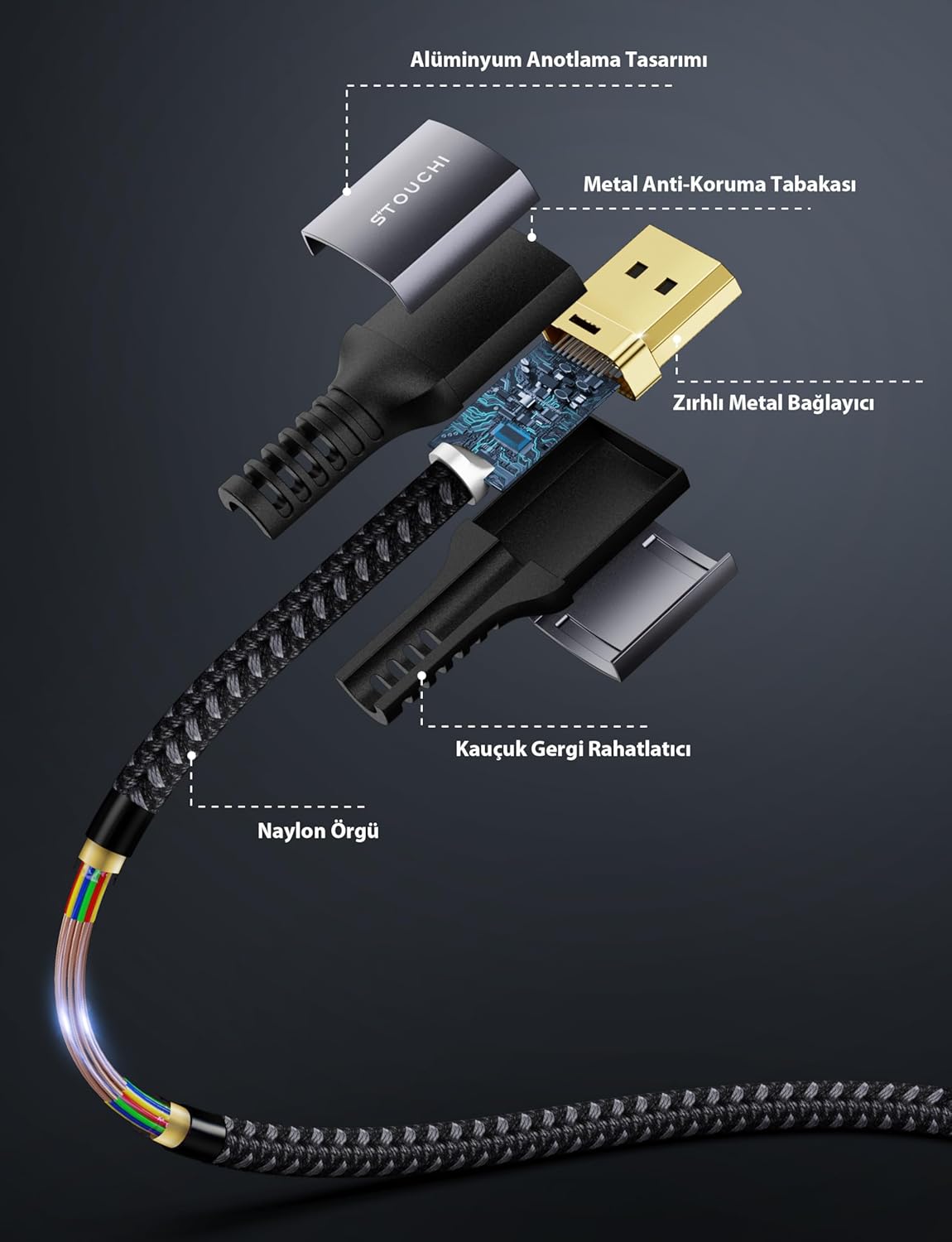
- 내구성 있는 구조: Features 24K gold-plated connectors, 28 AWG tinned copper wire with triple-layer shielding, a high-quality nylon braided sleeve, and an aluminum alloy ultra-thin casing for reliable interference prevention and longevity.
- 향상된 내구성: Engineered to withstand over 30,000 bends, ensuring a long lifespan.
- 사용자 친화적인 디자인: Features a no-latch design for easy connection and disconnection, and a slim profile to save space and prevent blocking adjacent ports.


3. 설정 지침
Follow these steps to connect your Stouchi DisplayPort 2.1 Cable:
- 포트 식별: Locate the DisplayPort output on your source device (e.g., computer, graphics card) and the DisplayPort input on your display device (e.g., monitor, HDTV). DisplayPort connectors are typically rectangular with one corner beveled.
- 케이블 연결: Gently insert one end of the Stouchi DisplayPort 2.1 cable into the DisplayPort output of your source device. Ensure it is fully seated.
- 디스플레이에 연결: Insert the other end of the cable into the DisplayPort input of your display device. Ensure a firm connection.
- 전원 켜기 장치: 소스 장치와 디스플레이 장치를 켜세요.
- 입력 선택: On your display device, use the input/source selection menu to choose the correct DisplayPort input.

4. 사용 설명서
After connecting the cable, you may need to adjust settings on your computer or display for optimal performance:
- 화면 설정: On your computer, navigate to your operating system's display settings. Verify that the correct resolution and refresh rate are selected for your monitor. For Windows, right-click on the desktop and select 'Display settings' or 'Screen resolution'. For macOS, go to 'System Preferences' > 'Displays'.
- Graphics Card Control Panel: For advanced settings, such as enabling FreeSync or G-Sync, open your graphics card's control panel (e.g., NVIDIA Control Panel, AMD Radeon Software). Ensure that these features are enabled if your monitor and graphics card support them.
- 오디오 출력: If you are using the DisplayPort cable for audio transmission, ensure that your display device is selected as the audio output device in your computer's sound settings.
5. 유지관리
To ensure the longevity and optimal performance of your Stouchi DisplayPort 2.1 Cable, follow these maintenance guidelines:
- 청소: Use a soft, dry cloth to gently wipe the cable and connectors. Avoid using liquid cleaners or abrasive materials, as these can damage the cable.
- 저장: 사용하지 않을 때는 케이블을 서늘하고 건조한 곳에 보관하고 직사광선과 극한 온도 변화를 피하십시오. 케이블을 너무 세게 감거나 무거운 물건을 올려놓지 마십시오.
- 손질: Always grasp the connector ends when plugging or unplugging the cable. Avoid pulling on the cable itself, as this can strain the internal wires and connectors. Do not bend the cable sharply, especially near the connectors.

6. 문제 해결
If you encounter issues with your Stouchi DisplayPort 2.1 Cable, refer to the following troubleshooting steps:
- 신호 없음/검은 화면:
- Ensure both ends of the cable are securely connected to the DisplayPort ports.
- Verify that your monitor is set to the correct DisplayPort input source.
- Try restarting both your computer and monitor.
- Test the cable with another DisplayPort-enabled device or try a different DisplayPort on your current devices, if available.
- 그래픽 카드 드라이버가 최신인지 확인하세요.
- 깜빡임/간헐적 신호:
- 케이블이나 커넥터에 물리적인 손상이 있는지 확인하세요.
- Reduce the display resolution or refresh rate in your computer's display settings to see if the issue persists. Some older hardware may not fully support the highest resolutions/refresh rates.
- Ensure the cable is not near sources of strong electromagnetic interference.
- 잘못된 해상도 또는 재생 빈도:
- Access your computer's display settings and manually select the desired resolution and refresh rate.
- 그래픽 카드 드라이버를 최신 버전으로 업데이트하세요.
- Confirm that both your graphics card and monitor support the desired resolution and refresh rate.
If these steps do not resolve the issue, please contact Stouchi customer support.
7. 사양
| 특징 | 사양 |
|---|---|
| 상표 | 스투치 |
| 모델 번호 | D16K2 |
| 케이블 버전 | DisplayPort 2.1 (Backward compatible with DP 2.0, 1.4, 1.3, 1.2, 1.1) |
| 대역폭 | 80Gbps |
| 지원되는 해상도 및 새로 고침 빈도 | 16K(15360x8640) @ 60Hz 10K(10240x4320) @ 60Hz 8K(7680x4320) @ 120Hz 4K (3840x2160) @ 240Hz/165Hz/144Hz |
| Key Technologies Supported | HDR, HDCP 2.2, DSC 1.2a, FreeSync, G-Sync |
| 커넥터 재질 | 24K 금도금 |
| 도체 재료 | 28 AWG Tinned Copper Wire |
| 케이블 자켓 | Nylon Braided Sleeve |
| Casing | Aluminum Alloy Ultra-thin Casing |
| 내구성 | 30,000회 이상 굽힘 수명 |
| 호환 장치 | Computer, Monitor, Graphics Card |
| 케이블 길이 | 2미터(6.6피트) |

8. 보증 및 지원
Stouchi offers a lifetime warranty for this product. To benefit from the lifetime warranty, customers are encouraged to register their product on the official Stouchi web대지.
For any issues, questions, or support needs, please contact our dedicated support team:
이메일: support@stouchi.com