
1. 서론
This manual provides detailed instructions for the HPRT N80 Barcode Scanner. It covers the scanner's features, setup, operation, maintenance, and troubleshooting. Please read this manual carefully before using the product to ensure proper and safe operation.

Image: HPRT N80 Barcode Scanner, USB cable, and included instruction manual.
2. 제품 특징
- 1D & 2D Scanning: Supports a wide range of 1D and 2D codes including UPC, UCC/EAN-128, ISBN/ISSN, Code 39, Code 128, Interleaved 2 of 5, QR Code, Data Matrix, and Postal Codes.
- Screen and Paper Scanning: Capable of scanning barcodes from both printed labels and digital screens.
- 폭넓은 호환성: Works with Windows, iOS, Android, Linux, and Mac OS. Connects to PCs, laptops, and iPads. (Note: Mac OS requires a USB wired connection).
- Fast and Precise Scan: Utilizes a superior CMOS sensor and image scanning technology for quick decoding. Achieves recognition precision up to 4 mil.
- 다양한 스캔 모드: Offers manual trigger mode, continuous scan mode, and auto-sensing mode.
- 인체공학적 디자인: Features a comfortable grip and durable ABS plastic construction, designed to withstand drops from up to 3.93ft.

Image: The HPRT N80 barcode scanner demonstrating its ability to decode a wide range of 1D and 2D barcode formats, including QR codes, Data Matrix, and Aztec Code.

Image: Illustration showing the HPRT N80 barcode scanner's capability to read damaged, blurred, and stained barcodes effectively.

Image: The HPRT N80 barcode scanner being applied in various environments, including a supermarket, hospital, warehouse, and library.
3. 설정 및 연결
The HPRT N80 Barcode Scanner is designed for plug-and-play functionality, requiring no driver installation for most operating systems.
3.1 유선 USB 연결
- 스캐너의 USB 포트에 USB 케이블을 연결하세요.
- Plug the USB connector into an available USB port on your computer or device.
- The scanner will be automatically recognized by your system. No additional drivers are typically needed.
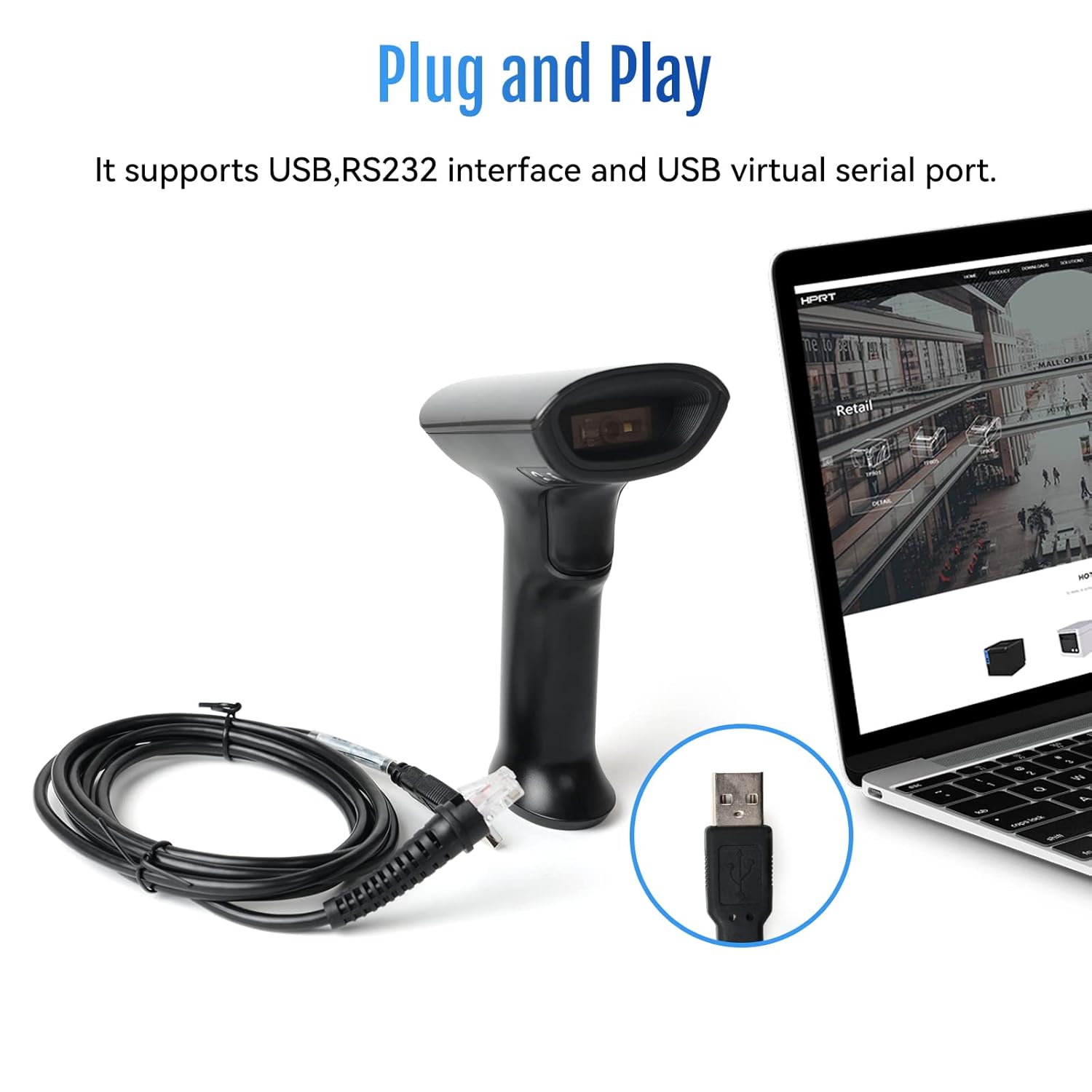
Image: The HPRT N80 barcode scanner with its USB cable, illustrating the plug-and-play connection to a laptop.

Image: A close-up of the HPRT N80 barcode scanner being connected to a laptop, demonstrating the plug-and-play functionality.
4. 운영
The HPRT N80 Barcode Scanner offers various modes for efficient scanning.
4.1 바코드 스캐닝
- 스캐너의 스캔 창이 바코드를 향하도록 잡으세요.
- 트리거 버튼을 눌러 스캔 빔을 활성화하십시오.
- Ensure the scan beam covers the entire barcode. A successful scan is usually indicated by an audible beep and/or a visual indicator.
- The decoded data will appear on your connected device.
4.2 스캐닝 모드
- 수동 트리거 모드: Press the trigger for each scan.
- 연속 스캔 모드: 스캐너는 지속적으로 스캔 빔을 방출하여 감지되는 모든 바코드를 스캔합니다.
- 자동 감지 모드: The scanner activates the scan beam automatically when a barcode is presented within its field of view.

Image: The HPRT N80 barcode scanner performing a fast scan of both 1D and QR codes displayed on a smartphone screen.

Image: The HPRT N80 barcode scanner accurately scanning a barcode even in a dark environment, highlighting its low-light performance.
4.3 운영 비디오
Video: Demonstrates the HPRT N80 barcode scanner's fast scanning capabilities for both 1D and 2D barcodes on paper and screens, highlighting its plug-and-play setup and ergonomic design.
5. 유지관리
To ensure the longevity and optimal performance of your HPRT N80 Barcode Scanner, follow these maintenance guidelines:
- 청소: 부드럽고 마른 천을 사용하여 스캐너 외부를 청소하세요. 스캔 창의 경우 보풀이 없는 천을 가볍게 두드리세요.amp순하고 연마성이 없는 세척제로 세척하세요. 강한 화학 물질이나 연마재는 피하세요.
- 저장: 스캐너는 직사광선과 극한의 온도를 피해 시원하고 건조한 곳에 보관하세요.
- 손질: While the scanner is designed to be durable, avoid unnecessary drops or impacts.
- 케이블 관리: Do not bend or twist the USB cable excessively. Always grasp the plug, not the cable, when disconnecting.
6. 문제 해결
If you encounter issues with your HPRT N80 Barcode Scanner, please refer to the following common troubleshooting steps:
- 스캐너가 응답하지 않음:
- USB 케이블이 스캐너와 호스트 장치에 모두 단단히 연결되어 있는지 확인하세요.
- 스캐너를 다른 USB 포트에 연결해 보세요.
- 컴퓨터 또는 호스트 장치를 다시 시작하십시오.
- 바코드를 스캔할 수 없습니다.
- Verify that the barcode is not excessively damaged, blurred, or stained.
- 스캔 창이 깨끗하고 장애물이 없는지 확인하십시오.
- Check if the scanner is in the correct scanning mode (e.g., manual trigger, continuous, auto-sensing).
- 바코드에 충분한 조명이 확보되도록 하십시오.
- 잘못된 데이터 출력:
- Confirm that the correct keyboard layout or input method is selected on your host device.
- Refer to the full product manual (if available) for advanced configuration barcodes to reset settings or adjust data formatting.
If the problem persists, please contact HPRT customer support.
7. 사양
| 특징 | 세부 사항 |
|---|---|
| 상표 | HPRT |
| 모델 | N80 |
| 연결 기술 | USB 케이블 |
| 전원 | 배터리 구동 |
| 호환 장치 | Laptop (Windows, iOS, Android, Linux, Mac OS) |
| 스캐닝 기능 | 1D & 2D (UPC, EAN, QR, Data Matrix, etc.) |
| 내구성 | Withstands drops from up to 3.93ft |
8. 보증 및 지원
For warranty information or technical support, please contact HPRT customer service.
- 고객 서비스 이메일: pravin.m@hprt.com
- 공식적인 Web대지: https://www.hprt.com

Image: HPRT customer service contact details, including email and official web대지.