
1. 서론
This manual provides detailed instructions for the setup, operation, and maintenance of your KYY 15.6-inch Portable Monitor (models K3 and K3-2). Please read this manual thoroughly before using the product to ensure proper functionality and to prevent damage.

Image 1.1: KYY 15.6-inch Portable Monitors (K3 Grey & K3-2 Black).
2. 패키지 내용
아래 나열된 모든 품목이 패키지에 포함되어 있는지 확인하세요.
- 1 x KYY K3 15.6-inch Portable Monitor (Grey)
- 1 x KYY K3-2 15.6-inch Portable Monitor (Black)
- 2 x Magnetic Smart Cover
- 2 x USB-C-USB-A 케이블
- 2 x USB-C to USB-C 케이블
- 2 x Mini-HDMI-HDMI 케이블
- 2 x 5V 2.4A 전원 어댑터
3. 제품 특징
- 1080P Full HD IPS Display: Enjoy a 1920x1080 resolution with a 178° wide viewing angle for clear and vivid visuals.
- HDR 기술: Enhances contrast and color for a more immersive view경험.
- 휴대성 있는 디자인: With a 0.3-inch slim profile and lightweight construction (approximately 1.7 lbs), these monitors are designed for easy transport.
- Low Blue Light Eye Protection: 장시간 사용 시 눈의 피로를 줄여줍니다.
- 듀얼 스피커: Integrated speakers provide audio output.
- 스마트 커버: Functions as a protective case and a foldable stand, offering adjustable view각도를 나타냅니다.

Image 3.1: KYY Portable Monitor display panel features.

Image 3.2: The KYY portable monitor's lightweight design facilitates on-the-go use.
4. 신체적 이상view (포트 및 제어)
Familiarize yourself with the ports and control buttons on your KYY portable monitor:

Image 4.1: KYY Portable Monitor ports and controls layout.
- 3.5mm 오디오 출력: 헤드폰 또는 외부 스피커를 연결합니다.
- 플러스 버튼(+): Used for navigating menus and increasing 값.
- Menu Button (I): 화면 메뉴(OSD)에 접근합니다.
- 마이너스 버튼(-): Used for navigating menus and decreasing 값.
- Power Button/Back Button: Powers the monitor on/off, or acts as a back button in the OSD menu.
- 듀얼 스피커: 통합 오디오 출력.
- Type-C Full Function Port (x2): Supports video input, data transfer, and power delivery with a single cable (if the connected device supports full-featured Type-C).
- 미니 HDMI 포트: HDMI를 통해 기기에 연결하여 영상 입력을 받습니다.
5. 설정 및 연결
The KYY portable monitor offers versatile connectivity options. Ensure your device's ports are compatible with the monitor's inputs.

이미지 5.1: 다양한 기기와의 보편적인 호환성.
5.1 Connecting via USB-C (Full-Featured)
If your laptop, smartphone, or other device has a full-featured USB Type-C port that supports video output (DisplayPort Alternate Mode) and power delivery, you can connect the monitor using a single USB-C to USB-C cable.
- Connect one end of the USB-C to USB-C cable to your device's full-featured Type-C port.
- 케이블의 다른 한쪽 끝을 모니터의 Type-C 풀 기능 포트 중 하나에 연결하십시오.
- 모니터는 자동으로 신호를 감지하고 전원을 켜야 합니다.
5.2 Connecting via Mini HDMI and USB-C (Power)
If your device does not have a full-featured USB Type-C port, or if you are connecting to a device like a game console (PS4/PS5, Xbox, Switch) or a desktop PC, you will need to use both the Mini HDMI and a USB-C cable for power.
- Connect one end of the Mini-HDMI to HDMI cable to the monitor's Mini HDMI Port.
- Connect the other end of the HDMI cable to your device's HDMI output.
- Connect the provided 5V 2.4A Power Adapter to one of the monitor's Type-C Full Function Ports using a USB-C to USB-A cable (or USB-C to USB-C if using a power bank).
- Ensure the power adapter is plugged into a wall outlet.
- The monitor should power on and display the signal.
5.3 Extending Phone Screen
For smartphones with a full-featured Type-C port, you can extend or mirror your phone's display directly to the monitor using a single USB-C to USB-C cable.
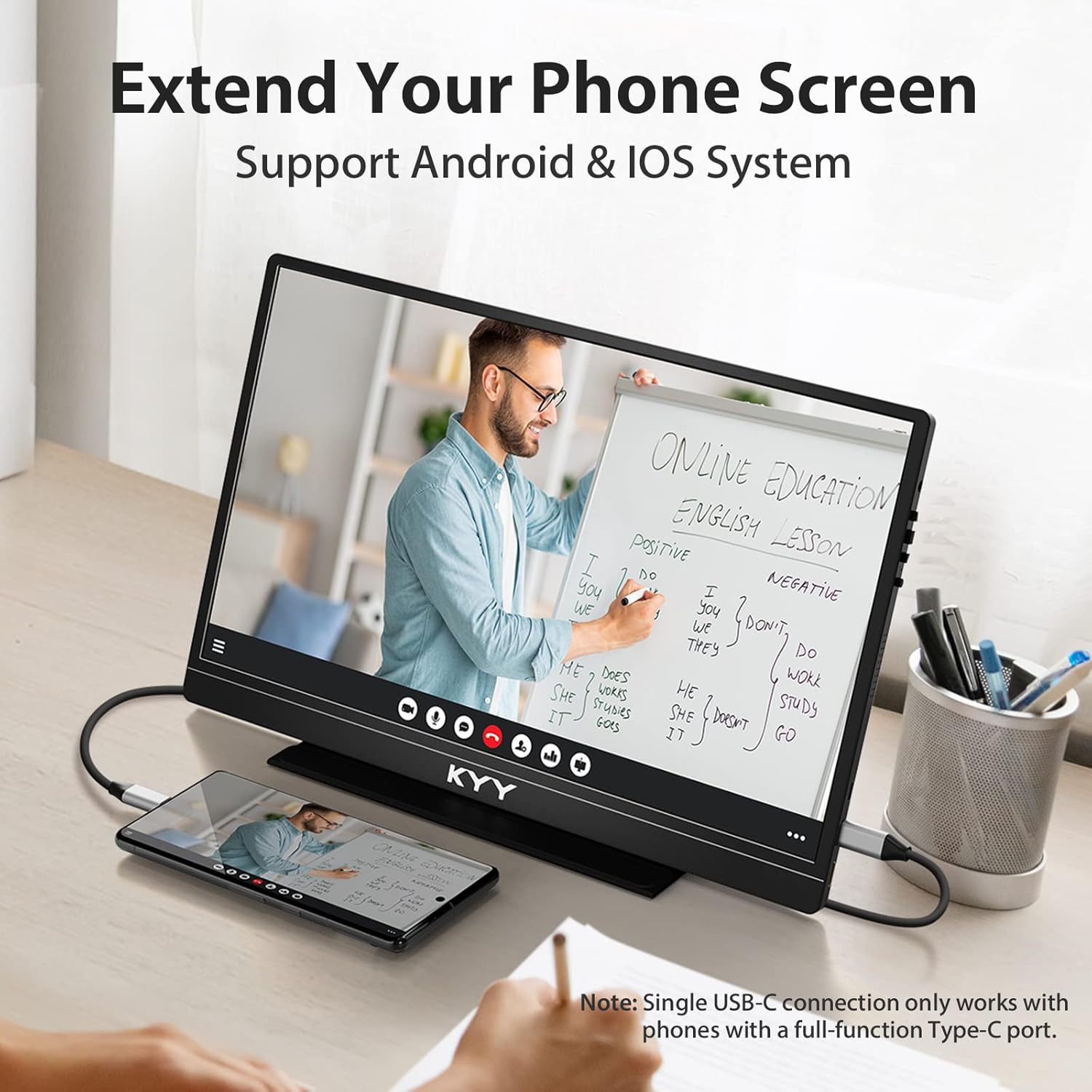
Image 5.2: Extending a phone screen to the KYY portable monitor.
5.4 Gaming Console Connection
Connect your gaming console (PS4/PS5, Xbox, Switch, Wii) using the Mini HDMI to HDMI cable for video and a USB-C cable with the power adapter for power.

Image 5.3: KYY portable monitor used for gaming with a Nintendo Switch.
6. 작동 모드
The KYY portable monitor supports various display modes to enhance productivity and entertainment.

Image 6.1: Multiple operating modes for the KYY portable monitor.
- 확장 모드: Expands your desktop workspace across multiple screens, allowing you to view different content on each display.
- Duplicated Mode (Mirror Mode): Mirrors the content of your primary screen onto the portable monitor, ideal for presentations or sharing content.
- 보조 화면 모드: 휴대용 모니터만을 주 디스플레이로 사용합니다.
- 세로 모드 : Orient the monitor vertically for tasks like reading documents, coding, or browsing web사이트.
- 가로 모드: The standard horizontal orientation, suitable for most applications, video viewing, and gaming.
You can typically adjust these display modes through your operating system's display settings (e.g., Windows Display Settings, macOS System Preferences).
7. OSD 메뉴 작동
The On-Screen Display (OSD) menu allows you to adjust various settings of your monitor, such as brightness, contrast, color, and input source.
7.1 K3 Model (Trackwheel Design)
The K3 model features a trackwheel for OSD navigation:
- 위/아래로 스크롤: 메뉴 옵션을 탐색하거나 값을 조정합니다.
- 보도자료: 옵션을 선택하거나 설정을 확인하세요.
- 빠른 조정: Scroll the trackwheel up or down to quickly adjust brightness or volume without entering the full OSD menu.
7.2 K3-2 Model (One-to-One Button Design)
The K3-2 model uses dedicated buttons for OSD navigation:
- 플러스 버튼(+): Navigate up or increase values.
- 마이너스 버튼(-): Navigate down or decrease values.
- Menu Button (I): Enter the OSD menu. Press again to select.
- 전원/뒤로 가기 버튼: Exit the current menu or go back to the previous level.
- 빠른 조정: Press the Plus or Minus button to quickly adjust brightness or volume without entering the full OSD menu.
8. Smart Cover Functionality
The included magnetic smart cover serves as both a protective case and a versatile stand for your portable monitor.
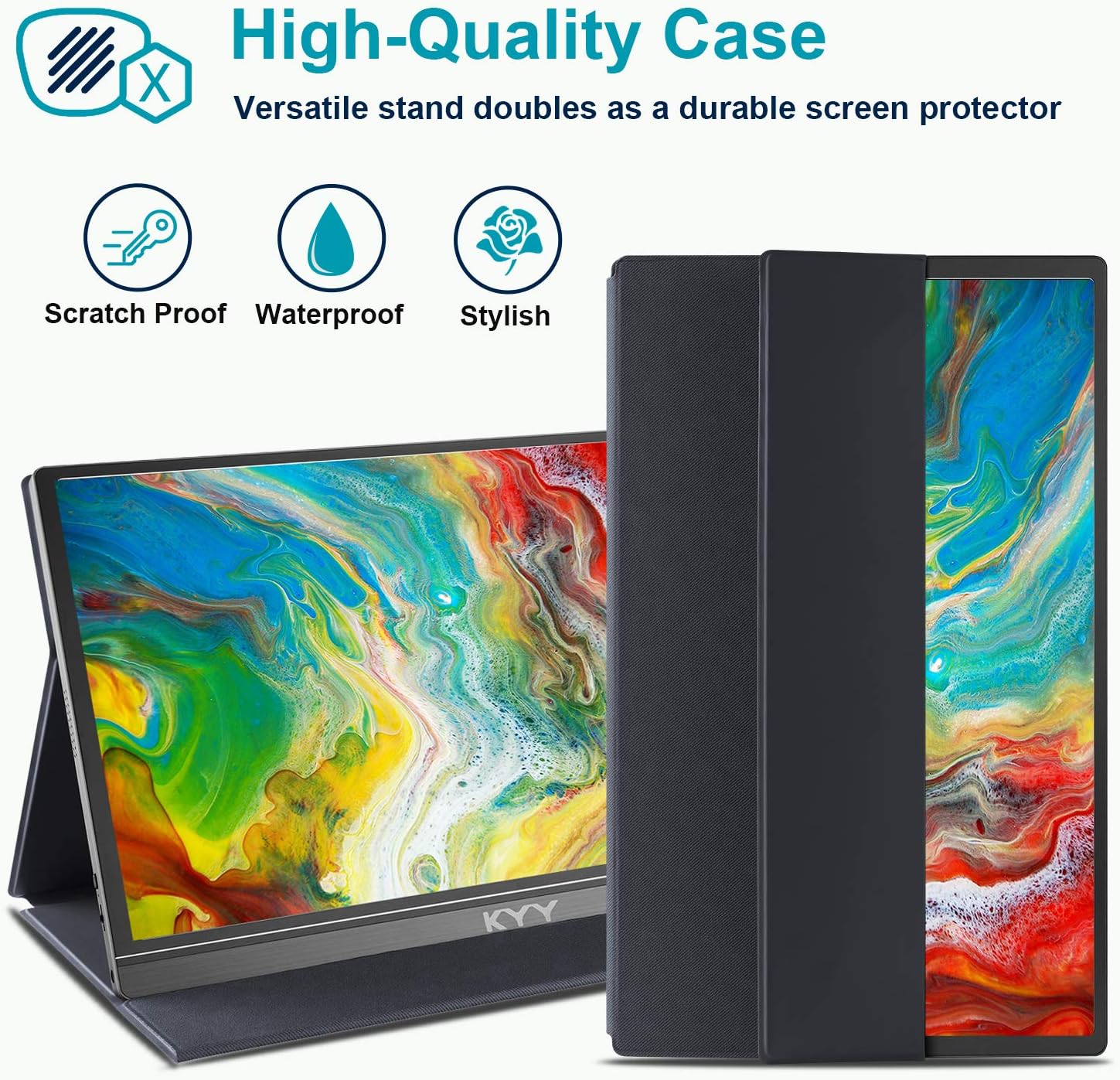
Image 8.1: KYY portable monitor with its high-quality smart cover.
8.1 스탠드로 사용하기
The smart cover can be folded into various configurations to support the monitor in both landscape and portrait orientations, providing different viewing angles. The cover has two grooves on the bottom to secure the monitor at preferred angles.
To ensure stable support, fold the screen side of the smart cover back firmly to create a triangular base.
8.2 보호
When closed, the magnetic smart cover protects the monitor screen from scratches and minor impacts, making it safe to carry in a backpack or briefcase.
9. 문제 해결
If you encounter issues with your KYY portable monitor, refer to the following common problems and solutions:
- 신호 없음 / 검은 화면:
- 모든 케이블이 단단히 연결되어 있는지 확인하십시오.
- Verify that the monitor is receiving power (check power adapter connection or USB-C power source).
- If using USB-C, confirm that your device's Type-C port is full-featured and supports video output. If not, use HDMI for video and a separate USB-C for power.
- Try a different cable or port on your device.
- Check your device's display settings to ensure the external monitor is detected and enabled.
- 전원 없음:
- Ensure the power adapter is correctly plugged into a working wall outlet and connected to the monitor's Type-C port.
- If powering via a laptop's USB-C, ensure the laptop has sufficient power output.
- 이미지 품질 문제(깜빡임, 색상 왜곡):
- 케이블 연결 부분이 느슨하거나 손상되었는지 확인하세요.
- OSD 메뉴에서 밝기, 대비 및 색상 설정을 조정하세요.
- 기기의 그래픽 드라이버가 최신 버전인지 확인하십시오.
- 사운드 문제:
- Check the volume level on both the monitor (via OSD) and your connected device.
- Ensure audio output is directed to the monitor in your device's sound settings.
- If using headphones, ensure they are properly connected to the 3.5mm audio jack.
For further assistance, please contact KYY professional support.
10. 사양
| 화면 크기 | 15.6 인치 |
| 해결 | 1920 x 1080(FHD 1080p) |
| 패널 유형 | IPS |
| 종횡비 | 16시 9분 |
| 이미지 밝기 | 250칸델라/제곱미터 |
| 연결성 | 2 x USB Type-C (Full Function), 1 x Mini HDMI |
| 오디오 | 듀얼 스피커, 3.5mm 오디오 잭 |
| 제품 치수 | 0.3 x 15.6 x 2.6 인치 |
| 품목 무게 | 1.7파운드 |
| 권tage | 5 볼트 |
| 화면 표면 | 광택있는 |
11. 관리 및 유지 보수
- 화면 청소: 부드럽고 털이 없는 천을 살짝 사용하세요.amp물이나 화면 세척액으로 닦으십시오. 강한 화학 물질이나 연마재는 사용하지 마십시오.
- 본체 청소: 부드럽고 마른 천으로 모니터 본체를 닦으세요.
- 저장: When not in use, keep the monitor protected by its smart cover. Store in a cool, dry place away from direct sunlight and extreme temperatures.
- 손질: 모니터를 떨어뜨리거나 강한 충격을 가하지 마십시오. 모니터 위에 무거운 물건을 올려놓지 마십시오.
12. 지원 정보
If you have any questions regarding device compatibility, connection issues, or require technical assistance, please contact the KYY professional support team. Refer to the product packaging or the official KYY web연락처 정보 사이트.