
1. 제품 오버view
The GIGABYTE G24F 2 is a 23.8-inch gaming monitor designed for an immersive visual experience. It features a Super Speed IPS panel, Full HD (1920 x 1080) resolution, and a high refresh rate for smooth gameplay.

그림 1.1: 전면 view of the GIGABYTE G24F 2 gaming monitor.
주요 특징:
- 패널 크기: 23.8-inch SS IPS display
- 해결: 1920 x 1080 (풀HD)
- 응답 시간: 1ms MPRT
- 새로 고침 빈도: 165Hz(180Hz까지 오버클럭 가능)
- 채도: DCI-P3 95%, sRGB 125%
- 명도: 300cd/m2(일반)
- 대비율: 1100시 1분
- 연결성: 2 x HDMI 2.0, 1 x DisplayPort 1.2 (HDR capable), 2 x USB 3.2 Gen 1 Downstream, 1 x USB 3.2 Gen 1 Upstream, 1 x Earphone Jack
- 특별 기능: OSD Sidekick, Aim Stabilizer, Black Equalizer, Dashboard, Crosshair, Timer, Counter, Auto-Update, Smart OD, HDR Ready, Flicker-free, Kensington lock
2. 안전 정보
모니터를 사용하기 전에 모든 지침을 주의 깊게 읽어 주십시오. 나중에 참조할 수 있도록 이 설명서를 보관하십시오.
- 화재나 감전 위험을 방지하기 위해 모니터를 비나 습기에 노출시키지 마십시오.
- 모니터를 열지 마세요asing. 내부에는 사용자가 수리할 수 있는 부품이 없습니다. 모든 수리는 자격을 갖춘 기술자에게 맡기십시오.
- 모니터가 떨어지지 않도록 안정적이고 평평한 표면에 놓으세요.
- 모니터 주변의 통풍이 잘 되도록 하십시오. 통풍구를 막지 마십시오.
- 제조사에서 제공한 전원 어댑터와 케이블만 사용하십시오.
- 번개가 칠 때나 장기간 사용하지 않을 때는 모니터의 플러그를 콘센트에서 뽑아 두세요.
- Clean the screen with a soft, lint-free cloth. Avoid using liquid cleaners directly on the screen.
3. 패키지 내용
패키지에 모든 품목이 들어 있는지 확인하세요.
- GIGABYTE G24F 2 Monitor
- 모니터 스탠드(베이스 및 넥)
- 전원 케이블
- HDMI 케이블
- USB Cable (Upstream)
- 빠른 시작 가이드(QSG)
- 보증 카드

그림 3.1: 후면 view 모니터의 스탠드 부착 부분을 보여주는 사진입니다.
4. 설정
4.1 스탠드 조립
- 모니터와 스탠드 구성품을 포장에서 조심스럽게 꺼내세요.
- 스탠드 목 부분을 모니터 패널에 부착하십시오. 딸깍 소리가 나면서 단단히 고정되었는지, 또는 제공된 나사를 사용하여 고정되었는지 확인하십시오.
- 스탠드 받침대를 스탠드 목 부분에 부착합니다. 받침대 아래쪽에 있는 엄지 나사를 조입니다.
- 조립된 모니터를 안정적이고 평평한 표면에 놓으세요.
4.2 모니터 연결
Connect the monitor to your computer and other devices using the appropriate cables.

그림 4.1: 모니터 연결 포트.
- 전원 연결: 전원 케이블을 모니터의 전원 입력 단자에 연결한 다음 전원 콘센트에 연결합니다.
- 비디오 연결:
- For optimal performance, use the DisplayPort 1.2 cable to connect to your computer's graphics card.
- Alternatively, use one of the two HDMI 2.0 ports.
- USB 업스트림 연결: Connect the provided USB 3.2 Gen 1 Upstream cable from your computer to the monitor's upstream USB port to enable the monitor's downstream USB ports.
- USB Downstream Connections: Connect USB devices (e.g., keyboard, mouse) to the monitor's two USB 3.2 Gen 1 Downstream ports.
- 오디오 출력: Connect headphones or external speakers to the Earphone Jack.
5. 모니터 작동하기
5.1 전원 켜기/끄기
Press the power button, usually located on the bottom or rear of the monitor, to turn the monitor on or off. The power indicator light will show the monitor's status.
5.2 온스크린 디스플레이(OSD) 메뉴
The OSD menu allows you to adjust various monitor settings. Navigate the OSD using the joystick or buttons typically found on the rear of the monitor.

Figure 5.1: OSD Sidekick software for convenient monitor control.
For advanced control, install the OSD Sidekick software on your PC. This utility allows you to adjust monitor settings directly from your desktop.
5.3 게임 기능
The GIGABYTE G24F 2 includes several features to enhance your gaming experience:
- Aim Stabilizer: Reduces motion blur and improves visual clarity in fast-paced games.
- 블랙 이퀄라이저: 게임 내 어두운 영역의 가시성을 향상시키면서 밝은 영역은 과도하게 노출시키지 않습니다.

그림 5.2: 블랙 이퀄라이저 작동 모습.
- 계기반: Displays real-time hardware information (e.g., CPU/GPU temperature, usage) directly on the screen.

Figure 5.3: Dashboard displaying system metrics.
- 조준선: Provides a customizable on-screen crosshair to assist with aiming.

Figure 5.4: On-screen Crosshair.
- 타이머/카운터: On-screen timers and counters for in-game tracking.
- Smart OD: Optimizes overdrive settings for the best response time.
- 자동 업데이트: Ensures the monitor's firmware and OSD Sidekick software are up-to-date.
5.4 디스플레이 설정
- 새로 고침 빈도: The monitor supports up to 165Hz, with an overclock option to 180Hz, for fluid motion.
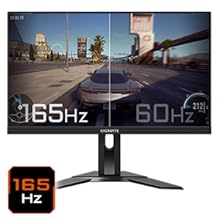
Figure 5.5: Visual comparison of 165Hz vs. 60Hz refresh rate.
- 응답 시간: Enjoy a 1ms MPRT (Moving Picture Response Time) for minimal ghosting.
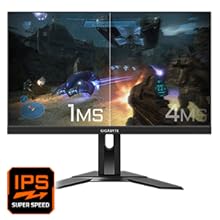
Figure 5.6: Visual comparison of 1ms vs. 4ms response time.
- 색상 영역: The monitor covers 95% DCI-P3 and 125% sRGB for vibrant and accurate colors.
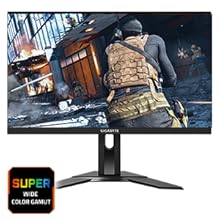
Figure 5.7: Wide color gamut for rich visuals.
- 로우 블루 라이트: Reduces blue light emissions to protect your eyes during extended use.
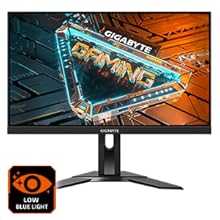
그림 5.8: 눈의 피로를 줄이기 위한 저청색광 기능.
- 깜박임 없음: 더욱 편안한 화면 깜빡임을 제거합니다. view경험.

Figure 5.9: Flicker-Free technology for comfortable view주고받음.
5.5 제품 기능 비디오
비디오 5.1: 오버view of the GIGABYTE G24F 2 monitor's features and specifications.
6. 유지관리
적절한 유지 관리는 모니터의 수명을 연장시켜 줍니다.
- 화면 청소: 부드럽고 마른 보풀 없는 천으로 화면을 부드럽게 닦으세요. 잘 지워지지 않는 얼룩의 경우,amp천에 물이나 특수 스크린 세척제를 묻혀 닦으세요(천에 바르고 스크린에 직접 바르지 마세요).
- C 청소asing: 부드럽고 마른 천을 사용하여 모니터를 닦으세요.asing. 연마성 세척제는 피하세요.
- 통풍: Ensure the ventilation openings on the monitor are clear of dust and obstructions.
- 전원 끄기 : Turn off and unplug the monitor when not in use for extended periods.
7. 문제 해결
모니터에 문제가 발생하면 다음 표를 참조하여 일반적인 문제와 해결 방법을 확인하세요.
| 문제 | 가능한 원인 | 해결책 |
|---|---|---|
| 화면에 이미지가 없습니다. | Power cable not connected; Video cable not connected; Incorrect input source selected | 전원 및 비디오 케이블 연결을 확인하십시오. OSD를 통해 올바른 입력 소스를 선택하십시오. |
| 이미지가 흐릿하거나 왜곡됩니다. | 해상도 오류; 비디오 케이블이 헐거워짐 | 디스플레이 해상도를 1920x1080으로 설정하고, 비디오 케이블이 제대로 연결되어 있는지 확인하세요. |
| 헤드폰/스피커에서 소리가 나지 않습니다 | Audio cable not connected; Volume too low; Incorrect audio output selected on PC | Check audio cable connection; Adjust volume; Select monitor as audio output on PC. |
| USB 포트가 작동하지 않음 | USB 업스트림 케이블이 연결되지 않았습니다 | Connect the USB 3.2 Gen 1 Upstream cable from the monitor to your PC. |
| 깜빡이는 화면 | Refresh rate issue; Faulty cable | Ensure refresh rate is set correctly; Try a different video cable. |
8. 사양
Detailed technical specifications for the GIGABYTE G24F 2 monitor.

그림 8.1: 모니터 크기.
| 특징 | 세부 사항 |
|---|---|
| 상표 | 기가바이트 |
| 모델명 | G24F 2 |
| 모델 번호 | 9DG24F2-00-1ABIN |
| 화면 크기 | 23.8 인치 |
| 해결 | 1920 x 1080 픽셀(FHD 1080p) |
| 종횡비 | 16시 9분 |
| 디스플레이 유형 | LCD (SS IPS Panel) |
| 새로 고침 빈도 | 165 Hz (180Hz OC) |
| 응답 시간 | 1 Milliseconds (MPRT) |
| 명도 | 300 candela_per_square_meter (TYP) |
| 대비율 | 1100시 1분 |
| 색상 채도 | DCI-P3 95%, sRGB 125% |
| View잉 각도 | 178도 |
| 연결성 | 2 x HDMI 2.0, 1 x DisplayPort 1.2, 2 x USB 3.2 Gen 1 Downstream, 1 x USB 3.2 Gen 1 Upstream, 1 x Earphone Jack |
| 적응형 동기화 | 프리 싱크 프리미엄 |
| 전력 소비 | 17.5 와트 |
| 품목 무게 | 3.2 킬로그램 |
| 품목 치수(D x W x H) | 5.3D x 54.1W x 32.6H 센티미터 |
| 장착 유형 | 벽걸이형 |
| 제품 특징 | Flicker-Free, Height Adjustment, High Dynamic Range, Tilt Adjustment |
9. 보증 및 지원
The GIGABYTE G24F 2 monitor comes with a 3년 보증 제조업체로부터.
For technical support, warranty claims, or further inquiries, please contact GIGABYTE customer service:
- 제조업체: GIGABYTE Technology (India) Pvt Ltd
- 주소: B-808, Naman Midtown, Elphinstone Road, Mumbai – 400013 – INDIA
- 핸드폰: +91-22-40633222
보증 서비스를 위해 구매 증빙서류를 보관하세요.