
Rii K18S IT
Rii Mini i18S Wireless + Bluetooth Keyboard
사용자 설명서
1. 서론
The Rii Mini i18S is a compact, versatile keyboard featuring both 2.4G wireless and Bluetooth connectivity. It integrates a large touchpad and LED backlighting, making it suitable for a wide range of devices including Smart TVs, TV Boxes, Tablets, Smartphones, Consoles, and PCs. This manual provides detailed instructions for setup, operation, maintenance, and troubleshooting to ensure optimal use of your device.

Figure 1: Rii Mini i18S keyboard demonstrating its dual wireless and Bluetooth connectivity.
2. 패키지 내용
다음 품목이 패키지에 포함되어 있는지 확인하세요.
- Rii Mini i18S Wireless + Bluetooth Keyboard
- USB RF 2.4 GHz Receiver
- USB 충전 케이블
- USB 연장 케이블
- 사용 설명서 (본 문서)
3. 제품 오버view
The Rii Mini i18S features a QWERTY layout keyboard. It has a large multi-touch touchpad, and dedicated multimedia keys. It is designed for comfortable and efficient input across various platforms.
3.1 주요 특징
- 이중 연결: 2.4G 무선 및 블루투스 4.0.
- 대형 터치패드: High sensitivity with multi-touch gestures.
- LED 백라이트: Two selectable colors (blue, green) for use in low-light conditions.
- 충전식 배터리: Built-in lithium polymer battery.
- 멀티미디어 컨트롤: 미디어 재생 전용 키.
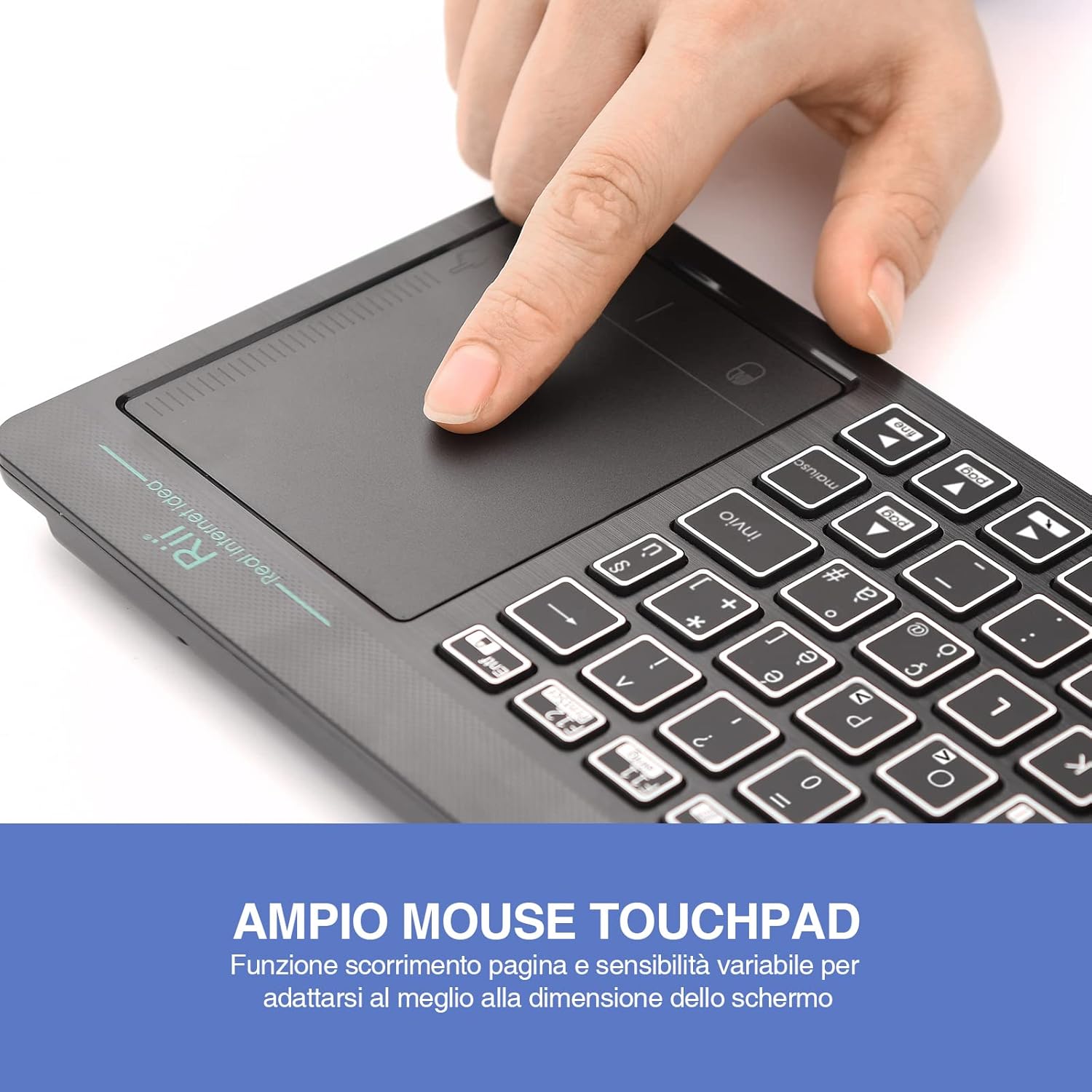
Figure 2: The large, sensitive touchpad of the Rii Mini i18S, supporting multi-touch gestures.

Figure 3: The Rii Mini i18S keyboard showcasing its two-color LED backlighting (blue and green).
4. 설정
4.1 키보드 충전
Before initial use, fully charge the keyboard. Connect the provided USB charging cable to the keyboard's microUSB port and the other end to a USB power source (e.g., computer USB port, USB wall adapter).
- The charging indicator LED will illuminate during charging.
- The LED will turn off or change color when fully charged.
- 배터리 용량: 400mAh.
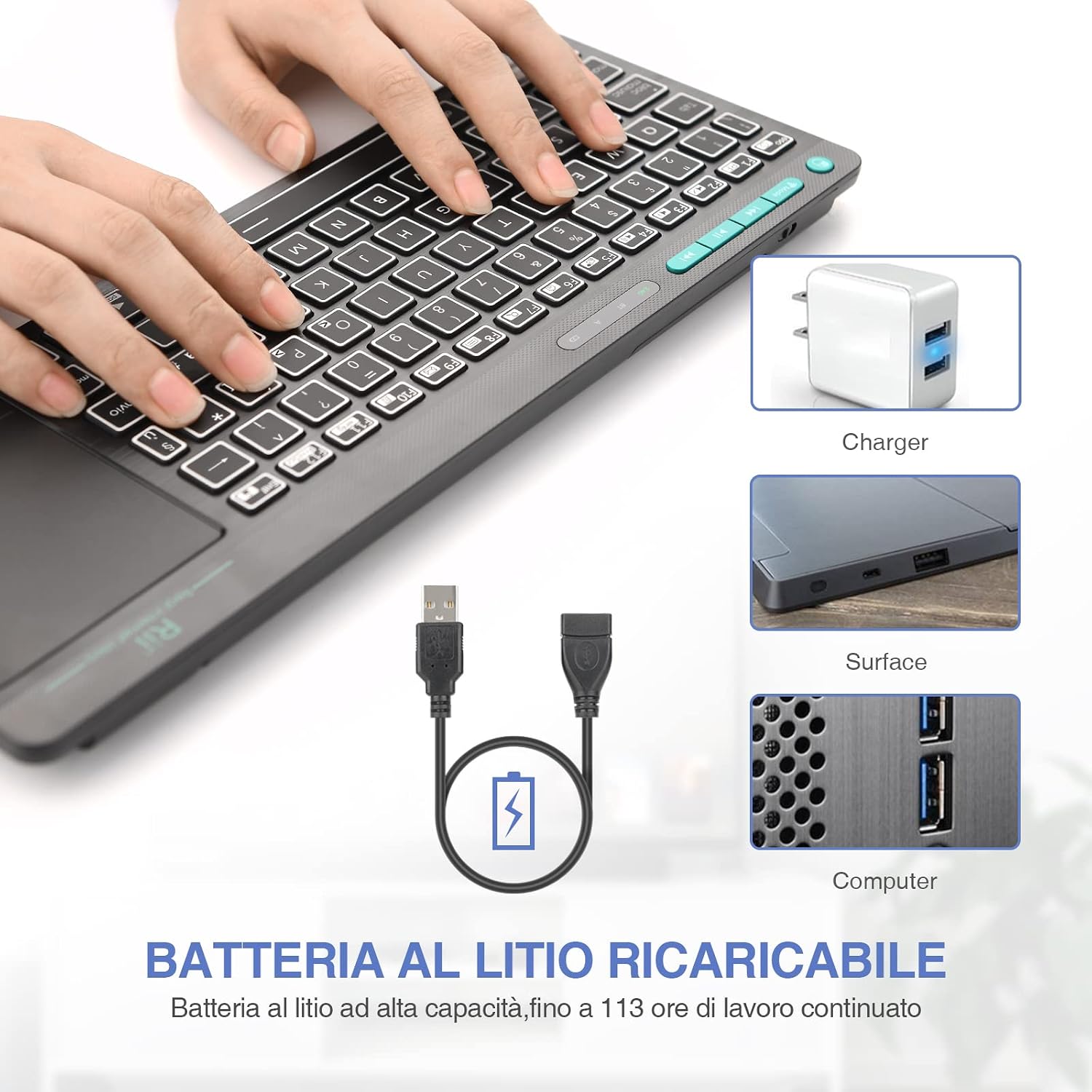
Figure 4: The Rii Mini i18S keyboard being charged using the included USB cable, connected to a power source.
4.2 2.4G 무선 연결
For 2.4G wireless connection, use the included USB receiver.
- Locate the USB receiver in the back compartment of the keyboard.
- Insert the USB receiver into an available USB port on your device (Smart TV, PC, TV Box, etc.).
- 를 누르세요 방법 button on the keyboard until the 2.4G indicator LED is active.
- The keyboard should automatically connect to your device. If not, try pressing Fn + RF 다시 페어링합니다.

Figure 5: The USB wireless receiver stored securely in the back compartment of the Rii Mini i18S keyboard.
4.3 블루투스 연결
For Bluetooth connection, ensure your device has Bluetooth enabled.
- 를 누르세요 방법 button on the keyboard until the BT indicator LED is active.
- 기기에서 블루투스 설정으로 이동하여 새 기기를 검색하세요.
- Select "Rii Mini i18S" from the list of available devices to pair.
- 화면의 지시에 따라 페어링 과정을 완료하세요.
The dual connection technology allows you to manage up to two devices simultaneously: one via Bluetooth and one via 2.4G wireless.

Figure 6: The Rii Mini i18S keyboard demonstrating its dual mode connectivity, shown here connected to a tablet.
5. 사용 설명서
5.1 기본 키보드 기능
The keyboard features a standard QWERTY layout. All keys function as labeled. Use the Fn key in combination with other keys for special functions (e.g., multimedia controls).
- 대문자 잠금: Press to toggle uppercase/lowercase. An indicator LED will show its status.
5.2 터치패드 기능
The integrated touchpad supports various gestures:
- 단일 손가락 탭: 왼쪽 클릭.
- 두 손가락 탭: 마우스 오른쪽 버튼으로 클릭.
- 두 손가락 스크롤: Drag two fingers up or down to scroll pages.
- 싱글 핑거 드래그: 커서를 이동합니다.
- 왼쪽 마우스 버튼: A physical left mouse button is also available on the top-left side of the keyboard for convenience.
5.3 백라이트 제어
The keyboard features LED backlighting with two selectable colors.
- 를 누르세요 전구 아이콘 키 to cycle through backlight colors (blue, green) or turn it off.
5.4 멀티미디어 키
사용하세요 Fn key in conjunction with the F1-F12 keys (or other labeled keys) to access multimedia functions such as volume control, play/pause, and track skipping.
6. 유지관리
6.1 청소
키보드를 청소할 때는 부드럽고 마른 천을 사용하세요. 잘 지워지지 않는 얼룩은 약간 부드러운 천으로 닦아내세요.amp천에 물이나 순한 세척액을 묻혀 닦아주세요. 강한 화학 물질이나 연마재는 사용하지 마세요.
6.2 배터리 관리
- 키보드를 극한의 온도에 노출시키지 마십시오.
- 배터리 수명을 유지하려면 자주 사용하지 않더라도 키보드를 정기적으로 충전하세요.
- The keyboard features a programmable standby mode (3 minutes or 2 hours) to conserve battery life.
7. 문제 해결
7.1 키보드가 응답하지 않음
- 배터리 확인: Ensure the keyboard is charged. Connect it to a power source.
- 연결 확인:
- For 2.4G Wireless: Ensure the USB receiver is properly inserted and the keyboard is in 2.4G mode. Try a different USB port.
- For Bluetooth: Ensure Bluetooth is enabled on your device and the keyboard is in Bluetooth mode. Re-pair the device if necessary.
- 다시 시작: Turn the keyboard off and on again. Restart your connected device.
7.2 Touchpad Not Working Correctly
- 깨끗한 터치패드: 터치패드 표면이 깨끗하고 이물질이 없는지 확인하십시오.
- 감광도: Adjust touchpad sensitivity if available in your device's settings.
7.3 백라이트가 작동하지 않음
- 배터리 확인: Low battery might disable backlighting. Charge the keyboard.
- 비녀장: Press the light bulb icon key to ensure it's not turned off.
8. 사양
| 모델 | K18S IT |
| 연결성 | 2.4 GHz RF Wireless, Bluetooth 4.0 |
| 작동 범위 | Up to 10 meters (2.4 GHz RF), Up to 8 meters (Bluetooth) |
| 키보드 레이아웃 | QWERTY (Italian layout) |
| Touchpad Resolution | 최대 1000 DPI |
| 백라이트 색상 | Blue, Green (selectable) |
| 배터리 유형 | 충전식 리튬 폴리머 |
| 배터리 용량 | 400mAh |
| 충전 포트 | MicroUSB (5V 350mA) |
| 치수(길이 x 너비 x 높이) | 31.7 x 12.3 x 1.8cm |
| 무게 | 340g |
| 호환 OS | Windows (XP/Vista/7/8/10/11), Mac OS, Linux (Ubuntu 11.04+), Android (2.3+), iOS, Raspbian, PlayStation (PS3/PS4/PS5), Xbox (360/One/S/X), Fire TV |
| 인증 | CE, RoHS, FCC |
9. 보증 및 지원
Rii 제품은 뛰어난 신뢰성과 성능을 위해 설계되었습니다. 보증 정보 및 기술 지원에 대해서는 Rii 공식 웹사이트를 참조하십시오. web사이트를 방문하거나 가까운 대리점에 문의하세요. 보증 청구를 위해 구매 영수증을 보관하세요.
공식적인 web대지: www.riitek.com
Ask a question about this manual
Ask about setup, troubleshooting, compatibility, parts, safety, or missing instructions. Manuals+ will review the question and use this page’s manual context to help answer it.