
1. 서론
구매해주셔서 감사합니다asing the Ysametp 5G WiFi Bluetooth Projector. This device is designed to provide a high-quality home theater experience with its native 1080p Full HD resolution, 4K support, and integrated Android system. Please read this manual thoroughly before using the projector to ensure proper operation and to maximize its lifespan.
2. 안전 정보
프로젝터 손상을 방지하고 사용자의 안전을 확보하기 위해 다음 안전 수칙을 준수해 주십시오.
- 전원 공급 장치: Use only the specified power adapter. Ensure the power outlet voltage는 프로젝터의 요구 사항을 충족합니다.
- 통풍: 통풍구를 막지 마십시오. 프로젝터의 과열을 방지하기 위해 적절한 공기 흐름을 확보하십시오.
- 놓기: 프로젝터를 안정적이고 평평한 곳에 설치하세요. 직사광선, 열원 근처, 습도나 먼지가 많은 환경에는 설치하지 마세요.
- 청소: 청소하기 전에 전원을 분리하세요. 부드럽고 마른 천을 사용하세요. 액체 또는 에어로졸 세척제는 사용하지 마세요.
- 눈 보호: l을 사용할 때 프로젝터 렌즈를 직접 쳐다보지 마십시오.amp 밝은 빛이 눈 손상을 유발할 수 있으므로 조명을 켜 두십시오.
- 수리: 프로젝터를 직접 수리하려고 하지 마십시오. 모든 서비스는 자격을 갖춘 전문가에게 맡기십시오.
3. 패키지 내용
패키지에 모든 품목이 들어 있는지 확인하세요.
- Ysametp 5G WiFi Bluetooth Projector (Model DE-M8-E-An)
- 원격 제어
- Power Cable (AC 220V with Schuko plug)
- HDMI 케이블
- 사용자 설명서
4. 제품 오버view
프로젝터의 구성 요소와 인터페이스를 숙지하십시오.
4.1 정면 View

이미지: 앞면 view of the Ysametp Projector, highlighting the projection lens and side ventilation grilles.
4.2 Rear and Side Interfaces
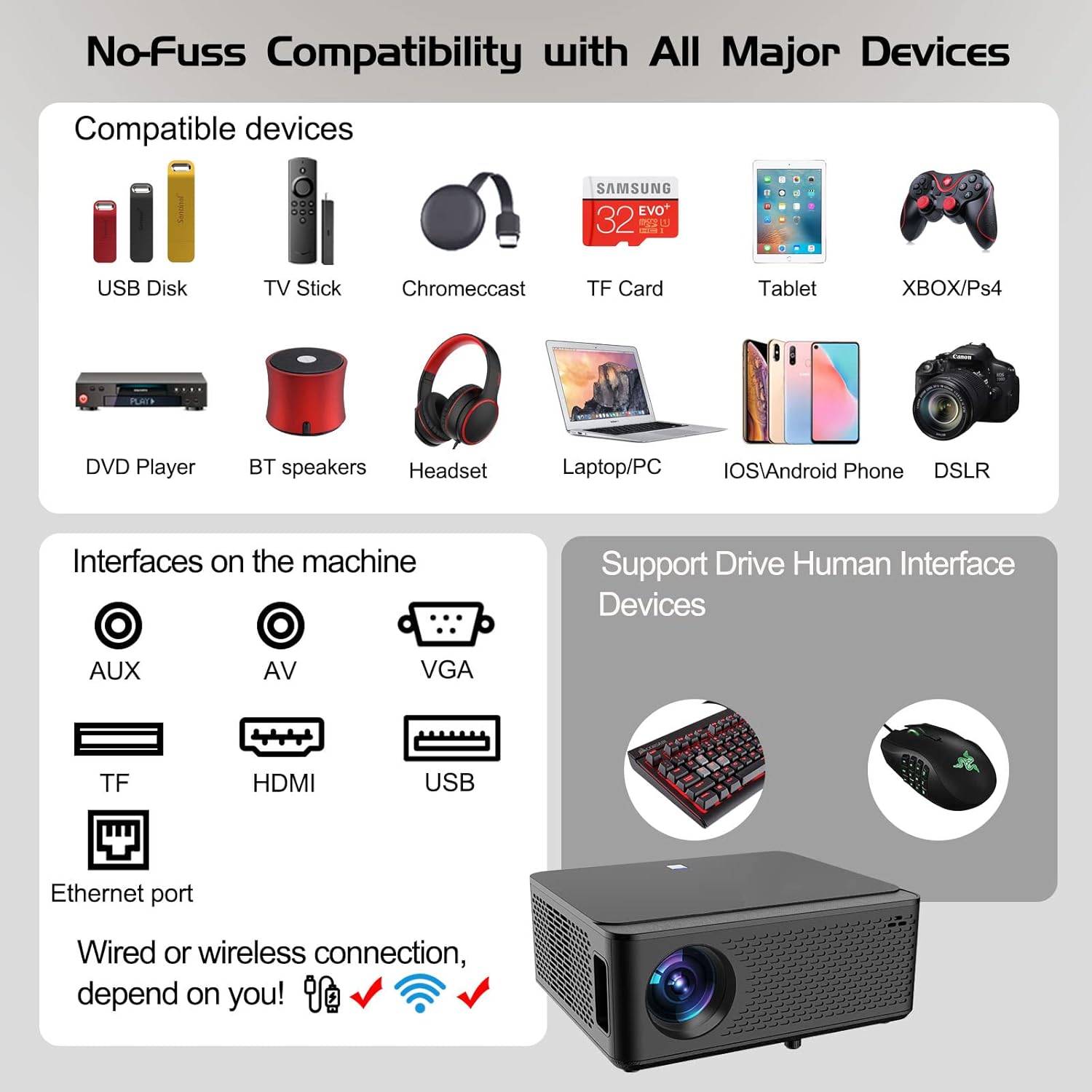
Image: Diagram illustrating the various input and output ports available on the Ysametp Projector, including USB, HDMI, AV, VGA, TF card slot, and Ethernet port.
The projector features a comprehensive set of ports for versatile connectivity:
- 이더넷 포트 : 유선 인터넷 연결용.
- VGA 포트: For connecting to older computers.
- USB-A 포트: For connecting USB flash drives or external devices.
- HDMI 포트 : 다양한 소스에서 고화질 오디오 및 비디오 입력을 지원합니다.
- AV 입력: For connecting analog audio/video devices.
- 3.5mm 오디오 출력: 외부 스피커나 헤드폰을 연결하는 데 사용합니다.
- TF 카드 슬롯 : For reading media from Micro SD cards.
- 전원 입력: AC 전원 케이블을 연결하기 위한 것입니다.
4.3 상단 컨트롤
The top of the projector includes a power button for basic on/off functionality. Further controls are available via the remote control and the on-screen display.
4.4 초점 조정
A mechanical focus adjustment screw is located on the side of the lens for manual image clarity control.
5. 설정
5.1 배치
Position the projector on a stable surface. The projection distance will determine the screen size. For optimal view프로젝터가 투사 표면에 수직인지 확인하십시오.
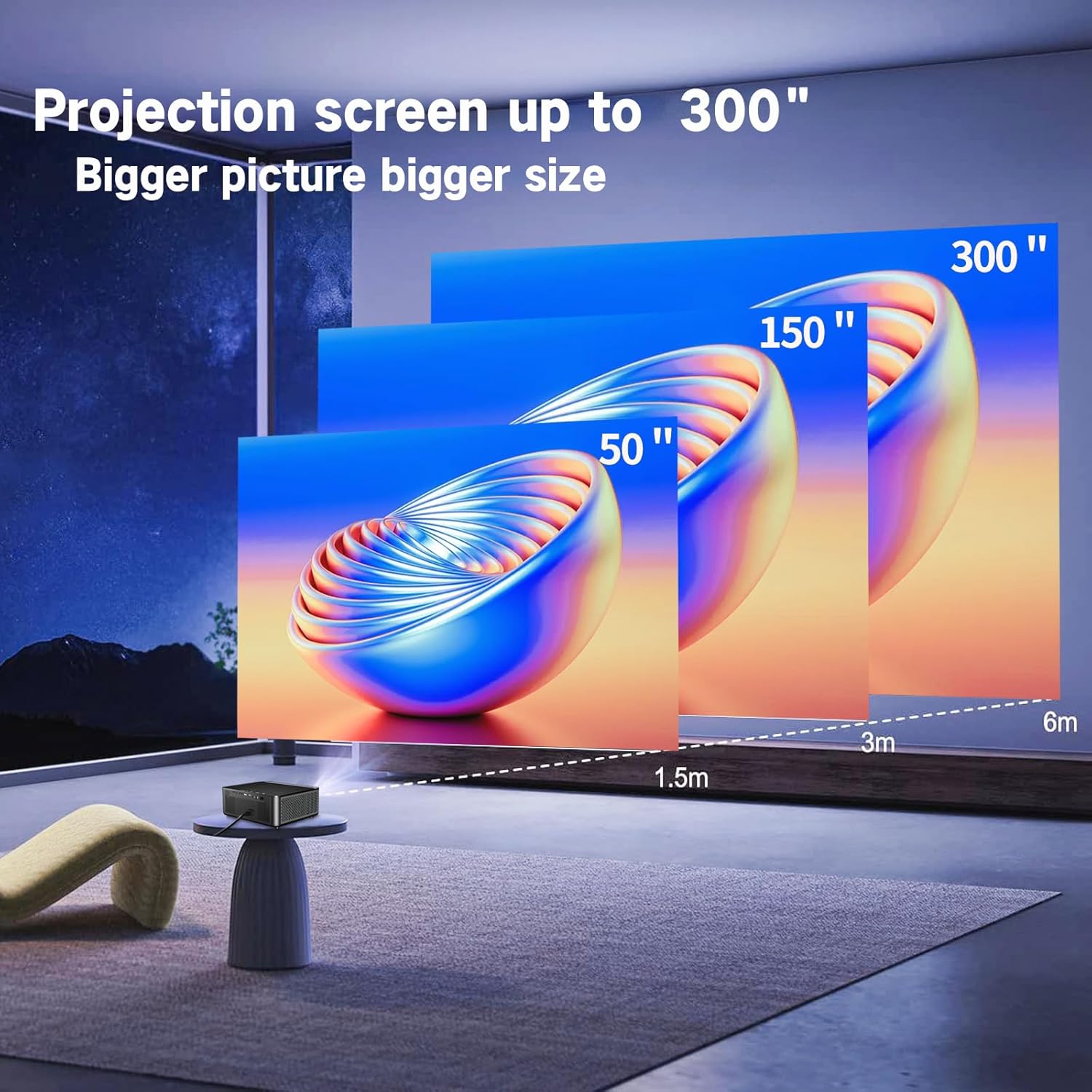
Image: Illustration demonstrating recommended projection distances for achieving screen sizes of 50, 150, and 300 inches.
5.2 전원 연결
- 프로젝터의 전원 입력 단자에 전원 케이블을 연결하세요.
- 전원 케이블의 다른 쪽 끝을 적절한 콘센트에 꽂으십시오.
5.3 초기 전원 켜기
- 프로젝터나 리모컨의 전원 버튼을 눌러 장치를 켜세요.
- Allow a few moments for the projector to boot up.
5.4 초점 및 키스톤 보정
After powering on, adjust the image for clarity and proper geometry:
- 집중하다: Rotate the mechanical focus adjustment screw near the lens until the image appears sharp and clear.
- 키스톤 보정: If the projected image is trapezoidal (wider at the top or bottom), use the 4D keystone correction feature via the on-screen menu to adjust the image corners until it forms a perfect rectangle.

Image: Diagram showing how 4P/4D keystone correction can be used to adjust the corners of a projected image to achieve a rectangular shape.
6. 사용 설명서
6.1 외부 장치 연결
The projector supports various connection methods:
- HDMI : Connect gaming consoles (PS4, Xbox), laptops, or other HDMI-enabled devices using an HDMI cable.
- USB: Insert a USB flash drive into the USB-A port to play media file직접적으로.
- TF 카드: Insert a Micro SD (TF) card into the TF card slot to access media.
- VGA/AV: Use these ports for older devices requiring analog connections.
- 블루투스: Pair Bluetooth speakers or headphones for enhanced audio.

Image: The projector shown with various compatible devices, including laptops, smartphones, gaming consoles, USB drives, and external speakers, demonstrating its versatile connectivity.
6.2 Using the Integrated Android System
The projector comes with an integrated Android system, allowing access to a wide range of applications.

Image: The projector displaying its Android interface, featuring icons for popular streaming services and apps such as Netflix, YouTube, Prime Video, Hulu, Spotify, and TikTok.
- 네트워크 연결 : Connect the projector to your home Wi-Fi network via the settings menu or use an Ethernet cable for a wired connection.
- 앱 접근: Navigate the Android interface using the remote control. You can download and install applications from the Google Play Store.
- 스트리밍: Enjoy content from pre-installed or downloaded streaming services.
6.3 5G WiFi Screen Mirroring
Mirror your smartphone, tablet, or PC screen wirelessly to the projector.

Image: A family enjoying content mirrored from a smartphone onto the large projected screen, illustrating the 5G WiFi Screen Mirroring feature for iOS, Android, and Windows devices.
- Ensure both the projector and your device are connected to the same 5G WiFi network.
- Select the "Screen Mirroring" option on the projector's menu.
- On your smartphone/tablet/PC, activate its screen mirroring function (e.g., "Smart View" for Android, "AirPlay" for iOS, "Cast" for Windows).
- 연결을 설정하려면 사용 가능한 장치 목록에서 프로젝터를 선택하십시오.
7. 유지관리
7.1 렌즈 청소
프로젝터 렌즈는 광학 표면용으로 특별히 제작된 부드럽고 보풀이 없는 천으로 부드럽게 닦으세요. 연마성 세제를 사용하거나 과도한 힘을 가하지 마세요.
7.2 프로젝터 본체 청소
Use a soft, dry cloth to clean the exterior of the projector. Avoid using harsh chemicals or solvents.
7.3 Optical Engine Protection
The projector features a full-sealed optical engine designed to prevent dust from entering the internal components, reducing the need for frequent internal cleaning and extending the device's lifespan.

이미지: 내부 view diagram of the projector's full-sealed optical engine, highlighting its design to prevent dust from entering and affecting performance.
7.4리터amp 삶
The projector utilizes advanced SmarEco technology to minimize energy consumption and extend the lamp's lifespan up to 60,000 hours, providing long-term reliability.

이미지: 자세한 다이어그램을 보여줌asing the projector's lamp technology, indicating a lifespan of over 30,000 hours.
8. 문제 해결
프로젝터에 문제가 발생하면 다음의 일반적인 문제와 해결 방법을 참조하세요.
| 문제 | 가능한 원인 | 해결책 |
|---|---|---|
| 화면에 이미지가 나오지 않습니다. | 전원 케이블이 느슨함; 입력 소스가 올바르지 않음; 장치가 연결되지 않음. | Check power connections. Select correct input source (HDMI, AV, etc.). Ensure external device is powered on and connected properly. |
| 이미지가 흐릿합니다. | 초점이 조정되지 않았습니다. 프로젝터가 너무 멀리/가깝습니다. | Adjust the focus ring on the lens. Ensure projector is within optimal projection distance. |
| 이미지는 사다리꼴입니다. | 프로젝터가 화면에 수직이 아닙니다. | Use the 4D keystone correction feature in the settings menu to adjust the image shape. |
| 소리가 나지 않습니다. | Volume too low; external audio device not connected; incorrect audio output selected. | Increase volume. Check external speaker/headphone connection. Ensure correct audio output is selected in settings. |
| WiFi에 연결할 수 없습니다. | 비밀번호가 잘못되었습니다. 범위를 벗어났습니다. 네트워크 문제입니다. | Verify WiFi password. Move projector closer to router. Restart router and projector. |
9. 사양
Key technical specifications for the Ysametp 5G WiFi Bluetooth Projector (Model DE-M8-E-An):
- 상표: 이사멧프
- 모델 번호: DE-M8-E-An
- 색상: 검은색
- 제품 유형: 휴대용 프로젝터
- 연결 기술 : HDMI, USB, Wi-Fi (5G), Bluetooth
- 특별 기능: Integrated WiFi, Android System, 4D Keystone Correction
- 호환 장치: Game Consoles, Speakers, Laptops, Smartphones, Tablets
- 디스플레이 해상도: 기본 해상도 1920 x 1080 (풀 HD)
- 최대 디스플레이 해상도: 4096 x 2160 (4K 지원)
- 디스플레이 유형: 디엘피(DLP)
- 제품 크기: 26L x 23W x 11H 센티미터
- 폼 팩터: 가지고 다닐 수 있는
- 장착 유형: 테이블 마운트
- Lamp 수명: 최대 60,000시간

Image: A visual comparison highlighting the projector's 20,000 Lumens brightness, Native 1080P resolution, and 4K support, contrasting it with a lower specification projector.
10. 보증 및 지원
The Ysametp Projector comes with a 3-year service warranty. For technical support or warranty claims, please contact Ysametp customer service through your purchase platform or the official Ysametp web대지.