
SSK SC211
SSK SC211 11-in-1 USB-C Laptop Docking Station User Manual
Model: SC211 | Brand: SSK
1. 서론
The SSK SC211 11-in-1 USB-C Laptop Docking Station is a versatile multiport adapter designed to expand the connectivity of your USB-C enabled laptop, tablet, or smartphone. It integrates multiple essential ports into a single compact device, enhancing productivity and simplifying your workspace.
2. 제품 특징
This docking station provides 11 ports for comprehensive connectivity:
- HDMI 포트 2개: Supports 4K video output. HDMI1 supports up to 4K@60Hz, and HDMI2 supports up to 4K@30Hz.
- VGA 포트 1개: Supports video output up to 1920x1080@60Hz, especially when used in dual or triple display configurations.
- 1 x Ethernet/RJ-45 Port: Provides stable wired network connectivity with 1000Mbps Gigabit speed.
- 2개의 USB 3.0 포트: Offers high-speed data transfer rates of up to 5Gbps.
- 1 x USB 2.0 포트: Ideal for connecting wireless mouse and keyboard receivers, minimizing interference.
- 3.5mm 오디오 포트 1개: Supports both microphone input and audio output.
- 1 x USB-C PD3.0 Charging Port: Delivers up to 100W Power Delivery for fast charging of compatible Type-C devices.
- SD 카드 리더기 1개: For standard SD cards, with data transfer speeds up to 80MB/s.
- TF 카드 리더기(마이크로 SD) 1개: For Micro SD cards, with data transfer speeds up to 80MB/s. Both SD and TF card slots can be used simultaneously.

그림 1: 이상view of the SSK SC211 11-in-1 USB-C Docking Station with all ports clearly labeled, including PD 3.0, USB 2.0, HDMI1 (4K@60Hz), HDMI2 (4K@30Hz), RJ45 Ethernet, SD/TF Card, 2x USB 3.0, 3.5mm Audio, and VGA (1080P@60Hz).
3. 설정 가이드
- 호스트 장치에 연결: Plug the integrated USB-C cable from the docking station into the USB-C port of your laptop, tablet, or smartphone. Ensure your device's USB-C port supports "Display Port Alternate Mode" for video output functionality.
- 전원 연결(선택 사항이지만 권장): For stable performance and charging, connect your device's original power adapter or a compatible USB-C PD charger (up to 100W) to the docking station's USB-C PD port.
- 외부 디스플레이 연결:
- For HDMI displays, connect HDMI cables from your monitors to the HDMI1 and/or HDMI2 ports on the docking station.
- VGA 디스플레이의 경우 모니터와 도킹 스테이션의 VGA 포트에 VGA 케이블을 연결하십시오.
- 주변기기 연결:
- Plug USB devices (e.g., external hard drives, flash drives) into the USB 3.0 ports.
- Connect wireless mouse/keyboard receivers to the USB 2.0 port.
- Insert SD or TF cards into the respective card reader slots.
- 유선 인터넷을 사용하려면 이더넷 케이블을 RJ-45 포트에 연결하십시오.
- 헤드폰이나 스피커를 3.5mm 오디오 포트에 연결하세요.
- Driver Installation (Mac OS Specific): For Mac OS, due to its MST (Multi-Stream Transport) display limitations, installing DisplayLink drivers may be required to achieve extended display functionality across multiple distinct displays. Refer to the DisplayLink website for the latest drivers and installation instructions. For Windows, it is generally plug-and-play.
Video 1: A demonstration of connecting a docking station to a laptop and external monitors, showcasing its multi-display capabilities and various port connections.
4. 사용 설명서
4.1 디스플레이 모드
도킹 스테이션은 운영 체제에 따라 다양한 디스플레이 구성을 지원합니다.
- For Windows 10/11 OS:
- Mirror Mode (A-AAA): All connected displays (laptop screen, HDMI1, HDMI2, VGA) show the same content.
- 확장 모드(A-BBB): The laptop screen and external monitors display different content, extending your desktop workspace. This supports up to three different screens (laptop + 2 external monitors via HDMI + VGA).
- 확장 모드(A-BCD): Similar to A-BBB, allowing for distinct content across multiple displays.
- Mac OS의 경우:
Due to Mac OS limitations (lack of MST support), the docking station primarily supports extending one monitor, with other external monitors mirroring that extended display. All three screens will display the same picture when VGA is connected alongside HDMI displays.
- Extend Mode (A-AAA or A-BBB): The docking station supports extending one monitor. Any additional external monitors will mirror the content of the first extended monitor.
- 미러 모드: All connected displays show the same content.
Note on VGA: When the VGA port is connected, the maximum resolution for each monitor will be limited to 1920x1080@60Hz.
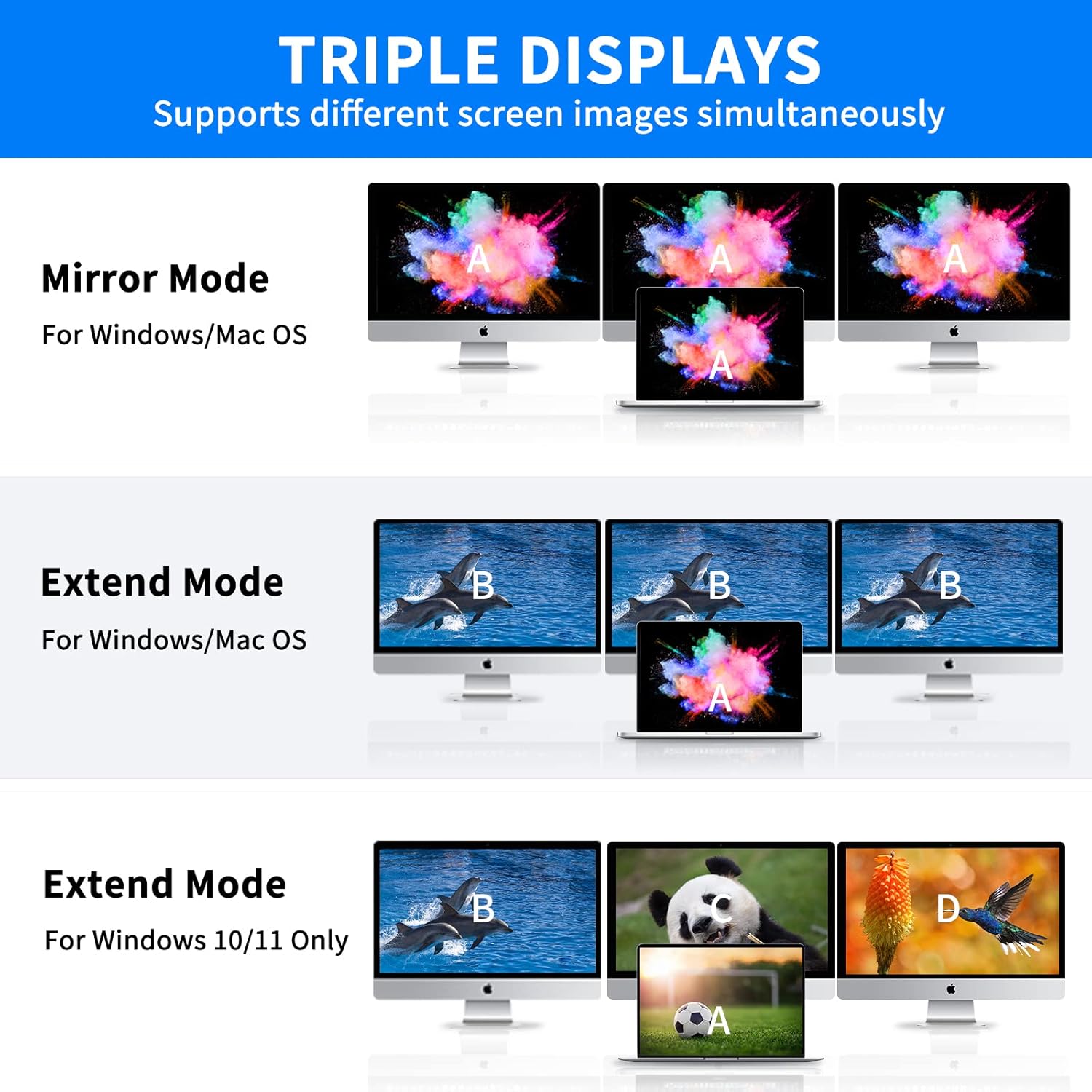
Figure 2: Visual representation of Mirror Mode and Extend Mode for both Windows and Mac OS, illustrating how screens are duplicated or extended.
4.2 데이터 전송
Utilize the USB 3.0 ports for rapid data transfer with compatible devices. The SD and TF card readers also offer fast data access for memory cards.
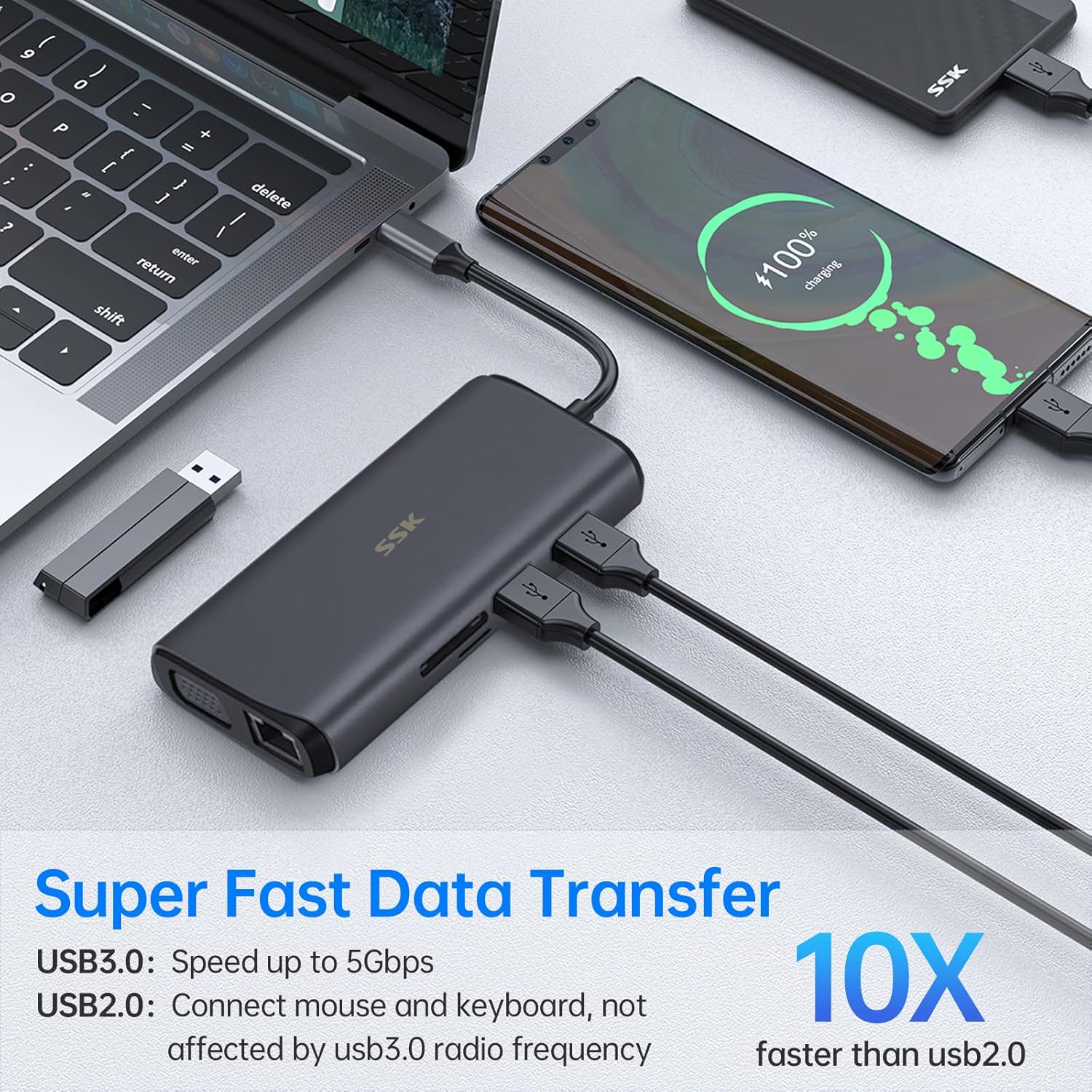
Figure 3: Illustration of the docking station facilitating super-fast data transfer via USB 3.0 ports and SD/TF card readers, connected to a laptop.
4.3 전력 공급
The 100W PD3.0 port allows you to charge your Type-C laptop or other compatible devices while using the docking station. This port is for power input only and does not support data transfer.

Figure 4: The docking station connected to a laptop and a power adapter, demonstrating its PD3.0 Power Delivery feature for fast charging.
5. 호환성
The SSK SC211 docking station is compatible with a wide range of devices and operating systems that feature a USB-C port supporting "Display Port Alternate Mode" for video output. This includes, but is not limited to:
- 노트북: MacBook Pro (2017-2020), MacBook Air (2018-2020), Dell XPS 13/15, Lenovo Yoga 720/910/920/930, Microsoft Surface Book 2/Surface Go/Surface Laptop 3, Dell Latitude 13 7000/E7370, and other USB-C enabled laptops.
- 태블릿 및 스마트폰: Devices with a full-featured USB-C port.
- 운영 체제: Windows 10/11, Mac OS, Chrome OS, Linux, Android.
중요한: To enable HDMI and VGA functions, your laptop or phone's USB-C port must support "Display Port Alternate Mode" video output.

Figure 5: The SSK SC211 docking station shown with logos of compatible operating systems, highlighting its broad compatibility.
6. 기술 사양
| 특징 | 사양 |
|---|---|
| 모델 번호 | SC211 |
| 치수 | 5 x 3 x 1 인치 |
| 무게 | 5.1 온스 |
| HDMI 1 출력 | 최대 4K@60Hz |
| HDMI 2 출력 | 최대 4K@30Hz |
| VGA 출력 | 최대 1920x1080@60Hz |
| USB 3.0 포트 | 2개 포트, 5Gbps 데이터 전송 속도 |
| USB 2.0 포트 | 1 port, for low-bandwidth peripherals |
| USB-C PD 포트 | 최대 100W 전력 공급(입력 전용) |
| 이더넷 포트 | 1000Mbps Gigabit RJ-45 |
| 카드 리더기 | SD and TF (Micro SD), up to 80MB/s, simultaneous use |
| 오디오 포트 | 3.5mm (Mic and Audio) |
| 재료 | 알루미늄 합금 casing |
7. 문제 해결
- 디스플레이 출력 없음:
- Ensure your host device's USB-C port supports "Display Port Alternate Mode."
- Check all cable connections (USB-C to host, HDMI/VGA to monitors).
- 모니터 입력 소스가 올바르게 선택되었는지 확인하십시오.
- For Mac OS, ensure DisplayLink drivers are installed if using extended mode for multiple distinct displays.
- 호스트 장치를 다시 시작해 보세요.
- 간헐적인 연결:
- Ensure the docking station is receiving adequate power, especially when multiple power-hungry devices are connected. Connect a PD charger to the docking station.
- 느슨한 연결이 없는지 확인하세요.
- 도킹 스테이션을 강한 전자파 간섭원 근처에 두지 마십시오.
- 느린 데이터 전송:
- USB 3.0 포트에는 USB 3.0 호환 장치와 케이블을 사용하고 있는지 확인하십시오.
- Verify that your host device's USB-C port supports USB 3.0 or higher speeds.
- 충전 문제:
- Confirm your USB-C PD charger and cable are compatible and capable of delivering sufficient wattag예 (예: 100W).
- Ensure the charger is connected to the docking station's dedicated PD port.
- 이더넷이 작동하지 않습니다:
- 라우터/모뎀과 도킹 스테이션 모두에 연결된 이더넷 케이블을 확인하십시오.
- 호스트 장치의 네트워크 설정을 확인하십시오.
- 네트워크 드라이버가 최신 버전인지 확인하십시오.
8. 관리 및 유지 보수
- 도킹 스테이션을 물, 불, 부식성 액체로부터 멀리하십시오.
- 장치를 떨어뜨리거나 강한 충격을 가하지 마십시오.
- 기기를 직접 분해하거나 수리하지 마십시오. 문제가 발생하면 고객 지원팀에 문의하십시오.
- 부드럽고 마른 천으로 기기를 닦으세요. 강한 화학 물질이나 연마재를 사용하지 마세요.
- 사용하지 않을 때는 시원하고 건조한 곳에 보관하세요.
9. 보증 및 지원
SSK products come with a standard manufacturer's warranty. For detailed warranty information, technical support, or service inquiries, please refer to the official SSK web해당 웹사이트를 방문하시거나 고객 서비스 부서에 문의하십시오. 보증 청구를 위해 구매 증빙 자료를 보관해 주십시오.