
소개
This manual provides detailed instructions for the safe and efficient use of your Plimpton PlimPad P3 10.1-inch Android 12 Tablet. Please read this manual thoroughly before operating the device and keep it for future reference.
제품 끝view
The Plimpton PlimPad P3 is a 10.1-inch tablet featuring the Android 12 operating system. It is designed for general use, offering a balance of performance and portability.
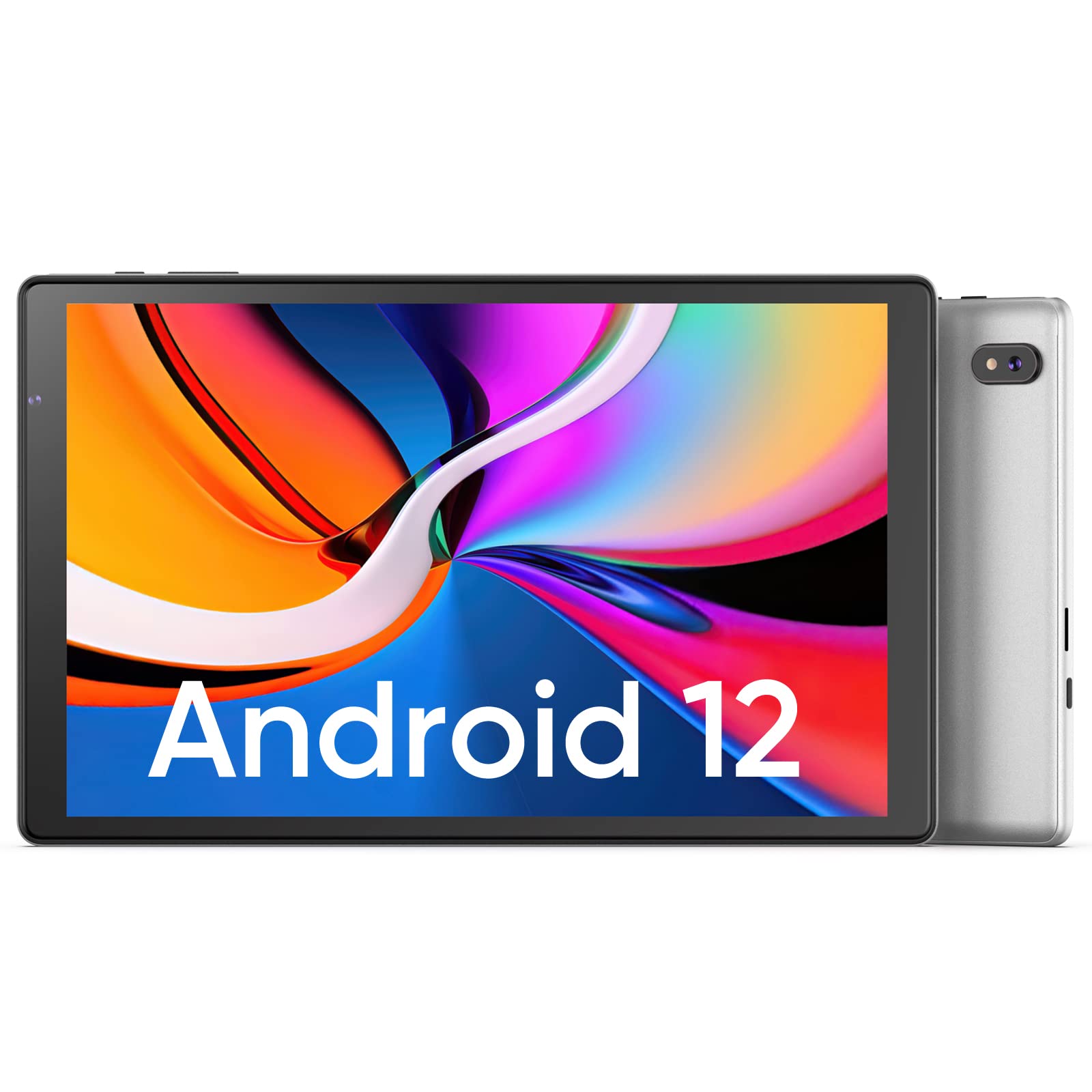
이미지: 앞면과 뒷면 view of the Plimpton PlimPad P3 Tablet.
주요 특징:
- 운영 체제: Android 12 for a personalized and secure user experience.
- 표시하다: 10.1-inch HD IPS LCD with 1280x800 resolution for clear visuals.
- 성능: Powered by an Allwinner A133 1.5GHz 4-core CPU with 4GB RAM for smooth operation.
- 저장: 64GB internal storage, expandable up to 1TB via microSD card.
- 연결성: Dual-band Wi-Fi 6 (5GHz+2.4GHz) and Bluetooth 5.0.
- 오디오: Dual speakers for an enhanced audio experience.
- 배터리: 장시간 사용을 위한 6000mAh 배터리.
- 설계: Premium silver metal body for efficient heat dissipation and a slim profile.

Image: Visual representation of key features including metal body, 10.1-inch screen, split screen functionality, and 6000mAh battery capacity.
설치 가이드
1. 초기 충전
Before first use, fully charge the tablet using the provided USB charger and 1.8M USB Type-C cable. Ensure the tablet is powered off during initial charging. Using non-original chargers may lead to compatibility issues.

Image: Details on battery capacity, charging port, and cable length.
2. 전원 켜기/끄기
- 전원을 켜려면: 태블릿 측면에 있는 전원 버튼을 화면이 켜질 때까지 길게 누르세요.
- 전원을 끄려면: 전원 버튼을 길게 누른 다음 화면에 나타나는 옵션에서 "전원 끄기"를 선택하세요.
3. Wi-Fi 연결
The tablet supports Wi-Fi 6 with dual-band (5GHz and 2.4GHz) connectivity for stable internet access. To connect to Wi-Fi:
- 이동하다 설정.
- 선택하다 네트워크 및 인터넷.
- 수도꼭지 와이파이 그리고 켜세요.
- 목록에서 원하는 네트워크를 선택하고 메시지가 표시되면 비밀번호를 입력하세요.

이미지: 이상view of Wi-Fi 6, Bluetooth 5.0, and dual-band network support.
4. 블루투스 연결
Bluetooth 장치를 연결하려면:
- Bluetooth 장치가 페어링 모드인지 확인하세요.
- 이동하다 설정 당신의 태블릿에.
- 선택하다 연결된 장치, 그 다음에 연결 환경 설정, 그리고 탭하세요 블루투스.
- Turn Bluetooth on and select your device from the list to pair.
5. SD Card Installation and Initialization
The tablet supports microSD cards up to 1TB. Always insert or remove the SD card when the tablet is powered off to prevent data corruption.
- 태블릿의 전원을 끕니다.
- Locate the microSD card slot on the tablet.
- Insert the microSD card gently until it clicks into place.
- 태블릿의 전원을 켭니다.
- For the tablet to recognize a new SD card, it may require initialization. Refer to the on-screen prompts or the detailed instructions in the included Japanese manual for the initialization procedure.
6. Installing a Protective Case
To protect your tablet, you may wish to install a compatible protective case. The following video demonstrates how to install a tablet into a case and utilize its stand function.
Video: Demonstration of installing a tablet into a protective case and using the stand function.
작동 지침
1. Android 12 OS Features
The PlimPad P3 runs on Android 12, offering an optimized and user-friendly interface with enhanced privacy controls.
- 개인 맞춤형 UI: Customize your desktop display style with new UI designs.
- 개인정보 관리: New privacy features allow you to manage your data and permissions easily.
- Google Services & Apps: Access stable Google services and install popular third-party applications like LINE, YouTube Kids, Yahoo, and Twitter.
- 접근성: Features include automatic text-to-speech and an eye protection mode.

Image: Highlights of Android 12 OS features such as improved UI, privacy management, and simplified data transfer.
2. 디스플레이 설정
- 해결: The 10.1-inch IPS LCD offers a 1280x800 resolution for vivid colors and wide view각도를 나타냅니다.
- 눈 보호 모드: Activate this mode in settings to reduce eye strain during prolonged use.
3. 오디오 설정
The tablet is equipped with dual speakers for surround sound. Adjust volume using the physical volume buttons or through the sound settings in the Android OS.

Image: Illustration of the tablet's dual stereo speakers and Bluetooth 5.0 connection for reduced interference.
4. 무선 프로젝션
The tablet supports wireless projection to compatible smart TVs. Refer to your smart TV's manual for instructions on enabling screen mirroring or casting, then initiate the connection from your tablet's display settings.
유지
1. 배터리 관리
- To maximize battery life, close unnecessary applications running in the background.
- 태블릿을 극한 온도에 노출시키지 마세요.
- For optimal performance, use the original charger and cable.
2. 스토리지 관리
- 정기적으로 캐시와 불필요한 files to maintain smooth operation.
- While the tablet has 4GB RAM and 64GB ROM, it is not designed for memory-intensive applications such as high-end games or professional photo editing software (e.g., Photoshop).
- 추가 미디어 저장 공간을 위해 microSD 카드 슬롯을 활용하세요. files 및 문서.
문제 해결
일반적인 문제 및 해결책:
- 느린 성능:
- 백그라운드 애플리케이션을 닫습니다.
- Clear app caches.
- 충분한 여유 저장 공간을 확보하세요.
- Note that this tablet is not optimized for demanding games or applications like Genshin Impact.
- 충전 문제:
- Use only the original Plimpton charger and USB Type-C cable.
- 충전 포트가 깨끗하고 이물질이 없는지 확인하세요.
- Other Type-C chargers may not be compatible.
- SD 카드가 인식되지 않음:
- Ensure the tablet is powered off when inserting or removing the SD card.
- A new SD card may require initialization. Refer to the included manual for steps.
- 화면 손상:
- In case of a cracked or damaged screen, please contact customer support for the best resolution.
- Consider using a P3 Pro dedicated reinforced glass screen protector for added durability.
- No SIM Card Compatibility:
- This is a Wi-Fi model tablet and is not compatible with SIM cards for cellular data.
명세서
| 특징 | 세부 사항 |
|---|---|
| 상표 | 플림턴 |
| 모델명 | 플림패드 P3 |
| 운영 체제 | 안드로이드 12 |
| CPU | Allwinner ARM Cortex A133, 1.8 GHz 4-core |
| 숫양 | 4GB (XNUMX기가바이트) |
| 내부 저장소 | 64GB (XNUMX기가바이트) |
| 확장 가능한 스토리지 | 최대 1TB MicroSD 카드 지원 |
| 화면 크기 | 10.1인치 |
| 디스플레이 유형 | IPS LCD |
| 디스플레이 해상도 | 1280x800 |
| 종횡비 | 16시 10분 |
| 터치스크린 | 예 |
| 와이파이 | Wi-Fi 6 (Dual-band 5GHz+2.4GHz) |
| 블루투스 | 블루투스 5.0 |
| 전면 카메라 | 예 |
| 후방 카메라 | 8 MP |
| 배터리 용량 | 6000mAh(리튬 이온) |
| 무게 | 520그램 |
| 색상 | 은 |
보증 및 지원
보증 정보
Your Plimpton PlimPad P3 tablet comes with a 24-month free exchange warranty from the date of purchase. If any defects occur within this period, a new product exchange will be provided.
고객 지원
For any inquiries or support needs, please contact us through Amazon:
- On the product page, locate the store name "Plimpton Direct" below the "Add to Cart" button.
- 클릭하세요 "Plimpton Direct".
- In the upper right corner of the store page, click on "Ask a question" 메시지를 보내려면.
패키지 내용
The following items are included in your Plimpton PlimPad P3 package:
- PlimPad P3 Tablet
- USB 충전기
- 1.8M USB Type-C Cable
- 일본어 사용 설명서