
1. 서론
This manual provides essential information for the safe and efficient use of your ASUS E410MA 14-inch Laptop Computer. Please read this guide thoroughly before operating your device to ensure proper setup, operation, and maintenance. Keep this manual for future reference.
2. 패키지 내용
Upon unpacking your ASUS E410MA laptop, please verify that all items listed below are present and in good condition. If any item is missing or damaged, contact your retailer immediately.
- ASUS E410MA 14-inch Laptop Computer
- AC 전원 어댑터 및 전원 코드
- 사용자 설명서(빠른 시작 가이드, 보증 카드)
3. 노트북 오버view
Familiarize yourself with the various components of your ASUS E410MA laptop.
3.1 정면 View (열려 있는)
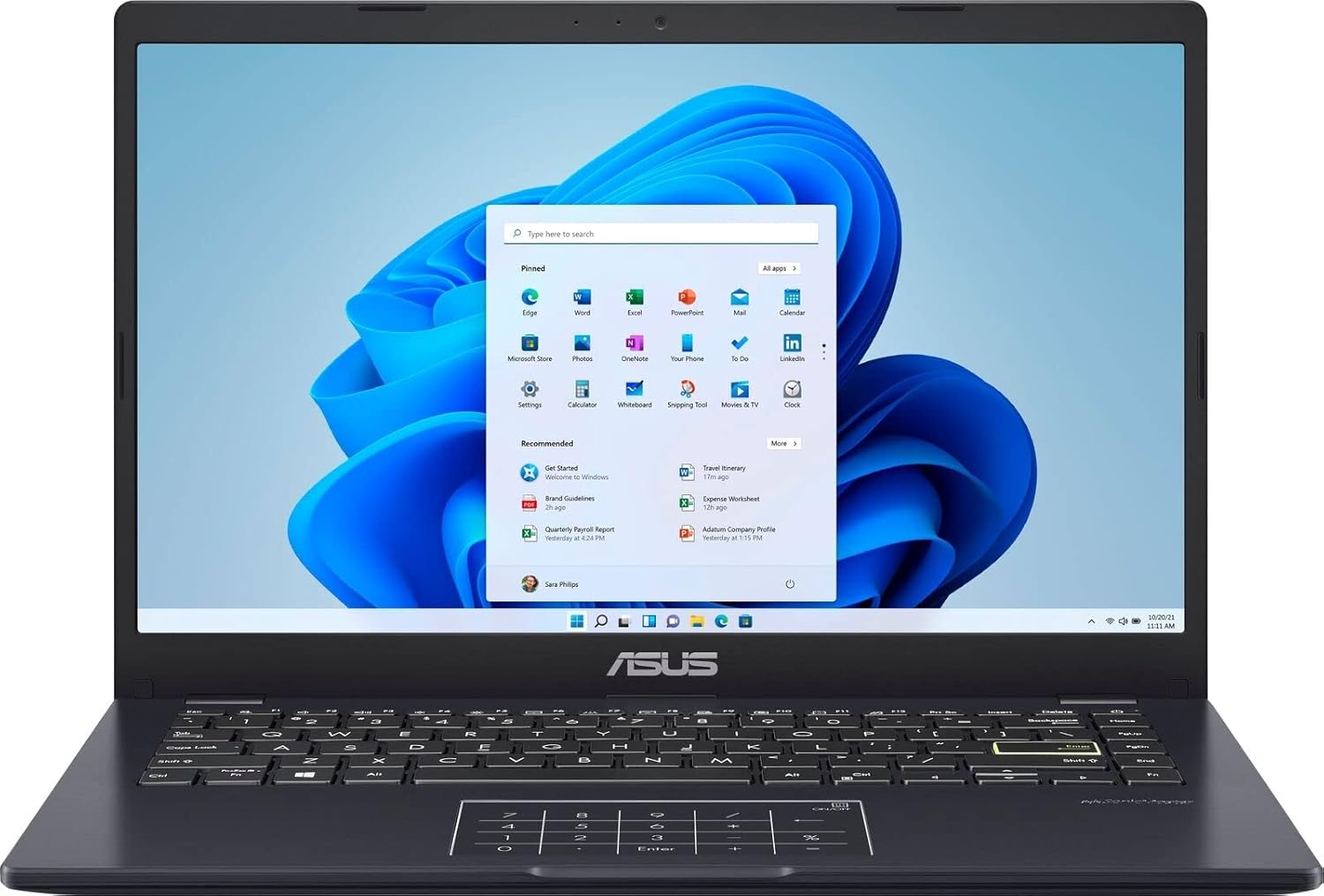
이미지 3.1: The ASUS E410MA laptop shown open, displaying the Windows 11 operating system interface on its 14-inch screen. The keyboard and touchpad are visible below the screen.
3.2 키보드 및 터치패드

이미지 3.2: A top-down perspective of the ASUS E410MA laptop's keyboard and touchpad. The touchpad features an integrated NumberPad, indicated by illuminated numeric keys.
3.3 측면 View (열려 있는)
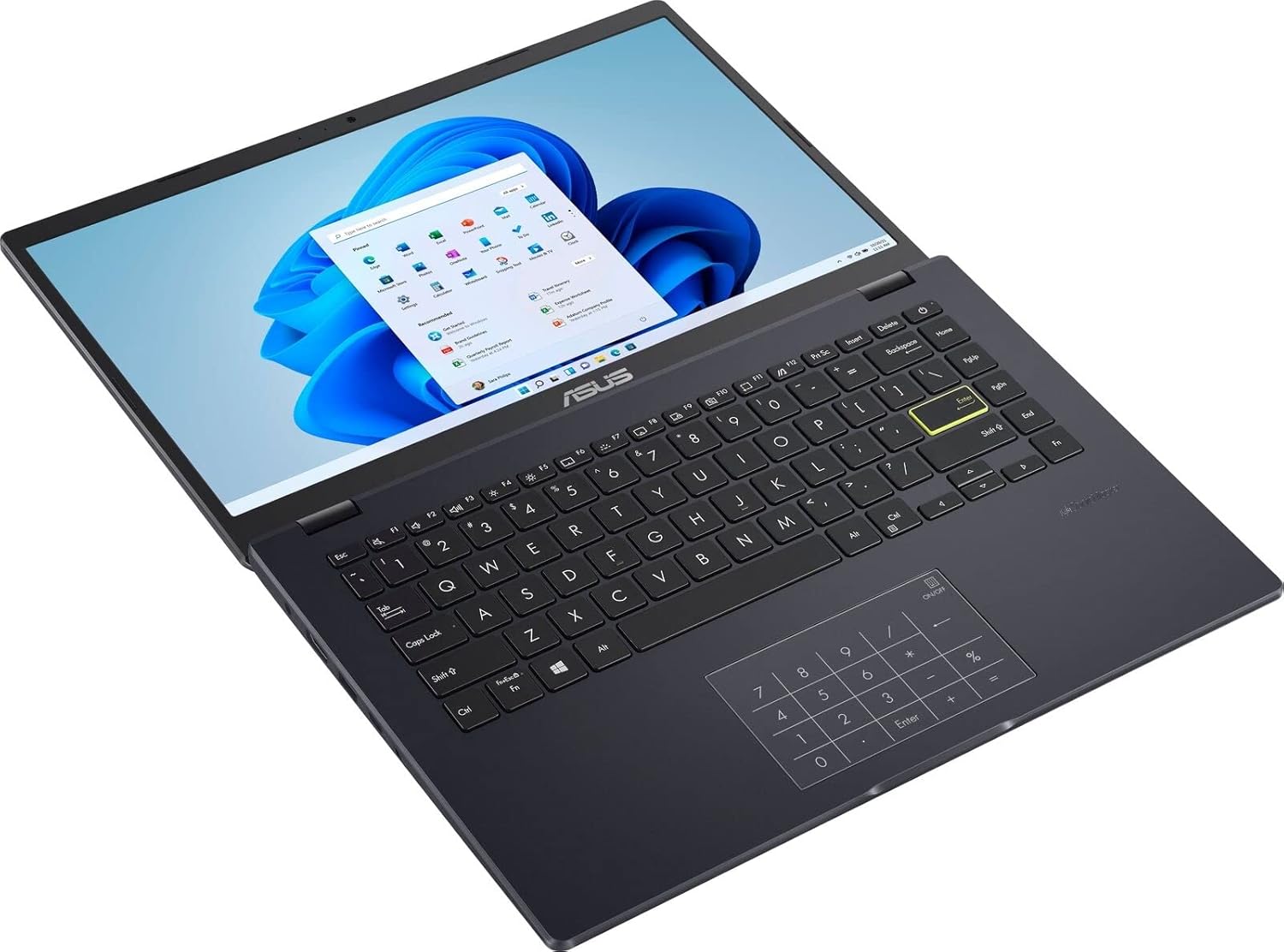
이미지 3.3: 각진 view of the ASUS E410MA laptop in an open position, highlighting the keyboard layout and the display screen.
3.4 후면 View (닫은)

이미지 3.4: 후면 view of the ASUS E410MA laptop in a closed state, featuring the ASUS logo prominently on the lid.
3.5 Angled Rear View (닫은)

이미지 3.5: 경사진 후면 view of the ASUS E410MA laptop when closed, showcasing the ASUS logo on the lid and a glimpse of the side ports.
3.6 전체 View (Open and Closed)
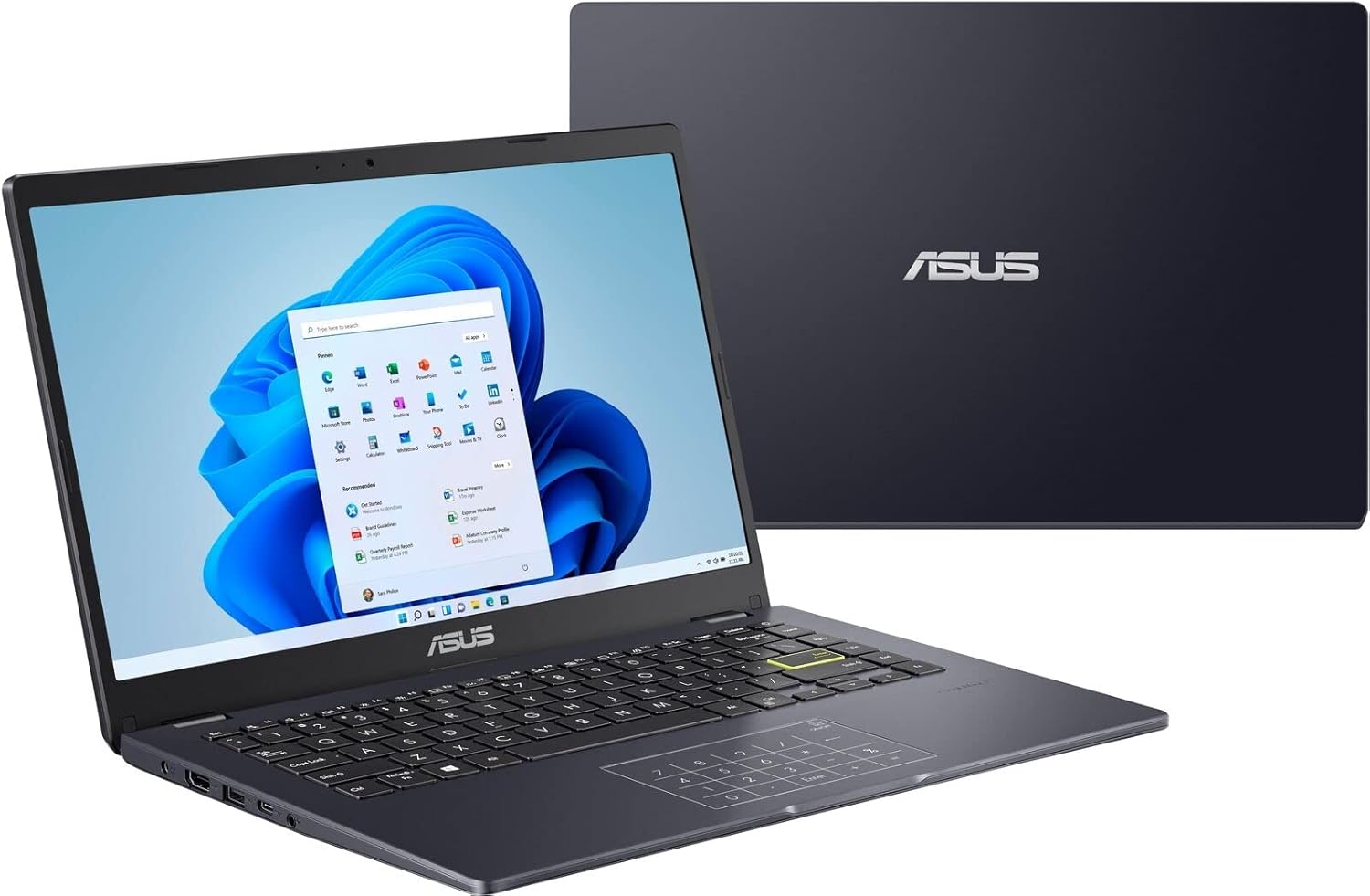
이미지 3.6: A composite view showing the ASUS E410MA laptop in an open, operational state in the foreground, with a closed unit visible in the background.
4. 설정
Follow these steps to set up your ASUS E410MA laptop for the first time.
4.1 배터리 충전
- Connect the AC power adapter to the laptop's power input port.
- 전원 코드를 벽면 콘센트에 꽂으세요.
- Allow the battery to charge fully before initial use. The battery indicator light will change to show charging status.
4.2 초기 전원 켜기
- 노트북 덮개를 엽니다.
- 전원 버튼을 누르세요. 전원 버튼은 일반적으로 키보드 오른쪽 상단이나 측면에 있습니다.
- The laptop will boot up and guide you through the Windows 11 initial setup process.
4.3 Windows 11 설치
Follow the on-screen instructions to complete the Windows 11 setup, which includes:
- 지역 및 키보드 레이아웃을 선택하세요.
- Wi-Fi 네트워크에 연결 중입니다.
- Microsoft 계정으로 로그인하거나 계정을 만듭니다.
- 개인정보 보호 설정을 하는 중입니다.
5. 노트북 작동
This section covers basic operations and features of your ASUS E410MA laptop.
5.1 키보드 및 터치패드 사용
- 건반: The laptop features a full-sized keyboard. Use the Function (Fn) key in combination with the F-keys (F1-F12) for special functions like adjusting brightness, volume, or enabling/disabling Wi-Fi.
- 터치패드: 터치패드는 탐색을 위한 멀티터치 제스처를 지원합니다. 터치패드 제스처를 사용자 지정하려면 Windows 설정을 참조하십시오.
- 넘버패드: Your laptop's touchpad integrates an ASUS NumberPad. To activate or deactivate it, press and hold the NumberPad icon on the top-right corner of the touchpad.
5.2 주변기기 연결하기
노트북에는 외부 장치를 연결하기 위한 다양한 포트가 장착되어 있습니다.
- USB 포트: 외장 하드 드라이브, 마우스, 키보드 등의 USB 장치를 연결하세요.
- HDMI 포트 : 영상 출력을 위해 외부 모니터 또는 TV에 연결하십시오.
- 오디오 잭 : 헤드폰 또는 외부 스피커를 연결합니다.
5.3 전원 관리
To conserve battery life and manage performance:
- 화면 밝기를 조정합니다.
- Utilize Windows power modes (e.g., Balanced, Power Saver).
- 사용하지 않는 애플리케이션을 닫습니다.
6. 유지관리
적절한 유지관리는 노트북의 수명과 최적의 성능을 보장합니다.
6.1 노트북 청소
- 부드럽고 털이 없는 천을 살짝 사용하세요.amp물이나 디스플레이 전용 세척제로 닦아주세요.
- 키보드와 케이스에는 부드러운 천을 사용하세요. 강한 화학 물질이나 연마재는 사용하지 마세요.
- 청소하기 전에 노트북의 전원이 꺼져 있고 플러그가 뽑혀 있는지 확인하세요.
6.2 배터리 관리
- 배터리를 자주 완전히 방전시키지 마세요.
- 장시간 사용하지 않을 경우 노트북을 서늘하고 건조한 곳에 보관하세요.
- 배터리를 극한의 온도에 노출시키지 마십시오.
6.3 소프트웨어 업데이트
Regularly update your operating system and drivers to ensure security and performance:
- Windows 업데이트: 이동하다 설정 > Windows 업데이트 업데이트를 확인하고 설치합니다.
- 드라이버 업데이트 : 공식 ASUS 지원을 방문하세요 web해당 모델에 대한 최신 드라이버를 제공하는 사이트입니다.
6.4 스토리지 관리
With 64GB eMMC storage, efficient management is crucial:
- 불필요한 것을 정기적으로 삭제하세요 files 및 응용 프로그램.
- Utilize cloud storage services (e.g., OneDrive, Google Drive) for documents and media.
- Consider an external hard drive or USB flash drive for additional storage.
7. 문제 해결
This section addresses common issues you might encounter with your ASUS E410MA laptop.
7.1 노트북이 켜지지 않습니다
- AC 어댑터가 노트북과 작동하는 전원 콘센트에 모두 단단히 연결되어 있는지 확인하세요.
- 다른 장치를 연결하여 전원 콘센트가 작동하는지 확인하세요.
- 배터리가 완전히 방전된 경우 노트북의 전원을 켜기까지 몇 분 정도 충전이 필요할 수 있습니다.
7.2 느린 성능
- 백그라운드에서 실행 중인 불필요한 애플리케이션을 닫으세요.
- 보류 중인 Windows 업데이트를 확인하고 설치하세요.
- Ensure you have sufficient free storage space on your eMMC drive.
- 바이러스 및 악성코드 검사를 실행하세요.
7.3 Wi-Fi 연결 문제
- Ensure Wi-Fi is enabled on your laptop (check Function key shortcuts).
- 라우터와 모뎀을 다시 시작하세요.
- Forget the Wi-Fi network in Windows settings and reconnect.
- Update your wireless network adapter drivers from the ASUS support web대지.
7.4 디스플레이 문제
- 키보드의 기능 키를 사용하여 화면 밝기를 조절하세요.
- If connected to an external monitor, ensure the display output settings are correct (e.g., duplicate, extend).
- Update your Intel UHD Graphics 600 drivers.
8. 사양
Detailed technical specifications for the ASUS E410MA-TB.CL464 laptop.
| 특징 | 사양 |
|---|---|
| 모델명 | E410MA-TB.CL464 |
| 화면 크기 | 14인치 |
| 화면 해상도 | 1366 x 768 픽셀 |
| 프로세서 | Intel Celeron N4020 (1.1GHz, up to 2.8GHz burst) |
| 숫양 | 4 GB DDR4 (Onboard) |
| 메모리 속도 | 2400MHz |
| 저장 | 64GB 메모리 |
| 그래픽 코프로세서 | Intel UHD Graphics 600(통합) |
| 운영 체제 | 윈도우 11 |
| 무선형 | Bluetooth, Wi-Fi (specific standard not detailed, typically 802.11ac or newer) |
| USB 2.0 포트 | 1 |
| USB 3.0 포트 | 1 |
| HDMI 포트 | 1 |
| 품목 무게 | 4.64파운드(약 2.1kg) |
| 제품 치수 | 9 x 14 x 0.78인치(약 22.86 x 35.56 x 1.98cm) |
| 색상 | 검은색 |
| 특징 | 눈부심 방지 코팅 |
9. 보증 및 지원
Your ASUS E410MA laptop comes with a limited warranty. Please refer to the warranty card included in your package for specific terms and conditions, including coverage duration and limitations.
9.1 기술 지원
For technical assistance, driver downloads, or further information, please visit the official ASUS support website. You can typically find support resources by searching for your specific model number (E410MA-TB.CL464).
Before contacting support, ensure you have:
- Your laptop's serial number.
- A clear description of the issue.
- Any troubleshooting steps you have already performed.