
1. 서론
The TCNEWCL 4K@60Hz 2-Port HDMI KVM Switch is designed to provide efficient control over two computers using a single HD monitor, keyboard, and mouse. This device eliminates the need for multiple peripherals and simplifies your workspace by allowing seamless switching between two host systems. It supports high-resolution video output up to 4K@60Hz, ensuring a clear and smooth visual experience. Additionally, it offers connectivity for up to three USB 2.0 devices, making it a versatile solution for managing your computing environment.
2. 패키지 내용
패키지를 열면 다음과 같은 품목이 들어 있습니다.
- 1 x TCNEWCL 2-Port HDMI KVM Switch
- 1 x 사용자 설명서
- 1 x Desktop Wired Controller (1.5 meters)
- 2 x HDMI Cables (1.5 meters)
- 2 x USB Cables (1.5 meters)
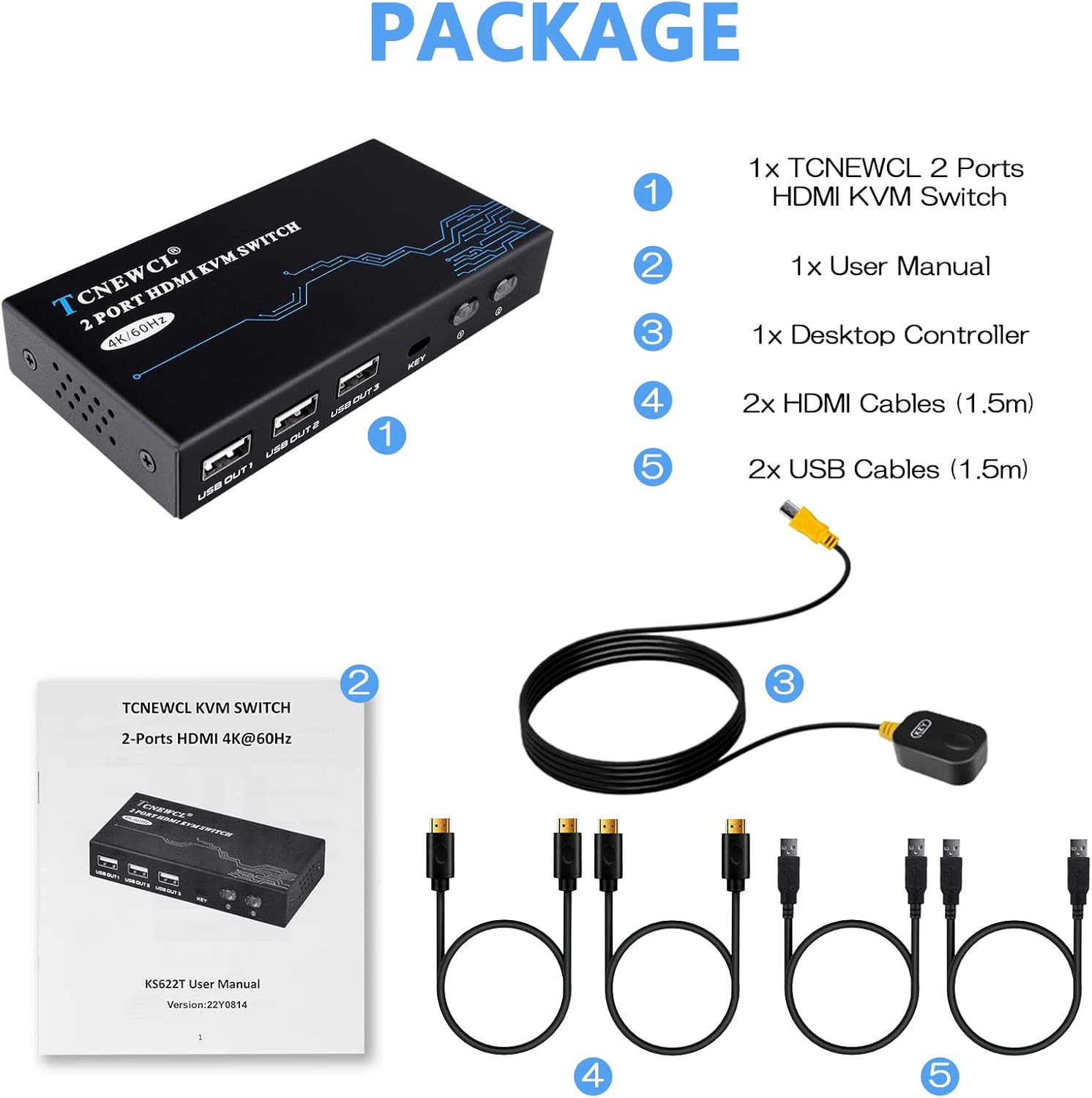
Image: The package contents include the KVM switch unit, user manual, desktop controller, two HDMI cables, and two USB cables.
3. 제품 특징
- 2-Port HDMI KVM Switch: Control two computers from a single HD monitor and three USB 2.0 devices.
- 4K@60Hz Visuals: Supports resolutions up to 3840*2160@60Hz, backward compatible with 3840*2160@30Hz, 1920*1080P@60Hz, and other resolutions. Achieved when display device, computer, and HDMI cable support HDMI 2.0/2.1.
- 높은 호환성: Compatible with Windows 11/10/8/7/XP, Mac OS, Linux, and DOS systems. Supports various HDMI input sources like PS4, Xbox, set-top boxes, PCs, and laptops. Plug and Play functionality.
- Multiple USB Device Support: Features three USB 2.0 ports for connecting peripherals such as keyboards, mice, printers, and U-disks.
- Metal Heat Dissipation: 내구성이 뛰어난 금속 casin효율적인 열 방출을 위해 g 값을 사용합니다.
- 컴팩트한 디자인: Item dimensions are 5.12 x 2.76 x 0.79 inches, allowing for a tidy workspace.
4. 설정 지침
Follow these steps to set up your TCNEWCL 2-Port HDMI KVM Switch:
- KVM 스위치에 컴퓨터 연결하기:
- Connect the first computer (PC1) to the KVM switch using one HDMI cable (PC1 HDMI IN) and one USB cable (PC1 USB IN).
- Connect the second computer (PC2) to the KVM switch using the second HDMI cable (PC2 HDMI IN) and the second USB cable (PC2 USB IN).
- Connect Monitor to KVM Switch: Connect your HD monitor to the HDMI OUT port on the KVM switch using an HDMI cable.
- Connect Peripherals to KVM Switch: Plug your keyboard, mouse, and any other USB 2.0 devices (e.g., printer, U-disk) into the USB OUT ports on the KVM switch.
- 데스크톱 컨트롤러 연결: Plug the wired desktop controller into the 'KEY' port on the KVM switch. This allows for convenient remote switching.
- 전원 켜기: Ensure all connections are secure, then power on your computers and monitor. The KVM switch is plug-and-play and typically does not require additional drivers.

Image: A detailed diagram illustrating how to connect two PCs, a monitor, and multiple USB devices to the KVM switch.
Video: This video demonstrates the setup process for connecting two computers to one monitor, keyboard, and mouse using the KVM switch.
Video: A visual guide showcasing the features and connectivity of the 2-Port HDMI 4K@60Hz KVM Switch.
5. 사용 설명서
The KVM switch offers two convenient methods for switching between connected computers:
- 버튼 스위치: Press the 'Switch' button located on the top of the KVM unit to toggle between PC1 and PC2. An LED indicator will illuminate to show which computer is currently active.
- Desktop Wired Controller: Use the included 1.5-meter wired desktop controller for remote switching. Simply press the button on the controller to switch between PC1 and PC2. This allows you to hide the KVM switch and cables for a tidier desk.

Image: Illustration of the two switching methods: directly pressing the button on the KVM unit or using the external desktop controller.

Image: A visual comparison showing a cluttered desk before using the KVM switch and a clean, organized desk after implementation.
6. 문제 해결
KVM 스위치 사용 중 문제가 발생하면 다음의 일반적인 문제 해결 단계를 참조하십시오.
- 화면이 표시되지 않거나 깜빡이는 현상:
- 모든 HDMI 케이블이 KVM 스위치와 컴퓨터/모니터에 제대로 연결되어 있는지 확인하십시오.
- Verify that your monitor, computers, and HDMI cables all support the desired resolution (e.g., 4K@60Hz) and HDMI 2.0/2.1 standards.
- Try using shorter, high-quality HDMI cables if issues persist.
- 키보드/마우스가 응답하지 않음:
- Ensure the USB cables from your computers are correctly connected to the KVM switch (PC1 USB IN, PC2 USB IN).
- Verify your keyboard and mouse are plugged into the correct USB OUT ports on the KVM switch.
- Some wireless keyboards/mice with special drivers may require direct connection to the computer or a powered USB hub.
- If using a Mac, you might encounter a "Keyboard Setup Assistant" pop-up. Simply quit this application as your keyboard should function correctly.
- 전환 문제:
- Confirm the desktop controller is properly connected to the 'KEY' port.
- Ensure both computers are powered on and active.
- If the KVM switch becomes unresponsive, try disconnecting and reconnecting the power source (USB-C 5V IN) to reset the device.
7. 사양
| 특징 | 세부 사항 |
|---|---|
| 모델 번호 | 622-KST |
| 상표 | TCNEWCL |
| 연결 프로토콜 | HDMI |
| 비디오 해상도 | 최대 4K@60Hz (3840*2160@60Hz) |
| 이전 버전과의 호환성 | 3840*2160@30Hz, 1920*1080P@60Hz, etc. |
| USB 포트 | 3 x USB 2.0 (Output) |
| 입력 포트 | 2 x HDMI IN, 2 x USB IN |
| 출력 포트 | 1 x HDMI OUT, 3 x USB OUT |
| 전환 방법 | Button on unit, Wired Desktop Controller |
| 호환 장치 | 2 computers, PS4, Xbox, set-top box, PC, laptop, 1 HD monitor |
| 운영 체제 호환성 | Windows 11/10/8/7/XP, Mac OS, Linux, DOS |
| 재료 | 금속 |
| 품목 치수(LxWxH) | 5.12 x 2.76 x 0.79 인치 |
| 품목 무게 | 1.41파운드 |
| 전원 입력 | 5V (via USB-C port) |
8. 보증 및 지원
TCNEWCL products are designed for reliability and performance. For any questions or assistance with your KVM switch, please contact TCNEWCL customer support. Refer to the product packaging or the official TCNEWCL web구체적인 보증 세부 사항과 연락처 정보는 해당 사이트를 참조하세요.