
ASUS G713RC-RS73
ASUS ROG Strix G17 (2022) 게이밍 노트북 사용자 설명서
Model: G713RC-RS73
소개
The ASUS ROG Strix G17 is a high-performance gaming laptop designed to streamline and elevate your Windows 11 gaming experience. It features a powerful AMD Ryzen™ 7 6800H CPU paired with an NVIDIA® GPU and a MUX Switch, forming the backbone of this 2022 model. This configuration ensures fast and fluid performance for both gaming and multitasking, allowing users to achieve optimal performance in any game.
주요 특징은 다음과 같습니다.
- NVIDIA GeForce RTX 3050 4GB GDDR6: With ROG Boost up to 1550MHz at 95W (80W plus 15W with Dynamic Boost) for powerful graphics performance.
- MUX 스위치: Allows the GPU to communicate directly with the display, significantly increasing performance and decreasing latency.
- AMD 라이젠 7 6800H 프로세서: Featuring 20M Cache, up to 4.7 GHz, 8 cores, and 16 threads for robust processing power.
- 17.3” FHD (1920 x 1080) IPS Type Display: A 144Hz refresh rate with 3ms response time for smooth and responsive visuals.
- 메모리 및 스토리지: Equipped with 16GB DDR5 4800MHz RAM and a 512GB PCIe 4.0 NVMe M.2 SSD for fast loading and amp르 스토리지.
- 운영 체제: Comes pre-installed with Windows 11 Home.
상자 안에 무엇이 들어있나요?
Upon opening your ASUS ROG Strix G17 package, you should find the following items:
- ASUS ROG Strix G17 Laptop (Model: G713RC-RS73)
- 전원 코드 및 어댑터
- 사용 설명서 (본 문서)
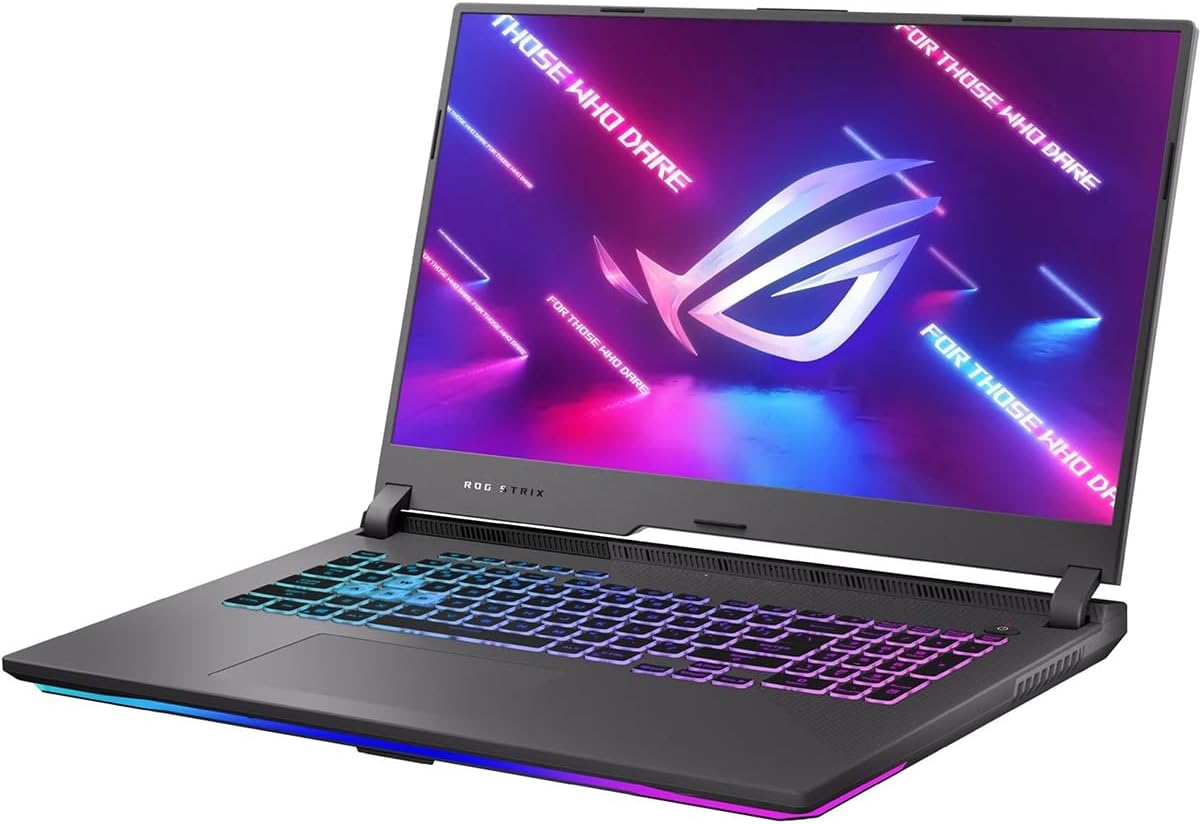
Image: The ASUS ROG Strix G17 gaming laptop, showcasing its sleek design and RGB keyboard lighting.
설정
- 짐 풀기: 노트북과 모든 액세서리를 포장에서 조심스럽게 꺼내십시오. "구성품 목록"에 나와 있는 모든 구성품이 있는지 확인하십시오.
- 전원 연결: Connect the power adapter to the laptop's power input port and then plug the power cord into a wall outlet. It is recommended to fully charge the battery before initial use.
- 초기 부팅: Open the laptop lid. Press the power button, typically located on the top-right of the keyboard deck. The laptop will power on and guide you through the Windows 11 Home setup process. Follow the on-screen instructions to configure your language, region, network, and user account.
- 소프트웨어 업데이트: After initial setup, connect to the internet and check for system and driver updates. This ensures optimal performance and security. Go to Windows Settings > Windows Update to check for OS updates, and visit the ASUS support website for the latest drivers and utilities for your ROG Strix G17.

이미지: 각도가 있는 view of the ASUS ROG Strix G17 laptop, highlighting its vibrant RGB keyboard and display.
노트북 작동
키보드 및 터치패드
The ROG Strix G17 features a full-size keyboard with per-key RGB lighting that supports Aura Sync, allowing for customizable lighting modes. The touchpad is responsive and supports multi-touch gestures for navigation.
이미지: 위에서 아래로 view of the ASUS ROG Strix G17 keyboard, showing the full layout and RGB lighting capabilities.
디스플레이 및 그래픽
The 17.3-inch Full HD IPS display offers a 144Hz refresh rate and 3ms response time, crucial for competitive gaming. The NVIDIA GeForce RTX 3050 GPU, combined with the MUX Switch, ensures that the dedicated GPU communicates directly with the display, maximizing frame rates and reducing latency for a smoother gaming experience.

Image: The ASUS ROG Strix G17 display showcasing vibrant gaming visuals, emphasizing its high refresh rate and G-SYNC compatibility.
포트 및 연결성
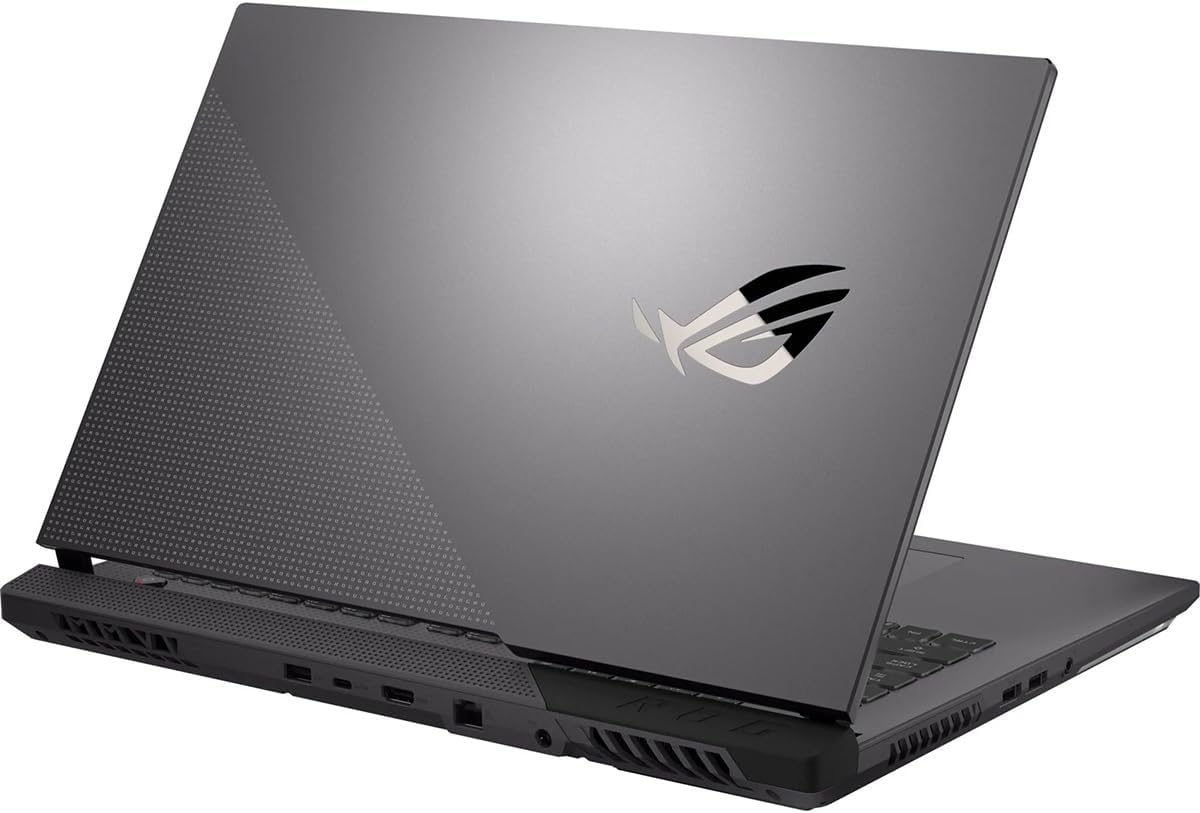
The laptop is equipped with various ports for connectivity, including USB 3.0 ports. It also supports Wi-Fi 6E for stable and fast wireless internet connections, and Bluetooth for connecting peripherals.

이미지: 측면 view of the ASUS ROG Strix G17, showing various input/output ports for external devices and connectivity.
유지
Proper maintenance ensures the longevity and optimal performance of your ROG Strix G17.
- 청소: Regularly clean the screen with a microfiber cloth and the keyboard with compressed air to remove dust and debris. Avoid using harsh chemicals.
- 냉각 시스템: The ROG Strix G17 features an advanced cooling system with liquid metal thermal compound and anti-dust tunnels. Ensure the vents are not obstructed to allow for proper airflow. Periodically check for dust buildup in the vents and clean if necessary.
- 소프트웨어 업데이트: 보안 및 성능 향상을 위해 운영 체제, 드라이버 및 애플리케이션을 최신 버전으로 업데이트하십시오.
- 배터리 관리 : To prolong battery life, avoid frequently discharging the battery completely. Store the laptop in a cool, dry place when not in use for extended periods.

Image: Diagram illustrating the ROG Intelligent Cooling system, including liquid metal and anti-dust tunnels, designed to keep the CPU cool and maintain performance.
문제 해결
다음은 몇 가지 일반적인 문제와 이에 대한 잠재적 해결책입니다.
- 노트북 전원이 켜지지 않음: Ensure the power adapter is securely connected to both the laptop and a working power outlet. Check if the power outlet is functional. If the battery is completely drained, it may take a few minutes of charging before the laptop can power on.
- 화면이 비어 있거나 검은색입니다. Try pressing the Function (Fn) key combined with the display toggle key (usually F7 or F8) to ensure the display hasn't been turned off. Connect an external monitor to check if the issue is with the laptop's internal display.
- 느린 성능: Close unnecessary applications running in the background. Check for and install any pending Windows updates or driver updates from the ASUS support website. Ensure the cooling vents are clear of obstructions.
- Wi-Fi 연결 문제: Ensure Wi-Fi is enabled in Windows settings. Restart your router and the laptop. Check if other devices can connect to the same Wi-Fi network. Update your wireless adapter drivers.
- 키보드 또는 터치패드가 응답하지 않음: Restart the laptop. Check for any physical obstructions. Ensure drivers for the keyboard and touchpad are up to date.
명세서
| 특징 | 세부 사항 |
|---|---|
| 상표 | 아수스 |
| 시리즈 | ROG 스트릭스 G17 |
| 모델 번호 | G713RC-RS73 |
| 화면 크기 | 17.3 인치 |
| 화면 해상도 | 1920 x 1080 픽셀(FHD) |
| 프로세서 | AMD Ryzen 7 6800H (up to 4.7 GHz, 8 cores) |
| 숫양 | 16GB DDR5 4800MHz |
| 하드 드라이브 | 512 GB PCIe 4.0 NVMe M.2 SSD |
| 그래픽 코프로세서 | 엔비디아 지포스 RTX 3050(4GB GDDR6) |
| 운영 체제 | 윈도우 11 홈 |
| 무선형 | 802.11ax, 블루투스 |
| USB 3.0 포트 수 | 2 |
| 평균 배터리 수명 | 12시간 |
| 품목 무게 | 9파운드 |
| 제품 크기(LxWxH) | 15.55 x 0.84 x 11.1 인치 |
보증 및 지원
Your ASUS ROG Strix G17 comes with a standard manufacturer's warranty. For detailed warranty terms and conditions, please refer to the official ASUS web사이트에 접속하거나 제품에 포함된 보증 카드를 확인하세요.
추가 지원 리소스:
- 사용자 매뉴얼(PDF): 사용자 설명서의 전체 내용을 담은 PDF 버전을 다운로드할 수 있습니다. PDF 사용자 매뉴얼 다운로드
- 보호 계획: Extended protection plans are available for purchase to cover your device beyond the standard warranty period. Options include 2-Year and 4-Year protection plans, as well as a monthly Complete Protect plan.
- 온라인 지원: 공식 ASUS 지원을 방문하세요 website for drivers, FAQs, and contact information for technical assistance.
Ask a question about this manual
Ask about setup, troubleshooting, compatibility, parts, safety, or missing instructions. Manuals+ will review the question and use this page’s manual context to help answer it.