
1. 제품 오버view
The VVB 13-IN-1 USB C Hub is a versatile docking station designed to expand the connectivity of your USB-C enabled laptop or device. It provides multiple ports for display output, data transfer, network connection, audio, and power delivery.
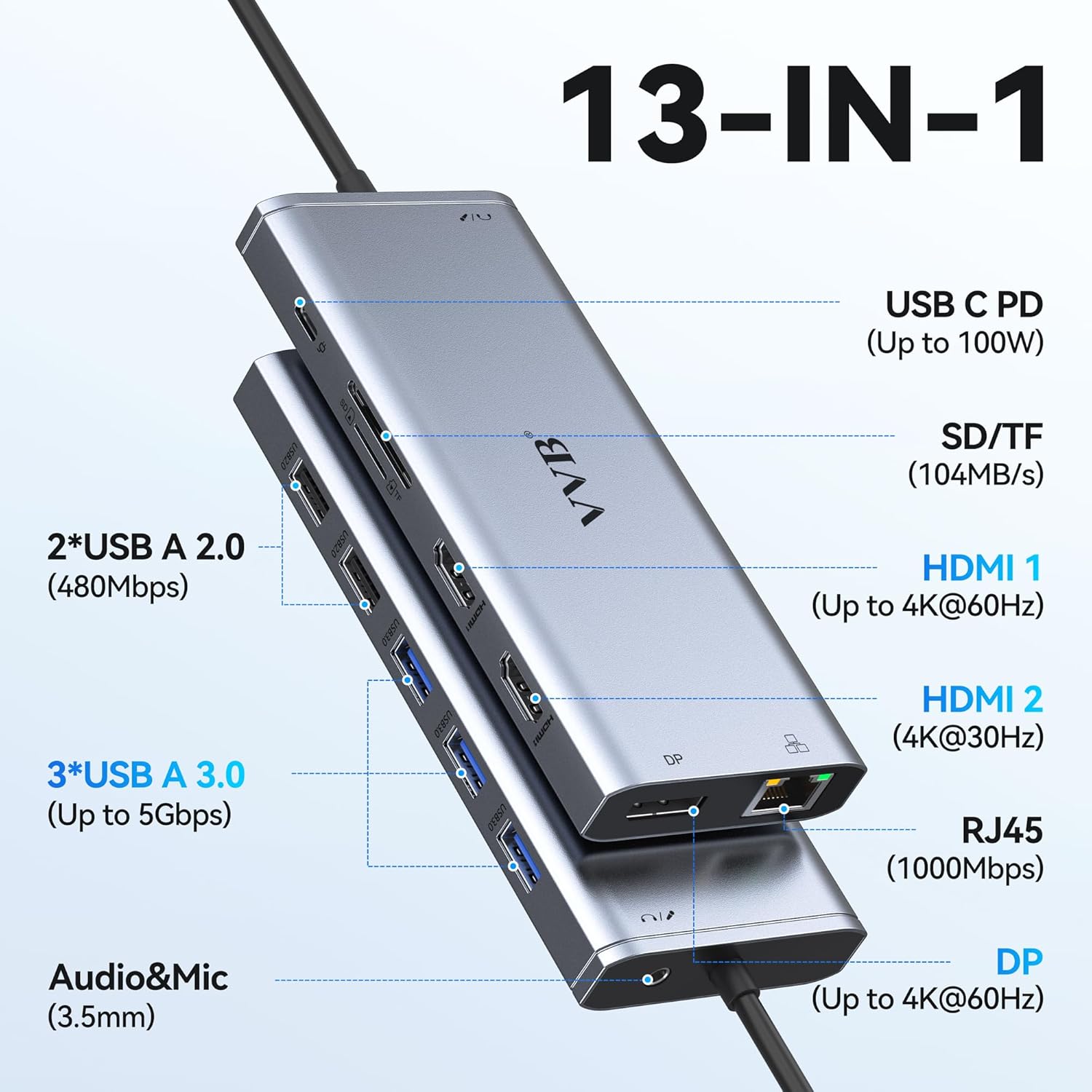
이미지 1.1: 앞면과 측면 view of the VVB 13-IN-1 USB C Hub, illustrating all available ports and their functions.
포트 사양:
- 1x USB C PD Port: Up to 100W power delivery for charging your host device.
- SD 카드 슬롯 1개: Data transfer up to 104MB/s.
- 1x TF Card Slot: Data transfer up to 104MB/s.
- HDMI 1 포트 1개: 최대 4K@60Hz의 해상도를 지원합니다.
- HDMI 2 포트 1개: 최대 4K@30Hz의 해상도를 지원합니다.
- RJ45 이더넷 포트 1개: 최대 1000Mbps의 안정적인 유선 네트워크 연결을 제공합니다.
- 디스플레이포트(DP) 1개: 최대 4K@60Hz의 해상도를 지원합니다.
- USB A 2.0 포트 2개: 데이터 전송 속도는 최대 480Mbps입니다.
- USB A 3.0 포트 3개: 데이터 전송 속도는 최대 5Gbps입니다.
- 1x 3.5mm Audio & Mic Jack: For connecting headphones or speakers with microphone functionality.
2. 설정 지침
Follow these steps to connect your VVB 13-IN-1 USB C Hub to your device and peripherals.
2.1 호스트 장치에 연결하기
- Ensure your laptop or device has a USB-C port that supports video output (DisplayPort Alternate Mode) and power delivery.
- Connect the integrated USB-C cable from the VVB Hub to the USB-C port on your host device.
2.2 전력 공급
To charge your laptop through the hub, connect your original USB-C power adapter to the USB C PD port on the hub. The hub supports up to 100W input, providing up to 87W output to your laptop.

Image 2.1: Illustration of connecting a 100W power adapter to the USB C PD port on the hub, which then delivers 87W to the connected laptop.
메모: For optimal charging performance, use a power adapter above 65W. If your laptop requires more than 87W, it may charge slower or display a warning about insufficient power, though it will continue to operate.
2.3 주변기기 연결하기
- 모니터: Connect your external monitors to the HDMI 1, HDMI 2, or DisplayPort (DP) outputs on the hub using appropriate cables.
- USB 장치: Plug in your USB peripherals (keyboard, mouse, external drives, etc.) into the USB A 3.0 or USB A 2.0 ports.
- 이더넷: For a stable wired network connection, connect an Ethernet cable from your router/modem to the RJ45 port on the hub.
- 오디오: 헤드폰이나 스피커를 3.5mm 오디오 잭에 연결합니다.

Image 2.2: The hub connected to an Ethernet cable for a stable network and headphones for audio output.
3. 사용 설명서
3.1 Display Modes (Windows)
The hub supports both dual and triple display configurations on Windows operating systems. Ensure your laptop's USB-C port supports DP 1.4 for optimal performance.

Image 3.1: Visual guide for configuring dual and triple monitor setups on Windows, indicating supported resolutions and refresh rates for DP 1.2 and DP 1.4 laptops.
- 듀얼 디스플레이: Connect two monitors to any combination of HDMI 1, HDMI 2, or DP ports. For DP 1.2 laptops, you can extend to two 1080P@60Hz monitors (e.g., DP and HDMI 1/2). For DP 1.4 laptops, you can achieve 4K@30Hz on HDMI 1/2 and 1080P@60Hz on DP, or 1080P@60Hz on both HDMI 1/2.
- 트리플 디스플레이: For DP 1.4 laptops, you can extend to three monitors: DP (1080P@60Hz), HDMI 2 (1080P@60Hz), and HDMI 1 (1080P@60Hz).
3.2 Display Modes (macOS)
macOS supports SST (Single Stream Transport) Extend Mode. Please note that macOS does not support MST (Multi-Stream Transport) display, meaning all external monitors will mirror the same extended desktop, not provide independent extended displays.

Image 3.2: Visual representation of macOS display limitations, showing SST Extend Mode where all external displays mirror each other, and explicitly stating that MST is not supported.
- SST Extend Mode: When connecting multiple monitors to a macOS device, the laptop screen (A) can be extended, and all connected external monitors (B, C, D) will display the same content as an extended desktop. For example, DP (4K@30Hz), HDMI 2 (4K@30Hz), and HDMI 1 (4K@30Hz) will all show the same extended display.
3.3 데이터 전송
The hub offers various data transfer options:

Image 3.3: Diagram illustrating the data transfer speeds of the USB A 3.0 (5Gbps), USB A 2.0 (480Mbps), and SD/TF card reader (up to 104MB/s) ports.
- USB A 3.0 포트: Transfer data at speeds up to 5Gbps. Ideal for external hard drives, SSDs, and high-speed peripherals.
- USB A 2.0 포트: Transfer data at speeds up to 480Mbps. Suitable for keyboards, mice, and other standard USB devices.
- SD/TF 카드 슬롯: Read and write data from SD and TF cards at speeds up to 104MB/s.
3.4 이더넷 연결
The RJ45 port provides a stable and fast wired internet connection up to 1000Mbps (1 Gigabit Ethernet). This is beneficial for activities requiring high bandwidth or a reliable connection, such as online gaming or large file 이전.
4. 유지관리
Proper maintenance ensures the longevity and optimal performance of your VVB 13-IN-1 USB C Hub.
- 청소: Use a soft, dry, anti-static cloth to clean the hub. Avoid liquid cleaners or abrasive materials.
- 저장: 허브는 직사광선과 극한의 온도를 피해 서늘하고 건조한 곳에 보관하세요.
- 온도: The hub may become warm during extended use, which is normal. Ensure adequate ventilation around the device. Avoid covering it or placing it in enclosed spaces.
- 손질: 허브를 떨어뜨리거나 강한 충격을 가하지 마십시오. 장치를 분해하려고 시도하지 마십시오.
5. 문제 해결
If you encounter issues with your VVB 13-IN-1 USB C Hub, refer to the following troubleshooting steps.
5.1 디스플레이 출력 없음
- 연결 확인: Ensure all display cables (HDMI, DP) are securely connected to both the hub and the monitors.
- 호스트 장치 호환성: Verify that your laptop's USB-C port supports DisplayPort Alternate Mode (video output). Not all USB-C ports support this feature.
- 화면 설정: Check your computer's display settings to ensure the external monitors are detected and configured correctly (e.g., Extend, Duplicate).
- 운전자: 그래픽 드라이버가 최신 상태인지 확인하세요.
- 해상도/재생 빈도: Try lowering the resolution or refresh rate of the external monitors, especially if using multiple displays, as some systems or cables may have bandwidth limitations.
5.2 USB 포트가 작동하지 않습니다
- 다시 연결 : Disconnect and reconnect the USB device to the hub.
- Test Other Ports: Try connecting the USB device to a different USB port on the hub or directly to your computer to isolate the issue.
- 전력 소비 : If connecting high-power USB devices (e.g., external hard drives), ensure the hub is connected to a power adapter, as some devices require more power than the host can provide through the USB-C connection alone.
5.3 충전 문제
- 전원 어댑터: Ensure your USB-C power adapter is connected to the hub's PD port and provides sufficient wattage (preferably 65W or higher, up to 100W input).
- 케이블 품질: Use a high-quality USB-C cable that supports power delivery.
- 노트북 호환성: Confirm your laptop supports charging via its USB-C port.
5.4 Intermittent Connections or Overheating
- 통풍: 허브가 과열되는 것을 방지하기 위해 통풍이 잘 되는 곳에 설치하십시오.
- 부하 감소: Disconnect unnecessary peripherals to reduce the overall power draw and heat generation.
- 펌웨어/드라이버: Check for any available firmware updates for the hub or driver updates for your computer's USB-C controller.
- 다시 시작: 컴퓨터를 다시 시작하고 허브를 다시 연결하세요.
6. 사양
| 특징 | 사양 |
|---|---|
| 제품 치수 | 3.35 x 0.62 x 5.7 인치 |
| 품목 무게 | 0.353 온스 |
| 모델 번호 | 13 IN 1 도킹스테이션 |
| 하드웨어 인터페이스 | DisplayPort, Ethernet, HDMI, MicroSD, USB 3.0, USB Type C |
| 특징 | 빠른 충전 |
| USB C PD 입력 | 최대 100W |
| USB C PD 출력 | Up to 87W to host device |
| HDMI 1 출력 | 최대 4K@60Hz |
| HDMI 2 출력 | 최대 4K@30Hz |
| 디스플레이포트 출력 | 최대 4K@60Hz |
| RJ45 이더넷 | 10/100/1000Mbps(기가비트 이더넷) |
| USB A 3.0 포트 | 3 ports, up to 5Gbps data transfer |
| USB A 2.0 포트 | 2개 포트, 최대 480Mbps 데이터 전송 속도 |
| SD/TF 카드 리더 | 최대 104MB/s |
| 오디오 잭 | 3.5mm 오디오 및 마이크 |
호환 장치(일부 목록):
Dell XPS 9380/ XPS 13 9365/ XPS 15 2018/ XPS 13 9300/ New XPS 15; Latitute 7280/ Latitude 5310 2-in-1; Precision 7730/ 7750; Laptop 5590. HP Spectre Laptop 13-af001TU/ Spectre x360 13t/ Spectre folio/ Spectre 360 laptop/ Specter x369; Elitebook 840 G5 series/ Elitebook X2/ Elitebook x360 1030 G3/ Elitebook 745 G6/ Elitebook 830 G6/ 2018 HP Elite 800 G4; Envy Geforce mx250; Z book 15u G3/ Zbook 17 G4. Lenovo Yoga 720-13IKB/ Yoga 730/ Yoga 900-13ISK/ Yoga 910/ Yoga 920/ Yoga 930/ Yoga 940-14IIL; 3rd generation Thinkpad Yoga; Yoga15 Thinkpad Ultrabook Pro; Thinkpad E590/ Thinkpad P72/ Thinkpad T470/ Thinkpad X1 Carbon (2019 model); Flex 14 IML/ Flex 5; Legion Y530; Lenovo C930/ T480s/ X390/ 81N8. Microsoft Surface Book 2/ Surface Go/ Surface Laptop 3; Surface Pro 7. Huawei Macbook Mate10/ Mate10 pro/ Mate20/ Mate20 pro / Mate30/ Mate30Pro; Google Slate (2019); Chromebook C340-15; SanDisk Cruise Glide; Razer Blade 2017 (gtx 1060); Pixel book go 2019/2020.
7. 보증 및 지원
For warranty information or technical support, please refer to the product packaging or contact VVB customer service through the retailer where the product was purchased. Please have your product model number and purchase details ready when contacting support.