
1. 서론
The Razer Barracuda X is a versatile 4-in-1 USB-C wireless headset designed for immersive home gaming and seamless on-the-go audio. It offers true versatility and freedom, backed by long-lasting comfort, powerful drivers, and a crystal-clear microphone. This manual provides essential information for setting up, operating, maintaining, and troubleshooting your headset.

Image: The Razer Barracuda X headset in a gaming environment, showcasing its sleek design and wireless capability.
2. 패키지 내용
다음 품목이 모두 패키지에 포함되어 있는지 확인하세요.
- Razer Barracuda X Wireless Gaming Headset
- Type-C 무선 동글
- 탈착식 Razer HyperClear 카디오이드 마이크
- Type-C 충전 케이블
- Type-A-Type-C 어댑터 케이블
- 사용 설명서 (본 문서)

Image: The Razer Barracuda X headset with its included accessories: the USB-C wireless dongle and the detachable HyperClear Cardioid Mic.
3. 설정
3.1 헤드셋 충전
Before first use, fully charge your Razer Barracuda X headset using the provided Type-C charging cable. Connect the Type-C end to the headset's charging port and the USB-A end to a power source (e.g., computer USB port, wall adapter).
3.2 Wireless Connectivity (2.4GHz USB-C Dongle)
For low-latency gaming audio, use the 2.4GHz wireless connection:
- Plug the Type-C wireless dongle into your desired device (PC, PlayStation, Nintendo Switch, Android device). If your device only has a USB-A port, use the included Type-A to Type-C adapter cable.
- Power on your Razer Barracuda X headset. It will automatically connect to the dongle.
3.3 블루투스 연결
For mobile use or devices without a USB-C port, connect via Bluetooth:
- With the headset powered on, press and hold the SmartSwitch button (usually indicated by a Bluetooth icon) until the LED indicator blinks blue, indicating pairing mode.
- On your device, search for Bluetooth devices and select "Razer Barracuda X" to pair.

Image: The Razer Barracuda X headset connected to multiple devices, highlighting its SmartSwitch dual wireless capability for seamless transitions between 2.4GHz and Bluetooth.
3.4 마이크 부착
Insert the detachable Razer HyperClear Cardioid Mic into the microphone jack located on the left earcup. Ensure it is firmly seated.
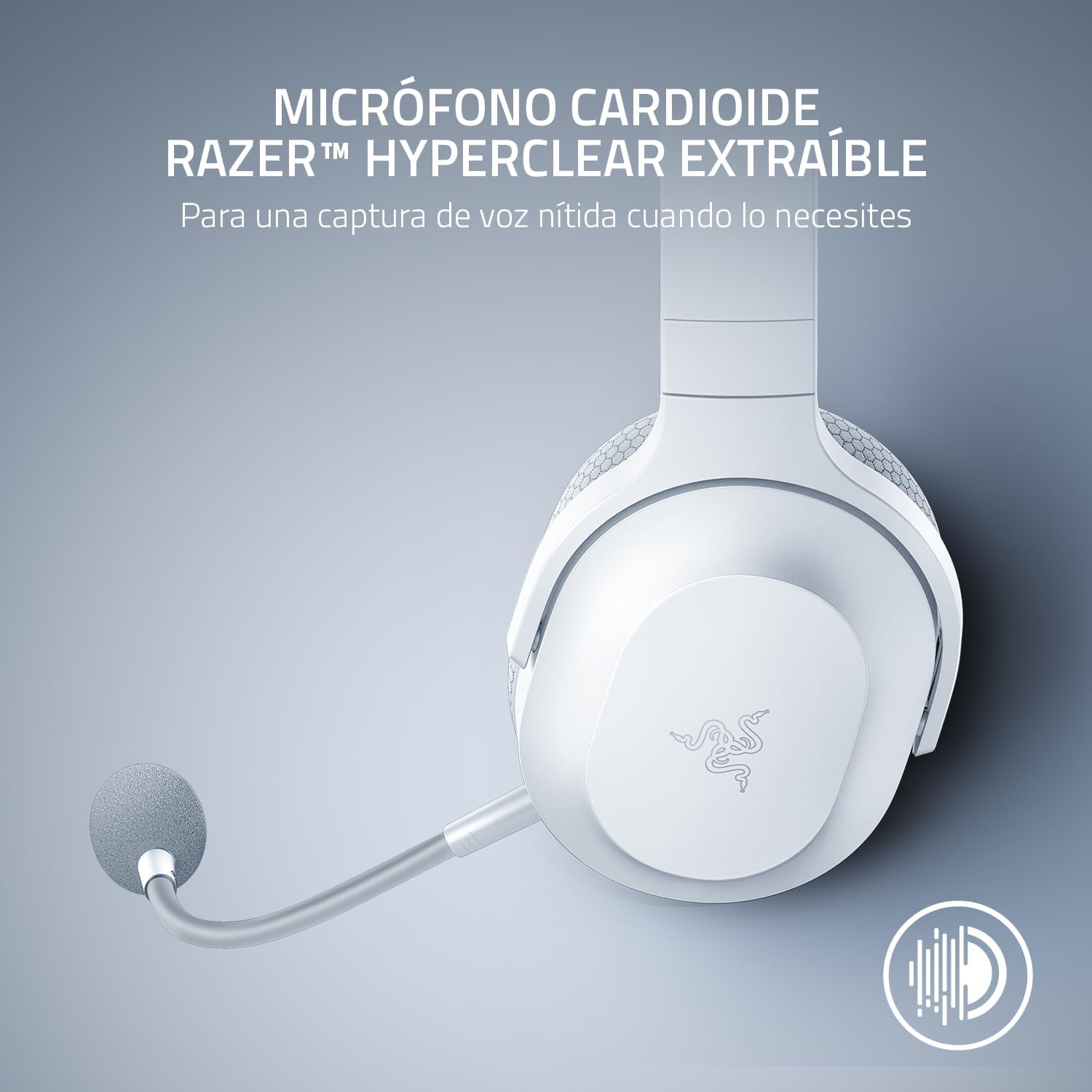
Image: The Razer Barracuda X headset with its detachable HyperClear Cardioid Mic, designed for clear voice capture.
4. 헤드셋 작동
4.1 전원 켜기/끄기
- 전원을 켜려면 LED 표시등이 켜질 때까지 전원 버튼을 길게 누르십시오.
- 전원을 끄려면 LED 표시등이 꺼질 때까지 전원 버튼을 길게 누르십시오.
4.2 볼륨 조절
Adjust the audio volume using the volume roller located on the left earcup.
4.3 마이크 음소거
Press the microphone mute button on the left earcup to toggle the microphone on or off. An LED indicator on the mic will show its status.
4.4 스마트스위치 듀얼 무선
The SmartSwitch feature allows you to seamlessly switch between 2.4GHz wireless and Bluetooth connections. When connected to both, the headset will prioritize the 2.4GHz connection for gaming. If a call comes in on your Bluetooth-connected phone, the headset will automatically switch to the Bluetooth connection. After the call, it will switch back to 2.4GHz.

Image: Close-up of the Razer Barracuda X headset's on-headset controls, including the volume wheel, power button, and mic mute button.
4.5 Comfort and Ergonomics
The Barracuda X features a lightweight 250g ergonomic design with breathable memory foam ear cushions and swiveling earcups, ensuring comfort during long gaming sessions or daily commutes.

이미지: 자세한 view of the Razer Barracuda X headset's ergonomic design, highlighting the comfortable ear cushions and lightweight build.
5. 유지관리
5.1 청소
- 부드럽고 마른 천을 사용하여 헤드셋을 청소하세요.
- 가혹한 화학물질이나 연마재의 사용은 피하세요.
- 이어쿠션의 경우 부드러운 천으로 가볍게 닦아주세요.amp 천을 덮고 공기 중에 완전히 건조시키세요.
5.2 보관
Store the headset in a cool, dry place away from direct sunlight and extreme temperatures. When not in use, consider storing it in a protective case to prevent damage.
6. 문제 해결
6.1 소리가 안 나거나 음질이 나쁨
- 볼륨 확인: Ensure the headset volume is not muted or set too low.
- 연결성: Verify the 2.4GHz dongle is properly inserted and the headset is connected, or that Bluetooth is successfully paired. Try re-pairing if necessary.
- 기기 설정: Confirm the Razer Barracuda X is selected as the default audio output device in your computer's or console's sound settings.
- 간섭: 간섭을 일으킬 수 있는 다른 무선 장치에서 멀리 떨어지세요.
6.2 마이크가 작동하지 않음
- 음소거 확인: Ensure the microphone is not muted via the headset button or your device's software.
- 연결: Re-insert the detachable microphone firmly into its jack.
- 기기 설정: Verify the Razer Barracuda X microphone is selected as the default input device in your computer's or console's sound settings and application settings (e.g., Discord).
6.3 Headset Not Powering On/Charging
- 충전 배터리: Connect the headset to a power source using the Type-C charging cable and allow it to charge for at least 30 minutes.
- Check Cable/Port: Ensure the charging cable and port are not damaged. Try a different cable or USB port.
6.4 자동 전원 끄기
The headset may automatically power off after a period of inactivity to conserve battery. This is a normal feature. To prevent this during active use, ensure audio is consistently playing through the headset.
7. 사양
| 특징 | 세부 사항 |
|---|---|
| 상표 | 레이저 |
| 모델명 | 바라쿠다 X |
| 모델 번호 | RZ04-04430200-R3U1 |
| 색상 | 하얀색 |
| 연결 기술 | 2.4GHz 무선, 블루투스 5.2, USB-C |
| 오디오 드라이버 유형 | 동적 드라이버 |
| 오디오 드라이버 크기 | 40 Millimeters (Razer TriForce) |
| 주파수 응답 | 20Hz - 20,000Hz |
| 임피던스 | 32옴 |
| 감광도 | 96데시벨 |
| 마이크로폰 | 분리형 Razer HyperClear 카디오이드 마이크 |
| 배터리 수명 | 최대 50시간 |
| 무게 | 9.6 온스(250g) |
| 귀 위치 | 귀 위 |
| 제어 유형 | 미디어 컨트롤, 터치 |
| 추가 기능 | SmartSwitch Dual Wireless, 250g Ergonomic Design |

이미지: 폭발된 view diagram illustrating the Razer TriForce 40mm drivers, designed for distinct high, mid, and low audio frequencies.
8. 보증 및 지원
8.1 보증 정보
The Razer Barracuda X Wireless Gaming Headset comes with a 2년 제조사 보증보증 청구를 위해 구매 증빙 서류를 보관하세요.
8.2 고객 지원
추가적인 지원, 기술 지원 또는 보증 관련 문의는 Razer 공식 지원 페이지를 방문하십시오. web사이트 또는 Amazon의 Razer Store.