
1. 서론
Thank you for choosing the VOYEE WE-07 Wired Game Controller. This manual provides detailed instructions for setting up, operating, and maintaining your controller. The WE-07 is designed for a responsive and immersive gaming experience on both PC and PlayStation 3 platforms.

Image: The VOYEE WE-07 wired game controller, featuring a black and red design with prominent VOYEE branding and illuminated rumble effects, indicating its dual shock capabilities.
2. 제품 특징
- 유선 연결: Equipped with a 1.8-meter (5.9ft) USB cable for a stable connection and comfortable gaming distance.
- 듀얼 쇼크 진동: Built-in dual motion motors provide varied intensity feedback for an authentic gaming experience.
- 인체공학적 디자인: Features a special matte layer for a comfortable grip during extended gaming sessions.
- 폭넓은 호환성: Supports Windows 7/8/8.1/10/11 PC games (DInput and XInput modes) and is fully compatible with Sony PlayStation 3 consoles.

Image: An illustration highlighting the internal dual shock rumble motor within the VOYEE WE-07 controller, emphasizing its vibration feedback capability.
3. 컨트롤러 레이아웃
Familiarize yourself with the buttons and controls of your VOYEE WE-07 controller:

Image: A detailed diagram of the VOYEE WE-07 controller, labeling all buttons and joysticks, including R1/R2/L1/L2 buttons, LED indicators, SELECT, START, HOME, D-Pad, Left/Right Joysticks, and A/B/X/Y buttons.
- 왼쪽 조이스틱: 방향성 있는 움직임을 위해.
- 오른쪽 조이스틱: 카메라 제어 또는 조준용입니다.
- 방향 패드: 정확한 입력을 위한 방향 패드.
- 동작 버튼(A, B, X, Y): 게임 내 액션을 위해.
- 어깨 버튼(L1, R1): 상단에 장착된 버튼.
- 트리거 버튼(L2, R2): Bottom-mounted analog triggers.
- 선택 버튼: 일반적으로 메뉴 탐색이나 특정 게임 기능에 사용됩니다.
- 시작 버튼: Typically for pausing or starting games.
- HOME/P3 Button: For accessing system menus or PlayStation 3 home screen.
- LED 표시등(1-4): Show player number or connection status.
4. 설정 지침
Connecting your VOYEE WE-07 controller is a straightforward process:
4.1. Connecting to a PC (Windows 7/8/8.1/10/11)
- 컴퓨터에서 사용 가능한 USB 포트를 찾습니다.
- Plug the USB connector of the VOYEE WE-07 controller into the USB port.
- Your computer will automatically detect and install the necessary drivers. This may take a few moments.
- Once installed, the controller will be ready for use. You may need to configure the controller settings within your game or platform (e.g., Steam) for optimal performance.
The controller supports both DInput (DirectInput) and XInput modes. Most modern PC games use XInput, which is automatically recognized. For older games, DInput might be used.
4.2. Connecting to a PlayStation 3 (PS3)
- PS3 콘솔 전원이 켜져 있는지 확인하세요.
- Plug the USB connector of the VOYEE WE-07 controller into an available USB port on your PS3.
- The PS3 will recognize the controller. The LED indicators on the controller will light up to show the assigned player number.
- The controller is now ready for use with your PlayStation 3 games.

Image: A close-up of the VOYEE WE-07 controller's USB cable connecting to a device, illustrating the wired connection process.
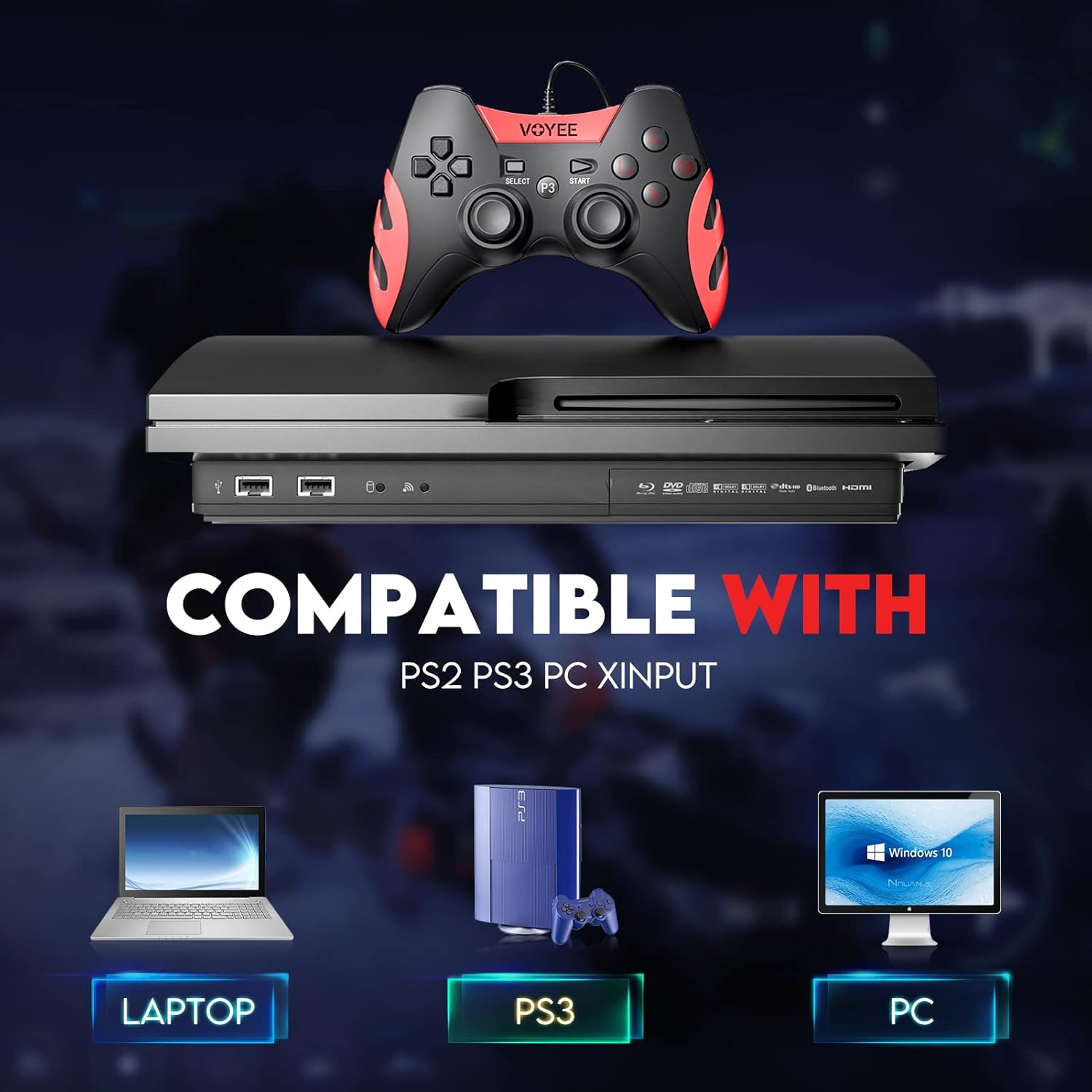
Image: A graphic demonstrating the VOYEE WE-07 controller's compatibility with various platforms, including laptops, PlayStation 3 consoles, and desktop PCs, highlighting its versatility.
5. 사용 설명서
Once connected, the VOYEE WE-07 controller functions similarly to standard gamepads. Here are some general operating tips:
- 게임 조작: Use the joysticks and D-Pad for movement and navigation. The action buttons (A, B, X, Y) and shoulder/trigger buttons (L1, R1, L2, R2) perform in-game actions as defined by the specific game.
- 진동 피드백: The dual shock motors will provide tactile feedback during gameplay, enhancing immersion. This feature is automatically enabled when supported by the game.
- HOME/P3 Button: Press this button to access the system menu on PS3 or to bring up the game overlay on PC (depending on the game or platform).
- 인간 공학: The controller's matte finish and ergonomic design are intended for comfortable use during long gaming sessions.
6. 문제 해결
If you encounter issues with your VOYEE WE-07 controller, please refer to the following common solutions:
| 문제 | 해결책 |
|---|---|
| Controller not recognized by PC/PS3. |
|
| 진동 피드백이 작동하지 않습니다. |
|
| 버튼이나 조이스틱이 반응하지 않습니다. |
|
7. 유지관리
To ensure the longevity and optimal performance of your VOYEE WE-07 controller, follow these maintenance guidelines:
- 청소: 부드럽고 마른 천으로 컨트롤러 표면을 닦으세요. 잘 지워지지 않는 얼룩은 살짝 두드려 닦아내세요.amp천에 물을 묻혀 닦으세요. 강한 화학 물질이나 연마성 세제는 사용하지 마세요.
- 저장: 컨트롤러는 직사광선과 극한 온도 변화를 피해 서늘하고 건조한 곳에 보관하십시오. 컨트롤러 위에 무거운 물건을 올려놓지 마십시오.
- 케이블 관리: Do not sharply bend or pull the USB cable. Always grasp the plug when disconnecting, not the cable itself.
- 낙하 방지: 컨트롤러를 떨어뜨리거나 충격을 가하지 마십시오. 내부 구성 요소가 손상될 수 있습니다.
8. 사양
| 모델 | 우리 - 07 |
| 상표 | 보이(VOYEE) |
| 연결성 | 유선 USB |
| 케이블 길이 | 1.8 미터(5.9피트) |
| 호환 장치 | PC (Windows 7/8/8.1/10/11), PlayStation 3 |
| 컨트롤러 유형 | Gamepad, Joystick (DInput & XInput) |
| 추가 기능 | Dual Shock Vibration, Ergonomic Design, Matte Finish |
| 버튼 수량 | 17 |
9. 보증 및 지원
VOYEE provides a 365일 보증 for the WE-07 wired gamepad controller from the date of purchase. This warranty covers manufacturing defects under normal use.
If you encounter any problems or have questions regarding your VOYEE WE-07 controller, please do not hesitate to contact our customer service team via e-mail. Our friendly customer service is available to assist you.
For support, please visit the official VOYEE web웹사이트를 방문하시거나 구매 서류에서 연락처 정보를 확인하십시오.


