
1. 제품 오버view
The YEHUA Wireless HDMI Transmitter (Model TX) is designed to provide a seamless wireless streaming experience. This device allows you to transmit high-definition video and audio signals from various source devices to a display without the need for cables. It supports 4K resolution and features like Miracast for versatile connectivity.
주요 특징은 다음과 같습니다.
- Connect multiple transmitters to one receiver.
- One-touch switching between active transmitters.
- Supports 4K resolution output.
- Integrated Miracast functionality.
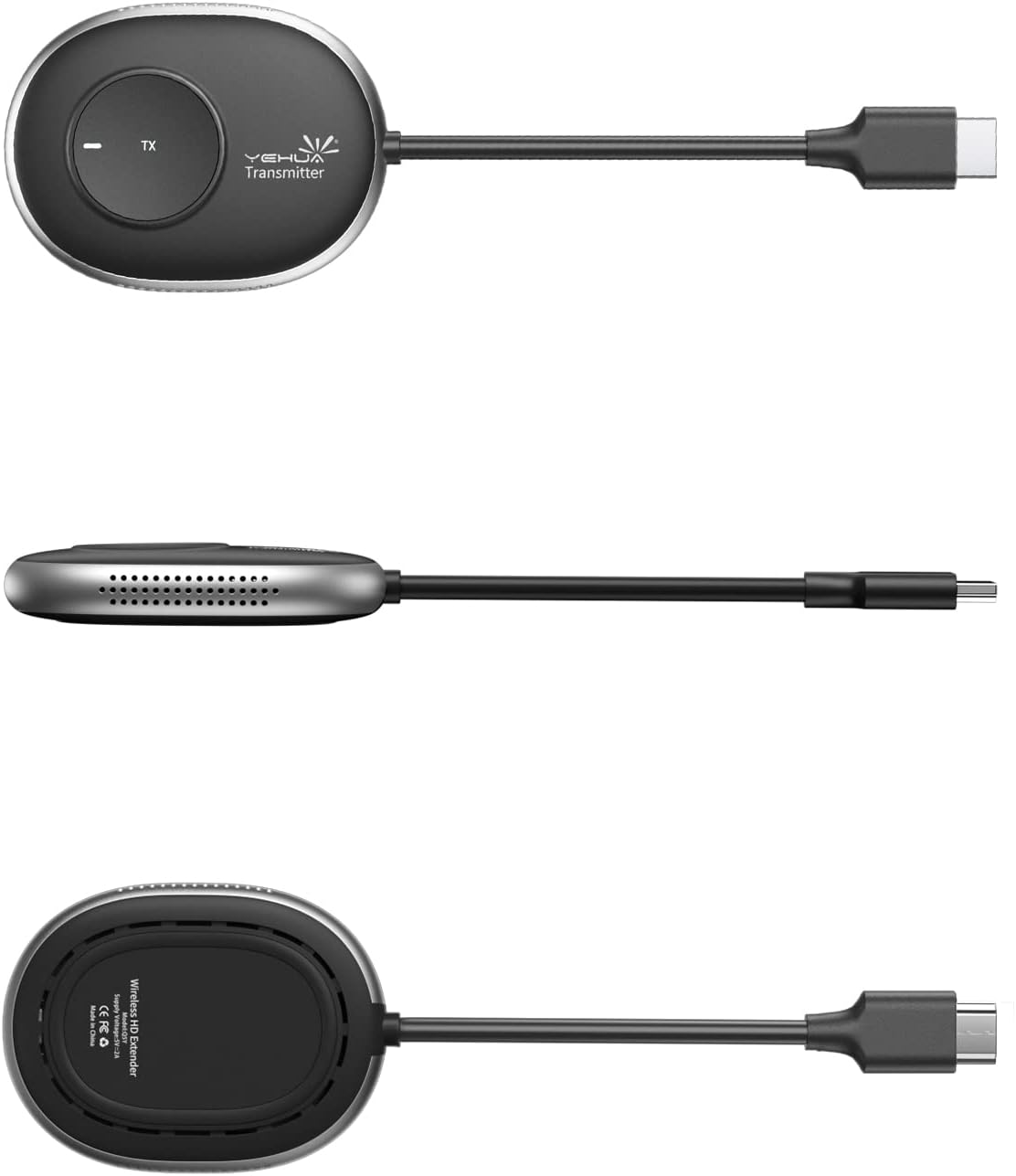
그림 1: YEHUA Wireless HDMI Transmitter (Model TX) showing its compact design and various angles.
2. 패키지 내용
패키지에 모든 품목이 들어 있는지 확인하세요.
- YEHUA Wireless HDMI Transmitter (TX unit)
- YEHUA Wireless HDMI Receiver (RX unit) - (Note: Receiver may be sold separately or as part of a kit)
- USB Power Cable (for TX and/or RX)
- 사용 설명서 (본 문서)
3. 설정 지침
Follow these steps to set up your YEHUA Wireless HDMI Transmitter and Receiver system.
3.1 수신기(RX) 연결하기
- Connect the HDMI output of the Receiver (RX) to an HDMI input port on your display device (e.g., TV, monitor, projector).
- Connect the USB power cable to the Receiver (RX) and plug the other end into a 5V/2A USB power adapter (not always included) or a powered USB port on your display device. Ensure the RX unit powers on.
3.2 송신기(TX) 연결하기
- Connect the HDMI output of your source device (e.g., video camera, DV, set-top box, PS3/4/5, PC, laptop) to the HDMI input port on the Transmitter (TX).
- Connect the USB power cable to the Transmitter (TX) and plug the other end into a 5V/2A USB power adapter or a powered USB port on your source device. Ensure the TX unit powers on.

그림 2: Connection Diagram illustrating how to connect the TX unit to various source devices (video camera, DV, set-top box, PS3/4/5, PC, laptop) and the RX unit to display devices (monitor, HDTV, projector), both powered by 5V/2A adapters.
3.3 초기 페어링 (필요한 경우)
In most cases, the TX and RX units are pre-paired. If they do not connect automatically:
- TX와 RX 장치가 모두 켜져 있는지 확인하세요.
- Press the pairing button on the RX unit (refer to the RX manual for exact location).
- Then, press the pairing button on the TX unit. The devices should connect within a few seconds.
4. 사용 설명서
Once the setup is complete, you can begin using your wireless HDMI system.
4.1 기본 작업
- Power on your source device and display device.
- Select the correct HDMI input on your display device where the RX unit is connected.
- The TX unit will automatically transmit the signal from your source device to the RX unit. The display should show the content from your source.
4.2 Using Multiple Transmitters with One Receiver
The YEHUA system supports connecting multiple TX units to a single RX unit. This is ideal for presentations or collaborative environments where you need to switch between different source devices.
- Connect each additional TX unit to its respective source device and power it on, following the steps in Section 3.2.
- To switch between active transmitters, simply press the button on the desired TX unit. The receiver will then display the content from that specific transmitter.
- 메모: The receiver can only display content from one transmitter at a time.

그림 3: Illustration of one YEHUA RX unit connected to a large display, receiving signals from multiple TX units connected to laptops in a meeting room, demonstrating the one-touch switching capability.
5. 유지관리
To ensure the longevity and optimal performance of your YEHUA Wireless HDMI Transmitter, follow these maintenance guidelines:
- 청소: 기기를 닦을 때는 부드럽고 마른 천을 사용하십시오. 액체 세척제나 스프레이형 세척제는 사용하지 마십시오.
- 저장: 기기를 직사광선과 극한의 온도를 피해 서늘하고 건조한 곳에 보관하세요.
- 손질: 기기를 떨어뜨리거나 강한 충격을 주지 마십시오.
- 통풍: Ensure the devices have adequate ventilation and do not block any vents.
6. 문제 해결
If you encounter issues with your YEHUA Wireless HDMI Transmitter, refer to the following troubleshooting tips:
디스플레이에 신호 없음
- 전원 확인: Ensure both the TX and RX units are properly powered on and their indicator lights are active.
- 케이블 연결: Verify that all HDMI and USB power cables are securely connected to their respective ports.
- HDMI 입력: Confirm that your display device is set to the correct HDMI input source where the RX unit is connected.
- 다시 페어링: If the devices were previously working and now show no signal, try re-pairing them as described in Section 3.3.
- 소스 장치: Test your source device (e.g., laptop) by connecting it directly to the display via an HDMI cable to rule out issues with the source or display.
Poor Video Quality or Intermittent Signal
- 거리: Ensure the TX and RX units are within the recommended operating range. Obstacles like walls can reduce signal strength.
- 간섭: Keep the devices away from other wireless devices (Wi-Fi routers, cordless phones) that might cause interference.
- 해결: While the system supports 4K, ensure your source device and display are also configured for optimal resolution.
오디오 문제
- 용량: Check the volume levels on both your source device and display.
- 오디오 설정: 소스 장치의 오디오 출력 설정을 확인하세요.
7. 사양
| 특징 | 사양 |
|---|---|
| 상표 | 예화 |
| 모델 번호 | TX |
| 연결 기술 | HDMI |
| 커넥터 유형 | HDMI |
| 특징 | 미라캐스트 |
| 해결 | 4K (3840 pixels) |
| 지원되는 인터넷 서비스 | 유튜브 |
| 컨트롤러 유형 | 버튼 제어 |
| 폼 팩터 | TV-Box |
| 호환 장치 | 텔레비전 |
| 메모리 저장 용량 | 16GB (XNUMX기가바이트) |
| 비디오 코덱 | H.264, H.265/HEVC |
8. 보증 및 지원
For warranty information and technical support, please refer to the documentation included with your purchase or visit the official YEHUA website. If you encounter issues not covered in this manual, please contact YEHUA customer service for assistance.
제조업체: 예화
ASIN: B09STQPR3R