
소개
The HyperGear HyperStream 1080P Webcam provides high-definition video and clear audio for various applications, including online meetings, classes, and streaming. This manual provides instructions for setup, operation, maintenance, and troubleshooting to ensure optimal performance of your web캠.
패키지 내용
패키지에 모든 품목이 들어 있는지 확인하세요.
- HyperGear HyperStream 1080P Web캠
- USB 케이블
- 내장 마이크
제품 끝view
The HyperGear HyperStream 1080P Webcam is designed for ease of use and high-quality performance. Key features include:
- Crystal-Clear 1080P HD Resolution: Delivers sharp and vibrant visuals.
- Built-in Noise Reduction Microphone: Captures clear audio by reducing background sounds.
- 플러그 앤 플레이 USB 연결: Requires no additional software or drivers for quick setup.
- Wide-Angle 110° Lens: 광범위한 영역을 포착합니다. view, suitable for group interactions.
- 자동 화이트 밸런스: Automatically adjusts to various lighting conditions for optimal image quality.
- 조절 가능한 클립온 마운트: Securely attaches to monitors or laptops, and can also be positioned as a standalone unit.
설치 지침
Follow these steps to set up your HyperGear HyperStream 1080P Web캠:
- 포장을 풀다 Web캠: 조심스럽게 webcam and its USB cable from the packaging.

Image: The HyperGear HyperStream 1080P Webcam is designed for instant plug-and-play setup without requiring additional drivers. Simply connect the USB cable to your computer.
- 마운트하다 Web캠:
- 모니터/노트북에서: Open the adjustable clip and place it securely on top of your monitor or laptop screen. Adjust the angle to ensure the web캠이 안정적이며 당신을 향하고 있습니다.
- 책상 위에서: 클립을 접어서 안정적인 스탠드를 만들고 제자리에 놓으세요. web책상과 같은 평평한 표면에 카메라를 놓으세요.

이미지: webcam features an adjustable mount that allows it to be clamped onto any screen or display, or positioned as a standalone unit on your desk. It offers 180-degree rotation for flexible positioning.
- 장치에 연결: USB 케이블을 연결하세요 webcam into an available USB port on your computer (PC, Mac) or Xbox console. The webcam is plug-and-play, so no additional drivers are typically required.
- 연결 확인: Your operating system should automatically detect the webcam. You can verify its connection in your device settings or within your preferred video conferencing/streaming application.
작동 지침
Once connected, the HyperGear HyperStream 1080P Web캠은 다양한 응용 프로그램에서 사용할 준비가 되었습니다.
시스템 호환성
그만큼 webcam is compatible with multiple operating systems and platforms:
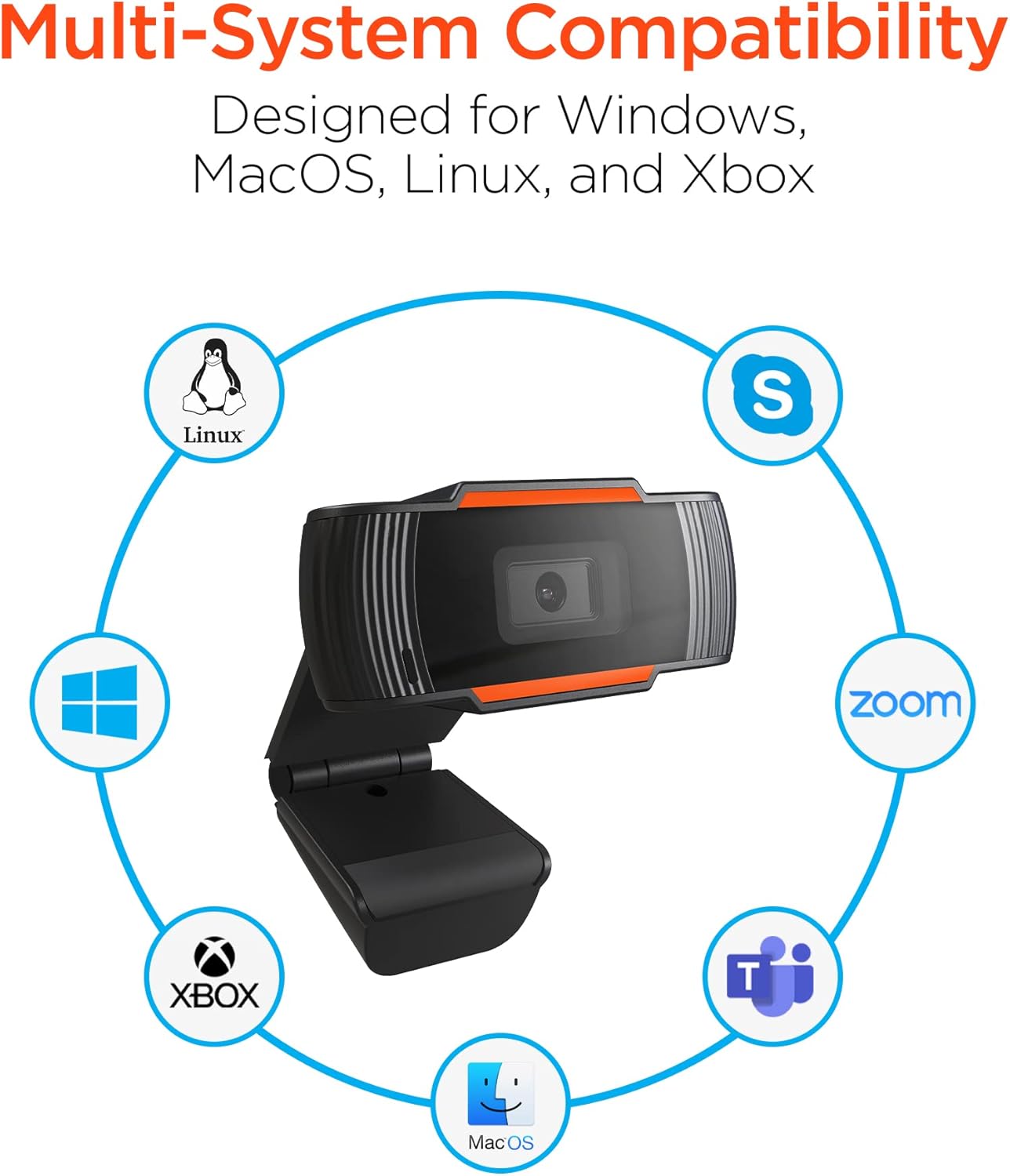
Image: The HyperGear HyperStream 1080P Webcam offers multi-system compatibility, designed for use with Windows, MacOS, Linux, and Xbox, as well as popular communication platforms like Skype, Zoom, and Microsoft Teams.
- 윈도우
- 맥 OS
- 리눅스
- 엑스박스
- Compatible with popular video conferencing software (e.g., Skype, Zoom, Microsoft Teams).
사용하여 Web캠
- 선택하세요 Web캠: In your video conferencing or streaming application, navigate to the video and audio settings. Select "HyperGear HyperStream 1080P Webcam" as your video input device and its integrated microphone as your audio input device.
- 위치와 각도를 조정하세요: 확인하십시오 webcam is positioned to capture your desired view. The 110° wide-angle lens is ideal for capturing multiple participants or a broader background.

Image: The 110° ultra wide-angle lens ensures that your entire team and presentations fit within the frame, making it suitable for group meetings and collaborative environments.
- Benefit from Auto-White Balance and Fixed Focus: 그만큼 webcam automatically adjusts for optimal lighting and maintains a sharp focus on subjects within its field of view, eliminating the need for manual adjustments.

이미지: webcam features fixed focus and auto-white balance (AWB) to automatically adjust to various lighting conditions (like daylight or fluorescent), ensuring clear and sharp visuals without manual intervention.
- Utilize Noise Reduction Microphone: The built-in microphone actively reduces ambient noise, ensuring your voice is clear and easily understood during calls.

Image: The integrated noise reduction microphone minimizes unwanted background noise and distortions, ensuring clear audio during your video calls and streams.
유지
수명과 최적의 성능을 보장하려면 web캠을 사용할 때는 다음 유지 관리 지침을 따르세요.
- 청소: Gently wipe the lens with a soft, lint-free cloth. Avoid using harsh chemicals or abrasive materials that could scratch the lens or damage the casing.
- 저장: 사용하지 않을 때는 보관 web카메라는 극한 온도와 직사광선을 피해 깨끗하고 건조한 곳에 보관하십시오.
- 손질: 떨어 뜨리지 마십시오 webcam or subjecting it to strong impacts, which could damage internal components.
문제 해결
If you encounter issues with your HyperGear HyperStream 1080P Web캠님, 다음 문제 해결 단계를 시도해 보세요.
- Web캠 감지되지 않음:
- USB 케이블이 양쪽 포트에 제대로 꽂혀 있는지 확인하십시오. webcam and your computer's USB port.
- 플러그를 꽂으십시오. web캠을 다른 USB 포트에 연결합니다.
- 컴퓨터를 다시 시작하세요.
- Check your operating system's device manager (Windows) or System Information (macOS) to see if the web캠이 등록되어 있습니다.
- 비디오 출력 없음:
- 확인해주세요 web카메라가 애플리케이션 설정에서 비디오 입력 장치로 선택되었습니다.
- 다른 애플리케이션이 현재 해당 기능을 사용하고 있지 않은지 확인하십시오. web카메라의 경우, 일부 시스템에서는 한 번에 하나의 애플리케이션만 접근할 수 있도록 허용하기 때문입니다.
- 렌즈를 가리고 있는 물리적 장애물이 있는지 확인하십시오.
- 오디오 입력 없음(마이크):
- 확인해주세요 webcam's microphone is selected as the audio input device in your application's settings and your system's sound settings.
- Check that the microphone is not muted in your application or system settings.
- Ensure your system's privacy settings allow applications to access the microphone.
- 낮은 비디오 품질:
- Ensure you have adequate lighting in your environment. While the webcam has auto-white balance, sufficient ambient light is crucial for best results.
- 청소하다 webcam lens if it appears smudged or dirty.
- Check your internet connection speed if streaming or video conferencing, as a slow connection can affect video quality.
명세서
| 특징 | 세부 사항 |
|---|---|
| 상표 | 하이퍼기어 |
| 모델명 | HyperStream Portable 1080P |
| 비디오 캡처 해상도 | 1080p |
| 연결 기술 | USB |
| 색상 | 검은색 |
| 특징 | 조절할 수 있는 |
| 캠코더 유형 | Web캠 |
| 운영 체제 | 윈도우, 맥OS |
| 렌즈 유형 | 와이드 앵글 |
| 초점 유형 | 고정 초점 |
| 이미지 종횡비 | 16시 9분 |
| 노출 제어 유형 | 오토매틱 |
| 효과적인 비디오 해상도 | 1920 픽셀 |
| 호환 장치 | 개인용 컴퓨터 |
| 내장 미디어 | 마이크, USB 케이블 |
| 품목 무게 | 4.72 온스 |
| 한국어: | 633755155390 |
| ASIN | B09S51KSC4 |
보증 및 지원
For warranty information and customer support, please refer to the documentation included with your purchase or visit the official HyperGear web대지.
또한 방문할 수 있습니다 HyperGear Store on Amazon 자세한 제품 정보와 지원 리소스를 확인하세요.