
1. 서론
Thank you for choosing the cimetech Wireless Keyboard and Mouse Combo. This product is designed to provide a comfortable and efficient typing and navigation experience for your computer. This manual will guide you through the setup, operation, and maintenance of your new wireless combo.

Figure 1: cimetech Wireless Keyboard and Mouse Combo (Dark Blue)
2. 주요 특징
- Slim and Ergonomic Design: The keyboard features a tilt angle for comfortable typing. The mouse has a contoured, sweat-resistant, skin-friendly finish for extended use.
- Full Size & Ultra-thin Keyboard: Measuring 14.5x5.8x0.2 inches with 99 keys, this ultra-thin keyboard is portable and suitable for various environments. It includes multi-media hotkeys for quick access to music, internet, email, and volume controls.
- Less Noise & Low Profile 키: The keyboard's noise-reduced keys and the silent click of the mouse minimize disturbance. Both devices feature auto-sleeping mode and on/off switches to conserve battery life.
- Fast Operation 2.4G Wireless Plug and Play: Connect both the keyboard and mouse with a single USB receiver for a strong, reliable wireless connection up to 10 meters (33 ft) without delays or dropouts.
- 폭넓은 호환성: Works with PC, desktop computers, laptops, or notebooks running Windows XP / Vista / 7 / 8 / 10 operating systems.
3. 설정 가이드
3.1. 배터리 설치
The mouse requires one (1) AA battery, and the keyboard requires two (2) AA batteries (not included). Ensure correct polarity when inserting batteries.
- 마우스의 경우: Open the battery compartment cover on the underside of the mouse. Insert one AA battery, observing the polarity markings. Close the cover.
- 키보드의 경우: Open the battery compartment cover on the underside of the keyboard. Insert two AA batteries, observing the polarity markings. Close the cover.
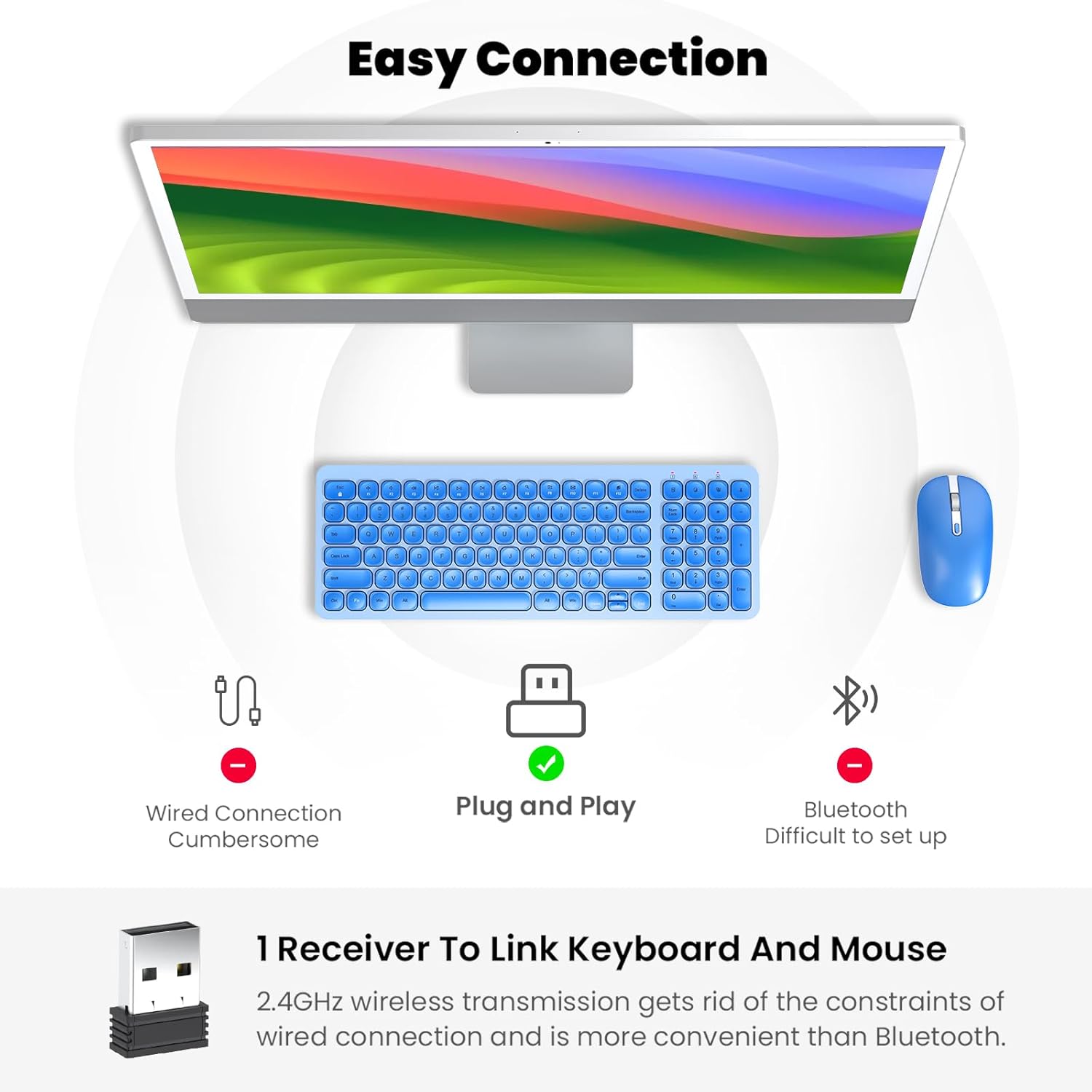
Figure 2: Mouse battery compartment showing AA battery insertion.
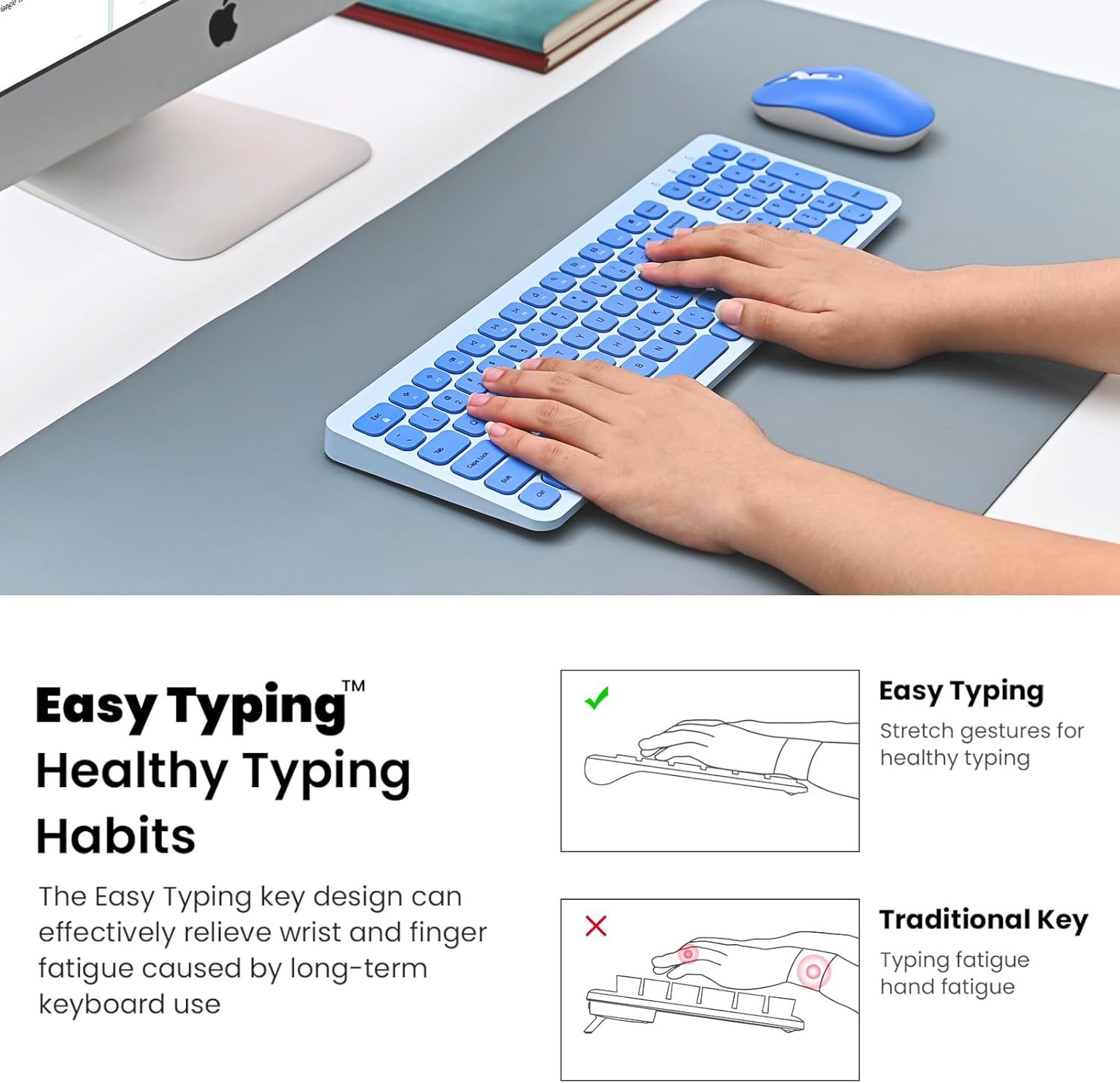
Figure 3: Keyboard battery compartment showing two AA batteries.
3.2. USB 수신기 연결
The 2.4G USB receiver is conveniently stored inside the mouse's battery compartment.
- Locate and remove the USB receiver from the mouse's battery compartment.
- USB 수신기를 컴퓨터의 사용 가능한 USB 포트에 연결합니다.
- 마우스 밑면에 있는 전원 스위치를 사용하여 마우스를 켜십시오.
- Turn on the keyboard using the ON/OFF switch located on its underside.
- 컴퓨터가 필요한 드라이버를 자동으로 감지하고 설치합니다. 이제 키보드와 마우스를 사용할 수 있습니다.

Figure 4: USB receiver stored within the mouse battery compartment.
3.3. 설치 데모 비디오
Video 1: Demonstration of battery installation and USB receiver setup for the cimetech Wireless Keyboard.
Video 2: Detailed look at the cimetech Wireless Keyboard and Mouse Combo, including battery and dongle placement.
4. 사용 설명서
4.1. 키보드 사용
- 타자: 로우 프로file scissor-switch keys provide a quiet and comfortable typing experience with uniform force distribution.
- 멀티미디어 단축키: Use the 'Fn' key in combination with the F1-F12 keys for quick access to various functions such as media control, volume adjustment, and internet browsing. Refer to the keycap icons for specific functions.
- 숫자 키패드: The full-size keyboard includes a dedicated numeric keypad for efficient data entry.
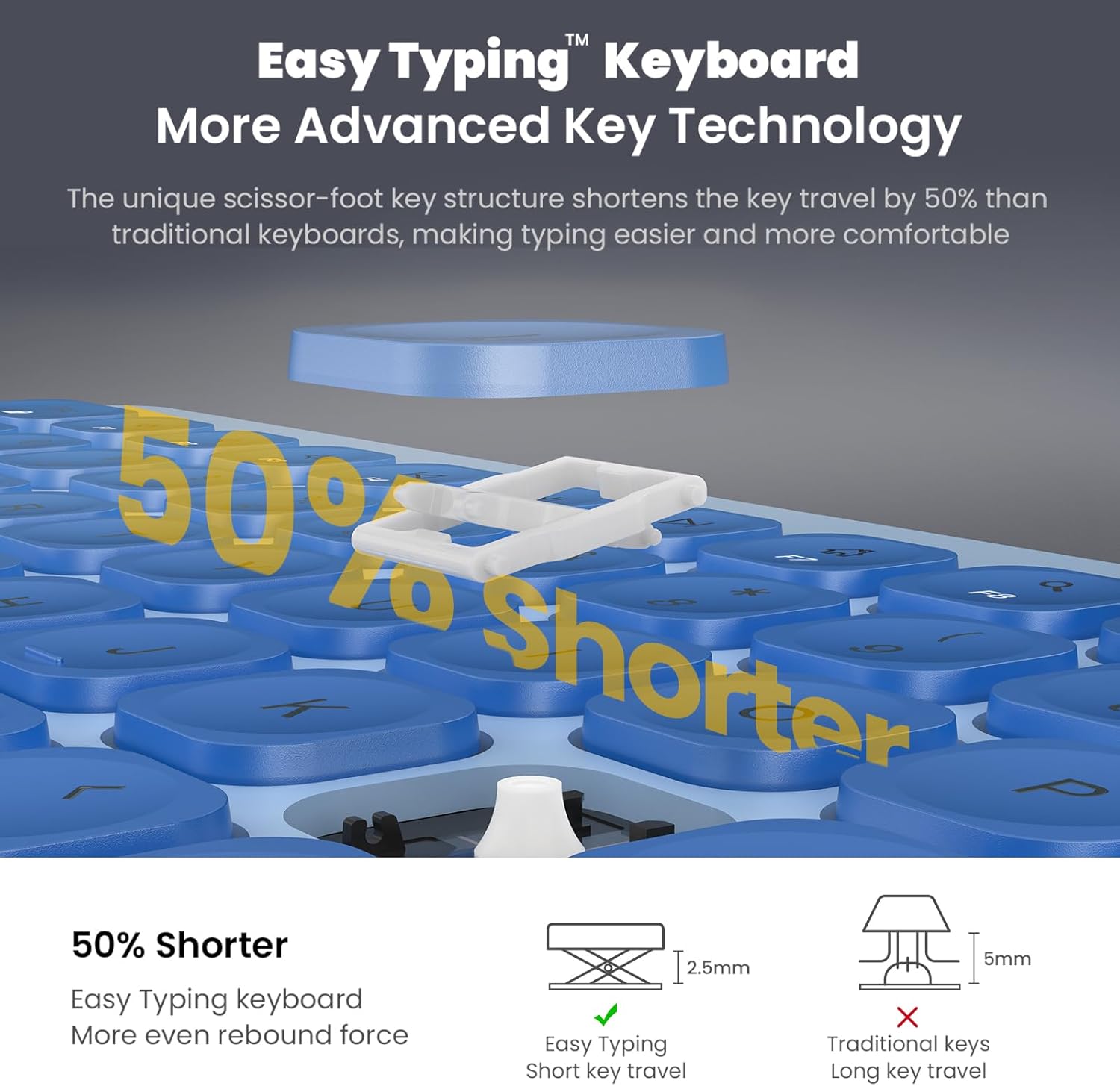
Figure 5: Close-up of the keyboard keys, highlighting the scissor-switch mechanism for comfortable typing.
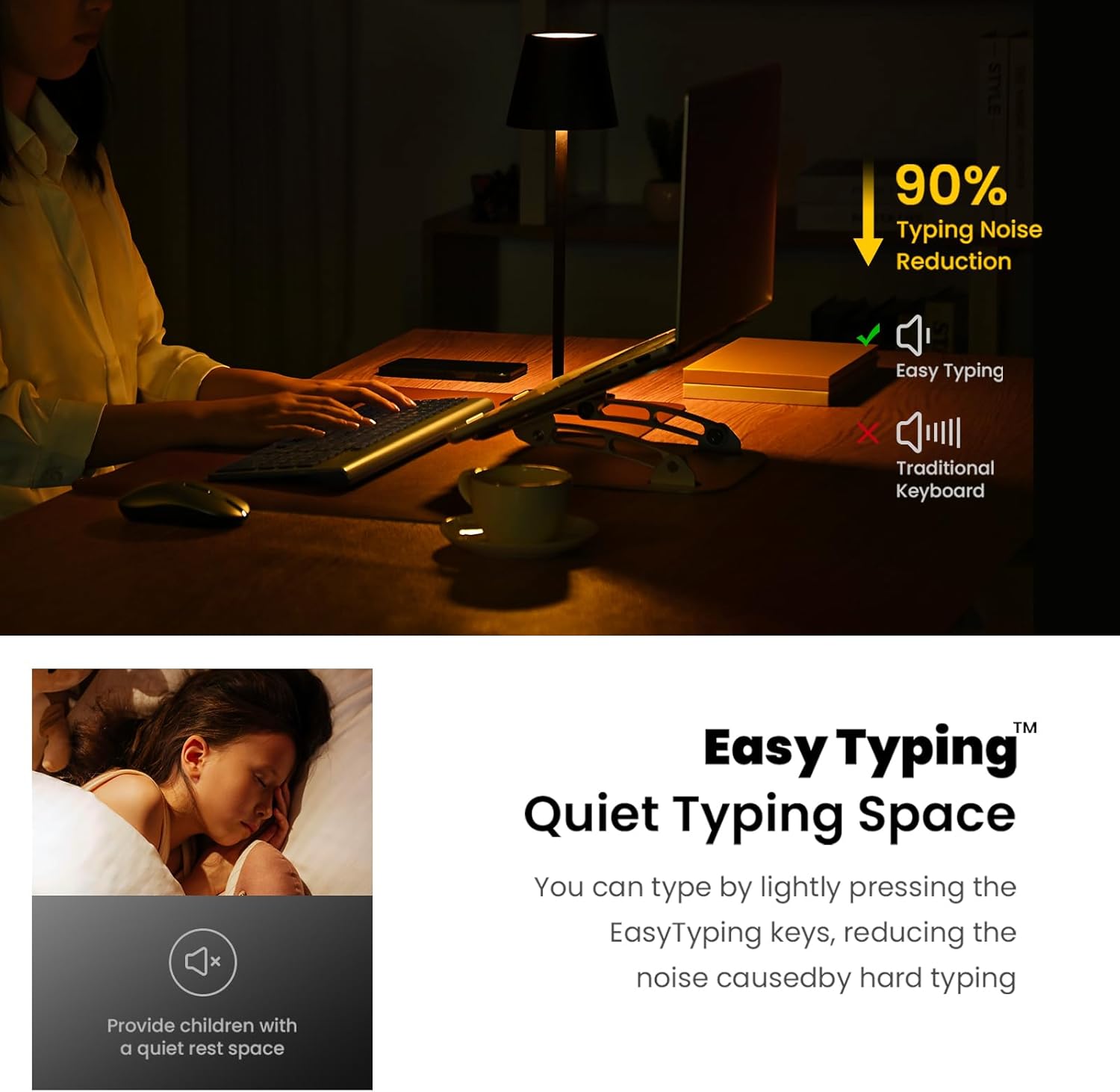
Figure 6: The keyboard's quiet keys reduce typing noise, ideal for shared spaces.
4.2. 마우스 사용법
- DPI 조정: The mouse features adjustable DPI settings (800/1200/1600) to customize cursor sensitivity. Press the DPI button (usually located near the scroll wheel) to cycle through settings.
- 조용한 클릭: The mouse is designed with silent click buttons to minimize noise.
- 스크롤 휠: Use the metal scroll wheel for smooth vertical scrolling.
4.3. 절전 기능
- 자동 절전 모드: The keyboard enters sleep mode after 10 minutes of inactivity, and the mouse after 15 minutes, to conserve battery. Press any key or click the mouse to wake them up.
- 켜기/끄기 스위치: For extended periods of non-use, turn off the keyboard and mouse using their respective ON/OFF switches.
5. 유지관리
- 청소: 키보드와 마우스 표면은 부드럽고 마른 천으로 닦으십시오. 강한 화학 약품이나 연마성 재질은 사용하지 마십시오.
- 배터리 교체: Replace batteries when performance degrades. Always use new AA batteries and dispose of old batteries responsibly.
- 저장: When not in use for extended periods, store the USB receiver inside the mouse's battery compartment to prevent loss.
6. 문제 해결
- 키보드/마우스가 반응하지 않습니다:
- Ensure both devices are turned ON using their respective switches.
- 배터리가 올바르게 설치되었고 충전량이 충분한지 확인하세요. 필요하면 교체하세요.
- USB 수신기가 컴퓨터의 정상 작동하는 USB 포트에 제대로 꽂혀 있는지 확인하세요. 다른 USB 포트에 연결해 보세요.
- 컴퓨터를 다시 시작하세요.
- 연결 지연 또는 간헐적 연결:
- Ensure the distance between the devices and the USB receiver is within 10 meters (33 ft).
- 수신기를 강력한 전자기 간섭원(예: 다른 무선 장치, 큰 금속 물체) 근처에 두지 마십시오.
- 배터리가 부족하면 교체하세요.
- Mouse Cursor Movement is Erratic:
- 마우스 밑면의 광학 센서를 청소하세요.
- 마우스를 적절한 표면(반사성이 강하거나 투명하지 않은 표면)에서 사용하고 있는지 확인하세요.
- 커서 속도가 너무 빠르면 DPI 설정을 더 낮은 감도로 조정하세요.
7. 사양
| 특징 | 세부 사항 |
|---|---|
| 제품 치수 | 14.57 x 5.31 x 1.97 인치 |
| 품목 무게 | 1.21파운드 |
| 연결 기술 | Radio Frequency, USB (2.4G Wireless) |
| 특별 기능 | Ergonomic, Lightweight, Portable, Silent Keys, Auto-Sleep |
| 호환 장치 | Laptop, Personal Computer (Windows XP / Vista / 7 / 8 / 10) |
| 키보드 배터리 | AA 배터리 2개(포함되지 않음) |
| 마우스 배터리 | AA 배터리 1개(포함되지 않음) |
8. 보증 및 지원
For information regarding product warranty, returns, or technical support, please refer to the retailer's policy or contact cimetech customer service directly. Optional protection plans may be available for purchase separately to extend coverage beyond the standard warranty period.
- Protection Plan Options:
- 3년 보호 계획
- 4년 보호 계획
- Complete Protect(적격 과거 및 미래 구매를 포함하는 월간 플랜)