
1. 설정
1.1 패키지 내용
패키지에 다음 품목이 포함되어 있는지 확인하세요.
- Microsoft Xbox Wireless Controller - Project Scorpio Edition
- AA Batteries (may be included depending on retailer)
1.2 배터리 설치
To power your controller:
- 컨트롤러 뒷면의 배터리 덮개를 엽니다.
- AA 배터리 두 개를 올바른 극성(+ 및 -)에 맞춰 넣으세요.
- 배터리 덮개를 단단히 닫으세요.
1.3 Xbox One에 연결하기
컨트롤러를 Xbox One 콘솔에 무선으로 연결하려면:
- Xbox One 콘솔을 켭니다.
- 를 누르고 계세요 Xbox 버튼
 on your controller to turn it on. The Xbox button will flash.
 - 를 누르세요 페어링 버튼 on your Xbox One console (located on the front or side, depending on the model).
- 20초 이내에 페어링 버튼
 on the top edge of your controller (next to the USB port). The Xbox button on the controller will flash more rapidly.
 - Once the Xbox button on the controller glows solid, it is connected.
1.4 Connecting to Windows 10 PC via Bluetooth
To connect your controller to a Windows 10 PC using Bluetooth:
- Ensure your Windows 10 PC has Bluetooth enabled.
- 를 누르고 계세요 Xbox 버튼 컨트롤러에서 켜려면 버튼을 누르세요.
- 를 누르고 계세요 페어링 버튼 on the top edge of your controller for three seconds. The Xbox button will flash rapidly.
- PC에서 다음으로 이동하세요. 설정 > 장치 > Bluetooth 및 기타 장치.
- 선택하다 Bluetooth 또는 기타 장치 추가 > 블루투스.
- 선택하다 Xbox 무선 컨트롤러 목록에서.
- Once the Xbox button on the controller glows solid, it is connected.
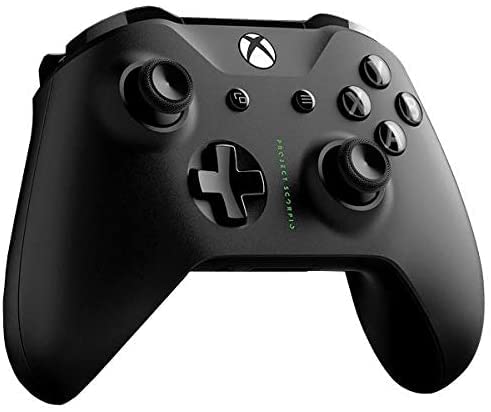
A black Xbox Wireless Controller, featuring the Project Scorpio Special Edition details, with textured grips and the Xbox logo button at the top center. This image illustrates the overall design of the controller.
2. 컨트롤러 작동
2.1 컨트롤러 레이아웃 및 기능
Xbox 무선 컨트롤러는 직관적인 게임 플레이를 위한 표준 레이아웃을 갖추고 있습니다.
- Xbox 버튼: Powers on the controller/console, opens the Guide, and indicates connection status.
- View 단추: Changes views or displays more information in games and apps.
- 메뉴 버튼: Accesses game or app menus, such as Settings or Options.
- A, B, X, Y 버튼: Action buttons for in-game commands.
- 방향키: Directional pad for precise input.
- 왼쪽 및 오른쪽 썸스틱: For movement and camera control. Pressing them down acts as a button.
- 좌우 범퍼(LB, RB): Located on the top edge, typically used for quick actions.
- 왼쪽 및 오른쪽 트리거(LT, RT): Analog triggers for variable input, such as acceleration or firing.
- 3.5mm 스테레오 헤드셋 잭: For connecting compatible headsets.
2.2 Using the 3.5mm Headset Jack
To use a headset with your controller:
- Plug any compatible 3.5mm stereo headset directly into the jack located at the bottom of the controller.
- Audio settings can be adjusted via the Xbox Guide or Windows sound settings.
3. 유지관리
3.1 Cleaning Your Controller
컨트롤러의 모양과 기능을 유지하려면:
- 부드럽고 마른 보풀 없는 천으로 컨트롤러 표면을 닦으십시오.
- 완고한 먼지에는 약간 damp천을 물에 적시되, 과도한 습기는 피하십시오.
- Do not use harsh chemicals, abrasive cleaners, or solvents, as these can damage the controller's finish.
3.2 보관
When not in use, store your controller in a cool, dry place away from direct sunlight and extreme temperatures. Remove batteries if storing for extended periods to prevent leakage.
4. 문제 해결
4.1 컨트롤러가 켜지지 않음
- 배터리 확인: Ensure batteries are correctly inserted and have sufficient charge. Replace with fresh AA batteries if necessary.
- 전원 주기: Remove and reinsert the batteries, then try turning the controller on again.
4.2 연결 문제
- 컨트롤러 재페어링: Follow the connection steps in Section 1.3 or 1.4 to re-pair the controller with your Xbox One or Windows 10 PC.
- 간섭: Ensure there are no obstructions or other wireless devices causing interference between the controller and the console/PC.
- 펌웨어 업데이트: Connect the controller to your Xbox One or PC via a USB cable and check for controller firmware updates.
- Bluetooth Driver (PC): Ensure your PC's Bluetooth drivers are up to date.
4.3 Button or Stick Malfunction
- 컨트롤러 청소: Ensure no debris is lodged around buttons or sticks. Refer to Section 3.1.
- Test in Different Games/Apps: Determine if the issue is specific to one application or system-wide.
- 컨트롤러 재설정: In some cases, removing batteries for a few minutes can reset internal components.
5. 사양
| 특징 | 세부 사항 |
|---|---|
| 브랜드 이름 | 마이크로소프트 |
| 모델명 | Project Scorpio |
| 호환 장치 | Xbox One, Windows 10 PCs and tablets |
| 컨트롤러 유형 | 게임패드 |
| 연결 기술 | 블루투스, 무선 |
| 하드웨어 플랫폼 | 엑스박스 원 |
| 전원 | AA 건전지 사용 |
| 색상 | Green (Project Scorpio Edition) |
6. 보증 및 지원
This product is a Certified Refurbished item. Certified Refurbished products are tested and certified to look and work like new, with limited to no wear, by a third-party refurbisher. The refurbishing process includes functionality testing, cosmetic inspection, and repackaging.
The product is backed by a minimum 90-day warranty from the date of purchase. For specific warranty details and claims, please refer to the documentation provided by the refurbisher or contact the seller directly.
For further technical assistance or support, please visit the official Microsoft Xbox support web사이트를 방문하거나 고객 서비스에 문의하세요.