
1. 서론
This manual provides comprehensive instructions for the Vgate iCar Pro Bluetooth 4.0 OBD2 Car Diagnostic Tool and the accompanying 16 Pin OBD2 Splitter. Please read this manual carefully before using the product to ensure proper operation and to prevent damage.
The Vgate iCar Pro is designed to connect to your vehicle's On-Board Diagnostics (OBD2) port, allowing you to access vehicle data via a compatible smartphone application. The 16 Pin OBD2 Splitter provides flexibility for connecting multiple devices or for easier access to the OBD2 port.
2. 제품 오버view
2.1 Vgate iCar Pro Bluetooth 4.0 Diagnostic Tool
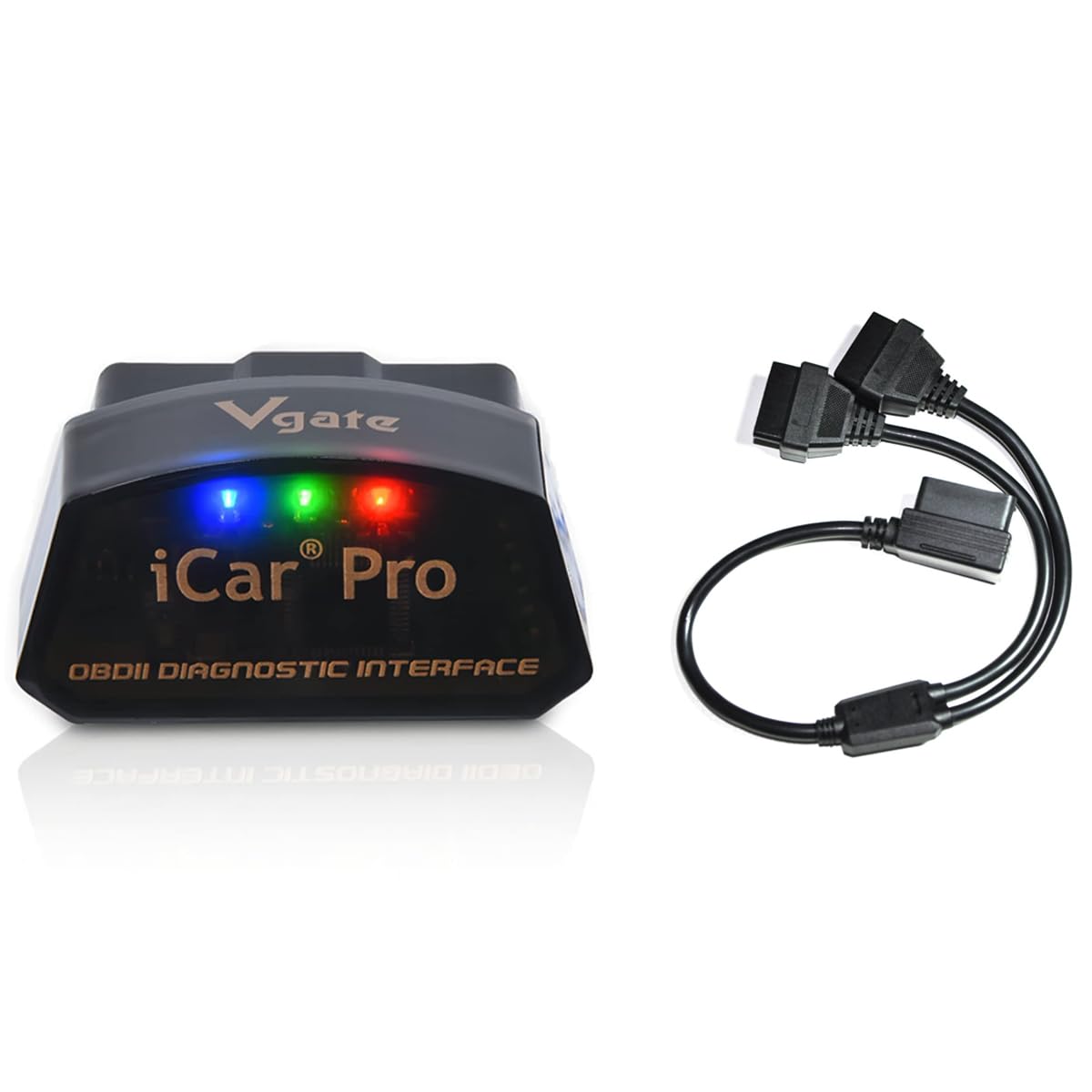
Figure 1: Vgate iCar Pro Bluetooth 4.0 OBD2 Diagnostic Tool. This image shows the compact design of the diagnostic tool with the Vgate and iCar Pro branding.
The iCar Pro is a compact device that plugs directly into your vehicle's OBD2 port. It uses Bluetooth Low Energy (BLE 4.0) to communicate wirelessly with your smartphone or tablet, enabling various diagnostic functions through compatible applications.
2.2 16 Pin OBD2 Splitter Cable
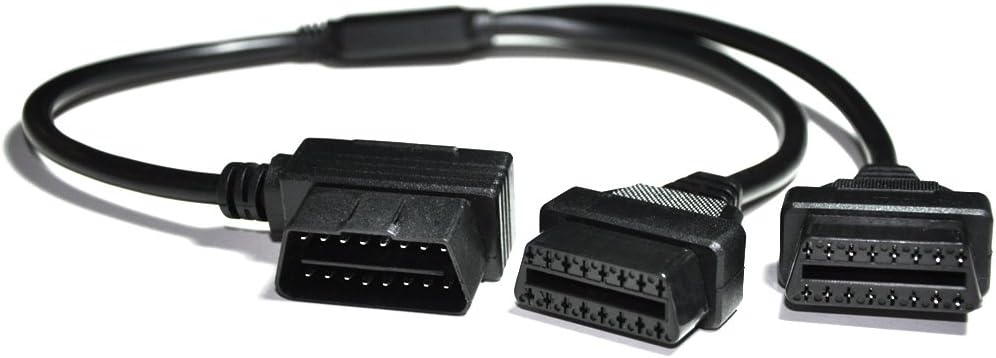
Figure 2: 16 Pin OBD2 Splitter Cable. This image displays the Y-shaped splitter cable with one male and two female OBD2 connectors.
The 16 Pin OBD2 Splitter cable (approximately 12 inches / 30cm in length) allows you to connect the iCar Pro diagnostic tool while keeping the original OBD2 port accessible for other devices or for easier placement of the diagnostic tool.

Figure 3: OBD2 Splitter Cable Pinout Diagram. This image shows the internal wiring connections for each pin on the OBD2 connector, detailing functions like J1850 BUS+, Chassis Ground, Signal Ground, CAN High, CAN Low, and Battery Power.
3. 설정 지침
Follow these steps to set up your Vgate iCar Pro diagnostic tool and connect it to your vehicle and smartphone.

Figure 4: Four Easy Steps for Vgate iCar Pro Setup. This image illustrates the four main steps: downloading an app, connecting the scanner to the OBD2 port, connecting the adapter via Bluetooth, and launching the app.
- Download a Compatible OBD2 App: 검색 and download a compatible OBD2 diagnostic application from your device's app store (e.g., Torque for Android, Car Scanner, OBD Fusion, OBD Jscan, BimmerCode). Note that some apps may require a purchase or subscription.
- Connect the iCar Pro to the Vehicle's OBD2 Port: Locate your vehicle's 16-pin OBD2 diagnostic port, typically found under the dashboard on the driver's side. Firmly plug the Vgate iCar Pro device into this port. If using the splitter, connect the splitter to the OBD2 port first, then plug the iCar Pro into one of the splitter's female ports. Ensure the connection is secure.
- 차량 점화 켜기: Turn your vehicle's ignition to the "ON" position (engine off) or start the engine, as required by your chosen app. The iCar Pro device should power on, indicated by LED lights.
- 블루투스를 통해 연결:
- Android 기기의 경우: Go to your phone's Bluetooth settings, search for available devices, and select "Vgate" or "iCar Pro". Pair the device.
- iOS 기기의 경우: 중요한: Do not attempt to pair the Bluetooth name in your iOS device's system settings. Instead, simply turn on your phone's Bluetooth, then open your chosen OBD2 app. The app will establish the connection directly.
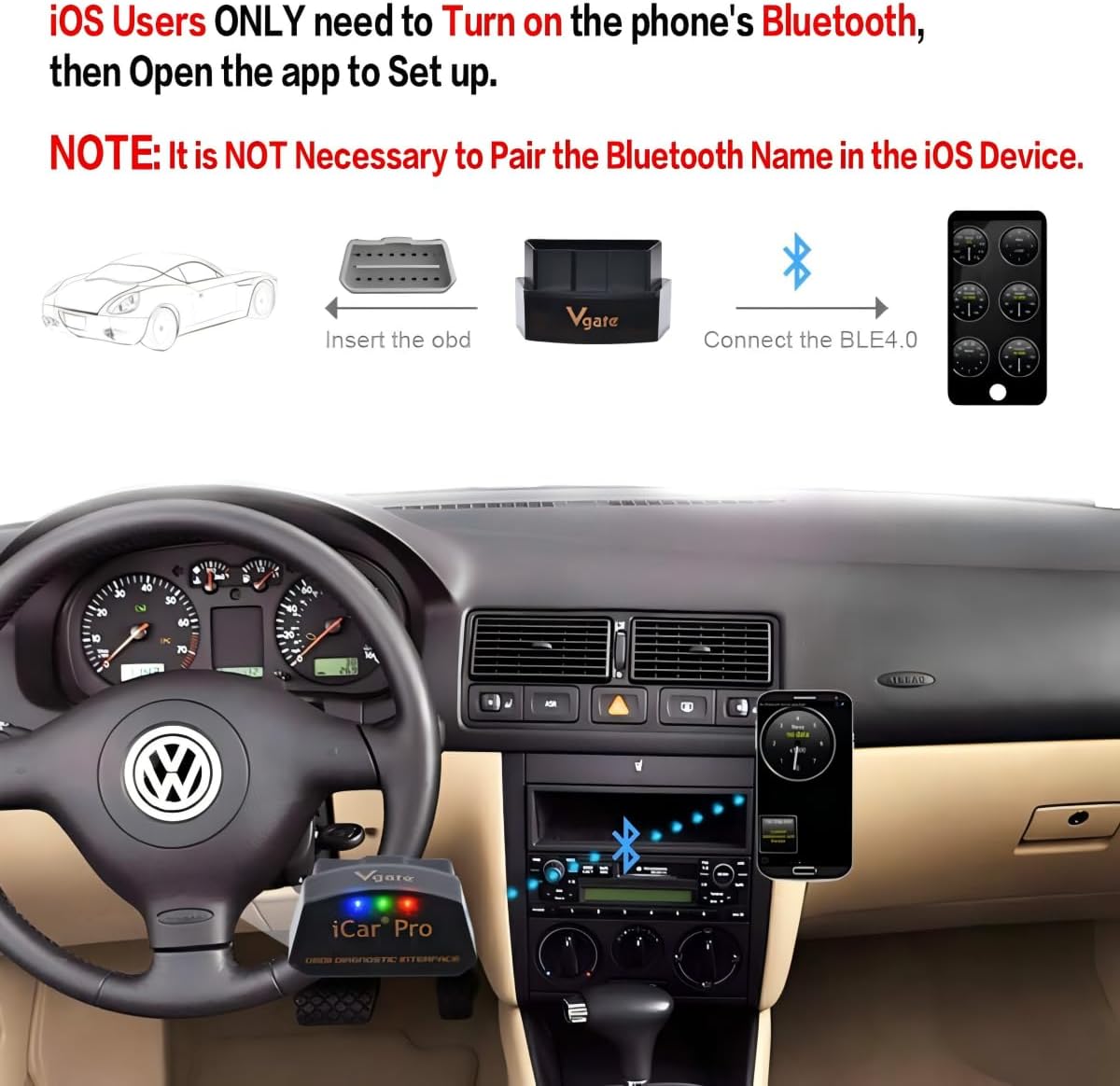
Figure 5: iOS Bluetooth Connection Instructions. This image highlights the specific instruction for iOS users to enable Bluetooth and connect directly through the app, without pairing in system settings.
- Launch the OBD2 App: Open the downloaded OBD2 application on your smartphone. Follow the app's instructions to connect to the Vgate iCar Pro device and begin diagnostics.

Figure 6: Vgate iCar Pro and Splitter Connected in Vehicle. This image shows the iCar Pro diagnostic tool connected to the OBD2 splitter, which is then plugged into the vehicle's OBD2 port, demonstrating a typical installation.
4. 사용 설명서
Once the Vgate iCar Pro is successfully connected to your vehicle and paired with your smartphone via a compatible OBD2 app, you can begin using its diagnostic features.
- 앱 기능: The specific functions available will depend on the OBD2 application you are using. Common features include reading and clearing Diagnostic Trouble Codes (DTCs), viewing live sensor data (e.g., engine RPM, coolant temperature, fuel system status), performing emissions tests, and more. Refer to your chosen app's documentation for detailed usage instructions.
- 자동 절전 모드: The iCar Pro features an auto-sleep mode to conserve your vehicle's battery when not in use. The device will automatically enter a low-power state after a period of inactivity. It will wake up automatically when vehicle activity is detected or when the app attempts to connect.
- 데이터 해석: Understanding the data provided by the OBD2 app often requires some knowledge of vehicle systems. Consult a professional mechanic or reliable automotive resources if you are unsure about specific diagnostic codes or sensor readings.
5. 호환성
5.1 차량 호환성
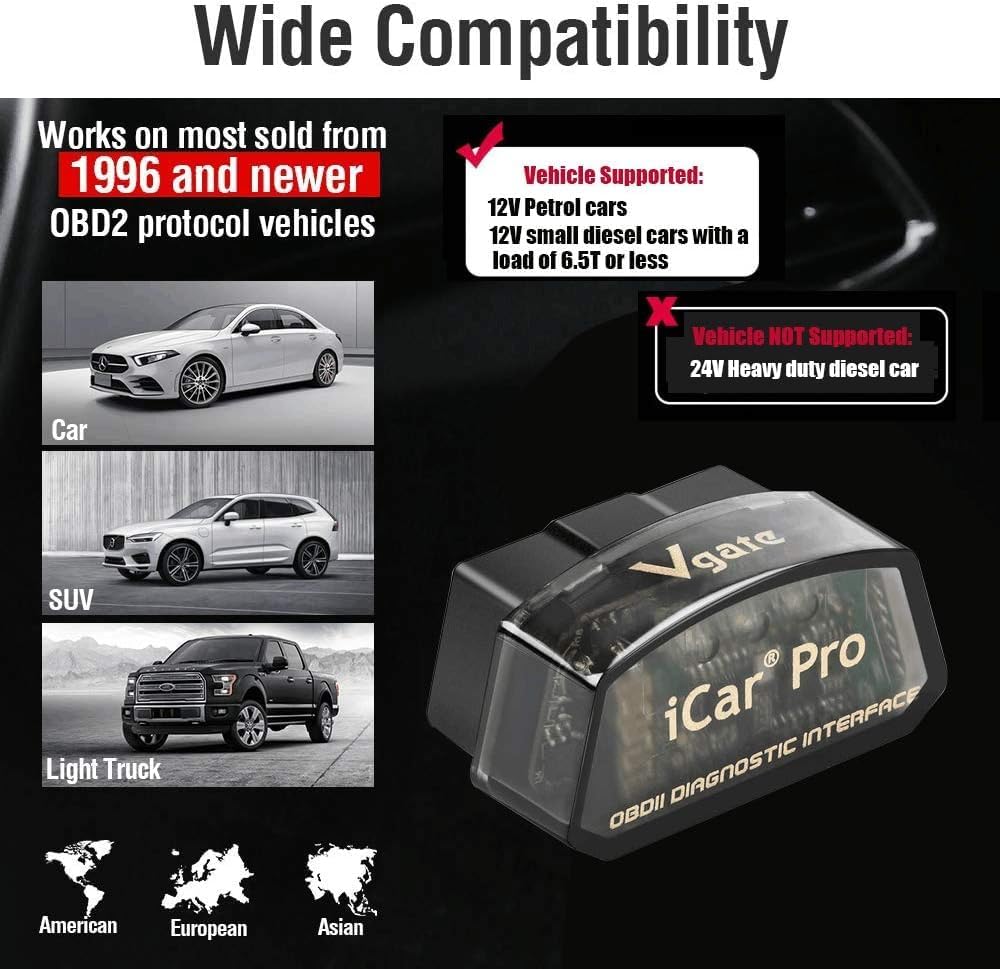
Figure 7: Vgate iCar Pro Vehicle Compatibility. This image illustrates the types of vehicles supported, including 12V petrol cars, 12V small diesel cars (under 6.5T), and explicitly states that 24V heavy-duty diesel cars are NOT supported.
- 12V Petrol Vehicles: Compatible with vehicles made in the U.S. supporting standard OBD2 protocols after 1996.
- 12V Light Diesel Vehicles: Compatible with vehicles having a load of 6.5 tons or less, supporting OBD2 protocols after 1996.
- 중요 참고 사항: The Vgate iCar Pro is 아니다 compatible with 24V power diesel cars or heavy-duty diesel vehicles.
5.2 앱 호환성
The Vgate iCar Pro Bluetooth 4.0 device works with many popular third-party OBD2 applications. Examples에는 다음이 포함됩니다.
- Torque (for Android)
- 자동차 스캐너
- OBD 퓨전
- OBD Jscan
- 비머코드
- 그리고 다른 많은 것들도요.
Please refer to the specific OBD2 app's website or description for detailed compatibility information and any potential fees associated with the app.
6. 유지관리
The Vgate iCar Pro diagnostic tool and OBD2 splitter require minimal maintenance.
- 청소: Wipe the device and cable with a soft, dry cloth. Do not use liquid cleaners or solvents.
- 저장: When not in use, store the device and cable in a cool, dry place, away from direct sunlight and extreme temperatures.
- 손질: Avoid dropping the device or subjecting it to strong impacts. Do not pull on the cables forcefully when disconnecting.
7. 문제 해결
If you encounter issues with your Vgate iCar Pro, consider the following troubleshooting steps:
- 장치 전원이 켜지지 않음:
- Ensure the iCar Pro is firmly seated in the vehicle's OBD2 port.
- 차량의 시동 스위치가 "ON" 위치에 있는지 또는 엔진이 작동 중인지 확인하십시오.
- Check your vehicle's fuse for the OBD2 port (consult your vehicle's manual).
- Bluetooth를 통해 연결할 수 없습니다:
- 안드로이드의 경우: Ensure Bluetooth is enabled on your phone and the iCar Pro is paired in your phone's Bluetooth settings. Try unpairing and re-pairing.
- iOS의 경우: Ensure Bluetooth is enabled on your phone. Remember, do NOT pair in iOS settings; the connection is established directly through the OBD2 app. Close and reopen the app.
- Ensure no other devices are actively connected to the iCar Pro.
- Restart your phone and the vehicle's ignition.
- App Not Reading Data:
- Confirm that the iCar Pro is powered on and successfully connected via Bluetooth to your phone.
- Verify your vehicle's compatibility (12V petrol/light diesel, post-1996 OBD2 compliant).
- Ensure the OBD2 app is correctly configured to use the Vgate iCar Pro as its adapter.
- 앱 관련 문제를 배제하기 위해 호환되는 다른 OBD2 앱을 사용해 보세요.
- 간헐적인 연결:
- Check for loose connections at the OBD2 port or splitter.
- Ensure there are no significant obstructions between the iCar Pro and your smartphone.
- Avoid placing your phone directly on top of the iCar Pro device, which might interfere with Bluetooth signals.
- 펌웨어 업데이트 : If issues persist, a firmware update for the iCar Pro might be available. Please contact the Vgatemall support team for assistance with firmware updates.
8. 사양
| 상표 | Vgate |
| 모델 | iCar Pro Bluetooth 4.0 |
| 연결성 | 블루투스 저에너지(BLE 4.0) |
| 인터페이스 | 16-pin OBD2 standard |
| 전원 | Vehicle OBD2 Port (12V) |
| 운영 체제(앱) | Android, iOS (via compatible apps) |
| OBD2 Splitter Cable Length | 약 12cm(30인치) |
| ASIN | B09MHY5P1R |
| 첫 번째 이용 가능 날짜 | 6년 2017월 XNUMX일 |
9. 보증 및 지원
For product support, technical assistance, or inquiries regarding firmware updates, please contact the Vgatemall support team. Refer to your purchase documentation or the Vgate official web특정 보증 세부 정보는 사이트에서 확인할 수 있습니다.
연락처 정보: Please refer to the contact details provided with your product packaging or on the official Vgate web대지.