
1. 서론
Thank you for choosing the TRONIC 61-Key Mechanical Gaming Keyboard. This manual provides essential information for setting up, operating, maintaining, and troubleshooting your new keyboard. Please read this manual thoroughly before use to ensure optimal performance and longevity of your device.
2. 제품 오버view
The TRONIC 61-Key Mechanical Gaming Keyboard is a compact, wired keyboard designed for gaming and typing efficiency. It features professional mechanical keys, vibrant RGB backlighting, and full anti-ghosting capabilities. Its ergonomic design ensures comfort during extended use, and the durable ABS construction provides resistance against accidental drops and splashes.
오버헤드 view of the TRONIC 61-Key Mechanical Gaming Keyboard, showcasing its compact layout and vibrant RGB backlighting across all keys.
주요 특징:
- 61키 컴팩트 레이아웃: Provides more desk space for mouse movement and other peripherals.
- 기계식 키: Professional mechanical switches for responsive and tactile feedback.
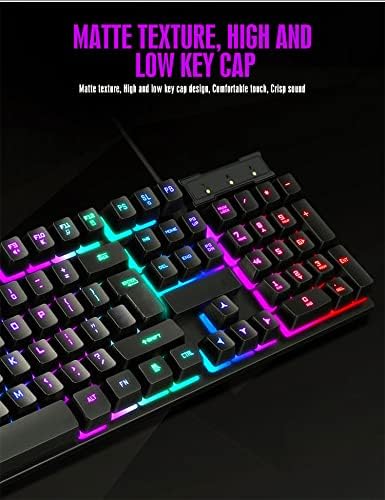
- RGB 백라이트: Customizable rainbow backlighting with various effects and colors (red, green, yellow, blue, purple, cyan, pink).
- 완벽한 고스팅 방지: Allows multiple key presses to be registered simultaneously without conflict, crucial for gaming.
- 내구성 있는 구조: Made from high-resistance ABS thermoplastic material, designed to withstand daily use and minor liquid splashes.
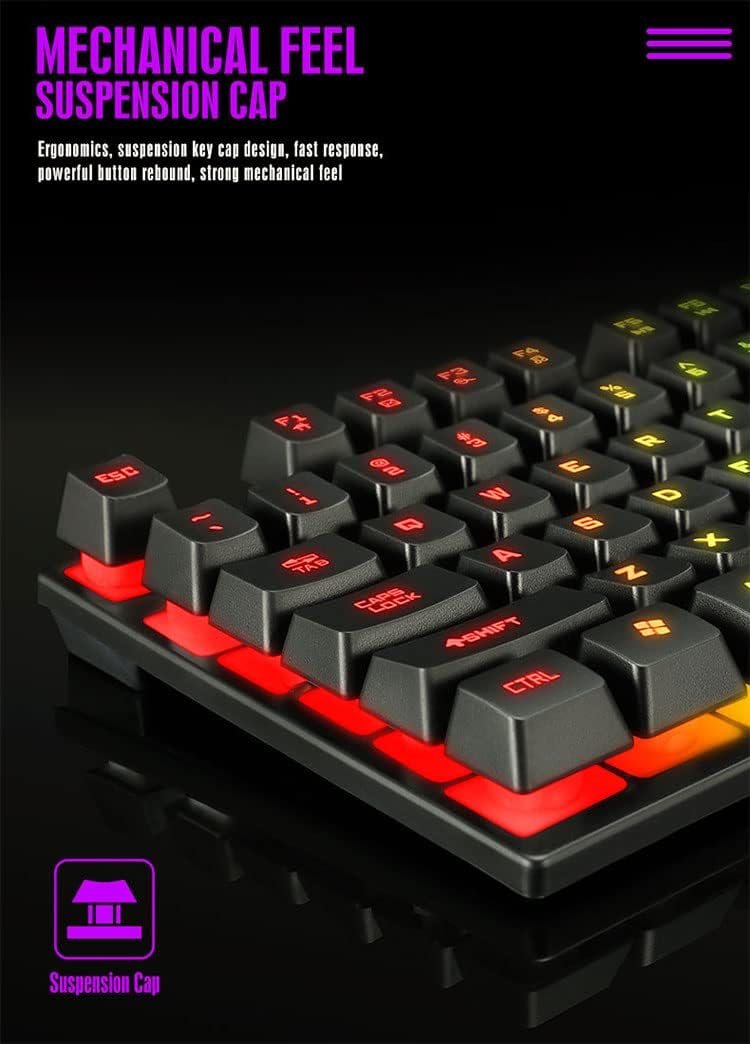
- Laser-Engraved Keycaps: Characters are clear and luminous, ensuring visibility in dark environments.
- 인체공학적 디자인: Engineered for comfort during long typing and gaming sessions.

자세한 view of the keyboard's suspension keycap design, highlighting the mechanical feel and ergonomic profile for comfortable typing and gaming.
3. 설정
Setting up your TRONIC Mechanical Gaming Keyboard is a straightforward process.
키보드 연결:
- 포장에서 키보드와 USB 케이블을 꺼내세요.
- USB 케이블을 키보드의 USB 포트에 연결하세요.
- Plug the other end of the USB cable into an available USB port on your computer or laptop.
- The keyboard is plug-and-play; your operating system (Windows or Linux) should automatically detect and install the necessary drivers.
The TRONIC keyboard connected to a device via its integrated USB cable, ready for use.
호환성:
The keyboard is compatible with Windows and Linux operating systems. 메모: This keyboard is not compatible with PS4 or XBOX gaming consoles.
4. 사용 설명서
Basic Keyboard Use:
Once connected, the keyboard functions as a standard QWERTY layout keyboard. The 61-key compact design includes all essential keys for typing and gaming. The UK layout ensures familiarity for users accustomed to this standard.
백라이트 제어:
The keyboard features dynamic RGB backlighting. You can control the lighting effects and turn them on or off using a dedicated button on the keyboard. This button typically cycles through various rainbow lighting modes, including a cyclical breathing effect, and allows you to disable the lighting when not needed.

This image illustrates the location of the dedicated button for controlling the keyboard's RGB backlighting, allowing users to easily switch the lighting effects on or off.
Anti-Ghosting Function:
The full anti-ghosting feature ensures that every key press is registered accurately, even when multiple keys are pressed simultaneously. This is particularly beneficial in fast-paced gaming scenarios where complex key combinations are common.
5. 유지관리
Proper maintenance will help extend the life and performance of your TRONIC keyboard.
청소:
- 청소하기 전에 키보드를 컴퓨터에서 분리하세요.
- 부드럽고 마른 천으로 키캡과 키보드 표면을 닦아주세요.
- 완고한 먼지의 경우 약간 damp 순한 세척액을 묻힌 천을 사용하여 키보드에 액체가 들어가지 않도록 닦아주세요.
- Compressed air can be used to remove dust and debris from between the keys.
내구성:
The keyboard's ABS construction provides a degree of resistance to minor impacts and liquid splashes. However, it is not fully waterproof. Avoid submerging the keyboard in liquid or exposing it to excessive moisture.
6. 문제 해결
If you encounter issues with your TRONIC keyboard, refer to the following common solutions:
- 키보드가 응답하지 않음:
- USB 케이블이 키보드와 컴퓨터에 모두 단단히 꽂혀 있는지 확인하세요.
- 키보드를 컴퓨터의 다른 USB 포트에 연결해 보세요.
- 컴퓨터를 다시 시작하세요.
- 백라이트가 작동하지 않음:
- Press the dedicated backlight control button to cycle through lighting modes or turn the backlight on.
- 키보드가 제대로 연결되고 전원이 공급되는지 확인하세요.
- 키가 등록되지 않음:
- 키캡 아래에 물리적인 장애물이 있는지 확인하세요.
- Ensure the keyboard drivers are correctly installed (usually automatic).
- 호환성 문제:
- Remember, the keyboard is compatible with Windows and Linux. It is ~ 아니다 compatible with PS4 or XBOX consoles.
If these steps do not resolve your issue, please contact TRONIC customer support for further assistance.
7. 사양
| 특징 | 사양 |
|---|---|
| 상표 | 트로닉 |
| 모델 번호 | B09MH9ZC6M |
| 연결 기술 | 유선 USB |
| 키보드 설명 | 기계적 |
| 키보드 레이아웃 | QWERTY (UK Layout) |
| 키의 개수 | 61 |
| 백라이트 지원 | RGB (Rainbow) |
| 호환되는 운영 체제 | 윈도우, 리눅스 |
| 전원 | Cable Powered |
| 특별 기능 | Backlit, Anti-Ghosting |
| 재료 | ABS 열가소성 |
| 키 입력 수명 | 10,000,000번의 키 입력 |
| 응답 시간 | 2밀리초 |
| UPC/GTIN | 793072706689 |
8. 보증 및 지원
For warranty information and customer support, please refer to the documentation included with your purchase or visit the official TRONIC web사이트. 보증 청구를 위해 구매 증빙 자료를 보관하세요.