
1. 서론
Thank you for choosing the WiZ Connected 40W B12 Smart Candle-Shape LED Bulb. This smart light bulb is designed to enhance your living space with customizable lighting, offering 16 million colors and tunable warm to cool white light. It connects directly to your existing Wi-Fi network, allowing control via smartphone app, voice commands, and integration with smart home ecosystems. This manual will guide you through the installation, setup, and operation of your new smart bulb.
Video: Explore the World of WiZ - 이 영상은 개요를 제공합니다view of the WiZ smart lighting ecosystem and its capabilities.
2. 안전 정보
Please read and understand all safety instructions before installing or using your WiZ Smart LED Bulb. Failure to follow these instructions may result in electric shock, fire, or other hazards.
- 실내에서만 사용 가능: 이 전구는 건조한 실내 환경에서 사용하도록 설계되었습니다. 물이나 습기에 노출시키지 마십시오.
- 적절한 설치: Ensure the power is turned off at the switch before installing or removing the bulb. Screw the bulb firmly into an E12 medium base fixture.
- 권tage 호환성: Use only with 100-120V, 60Hz electrical systems.
- 디머 호환성: This bulb is dimmable via the WiZ app or compatible smart controls, not with standard incandescent dimmers. Using it with incompatible dimmers may cause damage or malfunction.
- 통풍: Ensure adequate ventilation around the bulb. Do not install in fully enclosed fixtures that restrict airflow.
- 청소: Clean only with a soft, dry cloth. Do not use liquid or abrasive cleaners.
- 처분: 전자 폐기물에 대한 지역 규정에 따라 전구를 폐기하십시오.
3. 제품 특징
The WiZ Connected Smart LED Bulb offers a range of advanced features for a personalized lighting experience:
- SpaceSense Motion Activation: Activate lights with motion detection using a minimum of two WiZ smart light bulbs in the same room, at least 2m/6.56ft apart.
- 16만 색상: 다양한 색상 중에서 원하는 분위기를 연출할 수 있습니다.
- Human-Centric Lighting: Adjust between different shades of warm to cool white light to suit your activities and time of day.
- 간편한 설정: Simple installation by screwing in the bulb, downloading the WiZ Connected app, and connecting to 2.4GHz Wi-Fi.
- 다중 제어 옵션: Control lights with your smartphone, voice commands (Alexa, Google Assistant, Siri, SmartThings), the WiZ remote control, or existing wall switches (WiZclick feature).
- 자동화 및 일정 관리: Schedule lights to automatically turn on/off, dim, or change color based on your daily or weekly routines.
- 에너지 모니터링: WiZ Connected 앱은 다음과 같은 기능을 제공합니다.view of your lights' energy consumption.
- 재질 호환성: Ensures seamless integration and improved compatibility, reliability, and security within your smart home.
4. 설정 가이드
Follow these steps to set up your WiZ Smart LED Bulb:
4.1 초기 설치
- 전원 끄기 : Ensure the power to the light fixture is turned off at the wall switch before installation.
- 전구에 나사로 고정: Carefully screw the WiZ Smart LED Bulb into a standard E12 medium base light fixture.
- 전원 켜기: Turn the power back on at the wall switch. The bulb should light up.

Image: Easy Plug & Play Setup - A visual guide showing the physical installation of the bulb and the initial app interface.
4.2 WiZ 앱 설정
The WiZ Connected app is essential for controlling your smart bulb.
- 앱 다운로드: Download the "WiZ Connected" app from the Apple App Store or Google Play Store.
- 계정 생성: 앱을 열고 화면의 지시에 따라 새 계정을 만들거나 로그인하세요.
- Wi-Fi에 연결: 스마트폰이 다음에 연결되어 있는지 확인하세요. 2.4GHz Wi-Fi 네트워크. WiZ bulbs require a 2.4GHz connection for initial setup and operation.
- 장치 추가: In the app, tap the '+' icon to add a new device. The app will guide you through the pairing process, often using Bluetooth for initial detection.
- 당신의 빛에 이름을 붙이세요: Assign a descriptive name to your bulb (e.g., "Living Room Lamp") for easy identification and voice control.
- Configure Power Switch (WiZclick): The app allows you to configure what happens when you toggle your physical wall switch. For example, switch ON once for light mode 1 (e.g., Warm White) and switch ON twice in a row for light mode 2 (e.g., Daylight).
Video: WiZ Setup Guide - A step-by-step video demonstrating how to set up your WiZ smart bulb using the app.
5. 사용 설명서
Once set up, you can control your WiZ Smart LED Bulb in various ways:
5.1 앱 제어
- 켜짐/꺼짐 및 밝기 조절: Use the main toggle and slider in the app to turn the bulb on/off and adjust brightness.
- 색상 선택: Access the color palette to choose from 16 million colors or select different shades of warm to cool white light.
- 동적 모드: Explore pre-set dynamic light modes for various moods and occasions (e.g., Fireplace, Ocean, Party).
- 일정: Set up daily or weekly schedules for your lights to automate their behavior.
- 생체 리듬: Enable Circadian Rhythm to automatically adjust light color and brightness throughout the day to mimic natural light patterns.
- 사용자 정의 장면: Create and save your own custom light scenes for quick access.

Image: Preset Dynamic Modes - 전amples of various dynamic lighting modes available through the WiZ app.
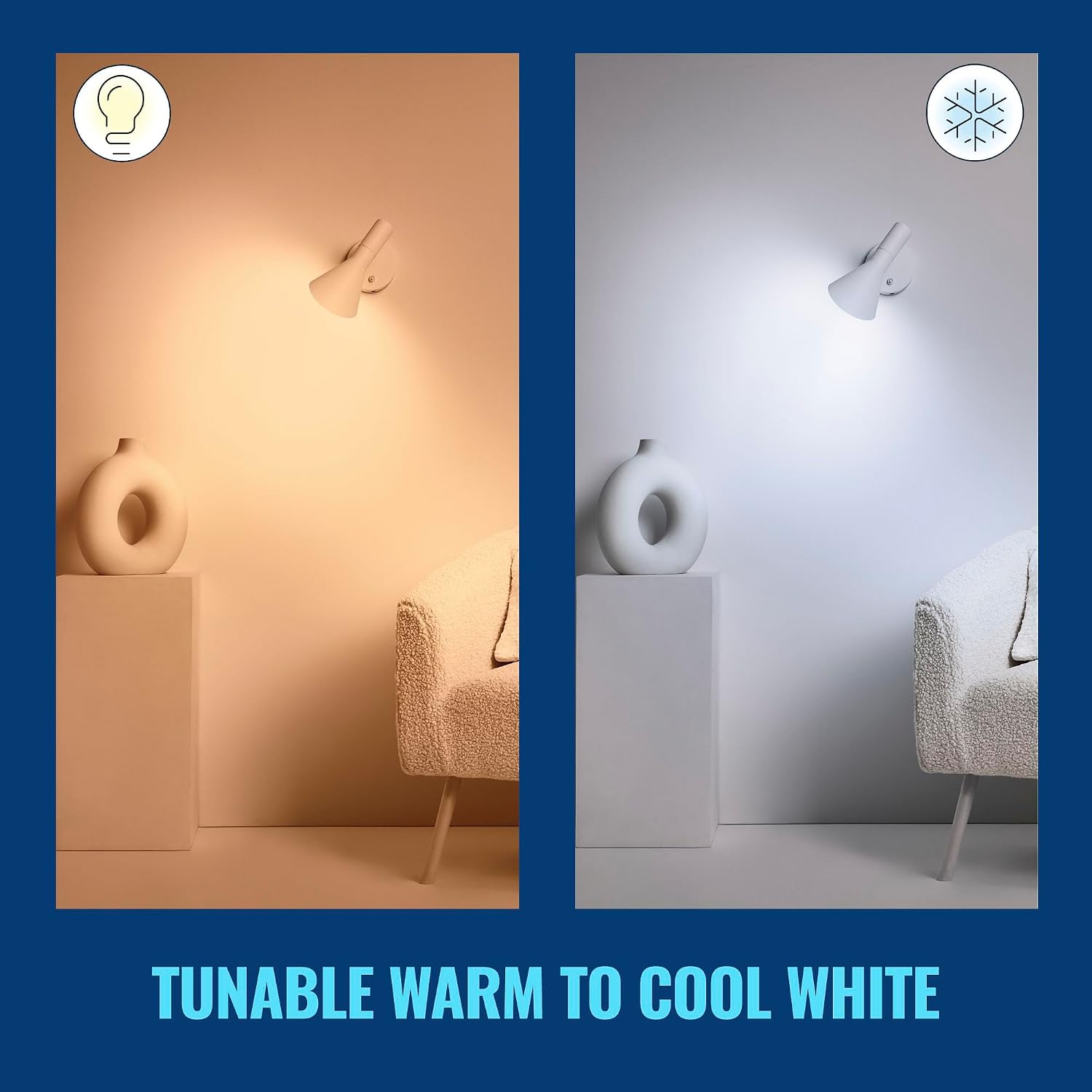
Image: Tunable Warm to Cool White - Demonstrates the ability to adjust the white light temperature from warm to cool.
5.2 음성 제어
Integrate your WiZ bulb with popular voice assistants:
- 아마존 알렉사: Link your WiZ account in the Alexa app to control lights with commands like "Alexa, turn on Living Room Lamp."
- 구글 어시스턴트: Connect WiZ to Google Home for commands such as "Hey Google, set bedroom light to blue."
- 시리 단축키: Create custom Siri Shortcuts for quick voice commands.
- 스마트싱스: Integrate with SmartThings for broader smart home control.

Image: Control as You Like - 위에view of different control options and smart home integrations.
5.3 SpaceSense Motion Detection
SpaceSense uses Wi-Fi signals to detect movement in a room without additional sensors.
- 활성화: Requires at least two WiZ bulbs in the same room, positioned at least 2 meters (6.56 feet) apart.
- 구성: Enable and configure SpaceSense within the WiZ app to define sensitivity levels and actions upon motion detection (e.g., turn on, change brightness).
- 이익: Provides automatic lighting when entering a room and turns off when no movement is detected, enhancing convenience and energy efficiency.

Image: SpaceSense™ Motion Activation - Illustrates how lights automatically turn on when motion is detected.
Video: WiZ SpaceSense Explained - This video details the SpaceSense feature, showing how smart lighting responds to movement.
6. 유지관리
The WiZ Smart LED Bulb requires minimal maintenance.
- 청소: Ensure the bulb is cool and the power is off before cleaning. Wipe the bulb with a soft, dry cloth. Do not use liquid or abrasive cleaners, as they may damage the bulb's surface or internal components.
- 펌웨어 업데이트: Keep your WiZ app and bulb firmware updated to ensure optimal performance and access to new features. The app will notify you of available updates.
7. 문제 해결
If you encounter issues with your WiZ Smart LED Bulb, try the following solutions:
| 문제 | 가능한 해결책 |
|---|---|
| 전구가 켜지지 않음 | Check if the light fixture has power. Ensure the bulb is screwed in correctly. Test the bulb in another working fixture. |
| 전구가 Wi-Fi에 연결되지 않음 | Ensure your Wi-Fi router is broadcasting a 2.4GHz network. Move the bulb closer to the router. Restart your router and the bulb (turn off/on at the switch). Check Wi-Fi password. |
| App not detecting bulb | Ensure Bluetooth is enabled on your smartphone. Make sure the bulb is powered on and within range. Try restarting the app. |
| 음성 제어가 작동하지 않음 | Verify that your WiZ account is correctly linked to your voice assistant (Alexa, Google Home). Check your internet connection. Ensure the bulb is online in the WiZ app. |
| SpaceSense not detecting motion | Ensure at least two WiZ bulbs are installed in the room, at least 2m/6.56ft apart. Check SpaceSense settings in the WiZ app for proper configuration and sensitivity. Ensure no large objects are blocking Wi-Fi signals between bulbs. |
For further assistance, please refer to the WiZ Connected support web사이트를 방문하거나 고객 서비스에 문의하세요.
8. 사양
Detailed technical specifications for your WiZ Connected 40W B12 Smart LED Bulb:
| 기인하다 | 세부 사항 |
|---|---|
| 상표 | 위즈 커넥티드 |
| 모델명 | PLC 3.9W (40W)B12 WIFI COLOR 1PK |
| 모델 번호 | 603522 |
| 라이트 타입 | 주도의 |
| 왓tage | 3.9와트(40W 백열전구와 동일) |
| 전구 모양 크기 | B12 |
| 전구베이스 | E12 |
| 명도 | 355루멘 |
| 밝은 색상 | 다채로운 색상(16만 색상) 및 흰색 조절 가능 |
| 권tage | 100-120 볼트 |
| 빈도 | 60 헤르츠 |
| 연결 기술 | Wi-Fi(2.4GHz), 블루투스 |
| 연결 프로토콜 | 와이파이 |
| 컨트롤러 유형 | Amazon Alexa, Google Assistant, IFTTT, Siri, SmartThings |
| 실내 실외 사용 | 실내 |
| 연색지수(CRI) | 90.0 |
| 재료 유형 | 합성 폴리머(PMMA) |
| 품목 무게 | 2.08 온스 |
| 품목 치수(폭 x 높이) | 폭 1.54인치 x 높이 4.49인치 |
| 한국어: | 046677603526 |

Image: Product Dimensions and Features Overview - Visual representation of the bulb's size and key functionalities.
9. 보증 및 지원
Your WiZ Connected 40W B12 Smart Candle-Shape LED Bulb comes with a manufacturer's warranty and dedicated support.
9.1 제조업체 보증
이 제품은 2년 제조사 보증. 본 보증은 정상적인 사용 환경에서 발생하는 재료 및 제조상의 결함에 적용됩니다. 보증 청구를 위해 구매 증빙 서류를 보관해 주십시오.
9.2 고객 지원
For technical support, troubleshooting assistance, or warranty inquiries, please visit the official WiZ Connected website or contact their customer service department. Contact information can typically be found on the product packaging or the WiZ Connected web대지.