
ASUS GS-AX3000
ASUS ROG Strix GS-AX3000 WiFi 6 게이밍 라우터 사용 설명서
Model: GS-AX3000 | Brand: ASUS
제품 끝view
The ASUS ROG Strix GS-AX3000 is a high-performance WiFi 6 gaming router designed to provide fast and stable network connections for gaming and general use. It features advanced technologies to optimize network performance and enhance security.

Figure 1: ASUS ROG Strix GS-AX3000 WiFi 6 Gaming Router
주요 특징:
- New-generation WiFi 6: Ultrafast speeds up to 3000 Mbps with 160 MHz WiFi 6 channels.
- Fully optimized gaming: Mobile Game Mode, dedicated Gaming Port, and Gear Accelerator for optimized gaming on mobile, console or PC.
- VPN Fusion: Run a VPN and an ordinary internet connection simultaneously for maximum speed.
- 즉시 보호: Secure public WiFi connections globally with a single click.
- Commercial-grade Security: AiProtection Pro, powered by Trend Micro, protects your home network.
- Easy Extendable Network: Seamless roaming with any AiMesh-compatible router.
패키지 내용
설치를 진행하기 전에 아래 나열된 모든 구성품이 패키지에 포함되어 있는지 확인하십시오.
- GS-AX3000 Router
- RJ-45 케이블
- 전원 어댑터
- 보증서
- 빠른 시작 가이드
설치 가이드
1. 하드웨어 연결
라우터를 연결하려면 다음 단계를 따르세요.
- 라우터에 전원 어댑터를 연결하세요 전원(DC-IN) 포트 그리고 전원 콘센트에 꽂습니다.
- Connect one end of the RJ-45 cable to your modem's Ethernet port and the other end to the router's WAN 포트.
- For wired devices, connect an Ethernet cable from your computer or gaming console to any of the router's LAN Ports (LAN 1-3). 그 Gaming Port (LAN 1) is recommended for primary gaming devices.
- 를 누르세요 전원 스위치 라우터를 켜려면.

그림 2: 후면 view of the GS-AX3000 router showing all ports and buttons.
2. 초기 구성
Once the hardware is connected, configure your router using the ASUSWRT web 인터페이스:
- 열기 web browser on a computer connected to the router (either wired or wirelessly using the default Wi-Fi name and password found on the router's label).
- 유형 http://router.asus.com or http://192.168.50.1 주소 표시 줄에 입력하고 Enter를 누르십시오.
- Follow the on-screen instructions of the Quick Internet Setup (QIS) wizard to set up your internet connection, Wi-Fi network name (SSID), and password.
- It is highly recommended to change the default login username and password for the router's administration page for security purposes.
작동 지침
게임 기능
The ROG Strix GS-AX3000 is optimized for gaming performance:
- Gaming Port (LAN 1): Connect your primary gaming device (PC, console) to this port for prioritized network traffic.
- 모바일 게임 모드: Activate this feature via the ASUS Router app to prioritize mobile gaming traffic.
- Gear Accelerator: 사용하세요 web interface to prioritize specific devices for gaming.

Figure 3: Accelerate Your Gaming Device with the GS-AX3000.
Network Security and Privacy
Enhance your network security and privacy with these built-in features:
- AiProtection Pro: Provides commercial-grade network security, including intrusion prevention, malicious site blocking, and infected device detection. Access and configure this feature through the ASUSWRT interface.
- VPN Fusion: Allows you to run a VPN connection alongside a regular internet connection. This is useful for specific applications that require VPN while others use direct internet access.
- 즉시 보호: Create a secure VPN connection to your home network when you are away, protecting your data on public Wi-Fi. This feature is accessible via the ASUS Router mobile app.

그림 4: 이상view of security and privacy features.
AiMesh System
The GS-AX3000 is AiMesh compatible, allowing you to create a whole-home mesh Wi-Fi system by adding other AiMesh-compatible ASUS routers. This extends Wi-Fi coverage and eliminates dead zones.
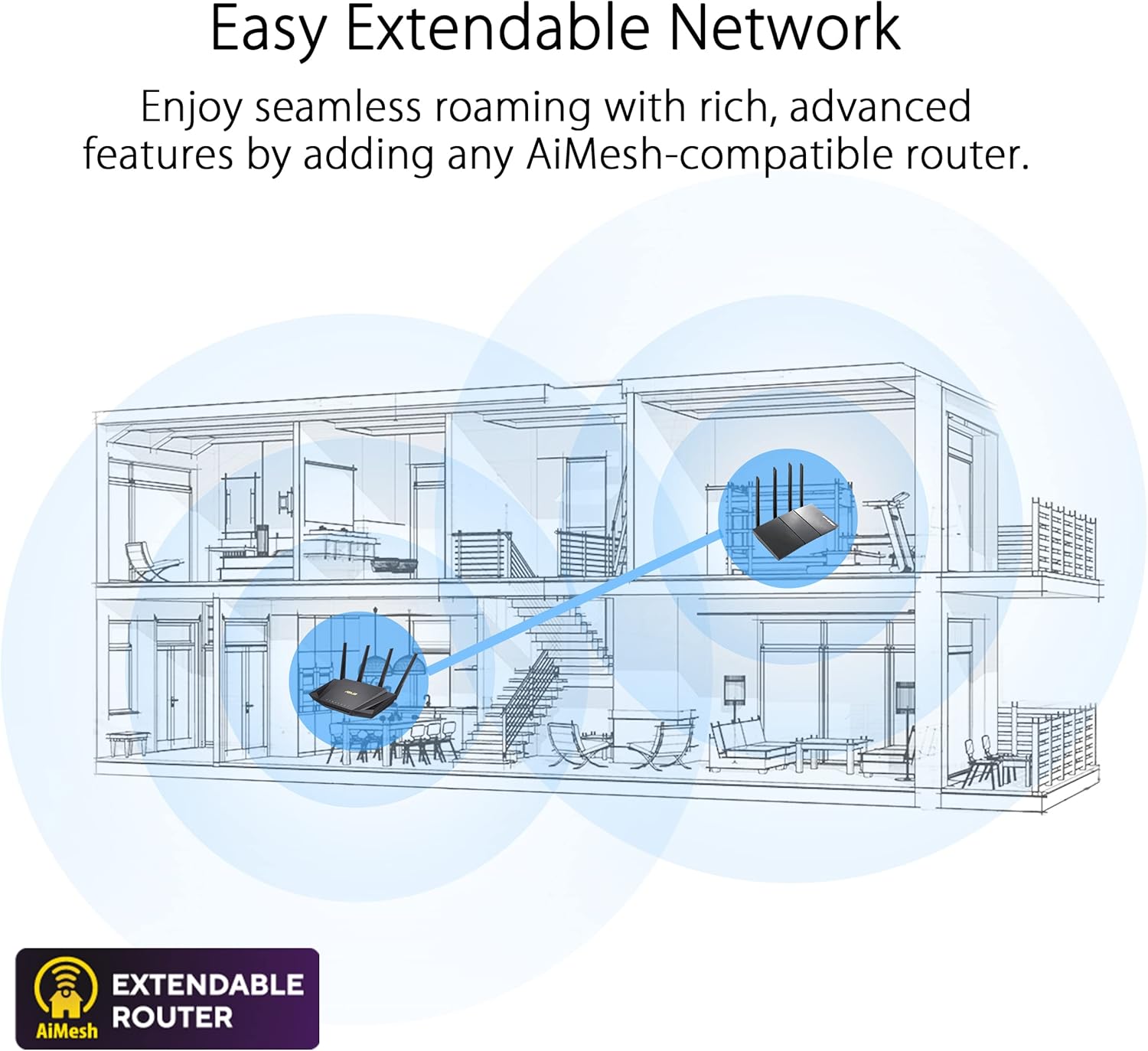
Figure 5: AiMesh system extending network coverage.
유지
Regular maintenance ensures optimal performance and security for your router:
- 펌웨어 업데이트: Periodically check for and install the latest firmware updates via the ASUSWRT interface. Firmware updates often include performance improvements, bug fixes, and security enhancements.
- 정기 재부팅: Rebooting the router every few days or once a week can help clear its memory and resolve minor performance issues.
- 물리적 청소: Keep the router free from dust. Use a soft, dry cloth to clean the exterior. Ensure ventilation holes are not obstructed to prevent overheating.
- 비밀번호 관리: 와이파이 및 공유기 관리자 비밀번호는 정기적으로 강력하고 고유한 조합으로 변경하세요.
문제 해결
이 섹션에서는 다음과 같은 일반적인 문제에 대해 설명합니다.
| 문제 | 가능한 원인 | 해결책 |
|---|---|---|
| 인터넷 연결 없음 | Incorrect cable connections, modem issue, ISP outage. |
|
| 느린 Wi-Fi 속도 | Interference, too many devices, outdated firmware, router placement. |
|
| 라우터 설정 페이지에 액세스할 수 없습니다 | 잘못된 IP 주소, 네트워크 문제, 브라우저 캐시 문제일 수 있습니다. |
|
| Wi-Fi 연결 끊김 | Channel interference, signal strength, device compatibility. |
|
For more detailed troubleshooting, refer to the online support resources or contact ASUS customer support.
명세서
| 특징 | 세부 사항 |
|---|---|
| 상표 | 아수스 |
| 시리즈 | 로그 스트릭스 |
| 모델 번호 | GS-AX3000 |
| 무선형 | 802.11ax(와이파이 6) |
| 주파수 대역 클래스 | 듀얼 밴드 |
| 빈도 | 160MHz |
| 운영 체제 | ASUSWRT |
| 품목 무게 | 1.55파운드 |
| 제품 크기(LxWxH) | 10.56 x 7.08 x 6.53 인치 |
| 색상 | 검은색 |
| 권tage | 240볼트(AC) |
| 특별 기능 | AiMesh, QoS, WPS |
| 연결 기술 | 블루투스, 와이파이, 이더넷 |
보증 및 지원
보증 정보
This product comes with a warranty. Please refer to the included 보증서 자세한 약관, 보증 기간 및 보증 범위는 제품 패키지에 포함되어 있습니다.
법적 고지사항
실제 데이터 처리량 및 Wi-Fi 커버리지는 네트워크 트래픽 양, 건물 자재 및 구조, 네트워크 오버헤드 등 네트워크 환경 및 요인에 따라 달라질 수 있으며, 이로 인해 실제 데이터 처리량 및 무선 커버리지가 낮아질 수 있습니다.
고객 지원
For technical assistance, product inquiries, or warranty claims, please contact ASUS customer support. You can find contact information on the ASUS official web웹사이트 또는 제품에 포함된 빠른 시작 가이드를 참조하십시오.
ASUS 지원 페이지에서는 온라인 자료와 FAQ도 확인할 수 있습니다. website to help you with common issues and advanced configurations.
Ask a question about this manual
Ask about setup, troubleshooting, compatibility, parts, safety, or missing instructions. Manuals+ will review the question and use this page’s manual context to help answer it.