
1. 서론
This manual provides detailed instructions for the Waveshare 2.13inch Touch E-Paper E-Ink Display HAT, designed for compatibility with Raspberry Pi Zero and Zero W. This display features a 250x122 pixel resolution, capacitive touch with 5-point support, and partial refresh capabilities. Its low power consumption and paper-like effect make it suitable for various applications where persistent display and energy efficiency are crucial.

Figure 1: Waveshare 2.13inch Touch E-Paper HAT with ABS case.
2. 패키지 내용
아래 나열된 모든 품목이 패키지에 포함되어 있는지 확인하세요.
- 2.13inch Touch e-Paper HAT x1
- ABS case x1
- 드라이버 x1
- Thermal tape x1
- Rubber feet (4PCS) x1
- 나사 x2
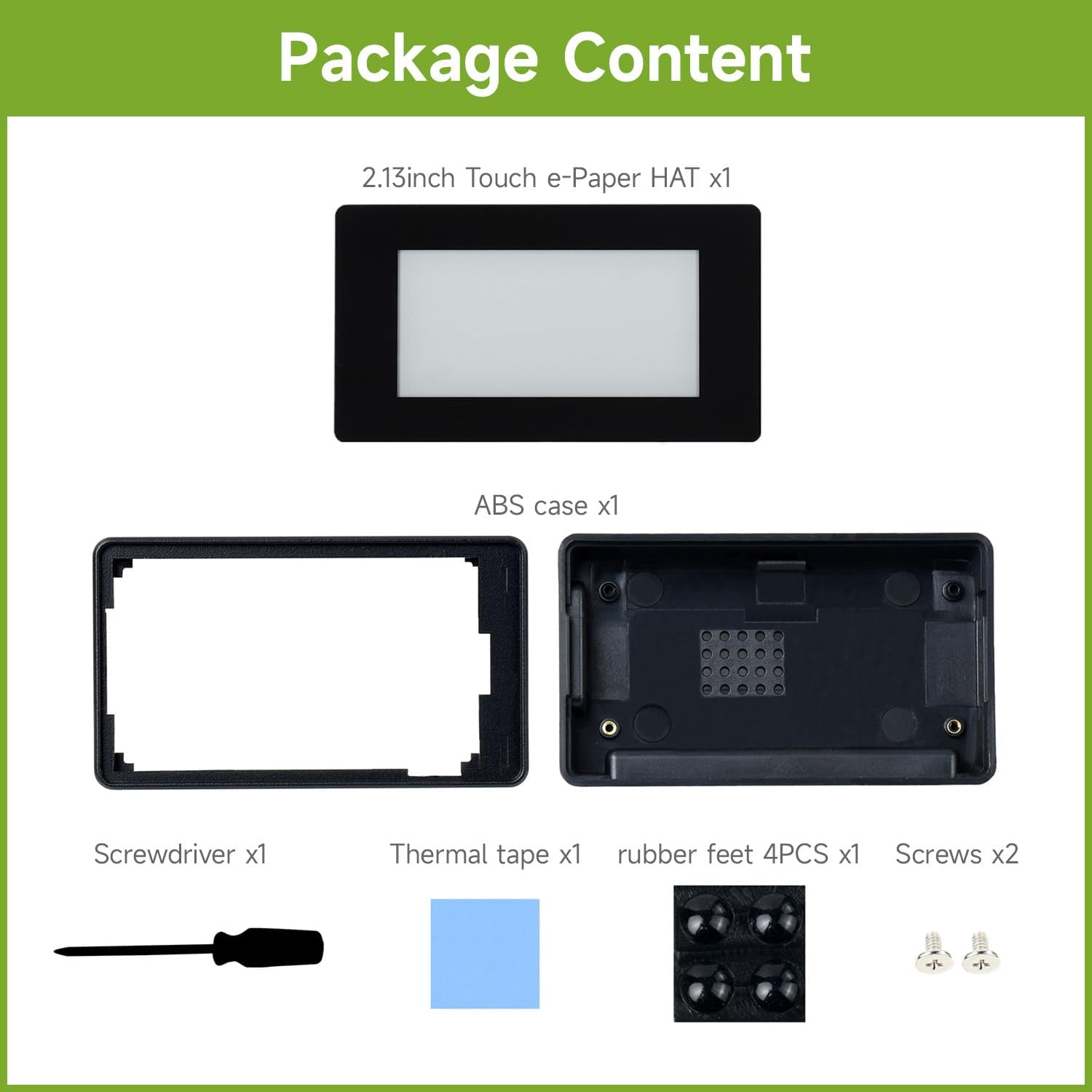
그림 2: 제품 패키지에 포함된 구성 요소.
3. 한눈에 보는 기능
The Waveshare 2.13inch Touch E-Paper HAT offers the following key features:
- 2.13" capacitive touch e-Paper display with 5-point touch support.
- Resolution of 250x122 pixels.
- Supports wake-up by user-defined gesture.
- No backlight required; retains content indefinitely even when powered down.
- Ultra-low power consumption, with power primarily needed for refreshing.
- Standard Raspberry Pi 40PIN GPIO extension header, compatible with Raspberry Pi Zero / Zero W.
- Partial Refresh Support for faster updates.
- 넓은 viewing angle and paper-like display effect.
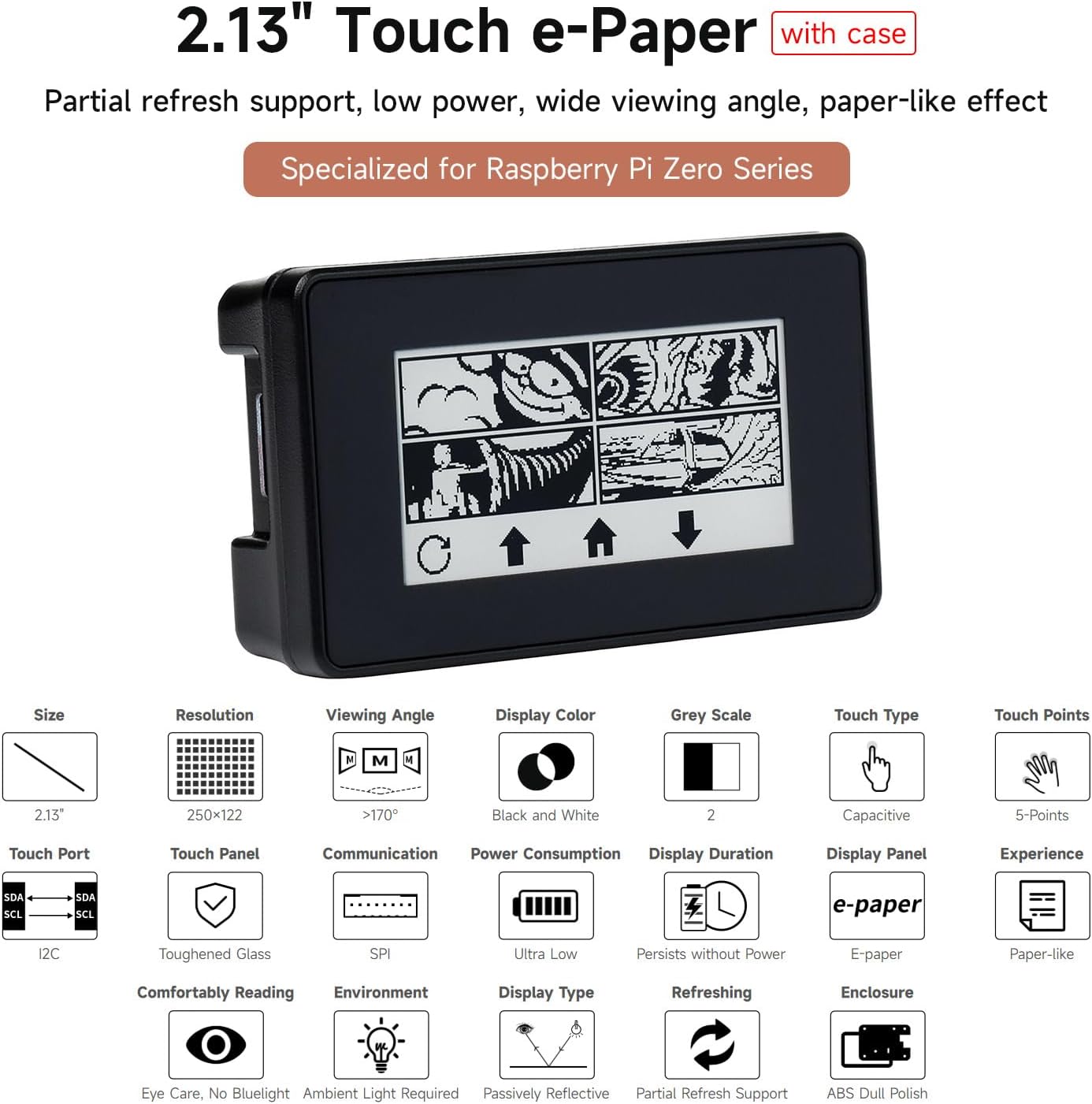
그림 3: 이상view of the display's key features.
4. 어드밴tages of E-Ink Technology
E-paper displays utilize microcapsule electrophoretic technology. This principle involves charged particles suspended in a clear fluid that move to the sides of a microcapsule when an electric field is applied, making the microcapsule visible by reflecting ambient light, similar to traditional printed paper. E-paper displays clearly show images and text under lamplight or natural light, require no backlight, and offer nearly 180° viewing angle. This technology is commonly used in e-readers due to its paper-like effect, which is comfortable for extended reading.
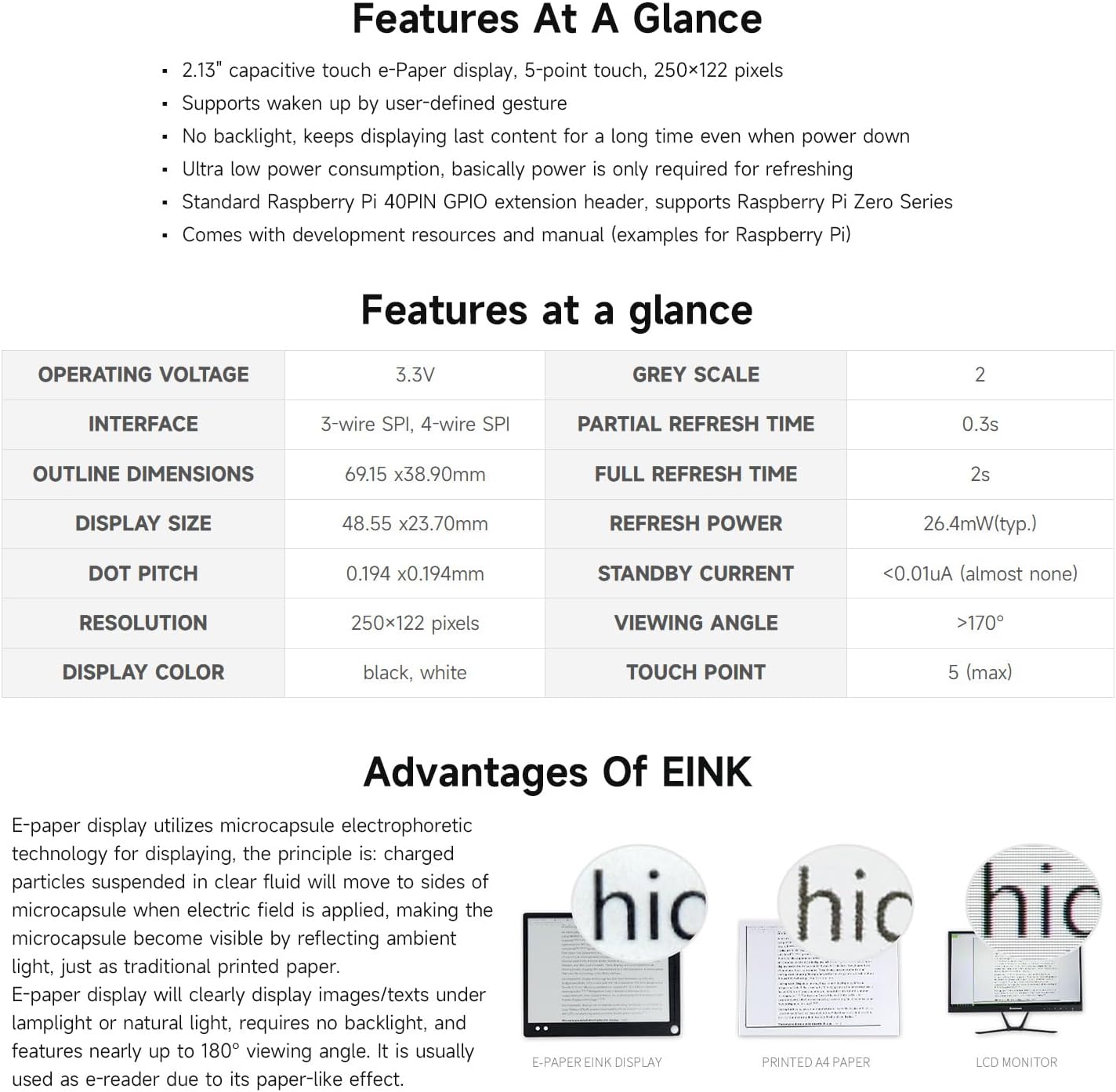
Figure 4: Visual comparison of E-Ink display with traditional paper and LCD.
5. 설정 및 설치
Follow these steps to install your Waveshare 2.13inch Touch E-Paper HAT:
- Prepare the Display and Upper Case: Carefully remove the protective back coating from the e-paper display. Align and attach the display to the upper part of the ABS protection case.
- Install Raspberry Pi and Thermal Tape: Attach the thermal tape to the heat dissipation holes located on the lower part of the ABS case. Place your Raspberry Pi Zero/Zero W into the lower case and secure it with the provided screws. Ensure the Pi's GPIO pins align correctly with the display's header.
- 케이스를 조립하세요: Combine the upper and lower case parts, ensuring the display's pinheaders align with the Raspberry Pi's GPIO header. Once the case is closed, attach the four rubber feet to the bottom for stability.
The case features precise cut-outs for the TF card slot, Mini HDMI port, USB port, and power supply. Heat dissipation holes on the back, combined with the thermal tape, ensure effective heat management. The standard Raspberry Pi 40PIN GPIO header ensures broad compatibility with Raspberry Pi Zero Series boards.

Figure 5: Installation steps for the e-Paper HAT and case.
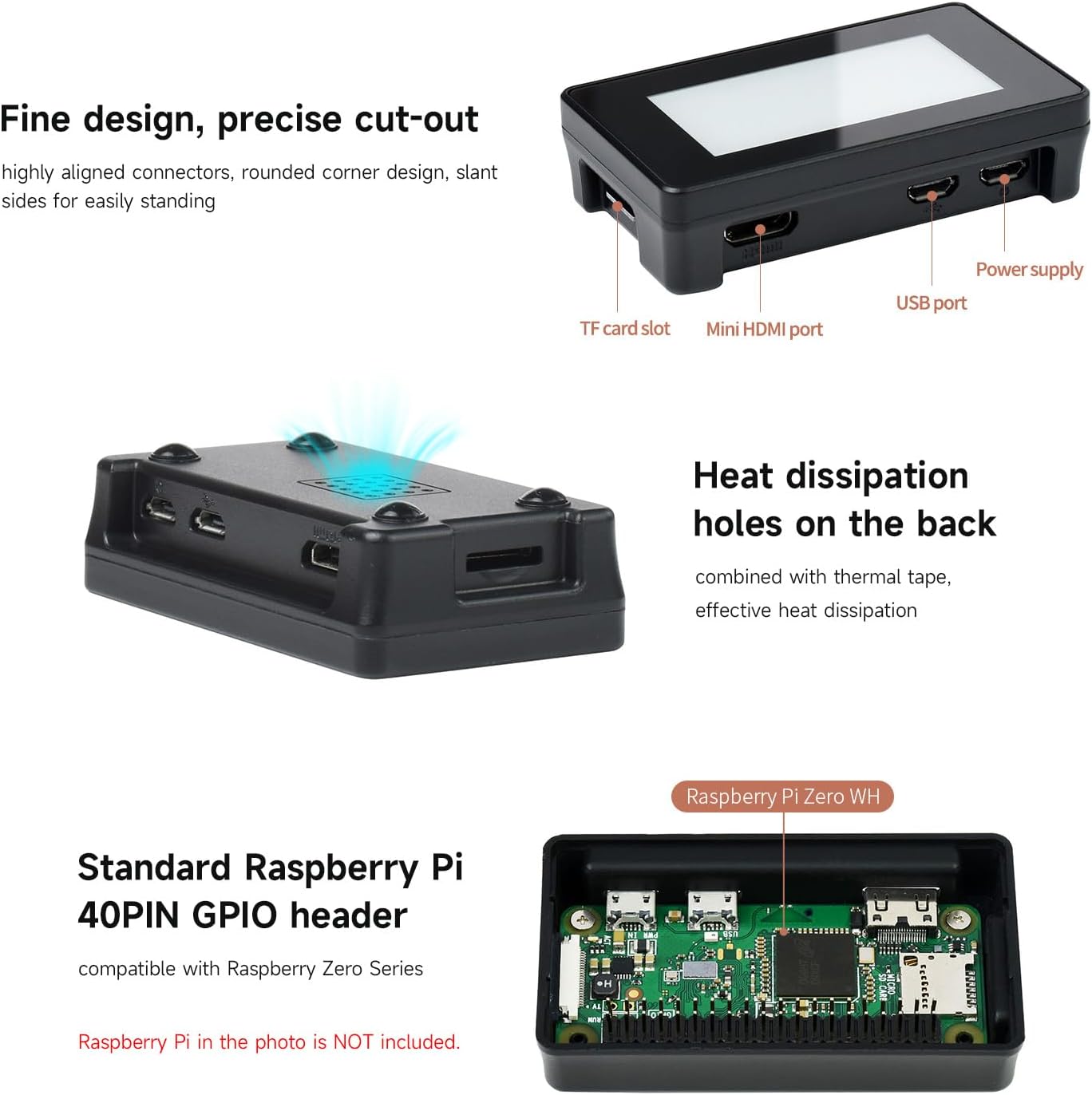
Figure 6: Case design highlighting ports and heat dissipation.
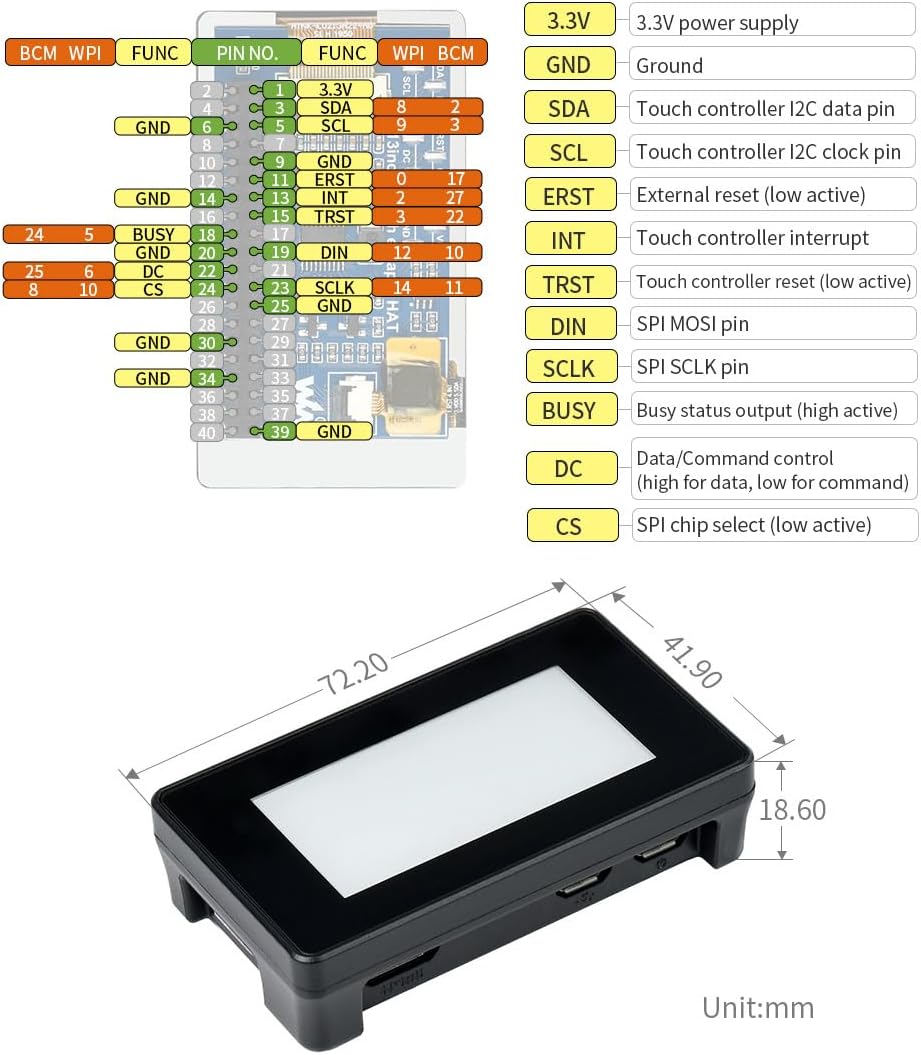
Figure 7: Standard Raspberry Pi 40PIN GPIO header for compatibility.
6. 사용 설명서
The 2.13inch Touch E-Paper HAT is designed for ease of use with Raspberry Pi boards. It features a capacitive touch screen supporting 5-point touch, allowing for interactive applications. The display maintains its content even when power is removed, making it highly energy efficient. Partial refresh functionality enables quicker updates for dynamic content, while a full refresh takes approximately 2 seconds.
The onboard control interface uses I2C for the touch panel and SPI for the display, ensuring reliable communication with your Raspberry Pi. For detailed programming examples and software setup, refer to the online user manual and development resources provided by Waveshare.
Video 1: Demonstrates the features and application of the 2.13inch Touch e-Paper HAT, including its resolution, power retention, compatibility with Raspberry Pi 4B and Zero, capacitive touch, and partial/full refresh capabilities.
7. 유지관리
To ensure the longevity and optimal performance of your e-Paper display, consider the following maintenance tips:
- 청소: Use a soft, dry, lint-free cloth to gently wipe the display surface. Avoid using abrasive cleaners or solvents, which can damage the screen.
- 손질: Handle the display and Raspberry Pi assembly with care. Avoid applying excessive pressure to the screen or bending the PCB.
- 저장: When not in use, store the device in a cool, dry environment away from direct sunlight and extreme temperatures.
- 펌웨어 업데이트: Regularly check the Waveshare official website for any firmware or software updates that may improve performance or add new features.
8. 문제 해결
If you encounter issues with your Waveshare 2.13inch Touch E-Paper HAT, refer to the following common troubleshooting steps:
- Display Not Refreshing/Blank: Ensure the Raspberry Pi is powered correctly and the display is securely connected to the GPIO header. Verify that the software drivers are installed and configured according to the Waveshare documentation. A full refresh might be needed if the display appears stuck.
- 터치 기능이 작동하지 않습니다: Check the I2C connection for the touch panel. Confirm that the necessary touch drivers are installed and enabled in your Raspberry Pi's operating system.
- Case Fit Issues (Raspberry Pi Zero 2W): Some users have reported that fitting a Raspberry Pi Zero 2W with a pre-soldered header into the case can be tight. It may require careful positioning or a low-profile header. Ensure the Pi is inserted into the case before attaching the screen.
- Lack of Documentation: While this manual provides an overview, comprehensive development resources and example code for Raspberry Pi are available on the Waveshare Wiki web대지. 검색 your specific product model on their official support pages.
- 느린 새로 고침 속도: E-paper displays inherently have slower refresh rates compared to LCDs. Partial refresh is faster for minor updates, but a full screen refresh can take up to 2 seconds. This is normal behavior for e-paper technology.
9. 사양
Detailed technical specifications for the 2.13inch Touch E-Paper HAT:
| 기인하다 | 값 |
|---|---|
| 스탠딩 스크린 디스플레이 크기 | 2.13 인치 |
| 해결 | 250 x 122 픽셀 |
| 디스플레이 색상 | 검은색, 흰색 |
| 회색조 | 2 |
| 터치타입 | 용량성 |
| 터치 포인트 | 5 (최대) |
| 운영 볼륨tage | 3.3V |
| 인터페이스 | 3-wire SPI, 4-wire SPI (Display), I2C (Touch Panel) |
| 부분 새로 고침 시간 | 0.3초 |
| 전체 새로 고침 시간 | 2s |
| 새로 고침 전원 | 26.4mW(일반) |
| 대기 전류 | <0.01uA (거의 없음) |
| View잉 각도 | >170° |
| 제품 크기(LxWxH) | 2.72 x 1.53 x 1.53인치(69.15 x 38.90 x 18.60mm) |
| 품목 무게 | 2.46 온스 |
| 호환 가능한 운영 체제 | 리눅스 |
| Processor Brand (for Pi) | 브로드컴 |
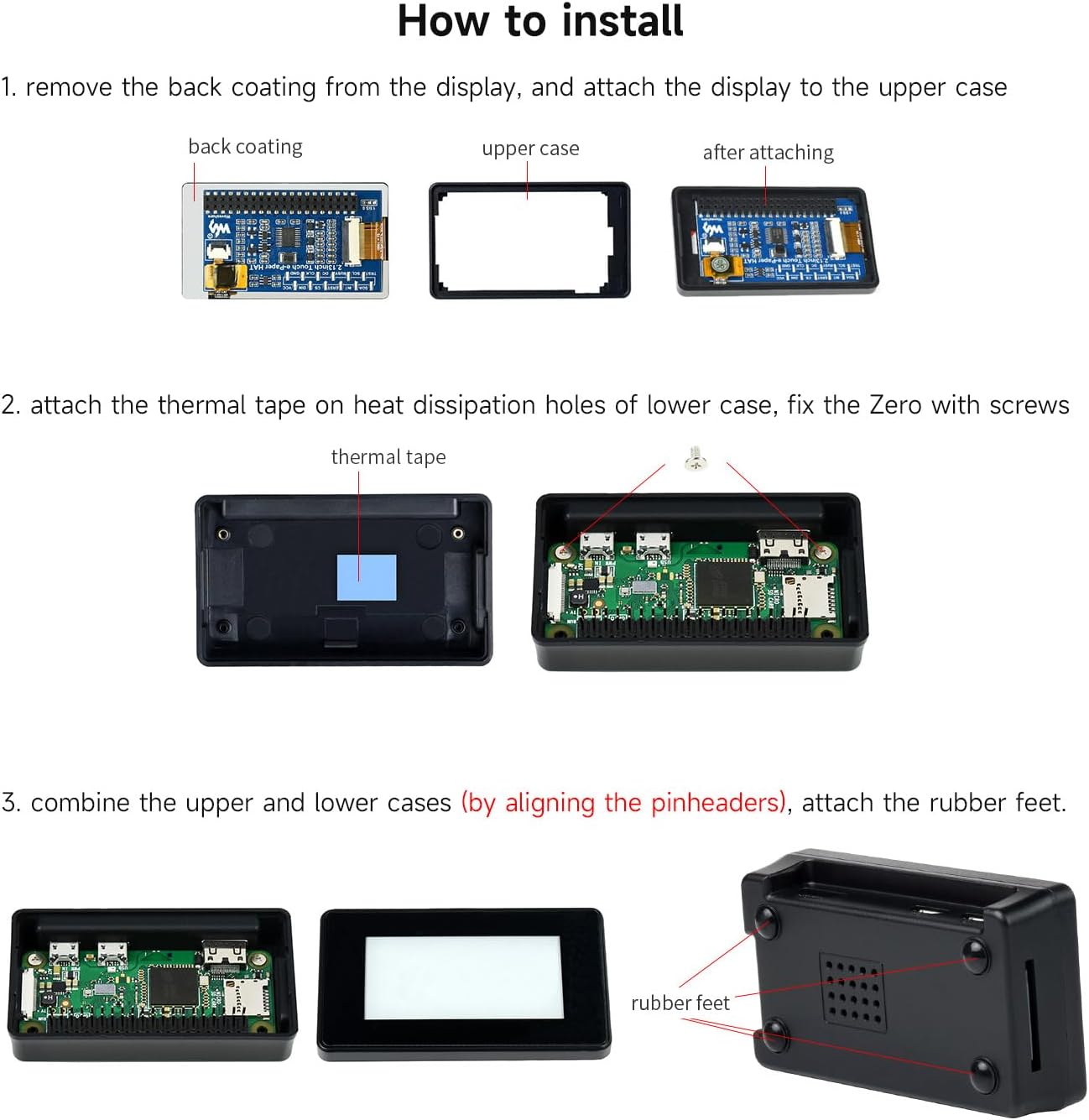
Figure 8: Pinout definition and outline dimensions.
10. 보증 및 지원
Waveshare products are designed for reliability and performance. For technical support, additional documentation, and the latest software examples, please visit the official Waveshare Wiki and support pages. These resources provide comprehensive guides and community forums to assist with your projects.
While specific warranty details are subject to regional policies, Waveshare is committed to providing quality products and support. For any product-related inquiries or assistance, please contact Waveshare customer service through their official channels.
온라인 리소스:


