
소개
This manual provides detailed instructions for the BINIZE Portable Carplay Screen Navigation system. It covers setup, operation, and maintenance to ensure optimal performance and user experience.
안전 정보
- 장치가 안전하게 장착되었고 방해가 되지 않는지 확인하십시오. view 또는 차량 제어를 방해합니다.
- Connect the power cord only to a 12V cigarette lighter port.
- 장치를 분해하거나 개조하지 마십시오.
- 항상 안전 운전을 최우선으로 생각하세요. 도로 주행에 방해가 되는 방식으로 기기를 조작하지 마세요.
패키지 내용
패키지에 모든 품목이 들어 있는지 확인하세요.
- BINIZE Portable Carplay Screen Navigation Unit
- 담배 라이터 전원 케이블
- USB 연장 케이블
- 오디오 출력 케이블(RCA)
- Mounting Bracket with 3M Adhesive
- 원격 제어
- 사용 설명서 (본 문서)
설정
1. 장치 장착
대시보드에서 시야를 가리지 않는 적절한 위치를 선택하세요. view 또는 차량 제어 장치.

The base of the mounting bracket comes with 3M adhesive. Clean the dashboard surface thoroughly before attaching the base. Securely attach the unit to the bracket.

최적의 화면 각도를 위해 조정하세요 view주고받음.
2. 전원 연결
Connect the cigarette lighter power cable to the device and insert it into your vehicle's 12V cigarette lighter port. The device will power on automatically.

차량의 볼륨을 확인하십시오tage는 12V와 14V 사이입니다.
This video demonstrates the initial power-up sequence of the BINIZE Portable Carplay Screen Navigation unit by connecting it to a cigarette lighter port. It shows the "welcome" screen appearing upon successful power-on.
작동 지침
1. 초기 설정 및 언어 선택
Upon first power-on, the device will display the home screen. Navigate to the "Settings" menu to select your preferred language.

2. 오디오 출력 옵션
The monitor itself does not have internal speakers. Sound is routed through your original car audio system.
FM 송신기
To use the FM transmitter, set the device's FM frequency to match an unused FM channel on your car's stereo.

Ensure both the device and your car stereo are tuned to the same FM frequency for audio output.
RCA 오디오 출력
For additional audio requirements, such as connecting to a subwoofer or amplifier, use the two RCA ports (White: Audio Out Left, Red: Audio Out Right).
3. Apple CarPlay 연결
To use Apple CarPlay, connect your iPhone to the device using an original Apple data cable via the USB port on the right side of the player.
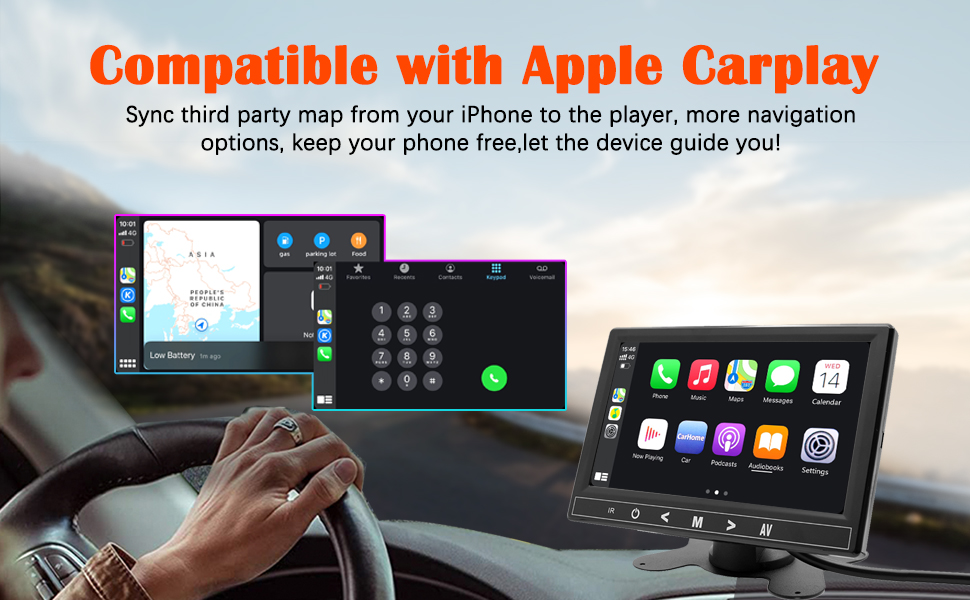
Select "i-Play" in the device settings. Grant any necessary permissions on your iPhone.
This video demonstrates how to connect an iPhone to the BINIZE Portable Carplay Screen Navigation for Apple CarPlay functionality. It shows the steps to select "i-Play" in settings and connect the original data cable.
4. 안드로이드 오토 연결
To use Android Auto, connect your Android phone to the device using an original data cable via the USB port on the right side of the player.

Select "A-Auto" in the device settings. Grant any necessary permissions on your Android phone.
This video illustrates the process of connecting an Android phone to the BINIZE Portable Carplay Screen Navigation for Android Auto. It guides the user to select "A-Auto" in settings and connect the data cable.
5. MirrorLink (iPhone)
To mirror your iPhone screen, connect your iPhone to the device using an original Apple data cable via the USB port on the right side of the player.
Select "i-Mirror" in the device settings. Grant permissions on your iPhone. The iPhone screen will be projected onto the player's screen.
This video demonstrates the MirrorLink function for iPhone, showing how to connect the device and mirror the phone's display.
6. MirrorLink (Android Phone)
To mirror your Android phone screen, connect your Android phone to the device using an original data cable via the USB port on the right side of the player.
Select "A-Link" in the device settings. Grant permissions on your Android phone. The Android phone screen will be projected onto the player's screen.
This video demonstrates the MirrorLink function for Android phones, showing how to connect the device and mirror the phone's display.
7. USB Flash Drive Reading
Insert a USB flash drive into the USB extension cable to play music or videos. The device supports various media formats.
8. 전화 충전
The USB extension cable can also be used to charge your mobile phone.
유지
- 부드럽고 마른 천으로 화면을 깨끗하게 유지하십시오. 연마성 세척제 사용은 피하십시오.
- 모든 케이블 연결이 안전한지 확인하십시오.
- 장치를 극한의 온도나 직사광선에 장기간 노출시키지 마십시오.
문제 해결
| 문제 | 가능한 원인 | 해결책 |
|---|---|---|
| 장치의 전원이 켜지지 않습니다. | No power from cigarette lighter. | Check vehicle's 12V port. Ensure power cable is securely connected. |
| 소리가 출력되지 않습니다. | FM frequency not synchronized or incorrect RCA connection. | Match FM frequency on device and car stereo. Verify RCA cable connections. |
| CarPlay/Android Auto가 연결되지 않습니다. | Non-original data cable, incorrect settings, or phone permissions. | Use original data cable. Check "i-Play" or "A-Auto" settings. Grant all necessary phone permissions. |
| MirrorLink not working. | Incorrect settings or phone permissions. | Check "i-Mirror" or "A-Link" settings. Grant all necessary phone permissions. |
| 화면이 멈추거나 응답하지 않습니다. | 일시적인 소프트웨어 오류입니다. | 전원 케이블을 뽑았다가 다시 꽂아 기기를 재시작하십시오. |
For further assistance, please contact BINIZE customer support.
명세서
| 특징 | 세부 사항 |
|---|---|
| 상표 | BINIZE |
| 모델 번호 | B09DSMJ59X |
| 연결 기술 | 블루투스, RCA, USB |
| 컨트롤러 유형 | 안드로이드, 구글 어시스턴트 |
| 특징 | 터치스크린 |
| 호환 장치 | 스마트폰 |
| 오디오 출력 모드 | 스테레오 재생 |
| 채널 수 | 4 |
| 비디오 인코딩 | H.264, H.265/HEVC |
| 제어 방법 | 만지다 |
| 무선 기술 | 블루투스 |
| 전원 입력 | 12V (시가잭을 통해) |
참고: 사양은 사전 통지 없이 변경될 수 있습니다.
보증 및 지원
BINIZE products come with a standard manufacturer's warranty. Please refer to the warranty card included in your package for specific terms and conditions.
For technical support, warranty claims, or any other inquiries, please visit the official BINIZE web사이트 또는 고객 서비스 팀에 문의하십시오.