
1. 서론
This manual provides comprehensive instructions for the setup, operation, maintenance, and troubleshooting of your D-Link COVR AX1800 Whole Home Mesh Wi-Fi 6 System. This system is designed to deliver seamless, high-speed Wi-Fi 6 coverage throughout your home, supporting multiple devices and demanding applications.

Image: Two D-Link COVR AX1800 Mesh Wi-Fi units, white, square-shaped with a textured top surface, reflecting on a white surface.
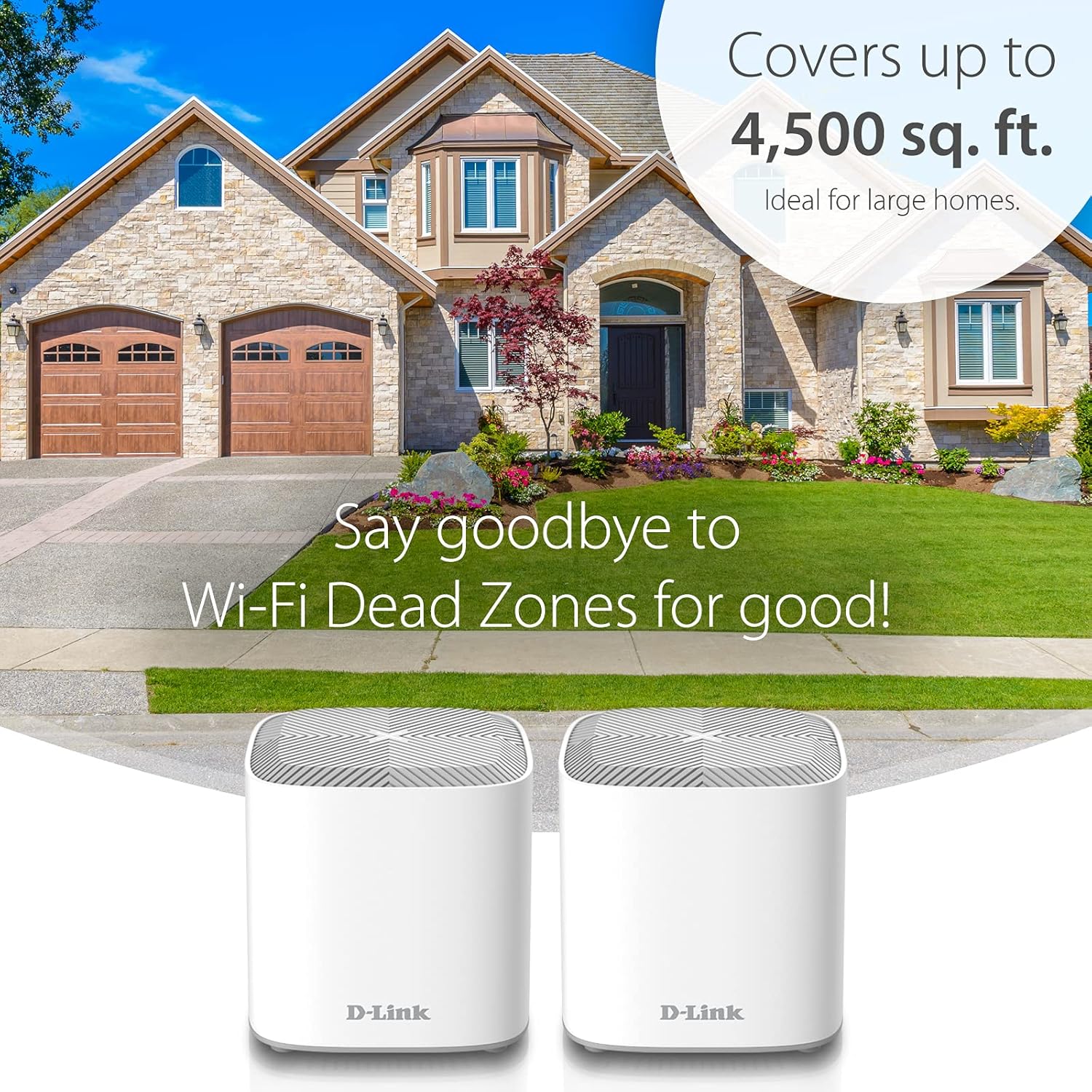
Image: An illustration showing a large house with the D-Link COVR AX1800 Mesh Wi-Fi system providing coverage up to 4,500 sq. ft., emphasizing the elimination of Wi-Fi dead zones.
2. 패키지 내용
패키지에 다음 품목이 포함되어 있는지 확인하십시오.
- 2 x AX1800 Wi-Fi 6 Covr Points (COVR-X1860)
- 2 x 전원 어댑터
- 1 x 이더넷 케이블
- Installation Documents
3. 설정
The D-Link COVR AX1800 system is designed for quick and easy setup using the D-Link Wi-Fi app. The Covr Points come pre-paired for convenience.
- Download the D-Link Wi-Fi App: 검색 "D-Link Wi-Fi" in your mobile device's app store (Apple App Store or Google Play Store) and download the application.
- Connect the Primary Covr Point: Plug one of the Covr Points into a power outlet and connect it to your modem using the provided Ethernet cable.
- 전원 켜기: Ensure both the modem and the Covr Point are powered on.
- 앱 실행: Open the D-Link Wi-Fi app on your smartphone or tablet.
- 앱 내 지침을 따르세요: The app will guide you through the remaining steps to configure your network, including setting up your Wi-Fi name (SSID) and password.
- Place Additional Covr Points: Once the primary unit is configured, place the second Covr Point in a central location within your home to extend coverage. It will automatically connect to the primary unit.
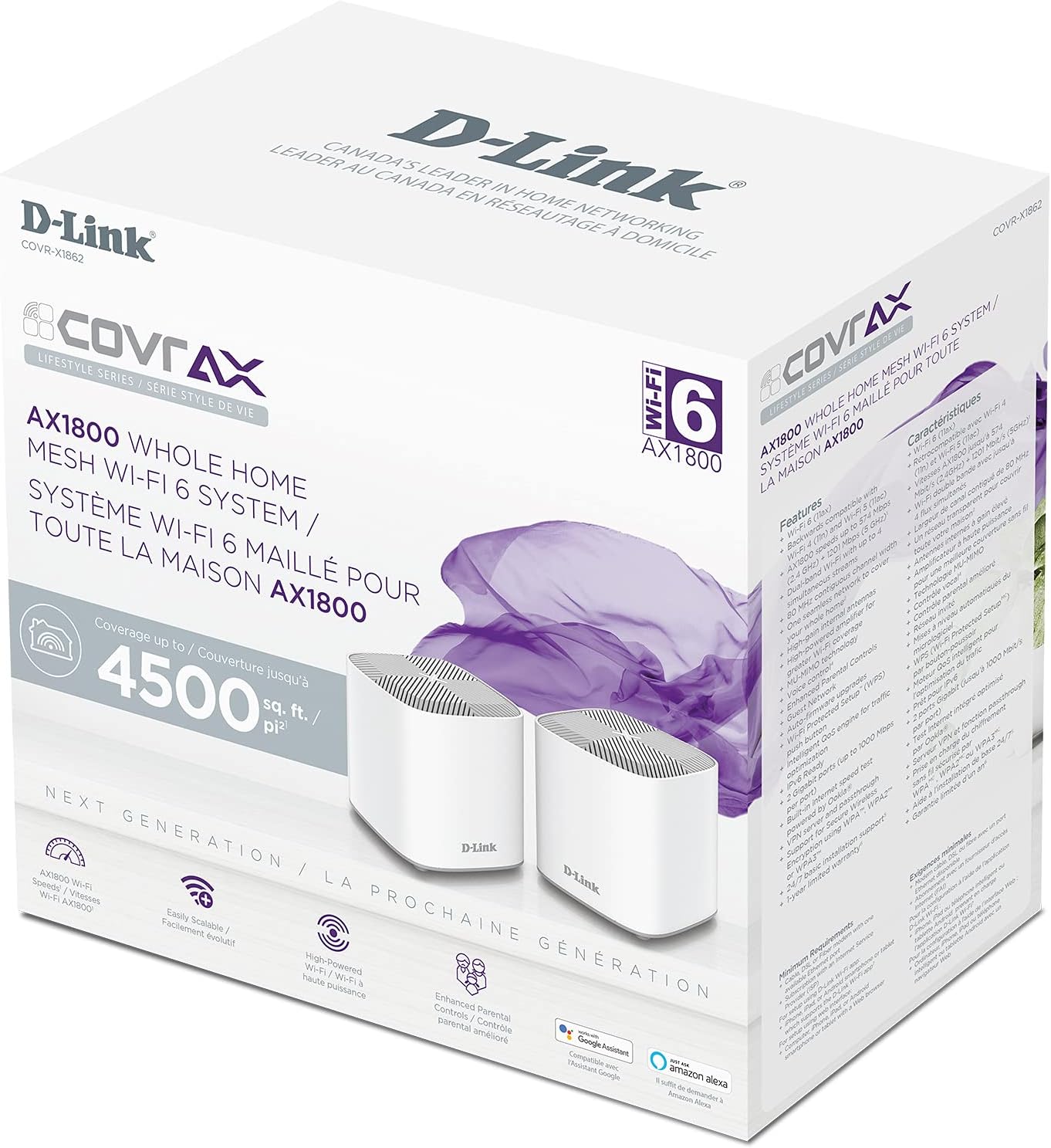
Image: A visual representation of the D-Link Wi-Fi App setup process, showing a smartphone displaying the app interface and a hand holding another smartphone, illustrating the ease of configuration.
4. 사용 설명서
4.1 원활한 로밍
The COVR AX1800 system creates a single, unified Wi-Fi network name (SSID) across all Covr Points. As you move throughout your home, your devices will automatically connect to the Covr Point with the strongest signal, ensuring uninterrupted connectivity without manual switching.
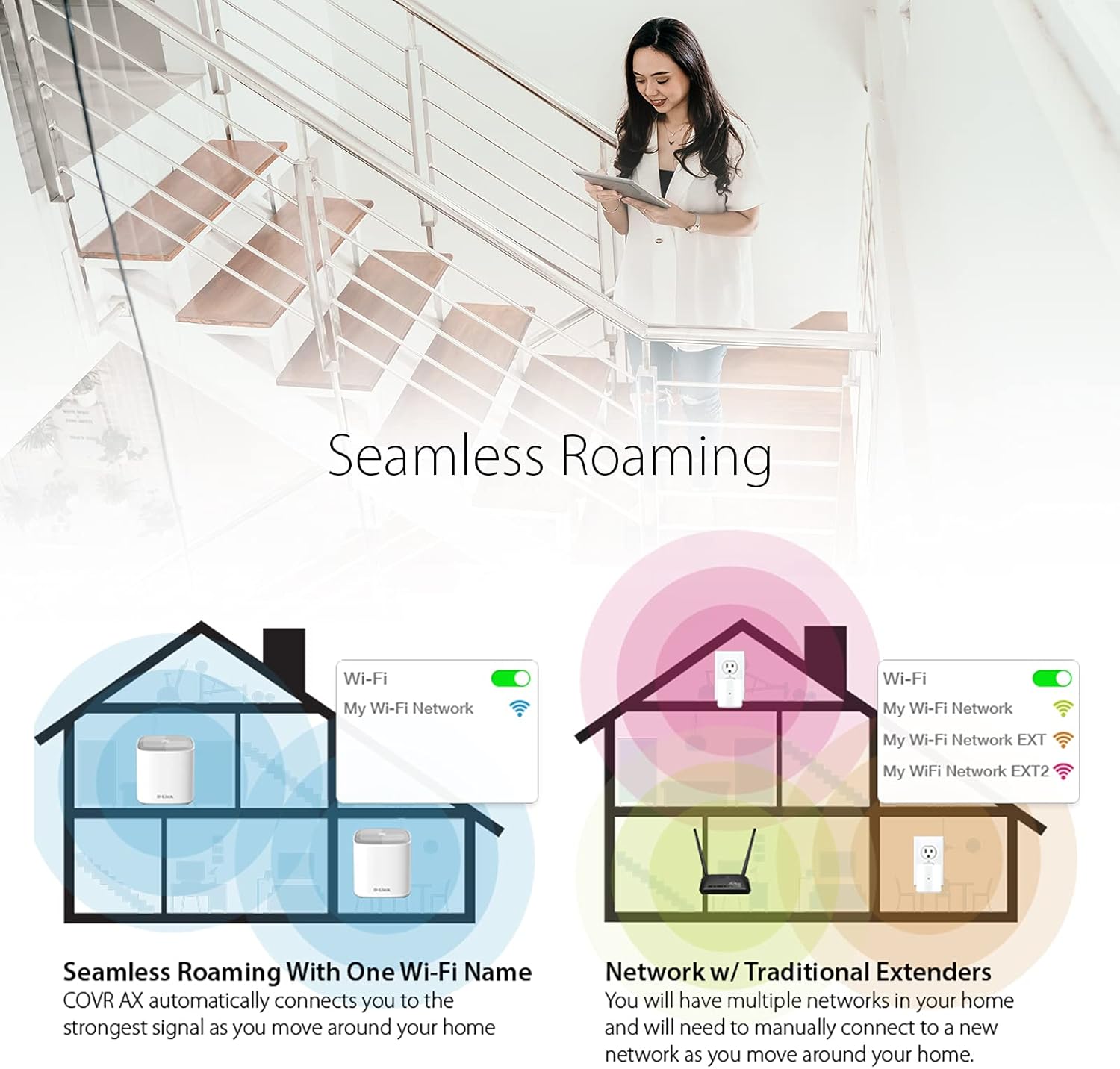
Image: A diagram comparing seamless roaming with a single Wi-Fi name (left) to a network with traditional extenders requiring manual connection to multiple networks (right).

Image: A person walking up stairs while using a tablet, illustrating continuous Wi-Fi connectivity provided by seamless roaming throughout a multi-level home.
4.2 Wi-Fi 6 Advantages
This system utilizes Wi-Fi 6 (802.11ax) technology, offering several enhancements over previous Wi-Fi standards:
- 더 빠른 속도: Up to 90% faster on the 2.4 GHz band and 38% faster on the 5 GHz band compared to previous generation Wi-Fi.
- Increased Efficiency (OFDMA): Orthogonal Frequency-Division Multiple Access allows for more efficient data transmission to multiple devices simultaneously.
- Reduced Interference (BSS Colouring): Improves network performance in congested Wi-Fi environments.
- Longer Device Battery Life (Target Wake Time): Devices can schedule when to wake up to send or receive data, conserving power.
- 더 높은 용량: Supports more simultaneous streams, providing greater bandwidth for device-dense homes.

Image: A graphic highlighting the Wi-Fi 6 Advantage, including faster speeds, more efficiency, greater stability, and higher capacity, with a background image of someone playing a video game.

Image: A visual comparison showing Wi-Fi 6 speeds are up to 90% faster on 2.4 GHz and 38% faster on 5 GHz compared to previous generation Wi-Fi, next to a D-Link Covr unit.
5. 향상된 기능
5.1 자녀 보호
The D-Link Wi-Fi app provides enhanced parental control features. You can:
- 프로 만들기files for individual users or devices.
- Set internet access schedules.
- Pause internet access for specific profiles 또는 장치.
- Manage content filtering.
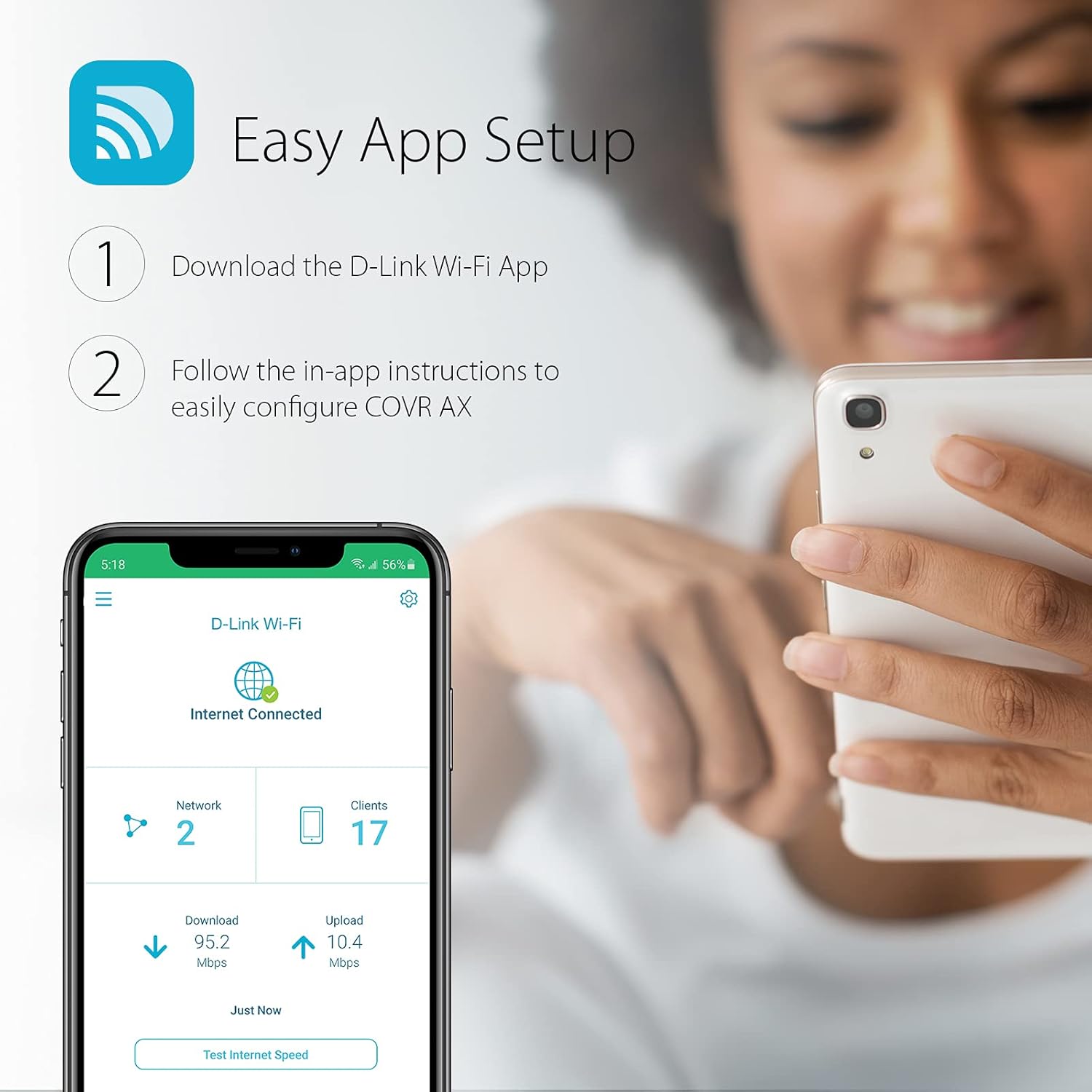
Image: A smartphone screen displaying the D-Link Wi-Fi App's Parental Control interface, showing options to set schedules for a user profile named "Bobby", with a child using a tablet in the background.
5.2 음성 제어
Integrate your COVR AX1800 system with voice assistants for convenient control:
- 아마존 알렉사: Use voice commands to manage your Wi-Fi network.
- 구글 어시스턴트: Control network settings and features with simple voice commands.
6. 유지관리
To ensure optimal performance and longevity of your D-Link COVR AX1800 system, consider the following maintenance practices:
- 펌웨어 업데이트: Enable automatic firmware updates through the D-Link Wi-Fi app to ensure your system has the latest security patches and performance enhancements.
- 놓기: Ensure Covr Points are placed in open areas, away from obstructions and other electronic devices that may cause interference.
- 청소: Periodically clean the exterior of the Covr Points with a soft, dry cloth. Avoid using liquid cleaners or abrasive materials.
- 다시 시작: If you experience network issues, a simple restart of your modem and all Covr Points can often resolve connectivity problems. Power off all devices, wait 30 seconds, then power on the modem first, followed by the Covr Points.
7. 문제 해결
This section addresses common issues you might encounter with your D-Link COVR AX1800 system.
7.1 인터넷 연결 없음
- 케이블 확인: Ensure all Ethernet cables are securely connected to the modem and the primary Covr Point.
- 모뎀 상태: 인터넷 모뎀이 정상적으로 작동하고 인터넷 연결이 활성화되어 있는지 확인하십시오.
- 장치 재시작: Power cycle your modem and all Covr Points. Wait for each device to fully boot up before checking the connection.
- D-Link Wi-Fi App: Use the app to check the network status and run diagnostics.
7.2 와이파이 신호 불량 또는 느린 속도
- Covr Point Placement: Ensure Covr Points are strategically placed to maximize coverage, avoiding physical obstructions like thick walls or large appliances.
- 간섭: Move Covr Points away from other electronic devices (e.g., cordless phones, microwaves) that operate on similar frequencies.
- 장치 호환성: Ensure your devices support Wi-Fi 6 for optimal performance. Older devices will still connect but may not achieve maximum speeds.
- 네트워크 혼잡: If many devices are active, the network may experience congestion. The Wi-Fi 6 features (OFDMA, MU-MIMO) are designed to mitigate this, but extreme usage can still impact performance.
7.3 Devices Not Connecting to 2.4 GHz Band
The COVR system uses Smart Connect to automatically assign devices to the optimal 2.4 GHz or 5 GHz band. Some older smart home devices may specifically require a 2.4 GHz connection and might have trouble connecting if Smart Connect is enabled.
- Disable Smart Connect (Advanced Users): If a device consistently fails to connect, you may need to temporarily disable Smart Connect in the D-Link Wi-Fi app settings to separate the 2.4 GHz and 5 GHz SSIDs. Re-enable Smart Connect after the device is configured if desired for overall network optimization.
8. 사양
| 특징 | 세부 사항 |
|---|---|
| 상표 | 디링크 |
| 모델 | COVR-X1862 |
| 무선 표준 | 802.11ac, 802.11ax, 802.11g, 802.11n |
| 주파수 대역 클래스 | 듀얼 밴드(2.4GHz, 5GHz) |
| 데이터 전송 속도 | 최대 1800Mbps (2.4GHz 대역에서 574Mbps, 5GHz 대역에서 1201Mbps) |
| 적용 범위 | 최대 4500제곱피트(2개 유닛 포함) |
| 포트 수 | 4 (Gigabit Ethernet, 2 per unit) |
| 연결 기술 | 이더넷, Wi-Fi |
| 특별 기능 | WPS, Parental Controls, Voice Control (Google Assistant, Alexa), MU-MIMO, OFDMA, BSS Colouring, Target Wake Time, Smart Connect |
| 호환 장치 | Smart Television, Smartphone, Gaming Consoles, IoT Devices |
| 작동 온도 | 0~40°C(32~104°F) |
| 제품 치수 | 10.39 x 10.39 x 11.2 cm; 526.17 g (per unit) |
| 보안 | WPA3 (128-bit encryption) |
9. 보증 및 지원
For warranty information and technical support, please refer to the official D-Link website or the documentation included with your product. D-Link provides customer support to assist with any issues or questions you may have regarding your COVR AX1800 Mesh Wi-Fi 6 System.
D-Link Support: 방문하다 www.dlink.com/support FAQ, 문제 해결 가이드 및 연락처 정보를 확인하세요.