
소개
This manual provides comprehensive instructions for the setup, operation, and maintenance of your POLONO PL60 Thermal Label Printer. Please read this guide thoroughly before using the printer to ensure optimal performance and longevity.
패키지 내용
아래 나열된 모든 품목이 패키지에 포함되어 있는지 확인하세요.
- 1 Grey POLONO PL60 Thermal Label Printer
- 1 전원 코드
- 1 USB 케이블
- 1 U Disk (containing printer driver, installation guide, setup guide, and user manual)
- 1 빠른 시작 가이드
- 10pcs 4"x6" Labels (samp르)

Image: All components included in the POLONO PL60 printer package, including the printer, cables, U disk, quick start guide, and samp라벨.
설치 지침
- Connect Power and USB Cable: Connect the power cord to the printer and a power outlet. Connect the USB cable from the printer to your computer (Windows or Mac).

Image: Step 1 of setup, showing the power and USB cables being connected to the printer.
- 설치 드라이버: Insert the included U Disk into your computer. Install the printer driver. Alternatively, download the latest driver from the official POLONO website. The printer is compatible with Windows and Mac operating systems. Note: This printer does not support Bluetooth or Chromebook.

Image: The POLONO PL60 printer connected to a laptop, indicating compatibility with Mac and Windows systems.
- 라벨 로드: Open the printer cover. Place the thermal labels into the label compartment, ensuring the print side faces up. Adjust the label guides to fit the label width snugly. Close the cover.

Image: Step 3 of setup, demonstrating how to load labels into the printer's compartment.
- Automatic Label Alignment: After loading labels and closing the cover, press the feed button on the printer. The printer will automatically detect the label size and align the labels for printing.

Image: The POLONO PL60 printer with labels loaded, showing the automatic label detection feature.
작동 지침
라벨 인쇄
The POLONO PL60 printer uses advanced thermal direct technology, eliminating the need for ink or toner. It supports label widths from 1.57 inches (40 mm) to 4.65 inches (118 mm).
- 문서 준비: Ensure your label design or shipping label is correctly formatted for a 4x6 inch label (or other supported sizes).
- 프린터 선택: In your computer's print dialog, select "POLONO PL60" as your printer.
- 인쇄 설정: Adjust print settings as needed. For optimal print quality, you may need to adjust the print density/darkness and speed in the printer preferences. Slower speeds generally result in better print quality.
- 인쇄 시작: Click "Print" to send the label to the printer. The printer can achieve speeds of 150mm/s, printing approximately 72 labels per minute.

Image: The POLONO PL60 printer printing a label, highlighting its high efficiency and print quality.
Adjusting Print Darkness and Speed (Windows Examp르)
To customize print quality, follow these steps:
- Go to your computer's 설정 > 프린터 및 스캐너.
- 선택하세요 POLONO Label Printer 그리고 클릭하세요 관리하다.
- 이동하다 프린터 환경 설정.
- 에서 고급 설정 창을 클릭하세요 속도 그리고 선택하세요 Customize Print Speed. Adjust the slider to a slower speed for better print quality.
- Similarly, adjust 어둠 settings to achieve desired label contrast.
Video: Instructions on how to adjust the print darkness settings for the POLONO PL60 printer.
지원되는 라벨 크기
The printer supports various label sizes, including:
- 4"x6"
- 3"x2"
- 3"x1"
- 2"x1"
- 2-5/16" x 4"
- 2.25"x1.25"
- 2-inch round labels
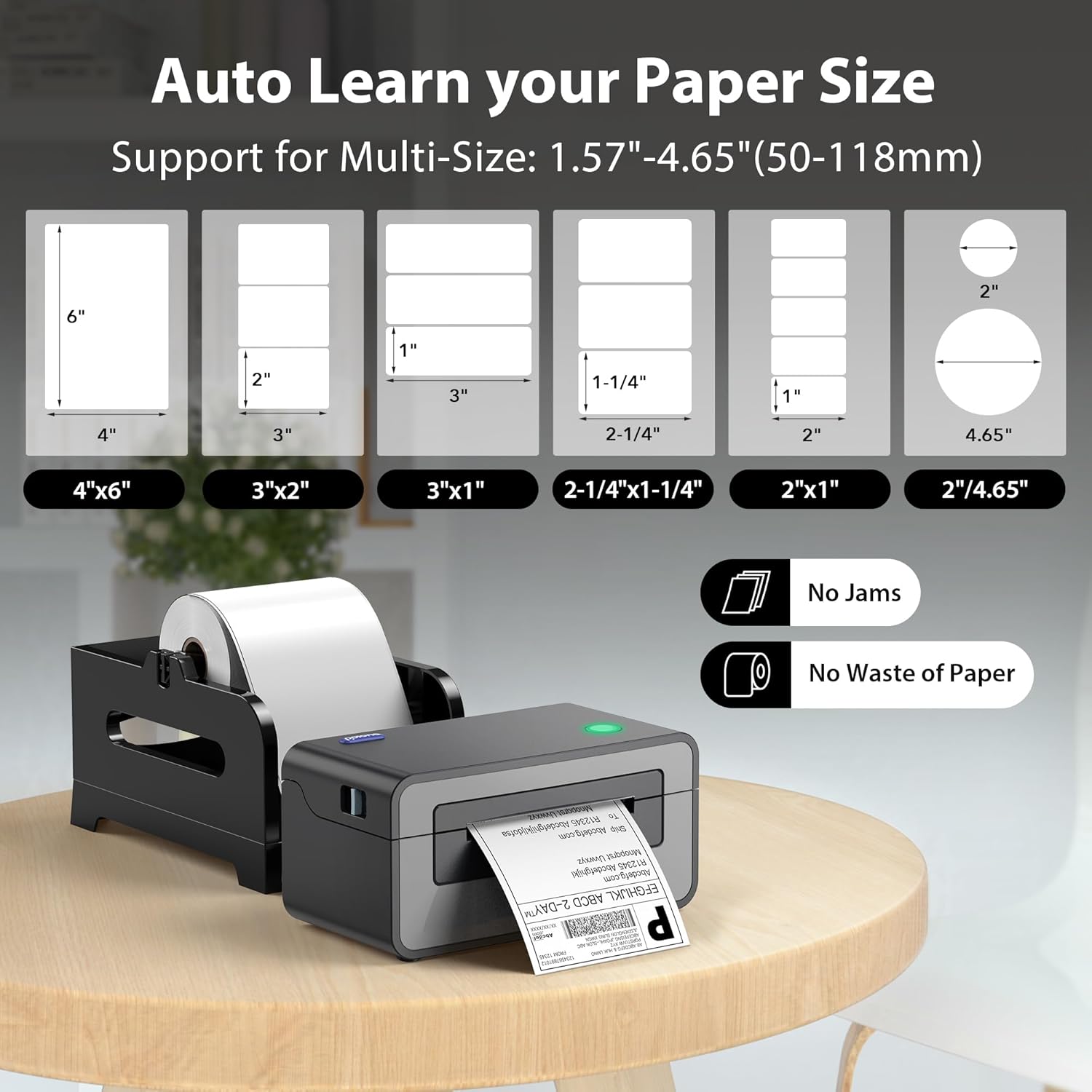
Image: Visual representation of different label sizes that the POLONO PL60 printer can automatically detect and print.
유지
The POLONO PL60 is a thermal direct printer, meaning it does not require ink cartridges or toner. This simplifies maintenance significantly.
- 프린트 헤드 청소: Periodically clean the print head with an alcohol wipe to ensure clear print quality. Refer to the detailed user manual on the U Disk for specific cleaning instructions.
- 일반 청소: 프린터에 먼지와 이물질이 쌓이지 않도록 하십시오. 부드럽고 마른 천으로 외부를 닦아주세요.
문제 해결
일반적인 문제 및 솔루션
- Printer Not Responding / Not Printing:
- Ensure the power cord and USB cable are securely connected.
- Verify the printer is turned on (indicated by the LED light).
- Check if the correct printer driver is installed and updated.
- For Mac users experiencing issues, try uninstalling the driver, deleting the printer from your computer settings, then reinstalling the driver from the provided U Disk and re-adding the printer.
- Faded or Poor Print Quality:
- Adjust the print darkness setting in your printer preferences (refer to "Adjusting Print Darkness and Speed" section).
- 고품질 감열 라벨을 사용하고 있는지 확인하십시오.
- 유지관리 섹션에 설명된 대로 프린트 헤드를 청소하세요.
- Labels Not Feeding Correctly / "Out of Labels" Error:
- Ensure labels are loaded correctly with the print side up.
- Adjust the label guides to fit the label width.
- Press the feed button to allow the printer to automatically detect and align the labels.
명세서
| 특징 | 세부 사항 |
|---|---|
| 상표 | 폴로노 |
| 모델명 | PL60 |
| 연결 기술 | USB |
| 인쇄 기술 | 열의 |
| 색상 | 회색 |
| 프린터 출력 | 단색화 |
| 최대 인쇄 속도(흑백) | 150mm/s (72 labels/minute) |
| 품목 무게 | 1.9 킬로그램 |
| 제품 크기(D x W x H) | 11.5인치 x 6인치 x 6인치 |
| 해결 | 203 x 203 DPI |
| 최대 미디어 크기 | 4 x 6 인치 |
| 지원되는 용지 크기 | 4"x6", 3"x2", 3"x1", 2"x1", 2.25"x1.25", 2-5/16" x 4", 2" Circle Inches |
| 호환 장치 | Laptops, Mac, PC, Windows |
보증 및 지원
The POLONO PL60 Thermal Label Printer comes with a 1년 제조사 제한 보증.
For further assistance, detailed user manuals, and driver downloads, please refer to the included U Disk or visit the official POLONO web대지.
또한 다음에 액세스할 수 있습니다. 사용 설명서 (PDF) 추가 정보를 원하시면.