
1. 서론
The D-Link DGS-105GL is a 5-Port Gigabit Unmanaged Desktop Switch designed to provide a simple and efficient solution for expanding network connectivity in small office/home office (SOHO) and small to medium-sized business (SMB) environments. This device offers plug-and-play functionality, requiring no complex configuration. Its fanless design ensures silent operation, and the metal housing provides durability. The DGS-105GL incorporates energy-efficient features, including IEEE 802.3az Energy-Efficient Ethernet, to reduce power consumption without compromising performance.
2. 패키지 내용
패키지에 다음 품목이 포함되어 있는지 확인하십시오.
- D-Link DGS-105GL 5-Port Gigabit Unmanaged Desktop Switch
- 전원 어댑터
If any items are missing or damaged, please contact your local D-Link reseller.
3. 제품 오버view
The DGS-105GL switch features a compact, low-profile design with a durable metal housing. It is equipped with five Gigabit Ethernet ports for high-speed network connections.
3.1 전면 패널

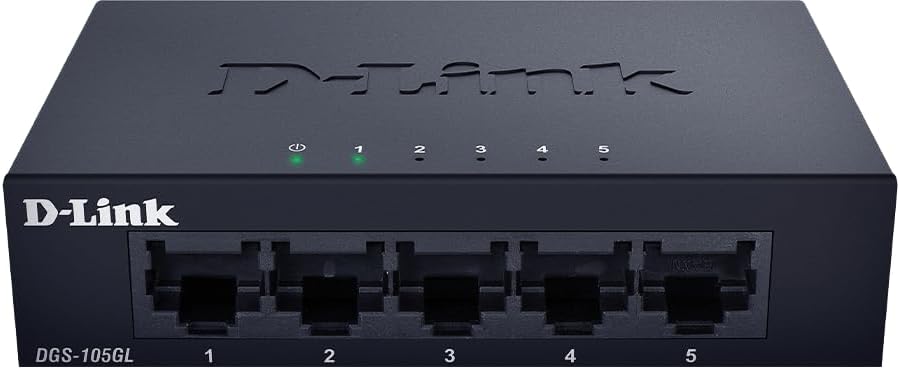
이미지: 앞면 view of the D-Link DGS-105GL switch, showing the D-Link logo, model number DGS-105GL, a power LED, five port status LEDs (1-5), and five RJ45 Gigabit Ethernet ports (1-5).
The front panel includes the following indicators and ports:
- 전원 LED: 스위치의 전원 상태를 나타냅니다.
- 포트 LED(1-5): Each port has an LED that indicates link status and activity. A solid light indicates a successful connection, and a blinking light indicates data transmission.
- RJ45 Gigabit Ethernet Ports (1-5): These ports are used to connect network devices such as computers, servers, and other switches.
3.2 후면 패널

이미지: 후면 view of the D-Link DGS-105GL switch, showing the power input port labeled '5V --- 1A'.
The rear panel contains the power input port, where the included power adapter is connected.
4. 설정
The DGS-105GL is a plug-and-play device, making installation straightforward. Follow these steps to set up your switch:
- 전원 어댑터 연결: Plug the included power adapter into the power input port on the rear panel of the DGS-105GL switch. Then, plug the other end of the adapter into a standard electrical outlet. The Power LED on the front panel should illuminate.
- 네트워크 장치 연결: Connect your network devices (e.g., computers, network-attached storage, routers) to any of the five RJ45 Gigabit Ethernet ports on the front panel using standard Ethernet cables.
- 연결 확인: Once a device is connected and powered on, the corresponding Port LED on the switch's front panel should light up, indicating a successful link. If there is network activity, the LED will blink.

Image: The D-Link DGS-105GL switch placed on a desk in an office setting, connected to a laptop and other peripherals, demonstrating a typical setup.
5. 스위치 작동
The DGS-105GL operates automatically once connected. It supports auto-negotiation for speed and duplex mode, and auto-MDI/MDIX, eliminating the need for crossover cables. The switch automatically detects the speed of the connected device (10/100/1000 Mbps) and adjusts accordingly.
5.1 LED 표시등
The LEDs provide visual feedback on the switch's status:
이미지: 앞면 view of the D-Link DGS-105GL switch with the green power LED and green port LEDs 1-5 illuminated, indicating active connections.
| 주도의 | 상태 | 설명 |
|---|---|---|
| 힘 | 솔리드 그린 | 스위치가 켜져 있습니다. |
| 힘 | 끄다 | 스위치에 전원이 공급되지 않습니다. |
| 포트(1-5) | 솔리드 그린 | A device is successfully connected to the port. |
| 포트(1-5) | 녹색 깜박임 | 포트를 통해 데이터가 전송되거나 수신되고 있습니다. |
| 포트(1-5) | 끄다 | 해당 포트에 장치가 연결되어 있지 않거나, 연결된 장치의 전원이 꺼져 있습니다. |
6. 유지관리
To ensure optimal performance and longevity of your DGS-105GL switch, consider the following maintenance guidelines:
- 청소: Periodically clean the exterior of the switch with a soft, dry cloth. Avoid using liquid or aerosol cleaners directly on the device.
- 환경 조건: Ensure the switch is placed in a well-ventilated area, away from direct sunlight, heat sources, and excessive moisture. Maintain operating temperatures within the specified range (refer to specifications).
- 케이블 관리 : Keep network cables neatly organized to prevent strain on ports and improve airflow around the device.
- 전원 순환: If you experience network issues, a simple power cycle (unplugging the power adapter, waiting 10 seconds, and plugging it back in) can often resolve minor problems.
7. 문제 해결
If you encounter issues with your DGS-105GL switch, refer to the following common troubleshooting steps:
- 전원 LED 없음:
- 전원 어댑터가 스위치와 작동하는 콘센트에 제대로 연결되어 있는지 확인하십시오.
- 다른 장치를 연결해 전기 콘센트가 작동하는지 확인하세요.
- No Link LED for a Connected Device:
- 이더넷 케이블이 스위치 포트와 네트워크 장치에 제대로 연결되어 있는지 확인하십시오.
- 연결된 네트워크 장치의 전원이 켜져 있고 올바르게 작동하는지 확인하세요.
- 케이블에 결함이 있는지 확인하려면 다른 이더넷 케이블을 사용해 보세요.
- 장치를 스위치의 다른 포트에 연결해 보십시오.
- 네트워크 속도가 느립니다:
- 연결된 모든 장치와 케이블이 기가비트 이더넷(Cat5e 이상)을 지원하는지 확인하십시오.
- 연결된 기기에서 과도한 네트워크 트래픽이나 대역폭을 많이 사용하는 애플리케이션이 실행 중인지 확인하십시오.
- Perform a power cycle on the switch and connected devices.
8. 사양
Key technical specifications for the D-Link DGS-105GL switch:
| 특징 | 사양 |
|---|---|
| 모델 번호 | DGS-105GL |
| 포트 수 | 기가비트 이더넷(RJ45) 5개 |
| 데이터 전송 속도 | 1 Gbps per port |
| 인터페이스 유형 | RJ45 |
| 케이스 소재 | 금속 |
| 팬이없는 디자인 | 예 |
| 에너지 효율성 | IEEE 802.3az 에너지 효율 이더넷(EEE) |
| 전원 입력 | 5 Volts (DC), 1 Amps |
| 품목 무게 | 160그램(5.6온스) |
| 제품 치수 | 39.37"L x 25.2"W x 0.94"H (대략) |
| 한국어: | 790069458606 |
9. 보증 및 기술 지원
D-Link products are backed by a limited warranty. For specific warranty terms and conditions, please refer to the warranty information included with your product or visit the official D-Link web대지.
For technical assistance, product documentation, or to download the latest software and firmware updates, please visit the D-Link support portal or contact D-Link technical support directly. Contact information can typically be found on the D-Link web귀하의 지역에 대한 사이트.