
D-Link DSL-224
D-Link N300 VDSL2 Router DSL-224 User Manual
Model: DSL-224
1. 서론
This manual provides detailed instructions for the installation, configuration, and operation of your D-Link N300 VDSL2 Router, model DSL-224. This device combines a VDSL2/ADSL2+ modem and a high-speed wireless router, offering a complete solution for internet connectivity in your home or small office.
Please read this manual thoroughly before attempting to install or use the device to ensure proper setup and optimal performance.
2. 패키지 내용
패키지에 다음 품목이 포함되어 있는지 확인하십시오.
- D-Link N300 VDSL2 Router (DSL-224)
- 전원 어댑터
- 이더넷 케이블(RJ-45)
- 전화 케이블(RJ-11)
- 빠른 설치 가이드
If any items are missing or damaged, please contact your local D-Link reseller for assistance.
3. 신체적 이상view
3.1 전면 패널
The front panel of the DSL-224 router features LED indicators that provide real-time status information about the device's operation.

이미지 3.1: 앞쪽 view of the D-Link DSL-224 Router, showing the status indicator lights. From left to right, these typically include Power, DSL, Internet, Wi-Fi, and LAN activity indicators.
- 전원 LED: 라우터 전원이 켜져 있는지 여부를 나타냅니다.
- DSL LED: Indicates the status of the VDSL/ADSL connection. A solid light means a stable connection.
- 인터넷 LED: Indicates internet connectivity. A solid light means the router has an active internet connection.
- WLAN LED: Indicates wireless network activity. Blinks when data is being transmitted wirelessly.
- LAN LED(1-4): Indicate activity on the corresponding Ethernet ports.
3.2 후면 패널
The rear panel contains all the physical connection ports for power, DSL line, and Ethernet devices.
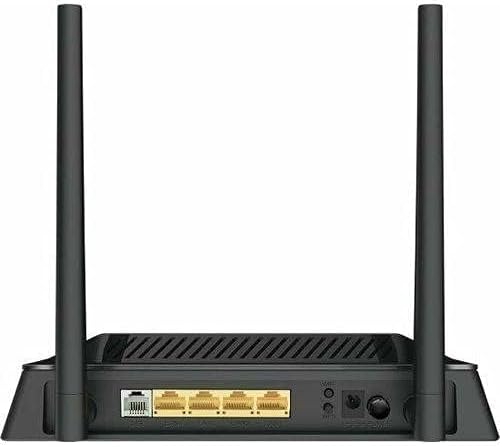
이미지 3.2: 뒤쪽 view of the D-Link DSL-224 Router, displaying the various ports. These include the DSL port, four LAN Ethernet ports, the power input, and a reset button.
- DSL 포트(RJ-11): 벽면 잭을 통해 VDSL/ADSL 회선에 연결됩니다.
- LAN Ports (1-4, RJ-45): Connects to wired devices such as computers, gaming consoles, or network printers.
- 전원 포트: 포함된 전원 어댑터에 연결합니다.
- 재설정 버튼: Used to restore the router to factory default settings. Press and hold for 5-10 seconds while the device is powered on.
- WPS 버튼: For easy and secure wireless connection setup.
- 전원 켜기 / 끄기 버튼 : 장치의 전원을 켜거나 끕니다.
4. 설정
4.1 하드웨어 설치
- 라우터 위치 지정: Place the router in a central location to maximize wireless coverage. Avoid placing it near obstructions or devices that emit radio frequency interference.
- DSL 회선을 연결하세요: Connect one end of the phone cable (RJ-11) to the DSL port on the router and the other end to your wall's VDSL/ADSL jack. If you have a splitter, connect it to the splitter's modem port.
- 컴퓨터에 연결(선택 사항): For initial setup, you may connect a computer directly to one of the LAN ports on the router using an Ethernet cable (RJ-45).
- 전원 연결: Connect the power adapter to the router's power port and then plug the adapter into a power outlet. Press the Power On/Off button if available.
- LED 확인: Wait for the Power, DSL, and Internet LEDs to become solid green. The DSL LED may blink for a few minutes before becoming solid.
4.2 초기 구성 (Web 상호 작용)
- 접근하기 Web 인터페이스: 열기 web browser on a connected computer (wired or wireless). In the address bar, type the router's default IP address (commonly http://192.168.1.1 or http://192.168.0.1)를 입력하고 Enter 키를 누릅니다.
- 로그인: Enter the default username and password. These are usually printed on a sticker on the bottom of the router (e.g., Username: 관리자, 비밀번호: 관리자 or blank).
- 설치 마법사를 실행하세요: Follow the on-screen setup wizard to configure your internet connection (VDSL/ADSL settings provided by your Internet Service Provider) and wireless network (SSID and password).
- 기본 비밀번호 변경: For security, it is highly recommended to change the default administrator password for the router's web 인터페이스.
5. 라우터 작동
5.1 Connecting Devices Wirelessly
- 네트워크를 찾으세요: 무선 기기(노트북, 스마트폰, 태블릿)에서 사용 가능한 Wi-Fi 네트워크를 검색하세요.
- SSID를 선택하세요: 설정 중에 구성한 Wi-Fi 네트워크 이름(SSID)을 선택하세요.
- 비밀번호를 입력하세요: Enter the Wi-Fi password (WPA/WPA2 key) you set.
- Connect using WPS: Alternatively, press the WPS button on the router and then activate WPS on your wireless device within two minutes to establish a connection without entering a password.
5.2 이더넷을 통한 장치 연결
Connect an Ethernet cable from the LAN port of your computer or other wired device to any of the available LAN ports (1-4) on the rear of the DSL-224 router.
6. 유지관리
6.1 펌웨어 업데이트
Periodically check the D-Link support website for firmware updates for your DSL-224 router. Firmware updates can improve performance, add new features, and fix security vulnerabilities. Follow the instructions provided with the firmware update carefully.
6.2 공장 초기화
문제가 지속되거나 로그인 자격 증명을 잊어버린 경우 공장 초기화를 수행할 수 있습니다.
- With the router powered on, use a paperclip or a thin object to press and hold the Reset button on the rear panel for 5-10 seconds.
- Release the button when the Power LED blinks or all LEDs briefly turn off and then on.
- The router will restart with factory default settings. You will need to reconfigure your internet and wireless settings.
7. 문제 해결
This section addresses common issues you might encounter with your D-Link DSL-224 router.
7.1 인터넷 연결 없음
- 케이블 확인: Ensure all cables (DSL, Ethernet) are securely connected.
- LED 확인: Verify that the Power, DSL, and Internet LEDs are solid green. If the DSL LED is blinking, there might be an issue with your phone line or ISP connection. If the Internet LED is off, check your ISP settings in the router's web 인터페이스.
- 라우터 다시 시작: 라우터의 전원을 끄고 30초간 기다린 후 다시 켜세요.
- ISP 설정: Confirm that your VDSL/ADSL settings (VPI/VCI, connection type, username, password) are correctly entered in the router's configuration. Contact your ISP if unsure.
7.2 Wi-Fi에 연결할 수 없습니다
- Check WLAN LED: Ensure the WLAN LED on the front panel is lit or blinking.
- 올바른 비밀번호: Double-check that you are entering the correct Wi-Fi password (WPA/WPA2 key).
- 신호 강도: 신호 강도를 높이려면 라우터에 더 가까이 다가가세요.
- 장치 재시작: Restart your wireless device and try connecting again.
- 라우터 재시작: Restart the router as described above.
7.3 느린 인터넷 속도
- 유선 vs. 무선: Test speed with a wired connection to determine if the issue is with the wireless network or the internet connection itself.
- 간섭: Reduce interference by moving the router away from other electronic devices (cordless phones, microwaves).
- 채널 최적화: 라우터에서 web interface, try changing the wireless channel to a less congested one.
- ISP 대역폭: Contact your ISP to verify your subscribed speed and check for any network issues on their end.
8. 사양
Below are the technical specifications for the D-Link N300 VDSL2 Router DSL-224:
| 특징 | 설명 |
|---|---|
| 상표 | 디링크 |
| 모델명 | DSL-224 |
| 연결 기술 | 무선 전화 |
| 무선형 | 802.11n |
| 무선 통신 표준 | 802.11n |
| 주파수 대역 클래스 | 듀얼 밴드 |
| 포트 수 | 4 (LAN) |
| 안테나 유형 | 결정된 |
| 포함된 구성 요소 | 라우터 |
| 호환 장치 | 개인용 컴퓨터 |
| 품목 무게 | 510g |
| 패키지 크기 | 22.2 x 17.4 x 7.8cm |
9. 보증 및 지원
For warranty information and technical support, please refer to the warranty card included with your product or visit the official D-Link support website. You can typically find drivers, firmware updates, and additional support resources there.
D-링크 지원 Web대지: www.dlink.com/support (Please note: This is a generic example URL. Refer to your product's specific documentation for the correct regional support link.)
Ask a question about this manual
Ask about setup, troubleshooting, compatibility, parts, safety, or missing instructions. Manuals+ will review the question and use this page’s manual context to help answer it.