
D-Link DWR-M960
D-LINK 4G AC1200 LTE Router DWR-M960
사용자 설명서
1. 서론
The D-Link DWR-M960 4G AC1200 LTE Router provides high-speed mobile broadband access, allowing users to connect to 3G/4G networks from virtually anywhere. This device enables sharing of your mobile internet connection through a secure wireless network or via its four Gigabit Ethernet ports. It is designed for fast, responsive internet access, suitable for web browsing, streaming media, and online activities.

그림 1.1: D-Link DWR-M960 4G AC1200 LTE Router. This image displays the router's front view, highlighting its four external antennas and the row of LED indicators for power, internet, Wi-Fi, and signal strength.
2. 패키지 내용
Please verify that all items listed below are present in your package. If any item is missing or damaged, please contact your retailer.
- D-Link DWR-M960 4G AC1200 LTE Router
- 전원 어댑터
- 이더넷 케이블
- 빠른 설치 가이드

그림 2.1: Package Contents. This image shows the DWR-M960 router, its power adapter, and the quick installation guide, all laid out next to the product box.
3. 제품 특징
The DWR-M960 router is equipped with advanced features to provide a robust and reliable internet connection:
- Fast Mobile Internet: Supports 3G/4G mobile connections with downlink speeds up to 150 Mbps and uplink speeds up to 50 Mbps.
- AC1200 Wi-Fi: Dual-band wireless connectivity (802.11ac) for high-speed Wi-Fi performance.
- 보안 연결: Features dual-active firewalls (SPI and NAT) and WPA/WPA2 wireless encryption to protect your network.
- 다수의 기가비트 포트: Includes four Gigabit Ethernet LAN ports for high-speed wired connections.
- 간편한 설정: Can be configured quickly through a web browser without special software.
- SIM 카드 슬롯: Allows direct insertion of a 3G/4G SIM/UICC card to share your mobile broadband.
4. 설정 가이드
4.1 물리적 설치
- SIM 카드 삽입: Locate the SIM card slot on the router. Gently insert your 3G/4G SIM/UICC card into the slot until it clicks into place. Ensure the card is oriented correctly as indicated by the diagram near the slot.
- 안테나 연결: The DWR-M960 features internal antennas. No external antenna connection is required.
- 전원 연결: Plug the provided power adapter into the router's power port and then into a wall outlet. The Power LED on the router should illuminate.
- 장치 연결(선택 사항):
- 유선 연결: Connect one end of the Ethernet cable to any of the LAN ports (1-4) on the router and the other end to your computer's Ethernet port.
- 무선 연결: Note the Wi-Fi Network Name (SSID) and Wi-Fi Password (Key) printed on the label at the bottom of the router.
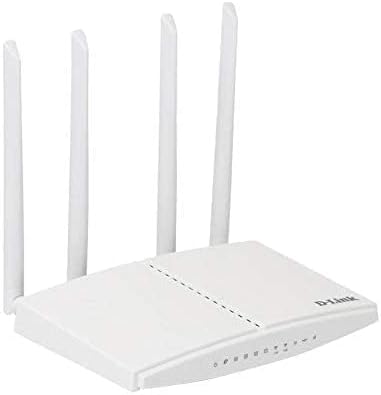
그림 4.1: Router Ports and SIM Slot. This image provides a side view of the DWR-M960, illustrating the location of the SIM card slot and the various Ethernet ports for wired connections.
4.2 초기 구성 (Web 상호 작용)
To configure your router, you will need to access its web기반 관리 인터페이스:
- Ensure your computer is connected to the router either via Ethernet or Wi-Fi.
- 열기 web 브라우저(예: Chrome, Firefox, Edge).
- 주소 표시줄에 라우터의 기본 IP 주소를 입력합니다. 일반적으로
192.168.0.1or192.168.1.1, and press Enter. This information is typically found on the router's bottom label. - When prompted, enter the default username and password. For D-Link routers, the default username is often
adminand the password field may be left blank or alsoadmin. Refer to the label on your router for exact credentials. - Follow the on-screen setup wizard to configure your internet connection settings (APN, PIN for SIM if required) and customize your Wi-Fi network name (SSID) and password. It is highly recommended to change the default Wi-Fi password and the router's login password for security.
5. 사용 설명서
5.1 LED 표시등
The LEDs on the front panel of the DWR-M960 provide information about the router's status:
- 전원 LED:
- Solid Green: Router is powered on.
- 꺼짐: 라우터 전원이 꺼져 있습니다.
- 인터넷 LED:
- Solid Green: Connected to the internet.
- Blinking Green: Data activity.
- Red: No internet connection or SIM card error.
- 와이파이 LED:
- Solid Green: Wi-Fi is enabled.
- Blinking Green: Wi-Fi data activity.
- 끄기: Wi-Fi가 비활성화됩니다.
- Signal Strength LEDs (3-4 bars):
- Indicates the strength of the 3G/4G mobile signal. More bars mean a stronger signal.
5.2 장치 연결
- 무선 장치: On your smartphone, tablet, or laptop, search for available Wi-Fi networks. Select the SSID you configured (or the default one) and enter the Wi-Fi password.
- 유선 장치: Connect an Ethernet cable from the LAN port of your device (e.g., PC, game console) to any of the available LAN ports on the router.
6. 유지관리
- 펌웨어 업데이트: Periodically check the D-Link support website for firmware updates for your DWR-M960. Firmware updates can improve performance, add new features, and fix security vulnerabilities. Follow the instructions provided by D-Link for safe firmware upgrades.
- 정기 재부팅: Rebooting your router every few weeks can help clear its memory and resolve minor network issues, improving overall performance and stability. Simply unplug the power adapter, wait 10-15 seconds, and plug it back in.
- 청소: Keep the router in a clean, dust-free environment. Use a soft, dry cloth to gently wipe the exterior of the device. Do not use liquid cleaners or aerosols.
- 놓기: 최적의 Wi-Fi 연결 상태를 유지하려면 라우터를 장애물이나 간섭을 일으킬 수 있는 다른 전자 기기에서 떨어진 중앙 위치에 설치하십시오.
7. 문제 해결
7.1 인터넷 연결 없음
- SIM 카드 확인: Ensure the SIM card is correctly inserted and active with your mobile carrier.
- 인터넷 LED를 확인하세요: If the Internet LED is red, there might be an issue with the SIM card or mobile network. Verify your APN settings in the router's web 인터페이스.
- 라우터 재부팅: 라우터의 전원을 10초간 뽑아 두었다가 다시 꽂아 전원을 껐다가 켜보세요.
- 신호 강도 확인: Ensure you have adequate 3G/4G signal strength (check Signal Strength LEDs). If the signal is weak, try relocating the router.
- 통신사에 문의하세요: Verify with your mobile carrier if there are any network outages or issues with your SIM plan.
7.2 느린 인터넷 속도
- 신호 강도: A weak 3G/4G signal will result in slower speeds. Try to improve router placement.
- 네트워크 혼잡: Mobile networks can experience congestion during peak hours.
- Wi-Fi 간섭: Other wireless devices or networks can interfere with your Wi-Fi signal. Try changing your Wi-Fi channel in the router settings.
- 장치가 너무 많습니다: Too many devices connected simultaneously can reduce speeds for all users.
7.3 라우터에 접속할 수 없음 Web 인터페이스
- IP 주소: 올바른 IP 주소를 사용하고 있는지 확인하십시오(예:
192.168.0.1). - 유선 연결: 컴퓨터를 이더넷 케이블로 라우터에 직접 연결해 보세요.
- 방화벽/안티바이러스: 컴퓨터의 액세스를 차단할 수 있는 방화벽이나 바이러스 백신 소프트웨어를 일시적으로 비활성화하세요.
- 라우터 재설정: As a last resort, perform a factory reset. Locate the reset button (usually a small pinhole) on the router. With the router powered on, use a paperclip to press and hold the reset button for 5-10 seconds until the LEDs flash. 경고: This will erase all your custom settings, and you will need to reconfigure the router from scratch.
8. 사양
| 특징 | 설명 |
|---|---|
| 브랜드 이름 | 디링크 |
| 모델명 | DWR-M960 |
| 품목 모델 번호 | DWR-M960 |
| 무선 통신 표준 | 802.11ac |
| 주파수 대역 클래스 | 듀얼 밴드 |
| 연결 기술 | 무선 전화 |
| 안테나 유형 | 내부 |
| 보안 프로토콜 | WPA2 |
| 호환 장치 | 개인용 컴퓨터 |
| 포함된 구성 요소 | 라우터 |
| 제조업체 | (주)디링크시스템즈 |
| 패키지 크기 | 33.6 x 22 x 5.8cm |
| 품목 무게 | 724g |
| 첫 번째 이용 가능 날짜 | 7년 2021월 XNUMX일 |
9. 보증 및 지원
The D-Link DWR-M960 LTE Router is manufactured by D-Link Systems, Inc. For specific warranty information, please refer to the warranty card included with your product or visit the official D-Link support website for your region. Typically, D-Link products come with a limited warranty covering manufacturing defects from the date of purchase.
For technical support, driver downloads, firmware updates, and additional product information, please visit the D-Link support portal:
When contacting support, please have your product model number (DWR-M960) and serial number ready.
Ask a question about this manual
Ask about setup, troubleshooting, compatibility, parts, safety, or missing instructions. Manuals+ will review the question and use this page’s manual context to help answer it.