
소개
The J-Tech Digital 4K HDMI Capture Card (JTECH-4KCP) is designed to capture HDMI video signals up to 4K@60Hz and output them to your computer at 1080p 60Hz. This device features an HDMI loop output for real-time monitoring of the source signal, external microphone and headphone support for integrated audio, and a USB Type-C interface for high-speed data transfer to your computer. It is compatible with popular streaming and capture software such as OBS, YouTube Live, and Twitch, making it an ideal solution for capturing presentations, training seminars, and gaming content.
패키지 내용
패키지에 모든 품목이 들어 있는지 확인하세요.
- 1 x J-Tech Digital 4K HDMI Capture Card (JTECH-4KCP)
- 1 x 사용자 설명서
- 1 x USB 3.0 Data Cable (USB Type-C to USB Type-A)

제품 끝view
치수
The JTECH-4KCP capture card has compact dimensions for portability and ease of integration into your setup.
- 길이: 4.25인치(10.8cm)
- 폭: 2인치(5.1cm)
- 높이: 0.6인치(1.5cm)
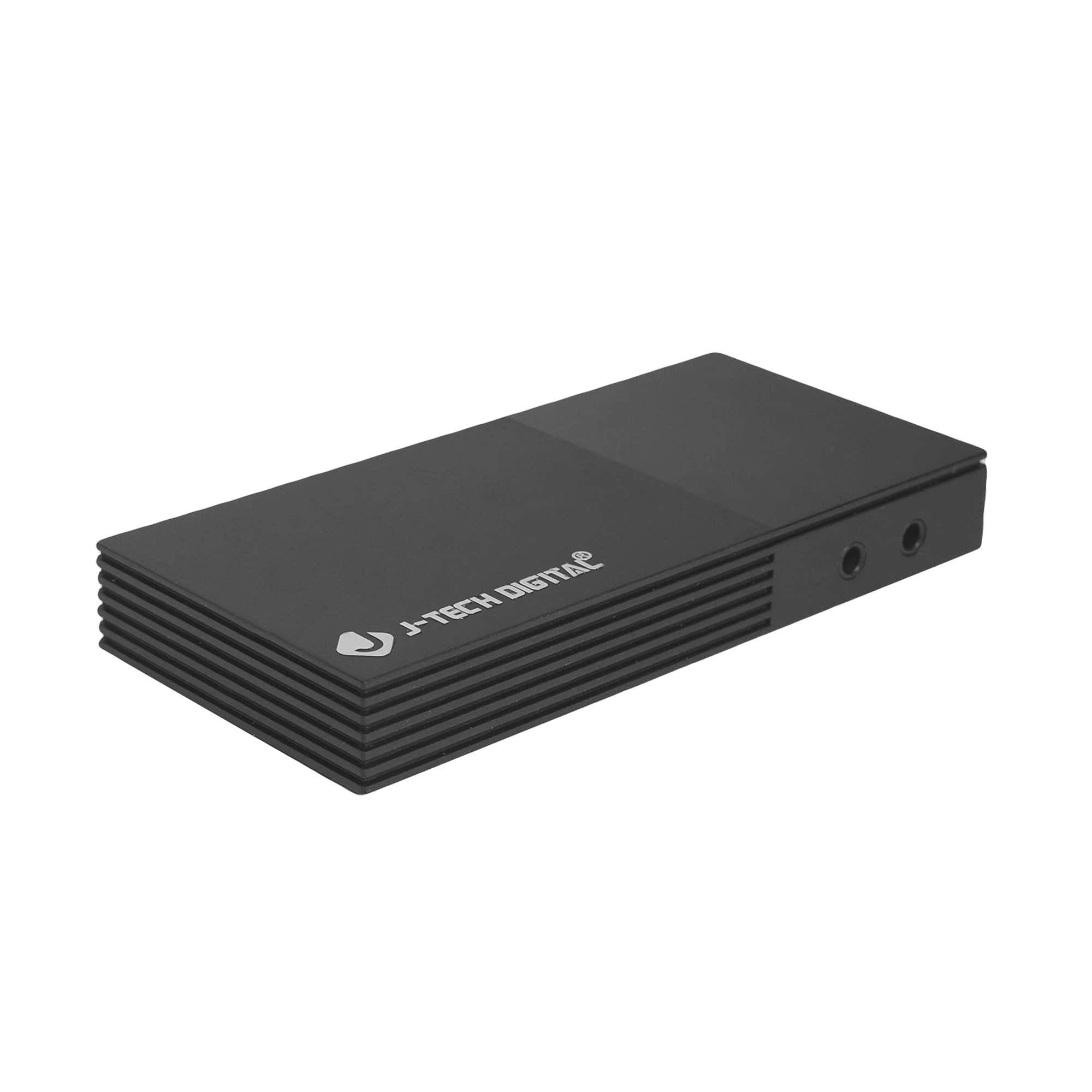
포트 및 인터페이스
이 장치에는 연결을 위한 여러 포트가 있습니다.
- Microphone In Port: 외부 마이크를 연결합니다.
- Headphones Out Port: For connecting headphones to monitor audio.
- USB-C (PC Port): For connecting the capture card to your computer. This port is USB 3.0 compliant.
- HDMI 입력: For connecting your HDMI source device (e.g., game console, camera).
- HDMI 출력: For connecting to a display monitor for real-time video passthrough.

설치 지침
- HDMI 소스 연결: Connect an HDMI cable from your source device (e.g., game console, Blu-ray player, camera) to the HDMI 입력 port on the JTECH-4KCP capture card.
- 디스플레이 연결(선택 사항): If you wish to monitor your source signal in real-time without latency, connect a second HDMI cable from the HDMI 출력 port on the capture card to your display monitor.
- 컴퓨터에 연결: Use the provided USB 3.0 Type-C cable to connect the USB-C (PC Port) on the capture card to an available USB 3.0 port on your computer. The device is plug-and-play and typically does not require driver installation.
- 오디오 장치 연결(선택 사항): For external audio input, connect a microphone to the Microphone In Port. For audio monitoring, connect headphones to the Headphones Out Port.
- 소프트웨어 실행: Open your preferred video capture or streaming software (e.g., OBS Studio, YouTube Live, Twitch Studio) on your computer.
- 소프트웨어 구성: In your software, add the capture card as a video source. It should appear as a 'USB Video Device' or 'HDMI Capture'. Configure video resolution (1080p 60Hz recommended for capture) and audio settings as needed.

작동 지침
Once the capture card is set up and recognized by your computer and software, you can begin capturing or streaming.
- 비디오 캡처: The JTECH-4KCP captures HDMI input signals up to 4K@60Hz and processes them for recording or streaming at 1080p 60Hz on your computer. Ensure your software settings match these capture capabilities for optimal performance.
- HDMI 루프 출력: The HDMI Out port provides a near-zero latency passthrough of your source signal to a connected display. This is particularly useful for gaming, allowing you to play on your main monitor without experiencing input lag while simultaneously capturing the footag컴퓨터에서 e를 실행하세요.
- 외부 오디오 통합: Utilize the Microphone In and Headphones Out ports to integrate external audio. This allows you to add commentary or external audio sources directly into your captured or streamed content, and monitor all audio in real-time. Adjust audio levels within your capture software.
- 소프트웨어 호환성 : The capture card is compatible with a wide range of software, including OBS Studio, YouTube Live, Twitch Studio, and Facebook Live. Refer to your software's documentation for specific configuration details.

유지
To ensure the longevity and optimal performance of your JTECH-4KCP capture card, follow these maintenance guidelines:
- 청소: 기기 외부를 닦을 때는 부드럽고 마른 천을 사용하십시오. 액체 세척제나 용제는 마감재나 내부 부품을 손상시킬 수 있으므로 사용하지 마십시오.
- 저장: 캡처 카드는 직사광선과 극한 온도 변화를 피해 서늘하고 건조한 곳에 보관하십시오.
- 손질: 기기를 조심스럽게 다루십시오. 떨어뜨리거나 강한 충격을 주지 마십시오.
- 통풍: Ensure the device has adequate ventilation to prevent overheating, especially during extended use. Do not block the ventilation slots.
문제 해결
If you encounter issues with your JTECH-4KCP capture card, refer to the following common troubleshooting steps:
| 문제 | 가능한 원인 | 해결책 |
|---|---|---|
| No video signal on computer/software | Incorrect cable connection, incompatible resolution/refresh rate, software not configured. |
|
| No audio captured or monitored | Incorrect audio connections, software audio settings. |
|
| High latency or stuttering during capture/streaming | Computer performance issues, USB port issues, software settings. |
|
| Cannot capture certain content (e.g., movies) | HDCP (High-bandwidth Digital Content Protection) enabled. | The capture card respects HDCP. Content protected by HDCP cannot be captured or recorded. This is a standard digital rights management feature. |
명세서
| 특징 | 세부 사항 |
|---|---|
| 상표 | 제이테크디지털 |
| 모델명 | JTECH-4KCP |
| 하드웨어 인터페이스 | USB Type-C (USB 3.0 compliant) |
| 비디오 캡처 해상도 | 1080p@60Hz |
| HDMI 입력 해상도 | 최대 4K @ 60Hz |
| 운영 체제 호환성 | Windows 10 (64-bit), macOS 10.14+ (64-bit) |
| 추천 용도 | Video Recording, Image Capture, Live Streaming |
| 특별 기능 | 4K Near-Zero Latency HDMI Loop Output, External Audio Support (Mic In, Headphone Out), Popular Streaming Platform Compatibility |
| 호환 장치 | Gaming Consoles (Xbox, PS4, PS5, Nintendo Switch), Cameras, Personal Computers, Blu-ray Players |
| 최소 시스템 요구 사항 | Processor: Intel Core i5 or AMD equivalent (or better), RAM: 4GB, Disk Space: 2GB available |
| AV Output Format | MPEG-4 (software dependent) |
| 제조업체 | J-Tech Digital Inc. |
| 한국어: | 810058920409 |
보증 및 지원
모든 J-Tech Digital 제품은 품질과 고객 만족에 대한 헌신으로 뒷받침됩니다.
- 제조업체 보증: The JTECH-4KCP includes a One-Year Manufacturer Replacement Warranty. This warranty covers defects in materials and workmanship under normal use.
- 기술 지원: J-Tech Digital provides free lifetime technical support from our customer support team. Support is available from 9 AM – 6 PM CST, Monday through Friday.
- 연락처 정보: For warranty claims or technical assistance, please refer to the contact information available on the J-Tech Digital seller page on Amazon or visit the official J-Tech Digital web대지.