
소개
This user manual provides detailed instructions for the installation, operation, maintenance, and troubleshooting of your Xprinter XP-K200L 80mm Thermal Receipt Printer. Please read this manual thoroughly before using the printer to ensure proper function and to extend the product's lifespan. Keep this manual for future reference.
안전 정보
- 프린터와 함께 제공된 전원 어댑터를 항상 사용하십시오.
- 프린터를 물이나 습기에 노출시키지 마십시오.
- 프린터를 직사광선이나 열원 근처에 두지 마십시오.
- 프린터 주변의 환기가 적절하도록 하세요.
- 프린터를 직접 분해하거나 수리하려고 하지 마십시오. 자격을 갖춘 서비스 담당자에게 문의하십시오.
- 어린이의 손이 닿지 않는 곳에 보관하세요.
패키지 내용
Please check the package contents upon unpacking. If any items are missing or damaged, contact your vendor.
- Xprinter XP-K200L Thermal Receipt Printer
- 전원 어댑터
- 전원 코드
- USB 케이블
- 감열지 롤 (스타터 롤)
- 현금 서랍 케이블
- 사용 설명서 (본 문서)
제품 끝view
Familiarize yourself with the main components of your Xprinter XP-K200L thermal receipt printer.

그림 1: 측면 view of the Xprinter XP-K200L thermal receipt printer. On the right, the power switch is visible, and on the left, a button to open the paper cover is present.
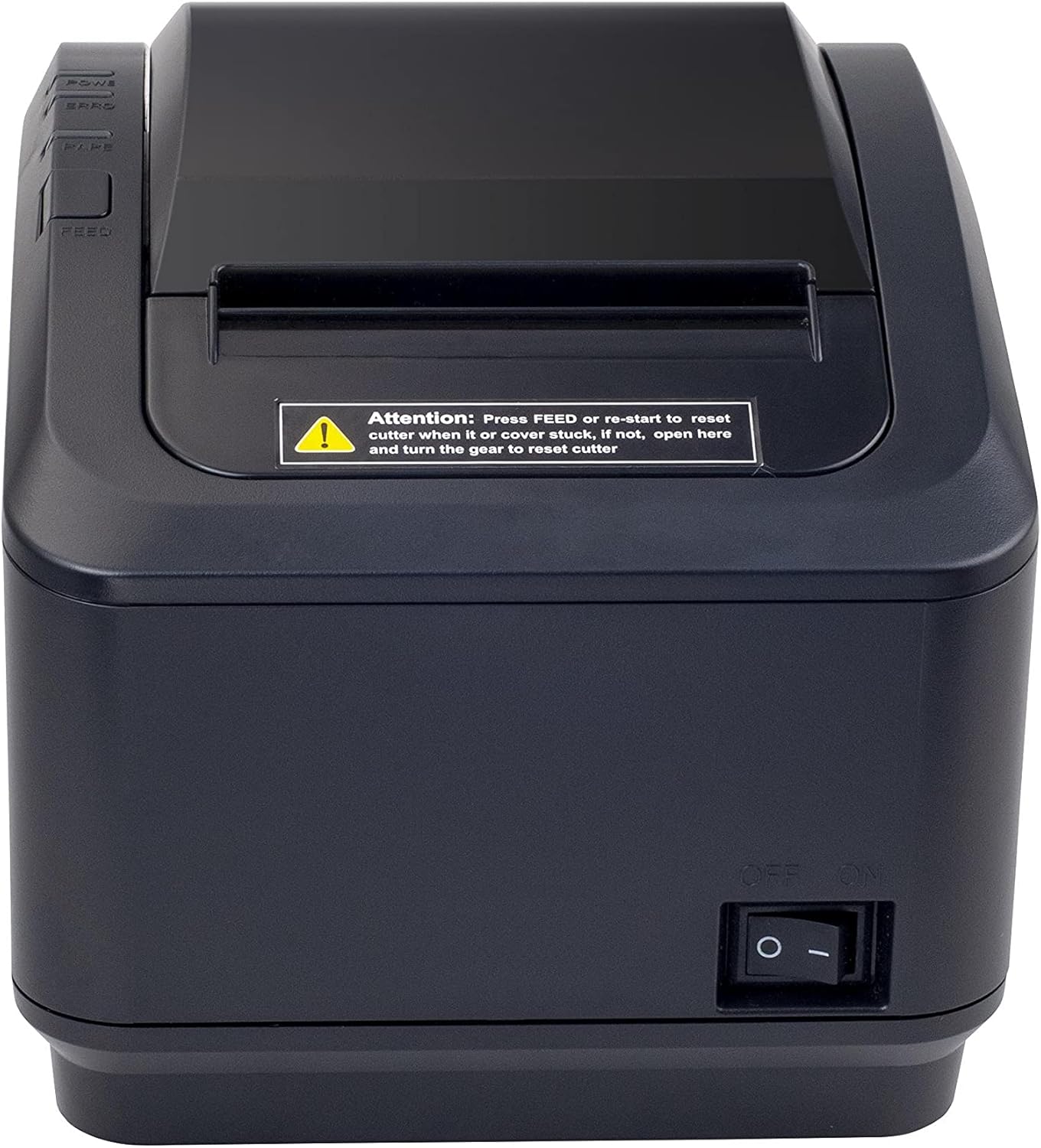
그림 2: 전면 view of the Xprinter XP-K200L thermal receipt printer. The paper output slot is at the top, and below it are control buttons for functions like feed and error reset. A warning label is also visible.

Figure 3: This image displays the Xprinter XP-K200L thermal receipt printer with its top cover open, showing the internal compartment where the thermal paper roll is loaded. The print head mechanism is also visible.
설정
1. 전원 연결
- Ensure the printer's power switch is in the 끄다 위치.
- 전원 어댑터를 프린터의 전원 포트에 연결하세요.
- 전원 코드를 적합한 콘센트에 꽂으세요.
2. 감열지 넣기
- Press the cover open button (refer to Figure 1) to open the top cover of the printer.
- Insert a new 80mm thermal paper roll into the compartment, ensuring the paper feeds from the bottom and the leading edge extends slightly out of the printer.
- Close the top cover firmly until it clicks into place. Ensure there is no slack in the paper roll.
3. 컴퓨터/네트워크 연결
The XP-K200L printer supports both USB and LAN (Ethernet) connectivity.
USB 연결:
- USB 케이블의 한쪽 끝을 프린터의 USB 포트에 연결하세요.
- USB 케이블의 다른 쪽 끝을 컴퓨터의 사용 가능한 USB 포트에 연결합니다.
- Install the printer drivers. Drivers are typically provided on a CD or can be downloaded from the manufacturer's web사이트. 화면의 지시에 따라 설치하세요.
LAN(이더넷) 연결:
- Connect one end of an Ethernet cable to the printer's LAN port.
- 이더넷 케이블의 다른 쪽 끝을 네트워크 라우터나 스위치에 연결합니다.
- Configure the printer's network settings (e.g., IP address) if necessary. This usually involves printing a self-test page to get the current IP address and then accessing the printer's web interface or using a utility tool provided by the manufacturer.
- Install the printer drivers on your computer, selecting the network connection option during setup.
4. Connecting a Cash Drawer
- Connect the cash drawer cable to the dedicated cash drawer port on the printer.
- Ensure your POS software is configured to send commands to open the cash drawer via the printer.
작동 지침
전원 켜기/끄기
- To power on the printer, flip the power switch (refer to Figure 1) to the ON 위치.
- To power off the printer, flip the power switch to the 끄다 위치.
기본 인쇄
Once the printer is connected and drivers are installed, you can print receipts from your POS software or any application that supports printing.
- 프린터 전원이 켜져 있고 용지가 들어 있는지 확인하십시오.
- From your application, select the print option.
- Choose the "Xprinter XP-K200L" from the list of available printers.
- Confirm print settings and click "Print".
Self-Test Page
To print a self-test page, which provides information about the printer's settings and status:
- Ensure the printer is powered off and the paper roll is loaded.
- 를 누르고 계세요 밥을 먹이다 단추.
- 를 잡고 있는 동안 밥을 먹이다 button, turn the power switch to ON.
- 릴리스하다 밥을 먹이다 button after the printer starts printing.
유지
프린터 청소
- 프린트 헤드: 면봉을 이용하여 가볍게 닦아주세요.ampened with isopropyl alcohol to gently wipe the thermal print head. Allow it to dry completely before use. Clean regularly to ensure print quality.
- 커터: If the cutter becomes jammed or dirty, carefully clean it with a soft brush or cloth.
- 외부: 프린터 외부를 부드럽고 마른 천으로 닦으십시오. 연마성 세척제나 용제를 사용하지 마십시오.
감열지 교체
When the paper roll is depleted or near its end, replace it following the steps in the "Loading Thermal Paper" section under Setup.
문제 해결
| 문제 | 가능한 원인 | 해결책 |
|---|---|---|
| 프린터의 전원이 켜지지 않습니다. | Power cord or adapter not connected properly; power outlet issue. | 모든 전원 연결을 확인하세요. 다른 콘센트에 연결해 보세요. |
| 인쇄 금지. | No paper; paper loaded incorrectly; printer offline; driver issue; incorrect connection. | Load paper correctly. Check printer status. Reinstall drivers. Verify USB/LAN connection. |
| 인쇄 품질이 좋지 않습니다. | Dirty print head; low quality thermal paper. | Clean the print head (see Maintenance). Use recommended thermal paper. |
| Paper jam or cutter error. | Paper loaded incorrectly; debris in cutter mechanism. | As per printer label: 누르다 밥을 먹이다 or re-start to reset cutter. If the issue persists, open the top cover and carefully turn the gear to reset the cutter mechanism. Ensure paper is loaded correctly and remove any obstructions. |
| 금전함이 열리지 않습니다. | Cable not connected; POS software not configured. | Check cash drawer cable connection. Verify POS software settings for cash drawer trigger. |
명세서
| 특징 | 세부 사항 |
|---|---|
| 상표 | 엑스프린터 |
| 모델명 | XP-K200L |
| 프린터 기술 | 열의 |
| 연결 기술 | USB, LAN(이더넷) |
| 특별 기능 | 네트워크 준비 |
| 색상 | 검은색 |
| 프린터 출력 | 단색화 |
| 품목 무게 | 1.5kg |
| 제품 크기(DxWxH) | 19.5cm x 14cm x 13.8cm |
| Compatible OS/Controller Type | Android (and typically Windows/Linux via drivers) |
| 인쇄 매체 | Plain Thermal Paper |
| 인쇄 색상 | 검은색 |
| 해결 | 576 x 512 dots per inch (or dots per line) |
| Max Print Resolution B/W | 576dpi |
| 추가 프린터 기능 | 인쇄만 가능 |
| 제어 방법 | 원격 |
| 최대 미디어 크기 | 80mm (XNUMXmm) |
| 용지 크기 | 79.5mm (XNUMXmm) |
| 힘 | 60 와트 |
| 포함된 구성 요소 | Power adapter, Cash drawer cable |
| 시리즈 | XP-K |
| 특정 용도 | Restaurants, bars, cinemas, garages, transportation, hospitals, clinics |
| 총 USB 포트 | 1 |
보증 및 지원
For warranty information and technical support, please refer to the documentation provided with your purchase or contact your vendor directly. Keep your proof of purchase for warranty claims.
For driver downloads and further support resources, visit the official Xprinter web대지.