
1. 서론
This manual provides detailed instructions for the EVICIV Portable Touchscreen Monitor, Model MDS-156B03. Please read this manual thoroughly before using the product to ensure proper operation and to maximize its performance and lifespan. This monitor is designed to extend your visual workspace and enhance productivity with its portable design and touchscreen capabilities.

Image 1.1: The EVICIV Portable Touchscreen Monitor.
2. 패키지 내용
개봉 후 포장 내용물을 확인해 주세요. 누락되었거나 손상된 품목이 있는 경우 고객 지원 센터에 문의하세요.
- EVICIV Portable Touchscreen Monitor (MDS-156B03)
- HDMI 케이블
- USB-A to USB-C Cable (for touch functionality)
- USB-C to USB-C Cables (x2, for power, display, and touch)
- USB-C 전원 어댑터
- 사용 설명서 (본 문서)
3. 제품 특징
The EVICIV Portable Touchscreen Monitor offers a range of features designed for versatility and high performance:
- 15.6-inch Full HD (1080p) Display: Enjoy crisp and clear visuals.
- 5-Point Touch Functionality: Interact directly with your content for intuitive control.
- 100% sRGB 색상 정확도: Experience vibrant and true-to-life colors.
- Built-in Kick-Stand: 조절 가능 viewing angles and supports both portrait and landscape orientations.
- 케이블 관리 : Integrated design helps keep cables organized behind the monitor.
- LED 백라이트: Features RGB light effects for an enhanced aesthetic.
- 다양한 연결성: Equipped with USB-C and HDMI ports for broad compatibility.
3.1. Adjustable Stand and Orientation
The integrated kick-stand allows for flexible positioning, enabling you to pivot the monitor 90 degrees for portrait mode, which can significantly increase viewability for certain tasks like coding or document review.

Image 3.1: Monitor pivoted 90 degrees for increased viewability in portrait mode.

Image 3.2: The monitor's rounded bezel and built-in kick-stand supporting both portrait and landscape orientations.
3.2. 케이블 관리
The monitor features a design that helps manage cables, keeping your workspace tidy and organized.

Image 3.3: The monitor's cable management system keeps connections neat.
3.3. Color Accuracy
With 100% sRGB coverage, the monitor delivers outstanding color accuracy and resolution, making it suitable for tasks requiring precise color representation.

Image 3.4: Visual representation of 100% sRGB color accuracy.
3.4. LED 백라이트
The monitor includes an LED backlight with customizable RGB light effects, allowing you to personalize your setup.
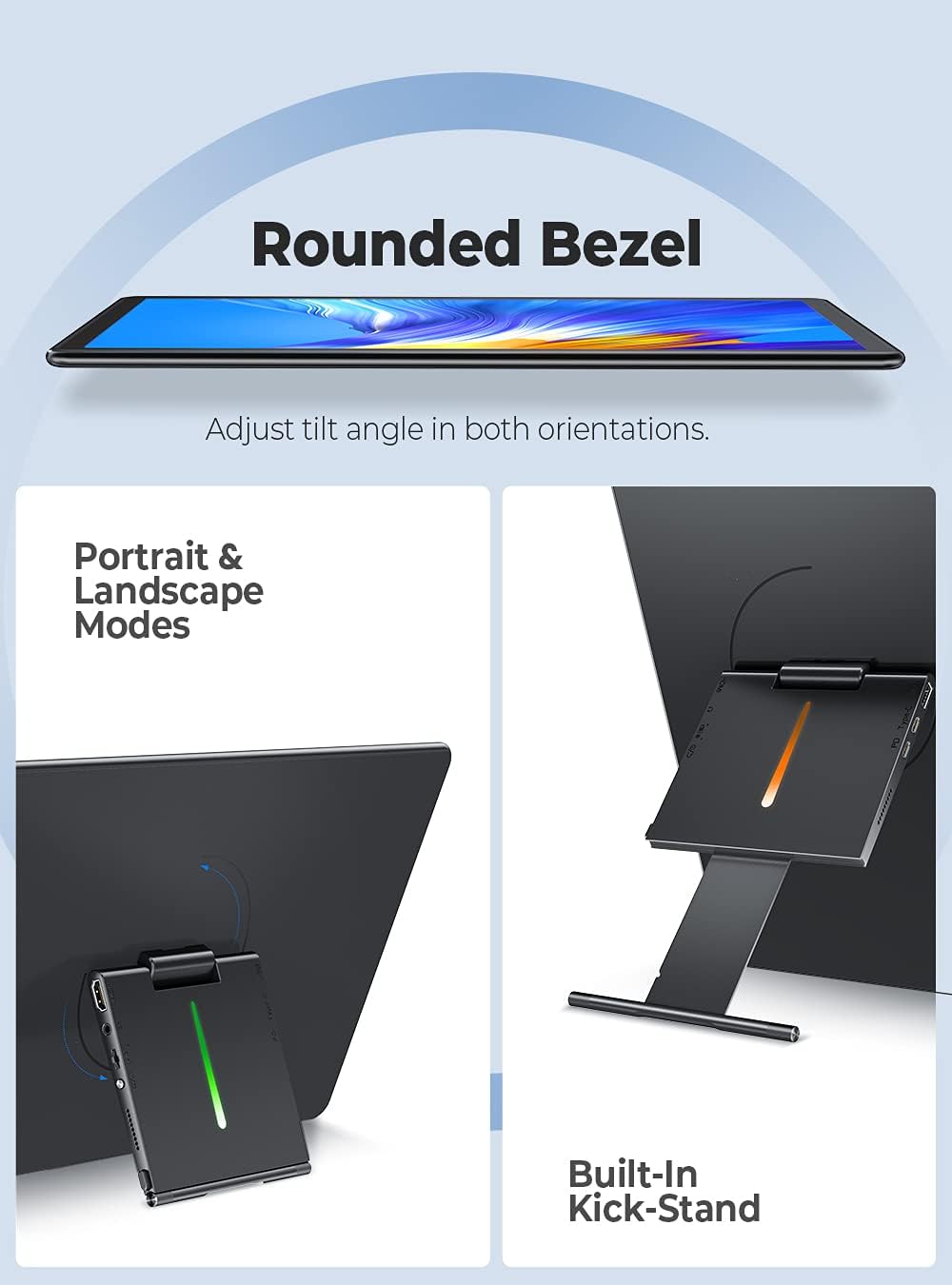
Image 3.5: The monitor's LED backlight feature.
4. 설정 지침
Follow these steps to set up your EVICIV Portable Touchscreen Monitor:
- 전원 연결: Connect the USB-C power adapter to the monitor's USB-C PD port. Ensure the monitor receives adequate power.
- 장치에 연결:
- Using USB-C (Full Function): If your device (laptop, smartphone) has a full-featured USB-C port that supports DisplayPort Alternate Mode and power delivery, connect one of the provided USB-C to USB-C cables directly from your device to the monitor's USB-C port. This single cable can provide power, video, and touch functionality.
- Using HDMI and USB-A: If your device does not have a full-featured USB-C port, connect the HDMI cable from your device to the monitor's HDMI port for video output. For touch functionality, connect the USB-A end of the USB-A to USB-C cable to your device and the USB-C end to the monitor's USB-C data port. Ensure the monitor is also powered via its USB-C PD port.
- 초기 표시: Once connected, your device should automatically detect the monitor. If not, you may need to adjust display settings on your device (e.g., extend display, duplicate display).
- Touch Driver Installation: For Windows 10/11, the touch driver should install automatically when connected via USB. For other operating systems, specific drivers may be required.

Image 4.1: Connecting the monitor using USB and HDMI cables.
4.1. 설치 비디오 가이드
For a visual guide on setting up your EVICIV Portable Touchscreen Monitor, please refer to the official product video below:
Video 4.1: Official EVICIV video demonstrating the 15.6-inch USB Type-C Portable Monitor's features and connectivity.
5. 사용 설명서
5.1. 전원 켜기/끄기
Locate the power button on the side or back of the monitor. Press and hold for a few seconds to power on or off. A short press may activate or deactivate the display.
5.2. 화면 디스플레이(OSD) 메뉴
The OSD menu allows you to adjust various display settings. Typically, buttons on the side or back of the monitor are used to navigate and select options within the OSD. Common settings include:
- 밝기/대비: 디스플레이의 밝기와 대비 수준을 조정합니다.
- 색상 설정: 색온도, 색조 및 채도를 조정하세요.
- 입력 소스: USB-C와 HDMI 입력 중에서 수동으로 선택하세요.
- 용량: Control the volume of the built-in speakers.
5.3. 터치 기능
The monitor supports 5-point multi-touch. Basic touch gestures include tapping to select, swiping to scroll, and pinch-to-zoom. Ensure the USB connection for touch is properly established for this feature to work.
5.4. 화면 방향
The monitor can be used in both landscape and portrait modes. To switch orientation, physically rotate the monitor. Your operating system may automatically adjust the display orientation. If not, you can manually change it in your device's display settings.
6. 유지관리
적절한 유지관리는 모니터의 수명과 최적의 성능을 보장합니다.
- 화면 청소: 전자제품용으로 특별히 제작된 부드럽고 보푸라기가 없는 천을 사용하세요. 가볍게ampen the cloth with water or a screen-cleaning solution. Avoid harsh chemicals, alcohol, or abrasive materials.
- 본체 청소: 부드럽고 마른 천으로 모니터 본체를 닦으세요.
- 저장: When not in use, store the monitor in a clean, dry place away from direct sunlight and extreme temperatures. Consider using a protective sleeve or case for transport to prevent scratches and damage.
- 액체를 피하세요: 모니터에 액체를 직접 분사하지 마십시오.
7. 문제 해결
모니터에 문제가 발생하면 다음의 일반적인 해결책을 참조하세요.
- 디스플레이 없음/검은 화면:
- Ensure the monitor is properly powered and the power adapter is connected.
- Check all video cables (USB-C, HDMI) are securely connected to both the monitor and your device.
- 모니터의 OSD 메뉴에서 올바른 입력 소스가 선택되었는지 확인하세요.
- 가능하다면 다른 케이블이나 기기를 사용하여 테스트해 보세요.
- 터치 기능이 작동하지 않습니다:
- Ensure the USB connection for touch (USB-C to USB-C or USB-A to USB-C) is firmly connected.
- For Windows, check Device Manager to see if the touch screen driver is installed correctly. Reconnect the USB cable to trigger driver reinstallation.
- Some operating systems may require specific drivers or may not fully support multi-touch.
- Poor Image Quality/Incorrect Colors:
- Access the OSD menu and adjust brightness, contrast, and color settings.
- For optimal color, navigate to the OSD's color options, select 'User Settings', and adjust the RGB sliders. A common adjustment for better balance is setting Green to 70-80% while Red and Blue remain at 100%.
- Ensure your device's graphics settings are configured for the monitor's native resolution (1920x1080).
- 소리가 나지 않거나 볼륨이 낮음:
- Check the volume settings in the monitor's OSD menu.
- 연결된 기기의 오디오 출력 설정을 확인하십시오.
- The built-in speakers are designed for basic audio; for higher quality sound, external speakers are recommended.
8. 사양
| 특징 | 세부 사항 |
|---|---|
| 상표 | EVICIV |
| 모델 번호 | MDS-156B03 |
| 화면 크기 | 15.6 인치 |
| 해결 | FHD 1080p(1920 x 1080) |
| 종횡비 | 16시 10분 |
| 화면 표면 설명 | 광택있는 |
| 대비율 | 2000시 1분 |
| 새로 고침 빈도 | 60Hz |
| View잉 각도 | 178도 |
| 응답 시간 | 1밀리초 |
| 연결 기술 | USB, HDMI, USB Type C |
| 제품의 특정 용도 | Gaming, Productivity |
| 장착 유형 | Desk Mount (Built-in Kick-Stand) |
| HDMI 포트 총 개수 | 1 |
9. 보증 및 지원
EVICIV products are manufactured to high-quality standards. For specific warranty information, please refer to the warranty card included in your product packaging or visit the official EVICIV website. For technical support, troubleshooting assistance, or to inquire about replacement parts, please contact EVICIV customer service through the contact information provided on the official web사이트 또는 구매 플랫폼.